


 Video Converter Ultimate
 Screen Recorder
 Riparazione video
 Download sicuro
Miglior Photo Resizer per ridimensionare l'immagine per Twitter senza perdita di qualità
"Tweet" è un suono melodico prodotto dagli uccelli, ma non stiamo parlando di uccelli perché oggi parleremo del problema più comune degli utenti su Twitter. Questo sito Web di microblogging ha già oltre 217 milioni di utenti che si sono divertiti a condividere pensieri, idee, problemi, approfondimenti e altro; puoi anche accedere alle notizie qui.
Altre aziende stanno sfruttando questo sito web perché possono raggiungere facilmente un pubblico pubblicando annunci dei propri prodotti e servizi o vendendoli direttamente. Tuttavia, molti utenti e aziende su Twitter riscontrano problemi nel pubblicare le immagini perché non rispettano le dimensioni standard. Eccoci quindi qui, pronti ad aiutarti mostrandoti diversi modi per ridimensionare le immagini per Twitter usando strumenti gratuiti a cui puoi accedere su internet e scaricare sui tuoi dispositivi mobili.

Parte 1. Modo definitivo su come ridimensionare le immagini online per Twitter [Scelta dell'editore]
FVC Free Image Upscaler è un ottimo strumento per ridimensionare le immagini che puoi usare per modificare o ridimensionare le foto per Twitter. La sua capacità di cambiare larghezza e altezza per renderle adatte a Twitter è tra le migliori tra i resizer che abbiamo provato sul mercato. Grazie alle sue prestazioni e al supporto dell’IA, otterrai il miglior risultato possibile una volta che utilizzerai questo strumento sul web. È disponibile sul mio dispositivo? Assolutamente sì! Puoi accedere a questo strumento online da qualsiasi motore di ricerca direttamente dal tuo dispositivo. Sei interessato a usarlo? Se sì, segui il tutorial qui sotto che abbiamo aggiunto per mostrarti come fare.
Passaggi su come ridimensionare un’immagine per Twitter con FVC Free Image Upscaler:
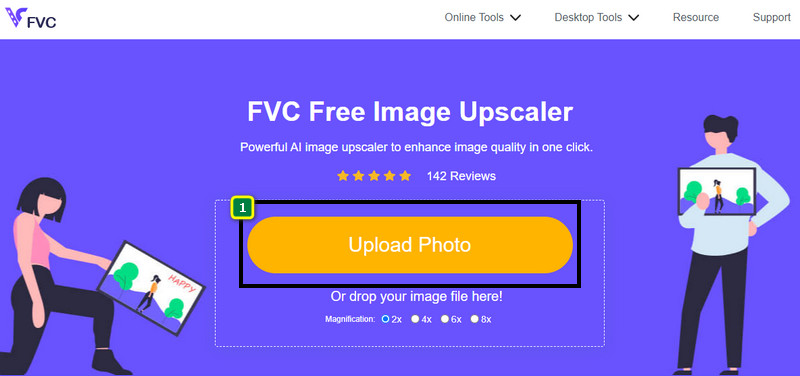
Passaggio 1. Apri lo strumento online facendo clic su questo link, che ti porterà direttamente al sito ufficiale dello strumento. Non c’è bisogno di preoccuparsi, il sito è sicuro da visitare.
`Passaggio 2. Premi quindi Add Image per caricare l’immagine di Twitter che vuoi ridimensionare. Attendi il completamento del caricamento mentre l’IA analizza l’immagine.
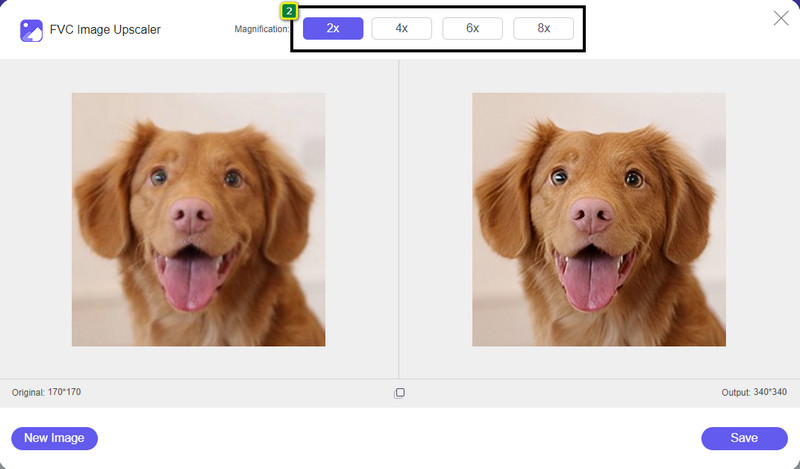
Passaggio 3. Per ridimensionare l’immagine che hai caricato, premi l’opzione che desideri utilizzare. Nella parte centrale superiore trovi le opzioni di cui parliamo. Ti consigliamo di provarle tutte per vedere quale si adatta meglio ai tuoi standard.
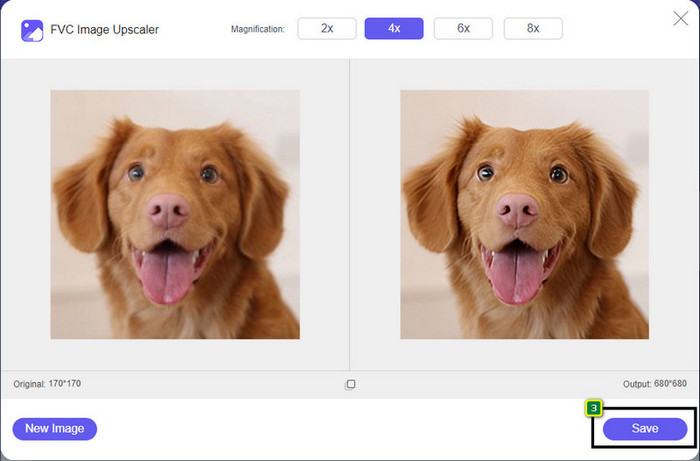
Passaggio 4. Per salvare la versione ridimensionata, premi il pulsante Save. Il file verrà scaricato direttamente sull’unità locale; puoi aprire la cartella di destinazione per vedere il risultato finale.
Parte 2. Come ridimensionare l'immagine su Android per Twitter [Modo più rapido]
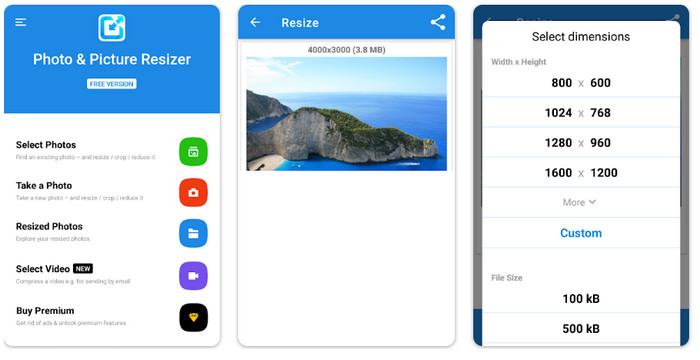
Photo & Picture Resizer è il modo più rapido per ridimensionare le immagini per la foto profilo di Twitter sui dispositivi Android. Questo editor può aiutarti a ridimensionare l’immagine in base alle tue preferenze utilizzando le opzioni disponibili oppure personalizzando le impostazioni. Inoltre, offre altre funzioni come la riduzione delle dimensioni di una singola foto o l’elaborazione in batch. Una volta scaricata, non avrai difficoltà a usare l’app grazie alla sua interfaccia intuitiva. Tuttavia, la versione gratuita contiene annunci e funzioni limitate. Nonostante ciò, l’app funziona bene per modificare le dimensioni delle immagini in modo che rispettino i requisiti di Twitter.
Passaggi su come ridimensionare un’immagine per Twitter con Photo & Picture Resizer:
Passaggio 1. Scarica l’app di ridimensionamento sul tuo dispositivo, quindi avviala; tocca Select Photo, poi premi OK per caricare l’immagine che vuoi ridimensionare.
Passaggio 2. Quando l’immagine è stata caricata, seleziona l’icona con le quattro frecce per modificare le dimensioni dell’immagine.
Passaggio 3. Sullo schermo verrà mostrato un elenco di dimensioni: scegli quella che preferisci e la foto verrà ridimensionata in base all’opzione selezionata. Dopo di ciò, il ridimensionamento inizierà automaticamente e l’immagine verrà salvata nella tua galleria.
Parte 3. Come ridimensionare l'immagine su iPhone per Twitter [Modo più semplice]
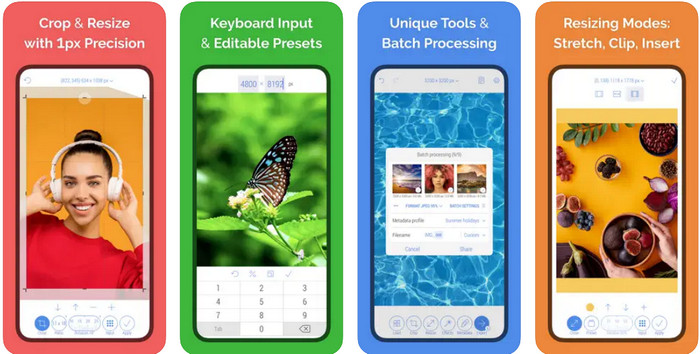
CropSize: Photo Resizer Editor potrebbe essere l’app di cui hai bisogno per ritagliare e ridimensionare la tua immagine alla dimensione desiderata. Con questo image resizer puoi modificare liberamente e con precisione le dimensioni dell’immagine per adattarla al profilo Twitter, agli annunci, ai post e così via. L’app offre anche altre funzioni di editing che puoi usare su una singola foto o in batch. Quindi, se devi aumentare la risoluzione dell’immagine che hai sul tuo iPhone o vuoi sapere come ridimensionare un’immagine per Twitter, segui i passaggi indicati qui.
Passaggi su come ridimensionare un’immagine per Twitter con CropSize:
Passaggio 1. Vai sulla pagina dell’app in App Store, scarica il resizer sul tuo iPhone e aprilo sul dispositivo.
Passaggio 2. Una volta avviata l’app, scegli l’immagine dal tuo Album e tocca il segno di spunta.
Passaggio 3. Tocca l’opzione Resize per controllare le dimensioni dell’immagine. Qui puoi scegliere un preset, trascinare il cursore delle dimensioni relative o inserire un valore numerico specifico.
Passaggio 4. Tocca il pulsante di esportazione per salvare l’immagine ridimensionata sul tuo iPhone.
Parte 4. Domande frequenti su come ridimensionare le immagini per Twitter
Qual è la dimensione dell'immagine del profilo di Twitter?
Per impedire il ritaglio di Twitter sulla tua immagine, devi utilizzare la dimensione del profilo predefinita di 400 x 400 pixel con una dimensione del file inferiore a 2 MB in modo da non ritagliare l'immagine. La dimensione potrebbe essere piccola, ma devi ottimizzare tutto ciò che desideri su questo contenuto.
Quali sono i formati immagine supportati su Twitter?
Puoi caricare immagini in formato JPEG/JPG, PNG e GIF statiche o in loop su Twitter. Se le tue immagini non sono nel formato che abbiamo menzionato, dovrai imparare a convertire facilmente le immagini in un formato popolare come JPG, PNG e GIF.
Qual è il pixel dell'immagine consigliato per l'intestazione di Twitter?
Per gli utenti di Twitter che desiderano caricare un'intestazione sul proprio account, è meglio impostare l'immagine come 1500 x 1500 pixel per adattarla. Puoi caricare immagini con un'altezza e una lunghezza più significative, ma dovrai tagliare i bordi per adattare l'immagine all'intestazione.
Conclusione
Per riassumere, ora sai perché devi ridimensionare l'immagine per Twitter adattandola allo standard che Twitter imposta per ogni scopo. Dovrai tagliare l'immagine usando il ridimensionamento di Twitter per farla funzionare e adatta al tuo post. Pertanto, rimuoverà definitivamente alcuni dettagli dell'immagine. Ma, se lo ridimensioni, non dovresti preoccuparti di ritagliare l'immagine in modo permanente come il ridimensionatore di esempio che abbiamo introdotto. Inoltre, aggiungiamo passaggi su come usarli per darti un processo di ridimensionamento delle immagini senza problemi sul Web, Android e iPhone. Puoi testarli per vedere quale funziona meglio per te. Qualche suggerimento su questo argomento? Menzionalo qui sotto e discutilo con noi.
-
 La migliore app per ridimensionare foto online, offline, Android e iPhone
 Quali sono le migliori app per ridimensionare le foto? Fai clic sulla pagina per scoprire le prime cinque app di ridimensionamento delle foto più potenti che puoi utilizzare per migliorare o ridimensionare il tuo file.
-
 Come ridimensionare l'immagine – Adobe Resize Image [Online e Offline]
 Se stai cercando Adobe ridimensiona l'immagine, allora abbiamo la soluzione per te. Visualizza attentamente questo post per scoprire come ridimensionare le immagini utilizzando Adobe sul tuo PC.
-
 Come ridimensionare la foto per Facebook [Passaggi facili e veloci]
 Se hai problemi a caricare un'immagine di grandi dimensioni su Facebook, abbiamo una soluzione per te. Completa questo articolo per scoprire come ridimensionare le foto per Facebook.
