


 Video Converter Ultimate
 Screen Recorder
 Riparazione video
Il modo migliore per registrare audio su iPhone tramite app e convertitore disponibili
Con uno smartphone in tasca possiamo fare quasi qualsiasi cosa. Questo piccolo gadget è stato concepito come la nuova generazione di computer, facilmente trasportabile in tutto il mondo senza bisogno di configurazioni complicate. Grazie ad esso, oggi possiamo registrare audio direttamente sul telefono senza dover allestire molta attrezzatura. Ad esempio, puoi registrare il tuo podcast sull’iPhone, ma il nostro peggior nemico è la scarsa qualità della registrazione. In questa lista presentiamo quindi diversi modi per registrare audio su iPhone senza dover montare molta attrezzatura e senza perdere qualità sonora.

Parte 1. Come registrare audio esterno su iPhone con le 2 migliori app
Scopri come utilizzare questo strumento disponibile sui dispositivi Apple o sull'App Store. Queste app in questo elenco sono note per essere utilizzate da molti utenti in tutto il mondo. Soprattutto se vogliono registrarsi o registrare un po' di audio. Quindi, senza ulteriori ritardi, ti presentiamo i 2 migliori registratori audio che puoi utilizzare.
1. Memo vocali
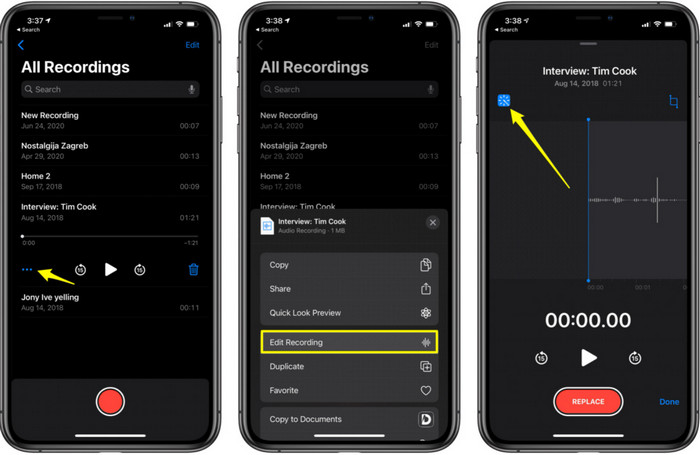
Memo Vocali è il miglior modo per registrare audio su iPhone senza scaricare nulla e in modo gratuito. Inoltre, puoi anche modificare le tue registrazioni all’interno dell’app. Tuttavia, le funzioni di editing disponibili si limitano al taglio e all’aggiunta di altri file audio. Quindi, se vuoi migliorare o potenziare la registrazione, non puoi farlo qui, perché non offre strumenti avanzati di questo tipo. Per registrazioni di base, come prendere appunti, tenere un diario audio, registrare lezioni e simili, Memo Vocali è però più che sufficiente.
Professionisti
- Strumento integrato su iPhone per eseguire la registrazione audio esternamente.
- La modifica di base è disponibile come il taglio e l'unione.
Contro
- Non ha booster audio per migliorare la tua registrazione.
- Impossibile registrare internamente.
2. GarageBand
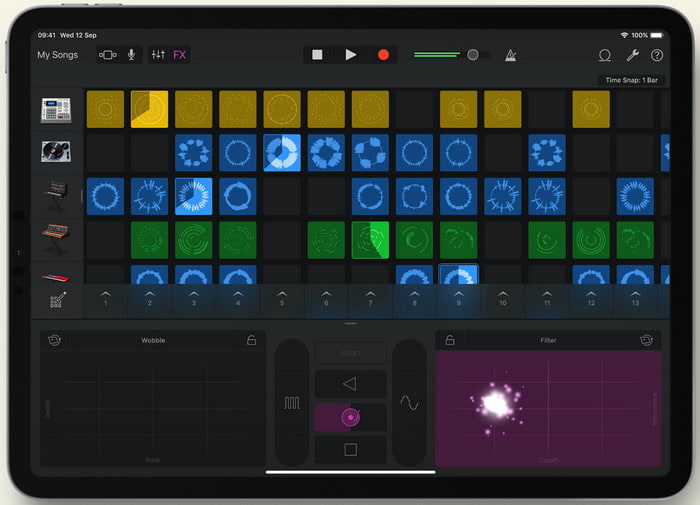
Vuoi realizzare registrazioni musicali? Allora prova a usare GarageBand. Questo strumento offre molte funzioni con cui puoi sperimentare. È però molto più complesso rispetto a Memo Vocali, perché è un’app pensata per la produzione musicale. Di conseguenza, imparare come registrare voce su iPhone con GarageBand ti porterà via parecchio tempo. Ma se sei disposto a imparare, puoi scaricare questo strumento gratuitamente; la dimensione del file è di circa 1,7 GB, includendo tutte le funzioni avanzate di cui hai bisogno per registrare musica.
Professionisti
- È la migliore app da utilizzare come produzione musicale portatile in grado di registrare l'audio internamente.
Contro
- Non è la scelta migliore per un principiante a causa della complicata interfaccia dell'app.
- La dimensione del file può arrivare a più di 1,7 GB.
Parte 2. Come trasformare la registrazione dello schermo dell'iPhone in formato audio
Poiché sull’iPhone non è disponibile la sola registrazione dell’audio interno, puoi prima fare una registrazione dello schermo e convertirla poi in un file audio. Con l’aiuto del fenomenale Video Converter Ultimate puoi scegliere tra oltre 200 formati disponibili nello strumento e tagliare facilmente le parti audio superflue. Inoltre, puoi potenziare l’audio per renderlo più chiaro e migliore. A differenza di Memo Vocali, usando questo strumento e convertendo il file puoi fare un sacco di “magie” per ottenere il risultato migliore. Senza ulteriori indugi, iniziamo a convertire la tua registrazione dello schermo in un formato audio seguendo i passaggi qui sotto.
Passaggi per convertire una registrazione dello schermo in un formato audio con Video Converter Ultimate
Passaggio 1. Premi il pulsante di download gratuito per scaricare il software sul tuo PC o Mac. Dopo il download, installalo e completa la configurazione, quindi fai clic su Fine per avviarlo.
Download gratuitoPer Windows 7 o versioni successiveDownload sicuro
Download gratuitoPer MacOS 10.7 o versioni successiveDownload sicuro
Passaggio 2. Aggiungi il file che hai registrato su iPhone facendo clic sul pulsante Add Files in alto a sinistra nell’interfaccia dello strumento. Poi cerca il file nella cartella in cui è salvato, verrà visualizzata una finestra pop-up e fai clic su Open.
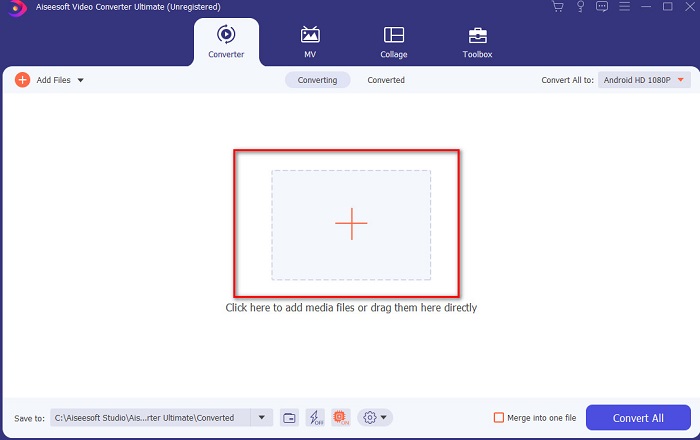
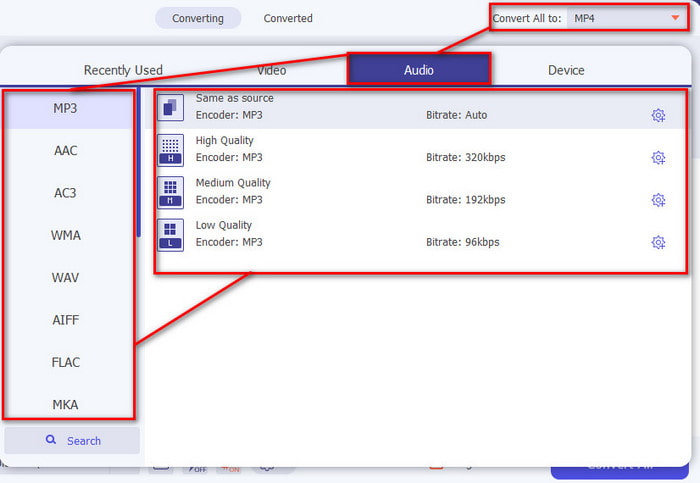
Passaggio 3. Fai clic sull’opzione a discesa accanto a Convert All to e scegli il formato finale che desideri dall’elenco della categoria Audio per procedere. Inoltre, puoi anche modificare il file registrato cliccando sul pulsante a forma di bacchetta nell’interfaccia principale. Dopo aver terminato l’editing, fai clic su OK per salvare le modifiche apportate.
Passaggio 4. Quando sei pronto per iniziare il processo di conversione, fai clic sul pulsante Convert All e attendi meno di un secondo.
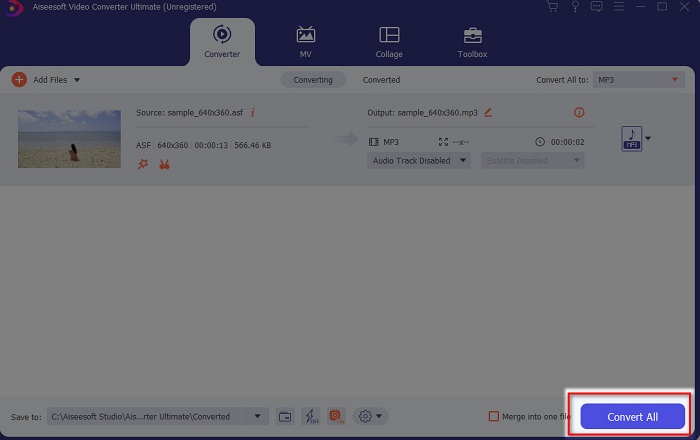
Passaggio 5. Al termine della conversione verrà aperta una cartella; fai clic sul file e ascoltalo, quindi in seguito potrai trasferirlo e salvarlo sul tuo iPhone.
Professionisti
- Il miglior strumento fenomenale utilizzato per convertire la registrazione dello schermo in formato audio.
- Sono disponibili funzionalità di modifica avanzate qui per migliorare la tua registrazione.
- Qui è possibile eseguire più batch di conversione.
Contro
- Non è possibile eseguire la registrazione dello schermo o dell'audio qui perché non è supportato.
- Si paga ma non costa.
Parte 3. Domande frequenti sulla registrazione di audio su iPhone
Qual è il miglior formato audio per effettuare registrazioni audio?
Il formato ideale da utilizzare se vuoi registrare audio con la qualità più alta possibile è il formato FLAC. Anche se lo strumento sopra menzionato non consente di cambiare il formato in FLAC, quindi non puoi effettuare registrazioni in FLAC. Tuttavia, cliccando su questo link potrai scoprire molto di più sui migliori registratori FLAC per ottenere la massima qualità di registrazione audio.
Quanto tempo posso registrare sul mio iPhone?
Bene, puoi registrare finché hai abbastanza spazio. In sostanza, si stima che ogni 1GB si possano memorizzare almeno 100 minuti di registrazione audio. Quindi, se vuoi registrare una lunga discussione o una lezione, è l'ideale per liberare spazio prima di iniziare a registrare.
Posso effettuare registrazioni audio tramite VLC?
Certamente sì! Puoi effettuare registrazioni audio usando VLC sia su PC sia su Mac. Per scoprire come registrare con VLC devi cliccare su questo link.
Conclusione
Per concludere, abbiamo già presentato diversi metodi tra cui puoi scegliere per rendere le tue registrazioni migliori ed efficaci. Questi sono, a nostro giudizio, i migliori strumenti nel campo della registrazione, perché li abbiamo testati personalmente prima di scrivere questo articolo. Tuttavia, non esiste un editor più semplice da usare che offra anche un potenziatore audio come Video Converter Ultimate. Quindi, se vuoi che le tue registrazioni siano più che semplicemente buone, prova a modificarle e convertirle con questo strumento.
Download gratuitoPer Windows 7 o versioni successiveDownload sicuro
Download gratuitoPer MacOS 10.7 o versioni successiveDownload sicuro
-
 7 dei migliori registratori AAC per Windows e Mac [2021]
 Scopri cos'è AAC e i registratori AAC più votati che puoi utilizzare gratuitamente e scaricabili su computer Mac e Windows.
-
 Guida Spot-On: quali sono i migliori registratori M4A per Windows e Mac
 M4A sono file contenitori ACA e ALAC codificati per la compressione con perdita. L'elenco che segue sono gli strumenti di registrazione M4A che puoi utilizzare. Leggi attentamente quanto segue.
-
 Il registratore OGG più utile del 2021 [gratuito e online]
 Questo articolo parla dei migliori strumenti di registrazione OGG che ti aiutano a eseguire la registrazione audio OGG. Per aggiungere informazioni più dettagliate per l'utente continua a leggerlo
