


 Video Converter Ultimate
 Screen Recorder
 Riparazione video
 Download sicuro
Tre dei migliori registratori WMA per talenti vocali e creatori di contenuti vocali
Sei una persona che realizza video tutorial, podcast e contenuti vocali online? Vuoi iniziare la tua carriera nel podcasting? Sei un doppiatore o una voce narrante? Comincia procurandoti uno strumento che ti permetta di registrare la voce in buona qualità. Sebbene l’MP3 sia un buon formato di output, è utile utilizzare anche file WMA. Si tratta di un contenitore audio supportato dalla maggior parte dei principali lettori multimediali. Il formato include un codec lossless che viene spesso utilizzato dai lettori multimediali di Windows. Per questo motivo, la maggior parte degli editor di contenuti vocali utilizza questo formato di file in fase di codifica. Di conseguenza, ti serve un registratore in grado di produrre questo tipo di formato o uno simile. Tenendo conto di ciò, abbiamo elencato alcuni semplici registratori WMA che puoi utilizzare.

Parte 1. I 3 migliori registratori WMA per Windows e Mac
Registratore audio gratuito FVC
Il primo registratore vocale digitale in WMA è FVC Free Audio Recorder. Questo strumento è comunemente usato da blogger e podcaster quando devono registrare musica di sottofondo per evitare problemi di copyright e registrare la propria voce senza rumori di fondo. Poiché lo strumento è gratuito e accessibile online, è molto più semplice per loro produrre contenuti. Non solo i content creator lo utilizzano, ma anche gli insegnanti che hanno bisogno di registrare promemoria vocali. Ciò che attira altri utenti verso questo registratore gratuito è il fatto che l’uso è illimitato. Non devi preoccuparti di limiti di durata o di numero di registrazioni. Nessuna restrizione né limitazione. La parte migliore è che non devi scaricarlo sul PC. Niente timori di malware che possano infettare il tuo computer. Nonostante tutte queste funzionalità offerte da un’app gratuita, questo strumento ha ancora di più da offrire: consulta i vantaggi qui sotto per saperne di più.
Cosa lo rende valido?
● Il bitrate è regolabile, il che significa che puoi cambiare la qualità dell'uscita audio a tuo vantaggio.
● Non richiede registrazione e pagamento.
● Può registrare audio e microfono contemporaneamente.
● Puoi accedervi in qualsiasi momento con qualsiasi browser.
● Registra i suoni di sistema, il che significa nessun rumore statico e di sottofondo.
Nel frattempo, se vuoi provare la credibilità dello strumento puoi fare riferimento ai passaggi scritti di seguito.
Passaggio 1. Per prima cosa, visita il sito ufficiale dello strumento cliccando il collegamento ipertestuale in questa descrizione.
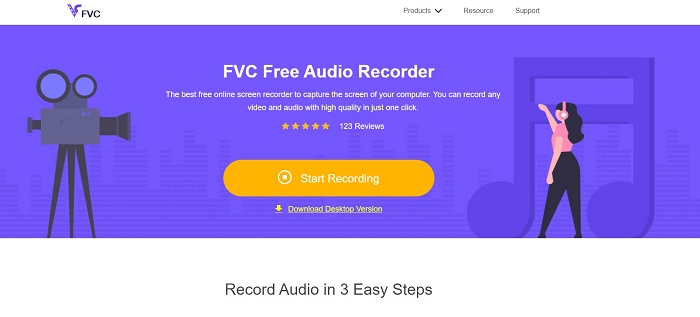
Passaggio 2. Avvia l’app facendo clic sul pulsante Start Recording.
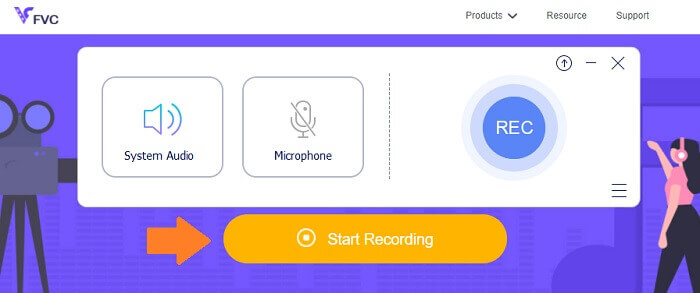
Passaggio 3. Ora abilita l’audio di sistema per registrare l’audio. Se preferisci, hai anche la possibilità di abilitare il microfono.
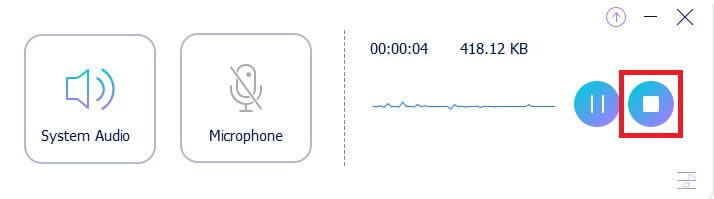
Passaggio 4. Per interrompere la registrazione fai clic sul pulsante blu Stop. Il file verrà quindi salvato sul tuo PC.
Nonostante tutte le cose buone che otterrai da un'app gratuita, non possiamo negare il fatto che ci siano alcuni inconvenienti. È qui che entrano in gioco gli strumenti premium.
Registratore dello schermo FVC
Free Screen Recorder è stato sviluppato per superare i limiti delle app gratuite. In questo modo puoi massimizzare tutte le possibilità con FVC Screen Recorder. Questo strumento può fare molto di più della semplice registrazione dello schermo, puoi anche registrare l'audio separatamente. Ecco perché questo va bene anche per coloro che sono Vlogger e Podcaster professionisti. Tutte le funzionalità menzionate per il registratore FVC Free Audio sono presenti anche nello strumento, ma una versione migliorata di esso. Anche la gamma di bitrate è più alta. Maggiore è la gamma, migliore sarà la qualità del suono che otterrai. D'altra parte, saperne di più leggendo l'elenco qui sotto.
Cosa lo rende valido?
● La regolazione del bitrate è facile e l'intervallo è più alto.
● L'interfaccia dello strumento è semplice e facile da usare.
● La qualità dell'audio è notevolmente buona.
● Può registrare schermo e audio contemporaneamente e separatamente.
Per mostrarti quanto sia conveniente questo strumento, consulta la procedura passo passo per essere guidato.
Passaggio 1. Scarica e installa l’app utilizzando i pulsanti di download qui sotto.
Download gratuitoPer Windows 7 o versioni successiveDownload sicuro
Download gratuitoPer macOS 10.7 o versioni successiveDownload sicuro
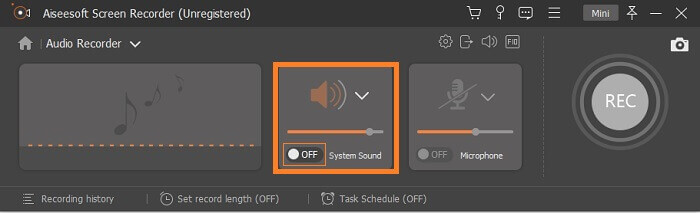
Passaggio 2. Avvia l’app dopo averla installata. Da lì fai clic su Audio Recorder. Quindi abilita il System Sound.
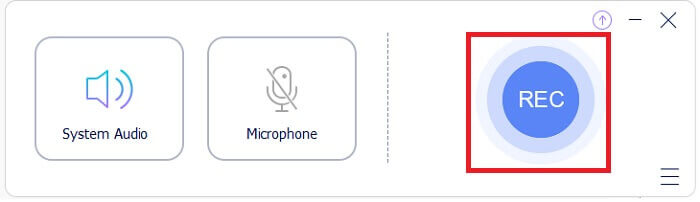
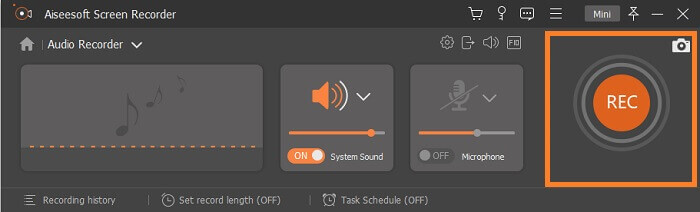
Passaggio 3. Inizia a registrare quando sei pronto. Per avviare la registrazione, fai clic sul pulsante REC.
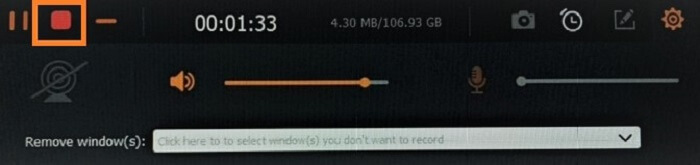
Passaggio 4. Una volta terminata la registrazione, fai clic sul pulsante di stop. È il pulsante rosso a forma di quadrato in basso a sinistra sulla barra mobile.
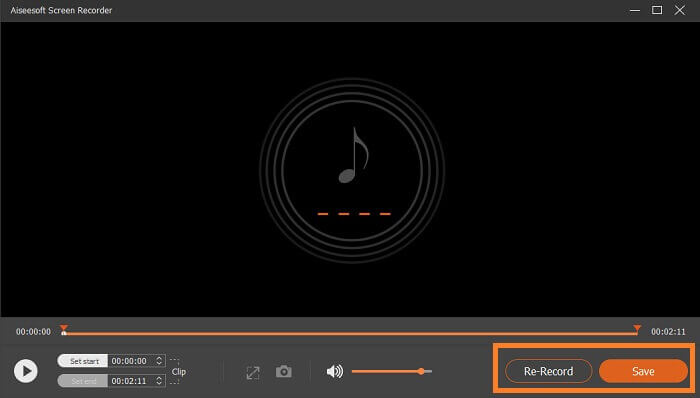
Passaggio 5. Da lì ti verrà data la possibilità di salvare o registrare di nuovo.
Snagit
Finalmente siamo Snagit. Questo strumento è un registratore dello schermo per impostazione predefinita ed è stato aggiunto all'elenco perché lo strumento ha anche la registrazione audio. Sebbene non sia possibile registrare separatamente, è comunque possibile registrare l'audio. Cosa puoi trarre vantaggio da questo strumento? Ne abbiamo tanti sulla lista, ma ne evidenzieremo alcuni. Oltre alla funzione audio, puoi anche registrare webcam, tagliare video clip e trasformare la tua registrazione in GIF animate. Una delle migliori caratteristiche di cui è noto questo strumento è la funzione Smart Move che ti consente di rendere mobili gli oggetti nella tua acquisizione. Se ho intenzione di menzionare tutte le funzionalità qui non sarà sufficiente. Puoi controllare l'elenco qui sotto se vuoi vedere un elenco semplificato di loro.
Cosa lo rende valido?
● Supporta l'annotazione che può trasformare la tua semplice registrazione in animazione o interattiva.
● Snagit può registrare schermate iOS.
● Converti il tuo screenshot in una grafica semplificata.
● Progetta le tue immagini usando i timbri.
Parte 2. Grafico di confronto
| Punto di confronto | Registratore audio gratuito FVC | Registratore dello schermo FVC | Snagit |
| piattaforma | Basato sul Web | Applicazione desktop | Applicazione desktop |
| Prezzo | Gratuito | Pagato | Pagato |
| Bitrate | Flessibile | Flessibile | Stagnante |
| Registrazione con microfono |  | | |
Parte 3. Domande frequenti sul registratore WMA
Quanto è buono il file WMA?
WMA è un formato di file. È anche conosciuto come Windows Media Audio. Si basa su ASF che mantiene un flusso di bit dell'audio. Questo può memorizzare file minori ma può produrre audio di buona qualità. Molto meglio di MP3.
Quali registratori posso utilizzare che supportano i formati WMA?
Puoi controllare nella lista qui sopra. Ma se hai bisogno di più puoi controllare Audacity per PC, Acethinker Free Audio Recorder per app basate sul web, iTalk per iPhone e Rev Voice Recorder per Android.
Quale è meglio: WMA o MP3?
Per quanto riguarda la qualità del suono, tra WMA e MP3, WMA è migliore di MP3. Tra i formati di file che supportano l’audio ad alta qualità, WMA memorizza meno dati rispetto all’MP3. L’unico vero vantaggio dell’MP3 è che può essere riprodotto sulla maggior parte dei lettori multimediali, a differenza del WMA. Vuoi effettuare la conversione da WMA a MP3? Continua a leggere Come convertire WMA in MP3 per saperne di più.
Conclusione
Gli strumenti elencati in questo articolo sono tutti utili e possono soddisfare tutte le tue esigenze di registrazione. Ogni strumento è unico e ha i suoi vantaggi e svantaggi. Se sei attillato qualunque sia adatto a te, considera le tue esigenze. Se non vuoi pagare, usa il registratore FVC Free Audio. Nel frattempo, se vuoi ottenere più della registrazione audio, usa lo strumento premium del registratore audio che è FVC Screen Recorder. Se hai bisogno di essere più creativo, usa Snagit. Indipendentemente dalle cose buone e cattive, l'elenco degli strumenti è utile.
-
 I 4 migliori videoregistratori AMV per computer Windows/Mac (online e offline)
 Scopri di più sui file AMV e scopri i modi più pratici per registrare video su AMV e altri formati video.
-
 I 5 migliori registratori MOV per PC Windows e Mac (recensione approfondita)
 Se hai bisogno di registrare video MOV in file di dimensioni inferiori compatibili con i dispositivi iOS, continua a leggere l'articolo.
-
 I 5 migliori registratori dello schermo WebM per Windows/Mac: una revisione approfondita
 Scopri di più sui file di estensione WebM leggendo l'articolo e scopri le app di registrazione dello schermo WebM che puoi utilizzare per registrare video WebM.
