


 Video Converter Ultimate
 Screen Recorder
 Riparazione video
 Download sicuro
Facile ed efficiente: ritaglia video online con i migliori editor video
Ritagliare un video significa eliminare le parti indesiderate delle riprese per concentrarsi su un’area o un soggetto specifico, regolare il rapporto d’aspetto o rimuovere eventuali distrazioni. Tradizionalmente, il ritaglio dei video richiedeva software specializzati e una curva di apprendimento ripida, ma con la diffusione degli strumenti di montaggio video online, chiunque ora può ritagliare video online con facilità. In questo articolo esploreremo le migliori app web per ritagliare video online gratis e forniremo una guida passo passo su come ritagliare video online.

Parte 1. Tutorial online di video di ritaglio EZGIF
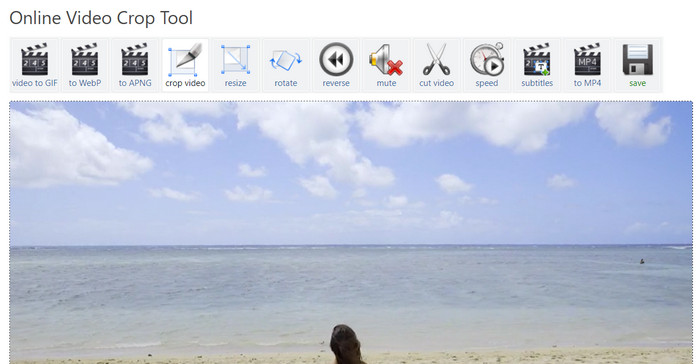
Passaggio 1. Vai al sito di Ezgif (ezgif.com) e seleziona l’opzione Video to GIF dal menu principale.
Passaggio 2. Carica il tuo video sul sito facendo clic sul pulsante Choose File e selezionando il video dal tuo computer.
Passaggio 3. Una volta caricato il video, seleziona l’opzione Crop video dall’elenco degli strumenti di modifica sul lato destro dello schermo.
Passaggio 4. Regola il riquadro di ritaglio trascinando i bordi fino a ottenere la dimensione e la posizione desiderate. In alternativa, lo strumento di ritaglio video online di EZGIF funziona anche grazie ai rapporti d’aspetto preimpostati. Fai clic sul pulsante Crop video! per ritagliare il tuo video.
Passaggio 5. Infine, fai clic sul pulsante Save per scaricare il video ritagliato.
Professionisti
- Molteplici opzioni di modifica.
- Non è richiesto alcun download di software.
- Facile da usare.
Contro
- L'output può causare una perdita di qualità.
- Limitazioni sulla dimensione di caricamento del video.
- È richiesta la connettività Internet.
Parte 2. Procedura dettagliata di Kapwing Video Resizer
Passaggio 1. Vai al sito di Kapwing (kapwing.com) e seleziona Get Started dalla pagina principale.
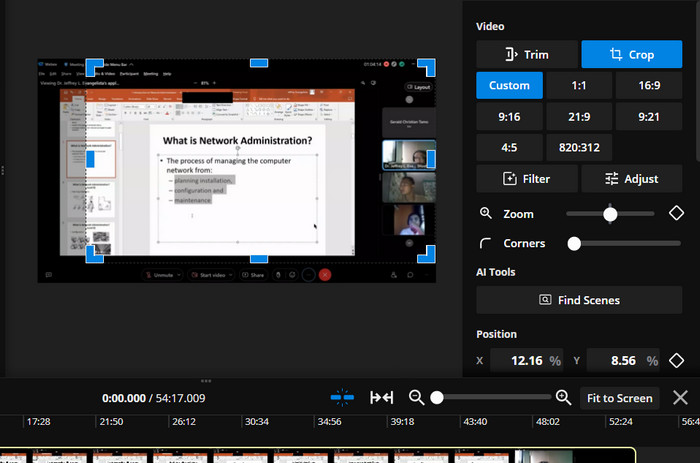
Seleziona Crop Video dall’elenco degli strumenti di modifica sul lato sinistro dello schermo.
Passaggio 2. Carica il tuo video sul sito facendo clic sul pulsante Click to upload e selezionando il video dal tuo computer.
Passaggio 3. Quindi, aggiungi il video alla timeline e seleziona Crop nel menu a destra. Regola il riquadro di ritaglio trascinando i bordi fino a ottenere la dimensione e la posizione desiderate. Usa i pulsanti Preview o Play per vedere come apparirà il video ritagliato.
Passaggio 4. Fai clic sul pulsante Export Project per ritagliare il tuo video. Infine, fai clic sul pulsante Download per salvare il video ritagliato sul tuo computer. Ecco come utilizzare questo ridimensionatore di video online.
Professionisti
- Tecnologia ad alta compressione per output di qualità.
- Integrazione con piattaforme di social media.
- Ritaglia, ridimensiona e tagliare video online.
Contro
- Filigrana sul piano gratuito.
- Limitazioni sulla dimensione del file video.
- Richiede una connessione a Internet.
Bonus: il miglior modo offline per ritagliare video
FVC Video Converter Ultimate è un software tutto-in-uno per il montaggio video che ti offre il pieno controllo sui tuoi filmati. FVC Video Converter Ultimate è uno strumento indispensabile per chiunque desideri realizzare video di qualità professionale da casa o dall’ufficio. Può convertire, modificare e masterizzare video in modo molto efficace. FVC Video Converter Ultimate può aiutarti a convertire file video in diversi formati, ritagliare, tagliare o unire video, oppure aggiungere sottotitoli o filigrane.
Inoltre, questa alternativa di ridimensionamento video EZGIF o Kapwing supporta un'ampia gamma di formati video e audio, inclusi video HD e 4K. Questo lo rende lo strumento perfetto per convertire e modificare tutti i tuoi video.
Passaggio 1. Ottieni il software
Puoi ottenere il programma facendo clic sull’icona Free Download qui sotto. Quindi installalo ed eseguilo sul tuo computer.
Download gratuitoPer Windows 7 o versioni successiveDownload sicuro
Download gratuitoPer MacOS 10.7 o versioni successiveDownload sicuro
Passaggio 2. Carica un video
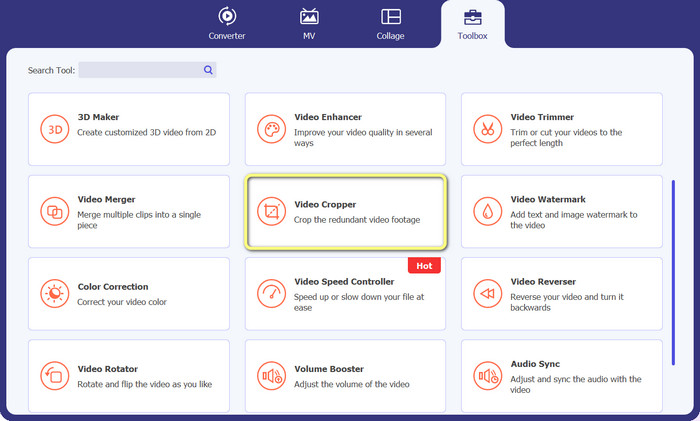
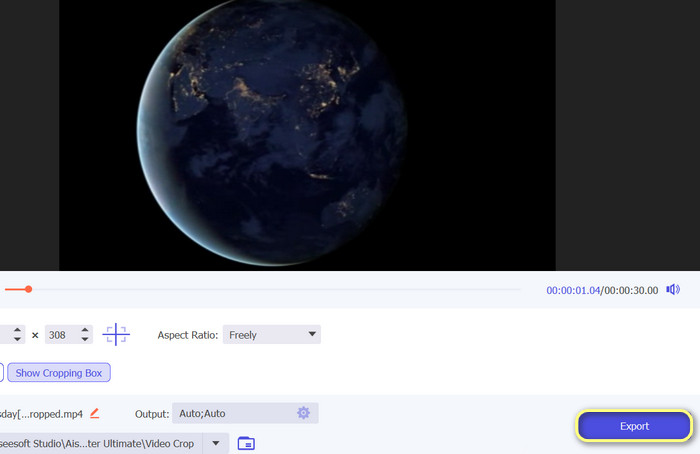
Nel menu Toolbox, individua l’opzione Video Cropper. Quindi fai clic sul segno plus e seleziona il video dalla memoria locale del tuo PC.
Passaggio 3. Ritaglia le riprese
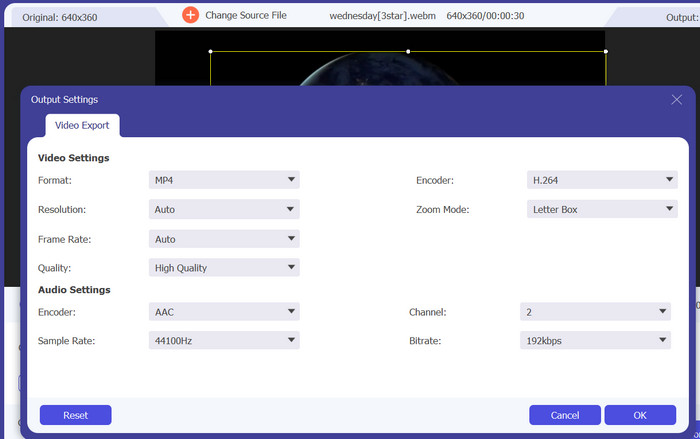
Ritaglia il video modificandone questa volta il rapporto d’aspetto. In alternativa, puoi regolare il rapporto d’aspetto trascinando i bordi dei cursori. Successivamente, i parametri video e audio vengono modificati selezionando il menu Output.
Passaggio 4. Esporta il video
Per salvare il video ritagliato, premi il pulsante Export dopo aver rivisto in tempo reale le modifiche.
Parte 3. Domande frequenti su come ritagliare video online
Posso ritagliare i video sul mio dispositivo mobile?
Sì, molte app di montaggio video per dispositivi mobili consentono di ritagliare i video. Alcune opzioni popolari includono InShot, Adobe Premiere Rush e VideoShow, che sono ottime scelte quando desideri ritagliare video su Android.
Posso modificare le proporzioni dei video online?
Per modificare le proporzioni di un video online, in genere è necessario caricare il video nell'editor video online, selezionare le proporzioni che si desidera modificare e quindi salvare il video modificato. Alcuni editor di video online possono anche offrire opzioni aggiuntive per regolare la risoluzione del video e ritagliare il video per adattarlo alle nuove proporzioni.
Posso ritagliare un fotogramma di un video online?
Sì, puoi ritagliare il fotogramma di un video online utilizzando vari strumenti di editing video. Quando ritagli il fotogramma di un video, è importante tenere a mente la dimensione finale e la risoluzione del video che desideri ottenere. Il ritaglio di una parte eccessiva del fotogramma può comportare una risoluzione inferiore e una dimensione finale del video inferiore, mentre un ritaglio troppo piccolo può causare barre nere o elementi indesiderati nel video.
Conclusione
Ritagliare video online non è mai stato così semplice e alla portata di tutti, grazie alla disponibilità di vari strumenti di editing video che offrono questa funzione. Ora puoi ridimensionare video online in modo efficace ed efficiente. Che tu voglia rimuovere parti indesiderate dell’inquadratura, regolare il rapporto d’aspetto o creare un nuovo video con un formato più piccolo, molti editor video online possono aiutarti a raggiungere i tuoi obiettivi.
-
 Modifica come un professionista: come ritagliare i video del tuo iPhone senza sforzo
 Se stai cercando di portare le tue capacità di editing video su iPhone a un livello superiore, le app di ritaglio video sono un punto di svolta. Tratteremo alcune delle migliori app di ritaglio video per iPhone.
-
 Come ritagliare un video su Snapchat per creare uno scatto perfetto
 Trasforma le tue storie o i tuoi video su Snapchat con tecniche di ritaglio video esperte. Questa guida ti insegnerà come ritagliare i video su Snapchat per ottenere il massimo impatto.
-
 [4 modi] Come velocizzare facilmente i tuoi video online
 Vuoi velocizzare un video online? Leggi questo articolo per saperne di più sull'accelerazione di un video in diversi modi possibili.
