


 Video Converter Ultimate
 Screen Recorder
 Riparazione video
 Download sicuro
Come correggere il colore con i 5 migliori strumenti indispensabili
La correzione del colore è un processo fondamentale nel montaggio video che migliora e uniforma i colori di un filmato, offrendo un risultato visivamente gradevole e accattivante. Consiste nel regolare contrasto, saturazione, luminosità e tonalità per ottenere l’atmosfera visiva perfetta. Che tu sia un videomaker professionista o un aspirante content creator, capire come applicare la correzione del colore cambia le carte in tavola per offrire immagini coinvolgenti. Il processo inizia identificando e analizzando il bilanciamento cromatico esistente, le alte luci, le ombre e i mezzitoni all’interno del girato. Successivamente si effettuano le regolazioni usando software specializzati che permettono un controllo preciso di questi elementi cromatici. Addentriamoci in questo articolo per imparare come correggere i problemi di colore dei video con i migliori strumenti su cui puoi contare.

Parte 1. Cinque modi per correggere il colore dei video
Trovare varie correzioni colore online gratuite per migliorare l'attrattiva visiva del tuo video potrebbe essere facile come pensi. Tuttavia, cercare quelli più avanzati e affidabili è piuttosto complicato per creare l'atmosfera giusta per i tuoi video. Scopri cinque modi efficaci per perfezionare i colori del tuo video utilizzando vari software versatili, migliorando la tua narrazione e coinvolgendo il tuo pubblico.
1. Convertitore video definitivo
Video Converter Ultimate è una soluzione video all‑in‑one che ti consente di migliorare la qualità dei tuoi filmati regolando parametri essenziali come luminosità, contrasto e saturazione. Questo pratico strumento di correzione del colore ti permette anche di montare i video con funzioni come taglio, ritaglio e unione. Inoltre, offre una miriade di opzioni di conversione video, permettendoti di trasformare i file in migliaia di formati e di adattarli a vari dispositivi come MP4, MKV, MOV, MP3, AAC, GIF, iPhone, Samsung e Apple TV, così da poterli riprodurre su diverse piattaforme. Inoltre, gli utenti possono aggiungere sottotitoli e watermark per rendere i loro video più personalizzati. Grazie a un’interfaccia intuitiva, questo strumento è perfetto sia per i principianti sia per gli utenti più esperti. Segui i passaggi qui sotto per imparare a correggere il colore del tuo video utilizzando correttamente Video Converter Ultimate.
Passaggio 1: Scarica e installa il correttore di colore
Per prima cosa, scarica lo strumento cliccando uno dei pulsanti Download gratuito qui sotto. In base al sistema operativo del tuo computer, assicurati di scaricare la versione di Video Converter Ultimate adatta al tuo dispositivo. Segui poi le istruzioni per installarlo.
Download gratuitoPer Windows 7 o versioni successiveDownload sicuro
Download gratuitoPer macOS 10.7 o versioni successiveDownload sicuro
Passaggio 2: Avvia Video Converter Ultimate
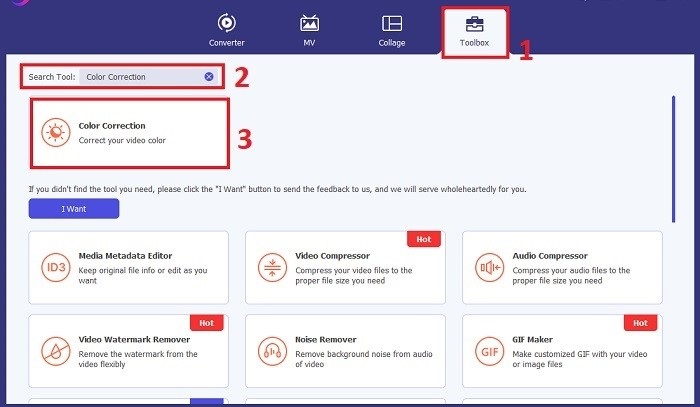
Una volta installato, apri Video Converter Ultimate. Vai alla sezione Toolbox nel menu principale e cerca la funzione Color Correction. Cliccaci sopra per procedere.
Passaggio 3: Importa il video per la correzione del colore
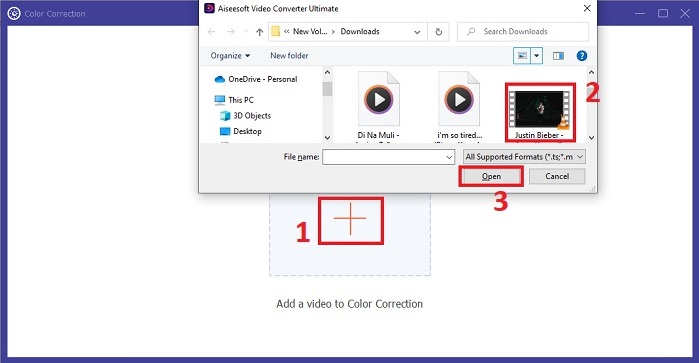
Ora fai clic sul pulsante Più per importare il video che desideri correggere. Trova il file video sul tuo computer, quindi seleziona Apri per importarlo nel software.
Passaggio 4: Regola le impostazioni del colore video e salva
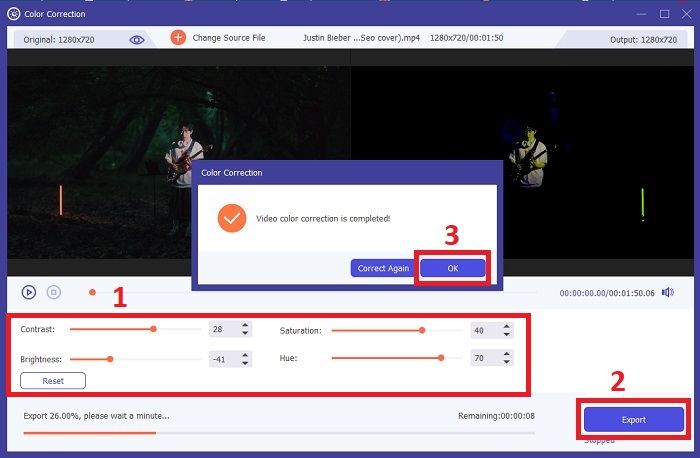
Dopo aver importato il video, perfeziona i parametri del colore come luminosità, contrasto, saturazione e tonalità per ottenere la correzione desiderata. Quando sei soddisfatto delle regolazioni, fai clic su Esporta. Lascia che lo strumento elabori il video e salvi la versione corretta nella posizione da te scelta.
2. Correzione del colore Premiere Pro
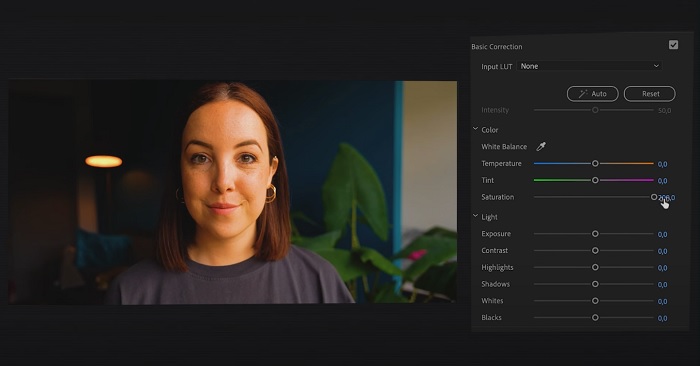
Premiere Pro è noto per il suo software di editing video di alta qualità e le funzionalità complete di correzione del colore. Offre diversi strumenti ed effetti di classificazione del colore per apportare regolazioni precise. La correzione del colore Premiere Pro ti consente di regolare il bilanciamento del colore e l'esposizione o di applicare look creativi per ottenere lo stile visivo desiderato. Puoi anche scegliere tra centinaia di effetti video e transizioni integrati o iniziare con modelli progettati professionalmente e modificarli per creare l'output desiderato. Inoltre, dispone di funzionalità di collaborazione e si integra perfettamente con altri software Adobe, il che lo rende la scelta migliore tra i professionisti.
Passaggio 1. Inizia aprendo Premiere Pro e importando il tuo video. Poi vai allo spazio di lavoro Colore.
Passaggio 2. All’interno dello spazio di lavoro Colore, utilizza il pannello Lumetri Color per regolare esposizione, bilanciamento del colore e look creativi.
Passaggio 3. Utilizza gli scope per assicurarti che le regolazioni del colore siano accurate e in linea con il risultato desiderato. Infine, guarda l’anteprima ed esporta il video corretto.
3. Correzione del colore Davinci Resolve
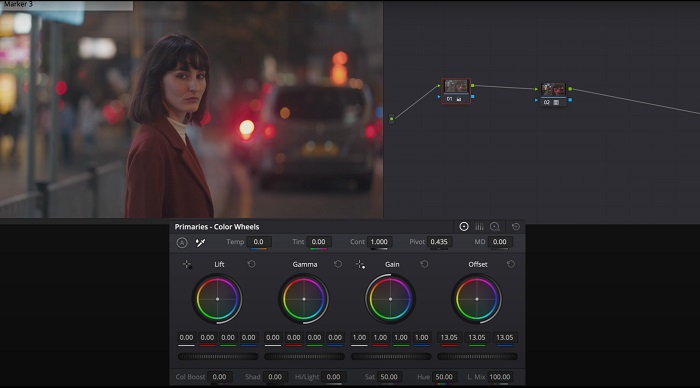
Esplora le eccezionali capacità di gradazione del colore. Questo software all-in-one combina editing professionale, correzione del colore, effetti visivi e post-produzione audio. Con l'interfaccia intuitiva dello strumento e il set completo di funzionalità, puoi dare vita alla tua visione creativa con precisione e stile. Gli strumenti avanzati di correzione del colore di Davinci Resolve Color Correction ti consentono di far risaltare i tuoi video. Che tu stia lavorando su film hollywoodiani all'avanguardia o su progetti personali, questo strumento consente ai professionisti e agli appassionati di creare narrazioni avvincenti con una qualità senza pari.
Passaggio 1. Apri Davinci Resolve e importa il tuo video. Una volta importato, vai alla scheda Color.
Passaggio 2. All’interno della scheda Color, utilizza ruote colore, curve e nodi per correggere il colore del tuo video. Puoi usare gli scope disponibili per regolazioni precise.
Passaggio 3. Dopo aver effettuato le regolazioni necessarie, guarda l’anteprima del video corretto per assicurarti che soddisfi le tue aspettative. Quando sei soddisfatto, esporta il video corretto, rendendolo pronto all’uso.
4. Correzione del colore di Final Cut Pro
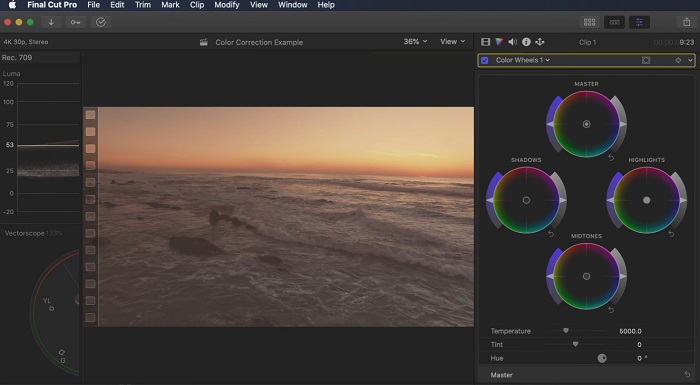
Se sei un utente Mac alla ricerca di un'applicazione di editing video di prim'ordine, Final Cut Pro è un'ottima opzione. Vanta un'interfaccia intuitiva e potenti funzionalità che rendono l'editing un gioco da ragazzi. Quando si tratta di correzione del colore, Final Cut Pro offre una tavola dei colori e ruote dei colori per regolare l'esposizione, la saturazione e la tonalità. Puoi applicare effetti colore in tempo reale e utilizzare strumenti di correzione avanzati per migliorare le tue riprese. Inoltre, esporta senza problemi sui dispositivi Apple e sulle piattaforme online più diffuse. Se sei un professionista alla ricerca di efficienza e creatività, Final Cut Pro è un gioco da ragazzi. Assicurati di avere macOS 13.4 o successivo e un computer Mac con silicio Apple per prestazioni ottimali.
Passaggio 1. Puoi iniziare importando il tuo video in Final Cut Pro, quindi vai allo spazio di lavoro Colore.
Passaggio 2. Utilizza il Color Board o le Color Wheels per effettuare le regolazioni essenziali di esposizione, saturazione e tonalità.
Passaggio 3. Affina ulteriormente il colore del tuo video usando strumenti aggiuntivi di color grading, assicurando il miglior risultato possibile. Una volta terminato, guarda l’anteprima ed esporta il video corretto.
5. Correzione del colore After Effects
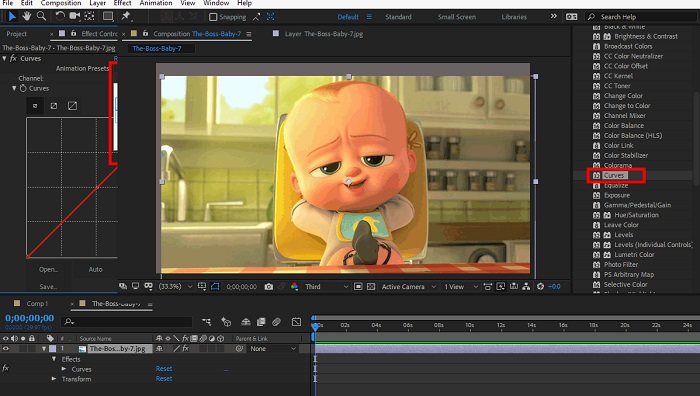
After Effects è un famoso software di grafica animata ed effetti visivi con robuste funzionalità di correzione del colore. Oltre agli effetti di correzione del colore di base, fornisce vari livelli di regolazione ed effetti per migliorare e modificare i colori. Puoi animare rapidamente testo e grafica, dando loro vita con movimenti accattivanti. La correzione del colore After Effects consente di sfruttare livelli, curve e metodi di fusione per ottenere la gradazione del colore desiderata. È un'opzione di correzione del colore versatile grazie alla sua integrazione con diversi prodotti Adobe e a una vasta comunità che fornisce tutorial e plug-in. Inoltre, il software si evolve continuamente, introducendo funzionalità come un pannello delle proprietà intuitivo, un controllo trasparente dei livelli e un efficiente rendering multi-frame che semplificano i flussi di lavoro e mantengono le creazioni all'avanguardia della creatività.
Passaggio 1. Importa la tua clip video nel progetto dello strumento. Applica gli effetti di correzione del colore andando nel pannello Effects & Presets e selezionando gli strumenti di correzione del colore appropriati come Curves, Levels o Color Balance.
Passaggio 2. Clicca sull’effetto di correzione del colore applicato per accedere ai relativi parametri. Poi modifica impostazioni come esposizione, contrasto, saturazione e tonalità per correggere e migliorare i colori del tuo video.
Passaggio 3. Guarda l’anteprima del video nel pannello Composition per vedere come le correzioni influiscono sul girato. Affina le regolazioni in base all’anteprima, assicurandoti di ottenere la correzione desiderata, quindi procedi al rendering o all’esportazione del video corretto.
Ulteriori letture:
Le migliori app gratuite per migliorare i colori delle foto su Android e iOS
4 straordinari modi per aggiungere un filtro a un video su Windows e macOS
Parte 2. Domande frequenti sui correttori di colore video
Come posso eseguire la correzione del colore su un iMovie?
Per correggere i colori in iMovie, importa la tua clip video, selezionala e fai clic sul pulsante Color Correction (icona a bacchetta magica). Regola i cursori di esposizione, saturazione e colore per ottenere l’aspetto desiderato.
Come posso accedere agli strumenti di correzione del colore in OpenShot?
Per la correzione del colore in OpenShot Video Editor, seleziona una clip, vai alla scheda Effects e fai clic su Color Correction. Regola i cursori di luminosità, contrasto, tonalità e saturazione per ottenere la correzione cromatica desiderata.
Come posso accedere agli strumenti di correzione del colore in Sony Vegas?
Per la correzione del colore in Sony Vegas, seleziona la clip che vuoi correggere, vai alla scheda Video FX e cerca Color Corrector. Trascinalo sulla clip e regola le proprietà del colore nella finestra Effect Controls.
Conclusione
Padroneggiare la correzione del colore è fondamentale per aumentare l’impatto visivo dei tuoi video e creare un’esperienza di visione coinvolgente. In questa guida abbiamo esplorato cinque potenti correttori di colore per ottenere una correzione cromatica impeccabile. Se cerchi strumenti di montaggio video di alta qualità, prendi in considerazione l’uso di Video Converter Ultimate, Premiere Pro, Final Cut Pro, DaVinci Resolve o After Effects. Questi programmi offrono un’ampia gamma di funzioni e capacità per aiutarti a creare video dall’aspetto professionale. Ogni programma ha il proprio set di caratteristiche e funzioni che si adattano a preferenze e livelli di esperienza diversi.
-
 Come aggiungere e creare un filtro Instagram prima di pubblicare immagini e video
 Quali sono i filtri su Instagram? Come applicarlo? Come realizzarne uno? Queste domande avranno risposte dirette in questo post, quindi leggile.
-
 Metodi senza problemi per convertire le immagini in bianco e nero
 Vuoi rendere le tue foto nostalgiche? Abbiamo una risposta per te. Questo post offrirà modi notevoli per convertire un'immagine a colori in bianco e nero.
-
 6 Filtri Snapchat animati Snapchat preferiti su Snapchat
 Vuoi conoscere i modi migliori per aggiungere filtri ai video di Snapchat? Bene, puoi fare clic su questo e imparare i diversi filtri che puoi utilizzare per applicare sui video Snapchat.
