


 Video Converter Ultimate
 Screen Recorder
 Riparazione video
 Download sicuro
Top Watermark Remover per rimuovere facilmente la filigrana Adobe Stock dal video
Sapevi che Adobe ha un sito di stock dedicato alla fotografia? Ti presentiamo Adobe Stock, uno dei più grandi siti web che offre qualsiasi elemento di graphic design di cui tu possa aver bisogno senza incorrere in conseguenze indesiderate, poiché utilizza una licenza royalty‑free. Puoi scaricare video in HD gratuitamente, ma con una filigrana o timbro se non hai acquistato crediti o un abbonamento. Forse ti chiederai se è possibile rimuovere la filigrana Adobe Stock dal video, e la risposta è sì! Nella prossima parte useremo il miglior strumento per rimuovere filigrane di cui tu possa aver bisogno; continua a leggere questo articolo per conoscerlo meglio!

Parte 1. Come rimuovere la filigrana Adobe Stock dal video ritagliando
FVC Video Converter Ultimate è un editor di immagini completo e semplice, disponibile per Windows e Mac. Questo software integra una potente funzione di ritaglio che ti permette di salvare i video da Adobe Stock senza la filigrana. Inoltre, può ritagliare qualsiasi elemento dai tuoi video, come oggetti, timbri, filigrane, data e ora.
Anche se non hai esperienza nel ritaglio, puoi comunque riuscire a farlo una volta che hai finito seguendo il tutorial che abbiamo aggiunto di seguito. Tuttavia, questo passaggio non è l'ideale se la filigrana si trova nel mezzo del video perché stai ridimensionando la dimensione e tagliando il metraggio effettivo non necessario.
Come ritagliare la filigrana di un video con FVC Video Converter Ultimate:
Passaggio 1. Fai clic sul pulsante di download appropriato qui sotto per ottenere la versione corretta di questo editor video sul tuo desktop. Segui la procedura di installazione e configurazione, quindi fai clic su Start Now per aprire l’editor sul tuo sistema.
Download gratuitoPer Windows 7 o versioni successiveDownload sicuro
Download gratuitoPer MacOS 10.7 o versioni successiveDownload sicuro
Passaggio 2. Ora che lo strumento è aperto, vai alla Toolbox e seleziona Video Cropper.
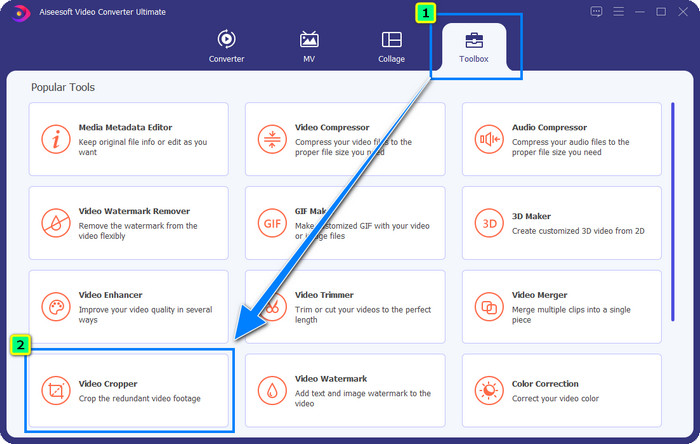
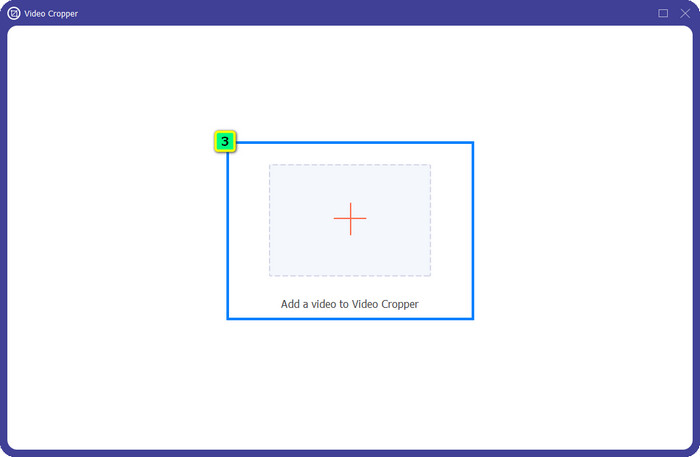
Passaggio 3. Sullo schermo apparirà una nuova finestra dello strumento; tocca il pulsante + per caricare il video che vuoi ritagliare.
Passaggio 4. Regola l’area di ritaglio in base alle tue preferenze; assicurati che la filigrana non sia all’interno dell’inquadratura, così il video salvato non conterrà alcuna filigrana.
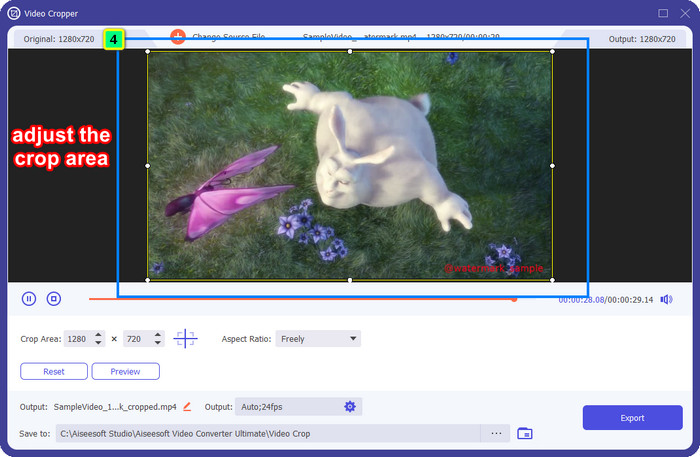
Passaggio 5. Dopo aver modificato l’immagine, è il momento di esportare il risultato finale. Premi Save to e seleziona la destinazione in cui il file verrà salvato, quindi fai clic su Export per scaricare il risultato finale sulla tua unità locale.
Parte 2. Come rimuovere la filigrana Adobe Stock dal video senza ritagliare
Non ti convince il metodo per eliminare la filigrana di Adobe Stock usando il ritaglio? Allora puoi usare il rimuovi‑filigrana integrato in questo convertitore avanzato: è potente e non lascerà alcuna traccia della filigrana una volta terminato. FVC Video Converter Ultimate è un’app affidabile che supporta numerose funzioni che puoi usare liberamente senza dover scaricare estensioni aggiuntive. L’ultimo aggiornamento include un Video Watermark Remover, che permette a chiunque abbia un problema con le filigrane nei video di risolverlo in modo semplice ed efficace.
A differenza della funzione di ritaglio, la funzione di rimozione della filigrana rimuove la filigrana sul tuo video senza lasciare una macchia sull'output finale. Non cambia nulla nell'aspetto, perché non taglia e sposta la dimensione e la qualità del video. Quindi, se sei interessato a come rimuovere la filigrana Adobe Stock da un video, puoi seguire i passaggi che includiamo di seguito.
Passaggio 1. Se hai già scaricato il software, puoi passare al passaggio successivo; in caso contrario, fai clic su questo pulsante di download, installalo e avvia l’editor.
Download gratuitoPer Windows 7 o versioni successiveDownload sicuro
Download gratuitoPer MacOS 10.7 o versioni successiveDownload sicuro
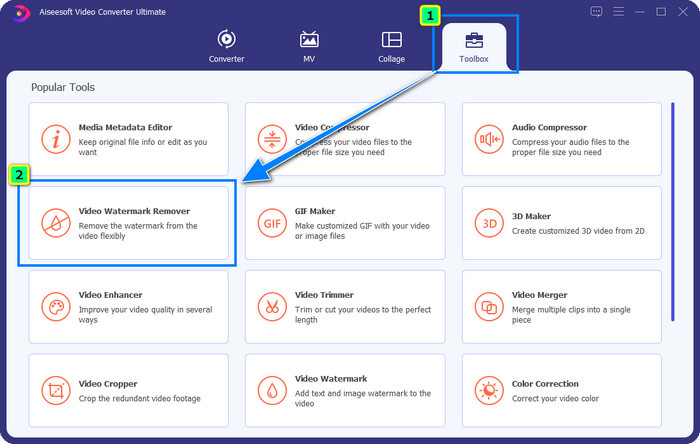
Passaggio 2. Ora che lo strumento è in esecuzione sul tuo desktop, fai clic su Toolbox e seleziona la funzione Video Watermark Remover supportata da questo software.
Passaggio 3. Premi il pulsante plus, quindi si aprirà una cartella sullo schermo; carica il video Adobe Stock che hai scaricato e premi Open.
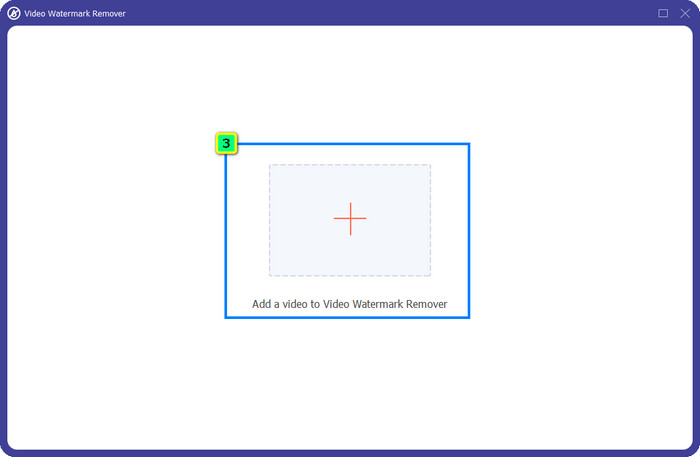
Passaggio 4. Premi Add Watermark Removing Area per rimuovere la filigrana dal tuo video.
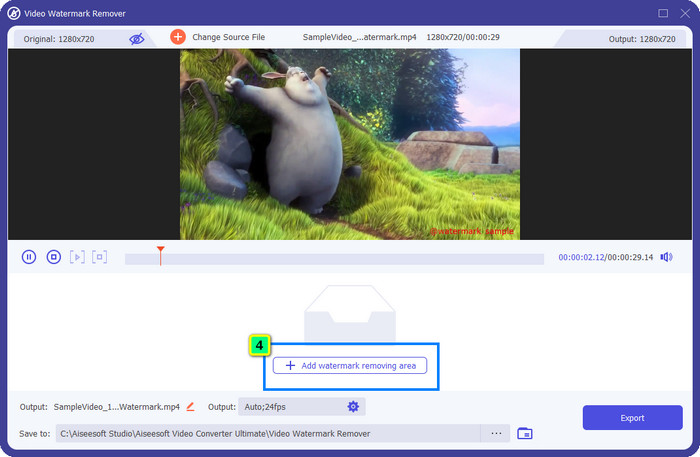
Passaggio 5. Posiziona il frame sull’area della filigrana; puoi regolarlo liberamente per farlo combaciare con la filigrana applicata al tuo video.
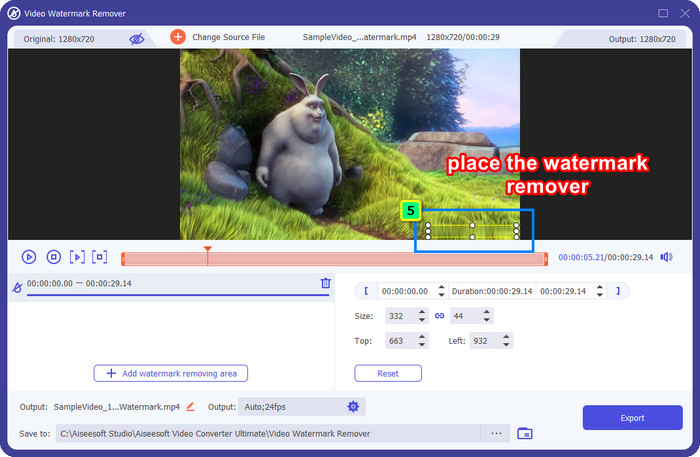
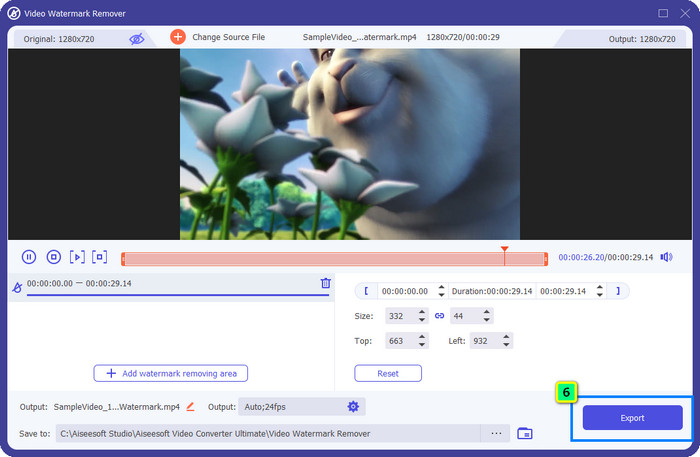
Passaggio 6. Infine, fai clic su Export e potrai utilizzare il video senza filigrana, in modo davvero semplice.
Bonus: come rimuovere gratuitamente la filigrana Adobe Stock sulle immagini online
FVC Free Watermark Remover è un efficiente rimuovi‑filigrana per immagini utilizzabile direttamente online. Quindi, se hai un problema di filigrane su un’immagine che hai scaricato o salvato sul tuo dispositivo, puoi iniziare a usare questo software. In seguito, puoi seguire il tutorial che abbiamo aggiunto qui sotto per rimuovere online la filigrana Adobe Stock dalle immagini.
Passaggio 1. Per aprire questo rimuovi‑filigrana online, fai clic su questo link.
Passaggio 2. Premi Upload Image per aggiungere l’immagine con la filigrana che vuoi modificare qui.
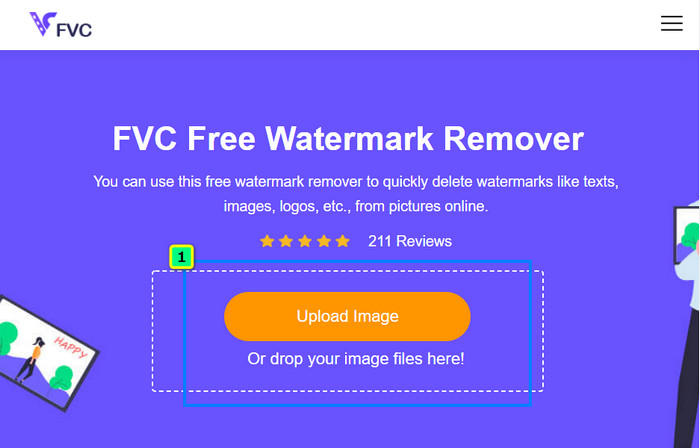
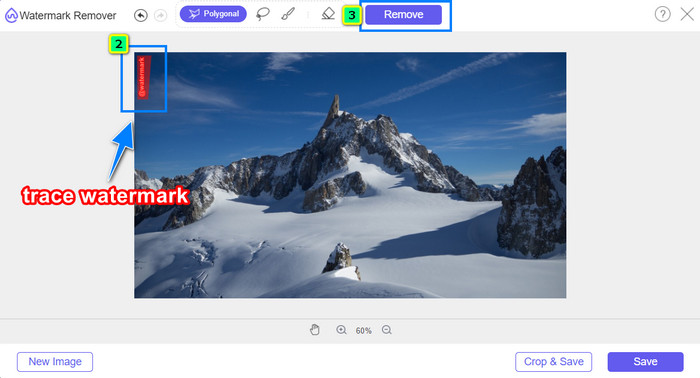
Passaggio 3. Usando lo strumento poligonale, delinea la filigrana punto per punto facendo clic con il tasto sinistro del mouse. Poi premi Remove dopo averla tracciata, e l’IA elaborerà per te la rimozione della filigrana.
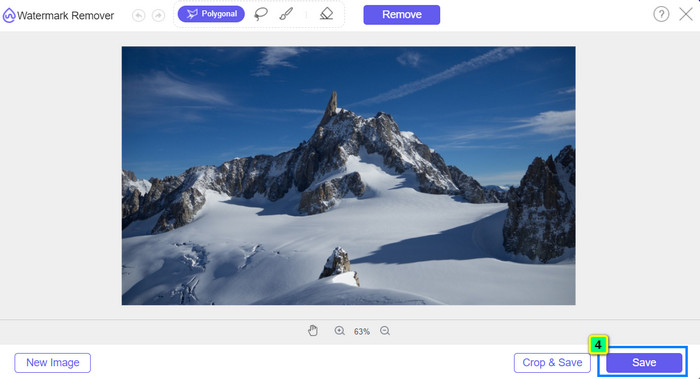
Passaggio 4. Quando sei soddisfatto del risultato e pronto per scaricare l’immagine, fai clic sul pulsante Save per salvarla direttamente sul tuo desktop.
Ulteriori letture:
Metodo più recente per rimuovere oggetti dalle foto [6 metodi]
Come rendere più nitida un’immagine in foto con 3 metodi [Guida rapida]
Parte 3. Domande frequenti su come rimuovere la filigrana Adobe Stock dal video
La rimozione della filigrana Adobe Stock dal video peggiora la qualità?
A volte, quando hai rimosso la filigrana sul video, lo strumento che usi peggiora l'output del video. Ma se usi FVC Video Converter Ultimate, non riscontrerai questo problema. In effetti, puoi regolare l'impostazione della qualità del video su una molto più alta per aumentare la qualità.
Dove posso acquistare crediti Adobe Stock?
Apri il sito Web ufficiale di Adobe Stock, quindi vai su Prezzi. In Piani e prezzi, vedrai diversi pacchetti di crediti che puoi acquistare. Più credito, più costoso può essere. Fai clic su quanti desideri avere, premi Acquista ora, aggiungi le informazioni di pagamento, quindi fai clic su Effettua ordine protetto.
Perché i piani su Adobe Stock sono super costosi?
Può sembrare super costoso a causa del prezzo di ogni prodotto disponibile su Adobe Stock. Oltre al prezzo, l'aumento è che lo sviluppatore Adobe si è costruito una reputazione. Stai acquistando il prodotto con il nome di esso.
Conclusione
Con il rimuovi‑filigrana avanzato presentato in questo articolo puoi finalmente terminare di rimuovere la filigrana Adobe Stock dal video che hai scaricato dal sito ufficiale. Ma quale metodo pensi che sia il più adatto? Il ritaglio o la rimozione della filigrana? Entrambi funzionano bene e offrono ottimi risultati. Tuttavia, se le dimensioni del video vengono tagliate o ridimensionate, è meglio usare la funzione Video Watermark Remover di FVC Video Converter Ultimate. Inoltre, FVC offre anche la rimozione delle filigrane dalle immagini che possiedi, grazie a uno strumento online accessibile da qualsiasi browser sul tuo desktop. Speriamo che le informazioni che ti abbiamo fornito ti siano state utili. Se vuoi saperne di più, leggi gli altri articoli qui sotto.
-
 Come rimuovere la filigrana dal video utilizzando Final Cut Pro [Guida completa]
 Hai un problema con la filigrana sui video? Non ha detto altro, perché abbiamo fornito un tutorial su come rimuovere la filigrana dal video utilizzando Final Cut Pro.
-
 Rimuovi la filigrana DaVinci Resolve sui video esportati con il tutorial completo
 Per rimuovere la filigrana Davinci Resolve dovrai utilizzare uno strumento o acquistarne la versione ufficiale, continua a leggere per saperne di più.
-
 Come rimuovere la filigrana in Lunapic con i passaggi inclusi [3 modi]
 Scopri come rimuovere la filigrana su Lunapic con i modi che aggiungiamo in questo blog. Continua a leggere le informazioni per conoscerle meglio.
