


 ビデオコンバーター究極
 スクリーンレコーダー
 ビデオ修復
ビデオ修復iMovie でスローモーションビデオを作成するための役立つヒント
iMovieは、すべてのiOSおよびMacのオペレーティングシステムで利用できる優秀な動画編集ソフトです。このアプリケーションは無料でダウンロードでき、特に動画の再生速度を変更したりスローモーション動画を作成したりする際に便利な、さまざまなツールが備わっています。操作性に優れたアプリケーションですが、望みどおりのスローモーション効果を動画に適用するには、きちんと理解して使いこなす必要があります。iMovieでスローモーション動画を作成する方法を細部まで理解するには、本記事をよく読み、手順に従って操作してください。

パート1。 iPhoneを使用してiMovieでスローモーションビデオを作成する方法
前述のとおり、iMovie は iPhone などの iOS システムでのみ動作します。このアプリケーションを使用して最高のスローモーション ビデオを作成するために、このアプリケーションの使用方法も説明する手順を以下に示します。
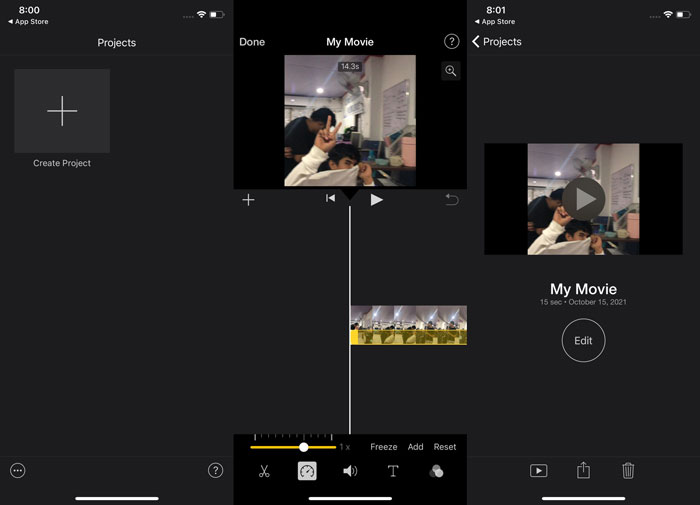
ステップ1. iPhoneまたはiPadでiMovieアプリを起動します。UIの概要が表示された場合は、続けるボタンが表示されます。新しい動画クリップを編集するには、プロジェクトタブからプラスアイコン(+)を選択します。次に進むには、新規プロジェクト画面でムービーを選択します。
ステップ2. カメラロールから動画を選択し、画面下部のムービーを作成ボタンを押します。タイムライン上の動画クリップをタップし、編集ツールが表示されるのを待つと、スピードメーターのようなアイコンの速度ツールが見つかります。その中からオプションを選択します。動画クリップを早送りまたはスロー再生するには、下部の黄色いスライダーを右または左に動かすだけです。元の速度の最大2倍まで速くしたり、1/8まで遅くしたりできます。
ステップ3. すべての編集が終わったら、画面左上の完了をタップします。仕上がった動画を保存するには、画面下部の共有アイコンをタップし、保存先を選びます。
パート 2. Mac を使用して iMovie でスローモーション ビデオを作成する方法
iMovie は Mac でも利用でき、最も優れたスローモーション ビデオを可能な限り簡単な方法で作成できます。この種のビデオを実現する方法を知るために、次の手順に従ってください。
ステップ1. MacのiMovieでクリップの速度を変更するには、タイムラインでクリップを選択して、その速度を調整します。
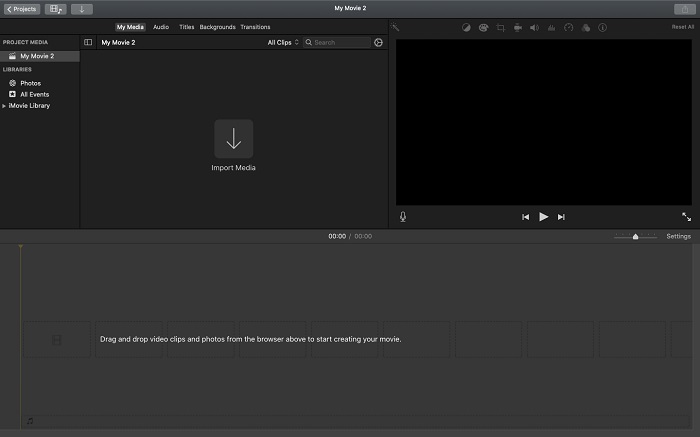
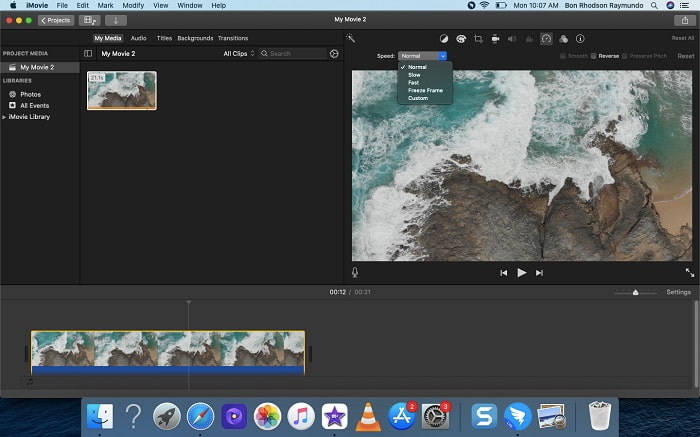
ステップ2. 画面右上にある速度ボタンをクリックすると、速度設定にアクセスできます。コンピュータのデスクトップ上にある速度ボタンから「低速(Slow)」または「高速(Fast)」を選択し、速度を細かく調整します。
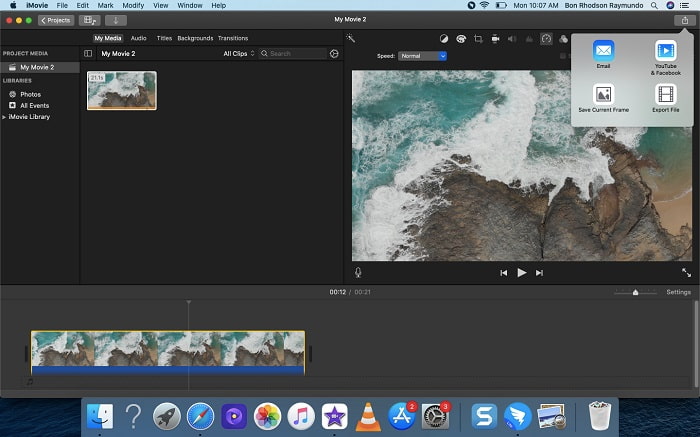
ステップ3. ファイルをコンピュータのハードドライブに保存するには、画面右上のアップロードアイコンをクリックします。
パート 3. スロー モーション ビデオを作成するための最良の代替手段
iMovie以外にも、スローモーション動画を作成する方法があります。デスクトップ/ノートPCユーザー全般におすすめなのが、Video Converter Ultimateです。このソフトウェアはWindowsおよびMacの両方に対応しており、無料でダウンロードできます。操作しやすいユーザーインターフェースを備えているため、スローモーション動画を作るためのツールを理解するのに苦労することはありません。中でも優れているのが「Video Speed Controller(動画速度コントローラー)」機能で、これを使えば動画の再生速度を自由に調整でき、通常速度の動画からスローモーション動画を作成できます。望みどおりのスローモーションを実現するために、このソフトの詳しい使い方を以下の手順で確認しましょう。
ステップ1. ソフトを使用する前に、お使いのOSに合わせて下のダウンロードリンクをクリックし、まずダウンロードします。インストールは、デスクトップにダウンロードしたファイルを実行し、今すぐ開始をクリックするだけで完了します。
無料ダウンロードWindows 7 以降に対応安全なダウンロード
無料ダウンロードMacOS 10.7 以降に対応安全なダウンロード
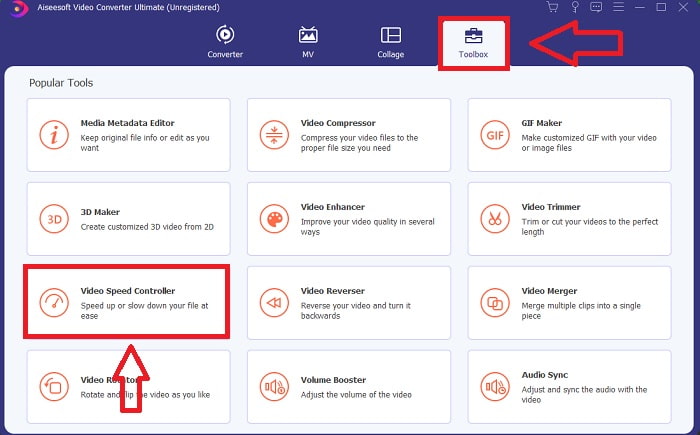
ステップ2. プログラムの起動が完了すると、メイン画面に「変換」機能が表示されています。次に、スローモーション動画を作成するために必要な機能を探すには、ツールボックスを選択します。動画の速度を変更したり、単にスローモーション動画を作成したりしたい場合は、利用可能なツール一覧からVideo Speed Controllerを選択します。
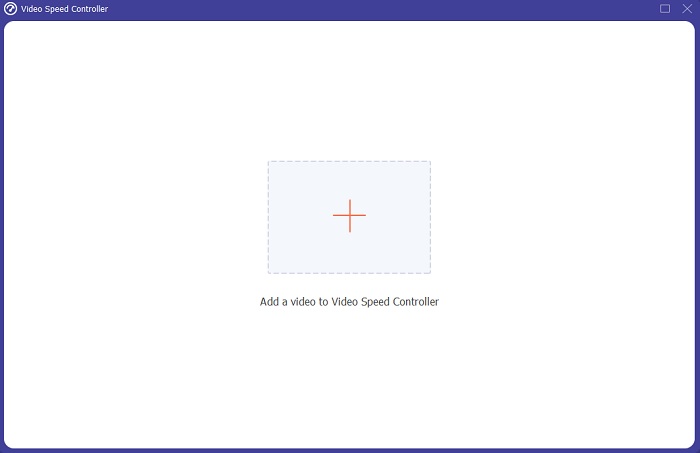
ステップ3. 続行すると、PC画面に別のウィンドウが開きます。編集を開始するには、プラス記号+をクリックします。
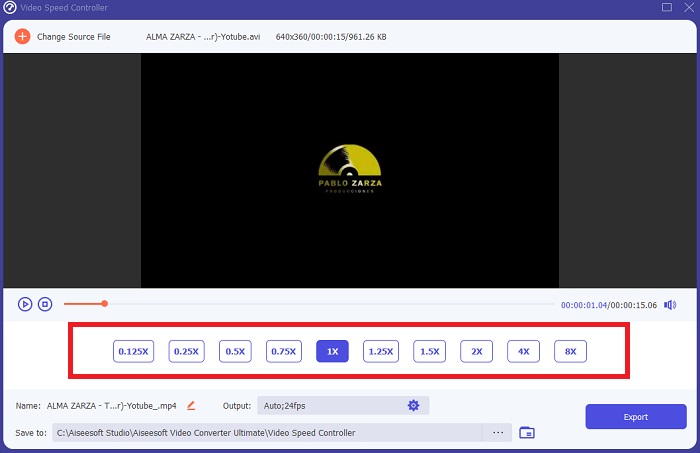
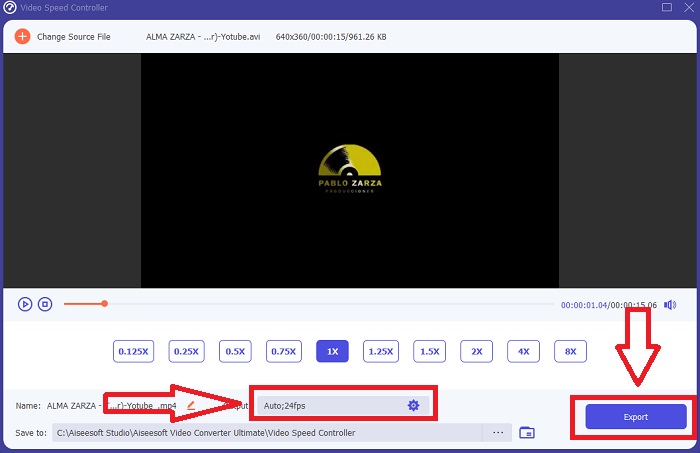
ステップ4. 編集を始めるにあたり、再生中に動画のフレームレートを何倍速、または何分の一にするかを選択し、どれくらい速く(または遅く)再生するかを決めます。これによって、動画に適用するスローモーション効果が定まります。スローモーション動画を作成したい場合は、標準速度よりも低い速度を選んで再生速度を落とします。動画の速度に満足したら、さらにフォーマット、解像度、フレームレートなどを変更して画質を微調整することも可能です。また、出力する動画ファイルの名前を変更することもできます。
ステップ5. エクスポートをクリックし、PC内の保存したい場所を選択して作業内容を保存します。
関連記事:
パート 4. iMovie でのスローモーションビデオの作成に関する FAQ
iMovie が動作しない場合はどうすればよいですか?
オプションが利用できない場合、ビデオ クリップの長さは高速化された再生をサポートするのに十分ではありません。ビデオを変換する必要がある可能性もあります。 iPhone で撮影したビデオや Flip ビデオカメラの H.264 で撮影したビデオなど、特定のタイプのビデオは、速度を変更する前に変換する必要があります。プロジェクト ブラウザで、ビデオ ファイルをクリックしてダブルクリックし、開きます。開いたインスペクタに [クリップ全体を変換] ボタンが表示された場合は、それを選択します。クリップを繰り返してから、スローモーション/早送りプロセスに進みます。
iMovie でタイムラプス ビデオを遅くすることはできますか?
シャッター ボタンを離して録画を終了するとすぐに、タイムラプス ビデオの再生が開始されます。タイムラプス速度スライダーは、画面の一番下にあります。シャッター ボタンを押して録画を停止すると、タイムラプス ビデオが自動的に再生されます。タイムラプス速度スライダーは、画面の一番下にあります。
Youtube動画を遅くするにはどうすればいいですか?
Youtube アプリで動画を再生し、歯車アイコンを見つけます。設定アイコンとも呼ばれます。 [再生速度] をクリックし、通常の速度より上の選択肢を選択して、再生するビデオの速度を落とし始めます。
結論
まとめると、iMovieは優れた動画編集ソフトですが、利用できるのはiOSとMacのオペレーティングシステムに限られます。では、Windowsでスローモーション動画を作成したい場合はどうすればよいでしょうか。そのようなときには、Video Converter Ultimateの使用をおすすめします。このソフトはWindowsとMacの両方に対応しており、無料で利用できます。さらに、動画編集に役立つ多彩なツールが搭載されています。特に、再生速度を調整してスローモーション動画を作成するための専用ツールが用意されています。また、対応している動画フォーマットの種類も豊富なため、変換作業で困ることもありません。
-
 [無料&有料] GIFスピードチェンジャー:2021年のホットピック
 退屈で遅いため、オンラインで作成した GIF に満足していませんか? GIFスピードチェンジャーに関する記事と、それを使用して習得するのに役立つ詳細を紹介するので、これはあなたの幸運な日になります.
-
 2021年にスピードコントローラーを搭載したトップ4のビデオプレーヤー
 ビデオを再生するたびに、すべてのメディア プレーヤーの再生速度に気付きませんでしたか?この記事は、速度制御を備えたビデオ プレーヤーのすべてを学習するのに適しています。
-
 iPhoneでビデオを高速化する3つの方法[実証済み&93;
 iPhone を使用しているため、ビデオの再生速度を調整するのに問題がありますか?これは、問題の解決に役立つ優れた記事です。
