


 ビデオコンバーター究極
 スクリーンレコーダー
 ビデオ修復
ビデオ修復
 安全なダウンロード
動画に簡単に透かしを追加する方法|3つのベストな方法
ウォーターマークは、公開されるデジタルコンテンツにおいて重要な役割を果たし、制作者の「身元」を示すとともに、無断利用に対する保護のレイヤーとして機能します。つまり、動画を投稿しているコンテンツクリエイターで、自分の許可やクレジットなしに動画を使われたくない場合、ウォーターマークを追加することはシンプルでありながら効果的な対策です。そこで本記事では、3つの異なる方法で動画にウォーターマークを追加する手順を紹介します。準備ができた方は、さっそく始めていきましょう。

パート1. 動画に透かしを追加する | 究極のソリューション
動画にウォーターマークを追加するための最適な解決策は、FVC Screen Video Converter Ultimate を使うことです。このツールでは、Video Watermark(動画ウォーターマーク)ツールを使って、簡単に動画へウォーターマークを追加できます。そうです、この動画コンバーターには「ツールボックス」が用意されており、音声や動画に関するさまざまなトラブルに対応できる多彩なツールが含まれています。
主な特徴
• 1000 種類以上の入力形式をサポートしており、ほぼすべての種類のビデオに対応できます。
• ユーザーがビデオに画像の透かしを追加できるようにします。
• ユーザーがビデオにテキストの透かしを追加できるようにします。
• 追加された透かしのカスタマイズと基本的な編集が可能になります。
• さまざまなビデオ出力オプションをサポートします。
FVC Video Converter Ultimate を使用してビデオに透かしを追加する方法は次のとおりです。
ステップ1.まずはお使いのコンピューターにFVC Video Converter Ultimateをダウンロードしてインストールします。WindowsとmacOSの両方に対応している点に注意してください。
無料ダウンロードWindows 7 以降に対応安全なダウンロード
無料ダウンロードMacOS 10.7 以降に対応安全なダウンロード
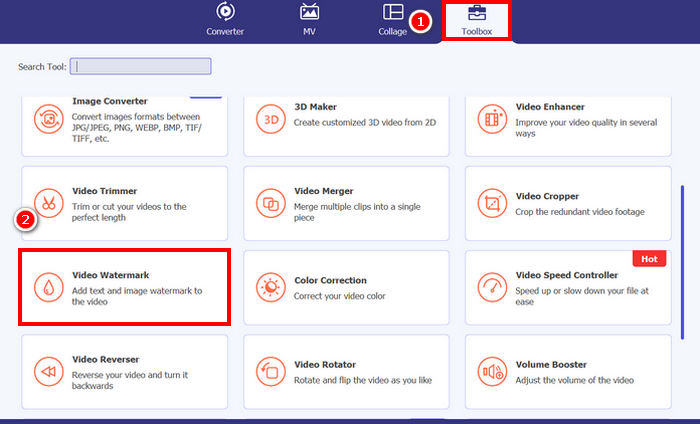
ステップ2:ツールを起動し、ツールボックスタブをクリックして、そこからVideo Watermark(動画ウォーターマーク)を選択します。
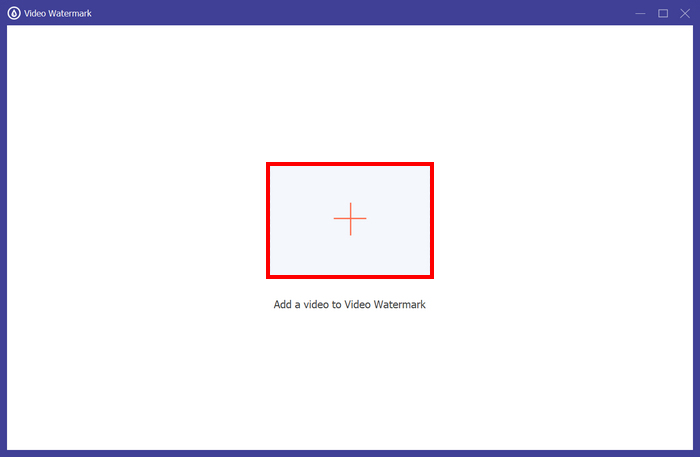
ステップ3:その後、Add a Video to Video Watermark(動画ウォーターマークに動画を追加)をクリックし、画像ウォーターマークを追加したい動画を選択します。
ステップ4:次に、+ Image Watermark(画像ウォーターマークを追加)を選択し、動画のウォーターマークとして使用したい画像を追加します。そこから位置やサイズなどを調整できます。設定が終わったら、Export(エクスポート)ボタンをクリックします。
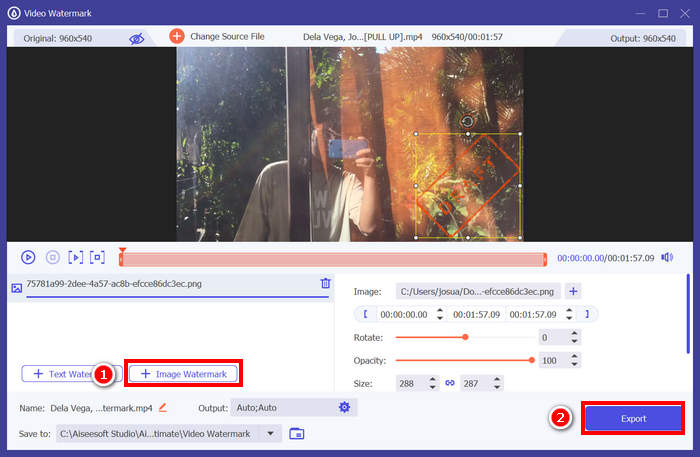
FVC Video Converter Ultimateを使えば、動画に簡単にウォーターマークを追加できます。テキストまたは画像のウォーターマークを追加できます。また、基本的な編集機能も備えており、不透明度、サイズ、回転などを調整できます。インターフェースは非常にシンプルで直感的なので、初心者でも簡単に使い方を習得できます。
パート 2. Canva でビデオに透かしを追加する方法
Canva は有名な編集ツールなので、耳にしたことがある人も多いでしょう。しかし、このツールで動画にウォーターマークを追加できることはご存じでしたか?使いやすいインターフェースと強力なドラッグ&ドロップ機能により、Canva ではロゴやオリジナルのウォーターマークを簡単にアップロードして、動画上の好きな位置に配置できます。以下では、Canva を使って動画にウォーターマークを追加する手順を、ステップごとに紹介します。
ステップ1:まず、Canva のアカウントが必要です。新規登録するか、Google アカウントでログインしましょう。
ステップ2:次に、Canva を開き、Create a Design(デザインを作成)をクリックして、Upload(アップロード)オプションを選択し、ウォーターマークを入れたい動画ファイルをインポートします。
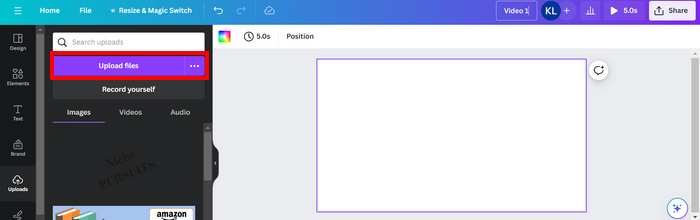
ステップ3:同様に、ウォーターマークにしたい画像もアップロードし、それを動画上にドラッグします。配置したあとで、ウォーターマークの大きさを大きくしたり小さくしたり、色や透明度を編集したりできます。
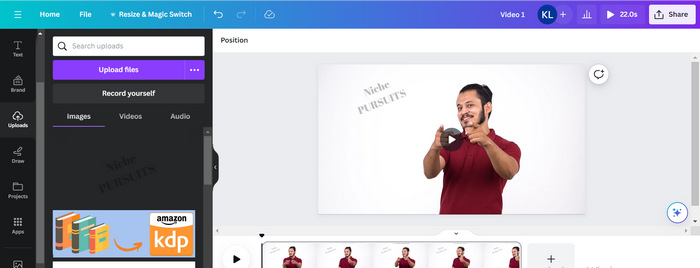
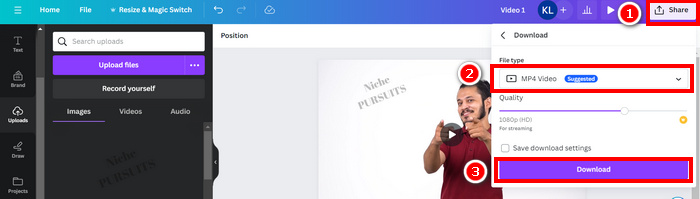
ステップ4:動画を再生して、ウォーターマークが正しく表示されているかプレビューします。問題なければ、Share(共有)ボタンをクリックし、Download(ダウンロード)ボタンを押して、MP4 video file(MP4 動画ファイル)として保存します。
Note: ウォーターマーク画像が動画に対して明るすぎる、または暗すぎる場合は、透明度を調整して、映像の視覚要素を邪魔したり目立ちすぎたりしないよう、自然になじませることができます。
パート3. オンラインで動画にテキスト透かしを追加する方法 [無料]
ウェブベースで無料の方法で動画に透かしを追加したい場合は、echowave.io がおすすめです。このオンラインプラットフォームツールは、音声・動画コンテンツの作成、編集、視覚化を直感的に行える機能を提供しています。さらに、このツールでは編集機能も活用でき、テキスト透かしを追加することも可能です。以下は、オンラインで動画にテキスト透かしを追加する手順です。
ステップ1:まず、Chrome で echowave.io を検索します。
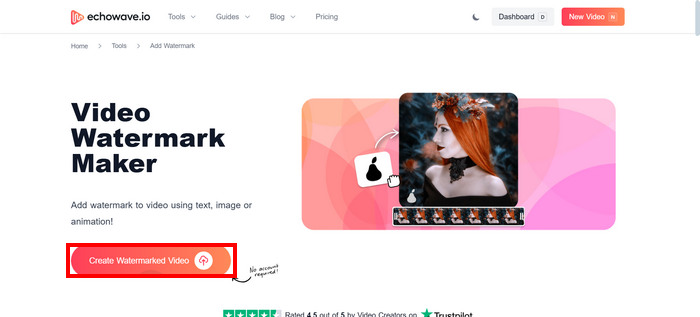
ステップ2:次に、ツールの画面が表示されたら、Create Watermarked Video(ウォーターマーク付き動画を作成)をクリックします。
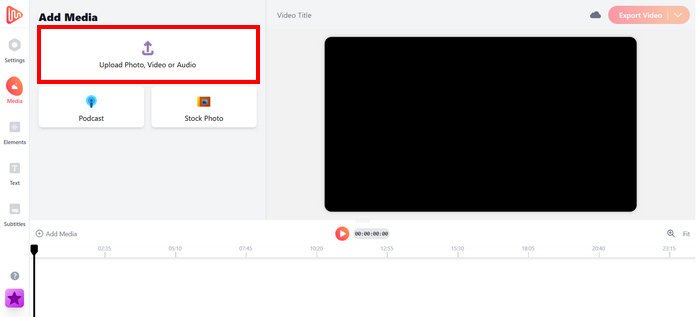
ステップ3:その後、Upload Photo, Video, or Audio(写真・動画・音声をアップロード)をクリックし、ウォーターマークを付けたい動画をアップロードします。
ステップ4:最後に、画面左側のパネルでText(テキスト)をクリックし、作成したい文字ウォーターマークを追加・入力します。まず、使用したいフォーマット(スタイル)を選択し、その後テキストを入力します。入力が終わったら、ウォーターマークを配置したい位置に調整し、問題なければExport(エクスポート)ボタンをクリックしてファイルを保存します。
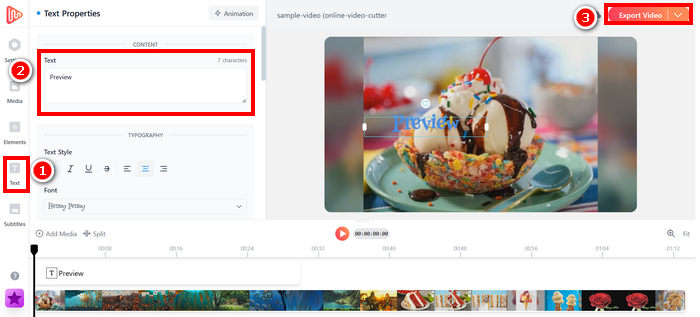
echowave.io を使用してビデオに透かしを追加するのは簡単で初心者にも優しいですが、短いビデオや小さいサイズのファイルを処理する場合であっても、ツールが遅れることがあります。
興味があれば、GIF にウォーターマークを追加する方法について、こちらから詳しい解説を読むことができます。
パート4. ビデオに透かしを追加することに関するよくある質問
透かしを隠すのは違法ですか?
はい、違法です。透かしは著作権保護の一形態として、コンテンツの所有権または著作者を示すためによく使用されます。透かしを意図的に隠したり削除したりすると、著作権法に違反する可能性があり、特に改変されたコンテンツが再配布、再利用、または商業目的で使用された場合は、法的措置につながる可能性があります。
DaVinci Resolve でビデオに透かしを追加するにはどうすればいいですか?
DaVinci Resolveで透かしを追加するには、ビデオと透かし画像またはテキストをインポートします。ビデオをタイムラインに配置し、透かしをその上の別のトラックにドラッグします。インスペクタパネルを使用して、サイズ、移動、不透明度の調整を行います。すべてが正しく表示されたら、透かしが挿入されたビデオをエクスポートします。
Lightroom でビデオに透かしを追加するにはどうすればよいですか?
Lightroomで動画に透かしを追加するには、まずLightroomを開き、透かしを入れたい画像を選択します。次に、画面上部の「Lightroom」タブをクリックし、ドロップダウンメニューから「透かしを編集」を選択します。表示される透かしエディターウィンドウで、プレビュー画像の下にあるボックスに透かしのテキストを入力します。このウィンドウで、透かしのスタイル、フォント、サイズ、配置をカスタマイズすることもできます。
結論
動画にウォーターマークを追加することは、確かに重要な作業であり、その方法を身につけておくことは、コンテンツを保護し、権利者を明確に示すうえで欠かせません。さまざまなツールが存在しますが、FVC Video Converter Ultimate は、動画にウォーターマークを追加するためのシンプルかつ効率的な方法を提供します。手早く済ませたい初心者にとって実用的な選択肢である一方で、Canva やオンラインエディターなど、ほかのツールを用途に応じて試してみるのも有効です。
-
 プロの方法でビデオから透かしを削除する 5 つの方法
 ビデオから透かしを削除して、プロフェッショナルに見せる必要がありますか?それを行う方法についてのチュートリアルを追加するので、この記事を読んでください!
-
 MP4ビデオから透かしを削除するために使用できる2つの優れたアプリ
 この記事では、Windows や Mac などのデバイスを使用して MP4 ビデオから透かしを削除する方法について、シンプルで最も簡単な方法を紹介します。
-
 3つの実証済みの方法でエクスポートされたビデオのAnimotica透かしを削除します
 エクスポートしたビデオのAnimotica透かしを削除できるかどうか疑問に思ったことはありますか?この記事では、その方法を説明します。
