


 ビデオコンバーター究極
 スクリーンレコーダー
 ビデオ修復
ビデオ修復iPhoneでビデオを早送りする3つの簡単な方法
無料の iPhone でビデオの再生をスピードアップしたいが、方法がわからない?
After recording, while the basic editing, you often need to change the video playing speed. When it comes to speeding up a video on iPhone, you can rely on the built-in editing features in the Photos app, official video editor, iMovie, or some third-party video speed changer tools. This post will share 3 effective methods to fast forward a video on iPhone.

パート 1. 写真アプリを使って iPhone でスローモーション ビデオを早送りする方法
iOS には、iPhone および iPad ユーザーがビデオや写真を直接編集するためのいくつかの基本的な編集機能が付属しています。 iOS デバイスでスローモーション ビデオを早送りしたい場合は、写真アプリの組み込みエディターを使用して、ビデオの再生速度を簡単に変更できます。この方法は、ビデオの速度をスローモーションから通常の速度に変更する場合にのみ機能することに注意してください。
Step 1. Open the Photos app on your iPhone, tap Albums on the bottom screen, scroll down to the Media Types option, and then choose the Slo-mo. Here you can find the slo-mo video that you want to fast forward.
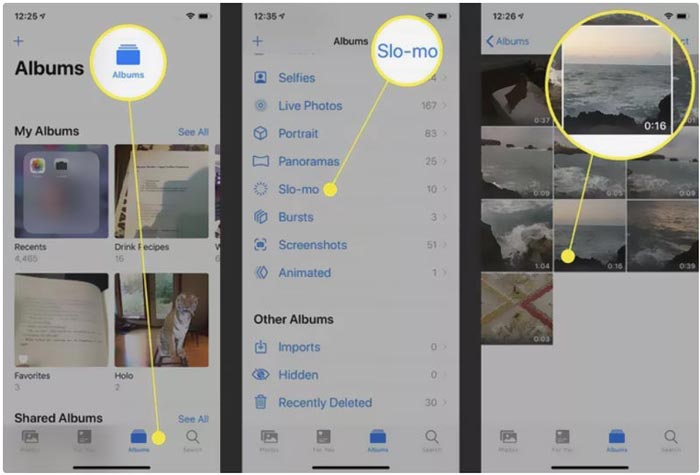
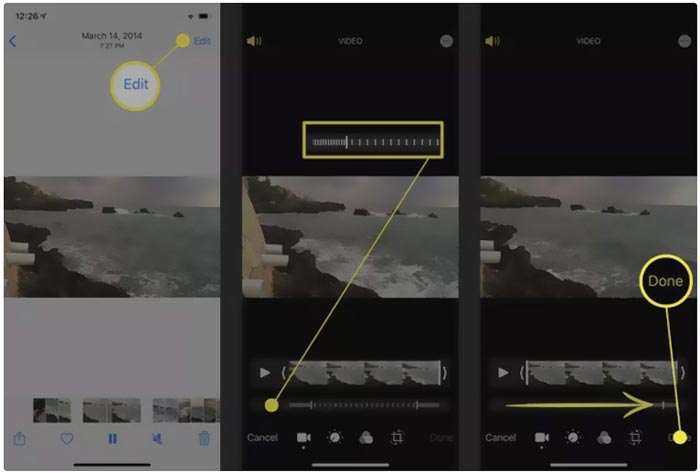
Step 2. Open the slo-mo video, and tap the Edit in the top-right corner to display more editing options.
Step 3. A set of vertical lines will appear under the slow motion video. Now you can tap on the lines and freely fast forward the video speed. After that, you can tap Done to confirm your operation and save the change.
パート 2. iMovie を使用して iPhone および iPad でビデオを早送りする方法
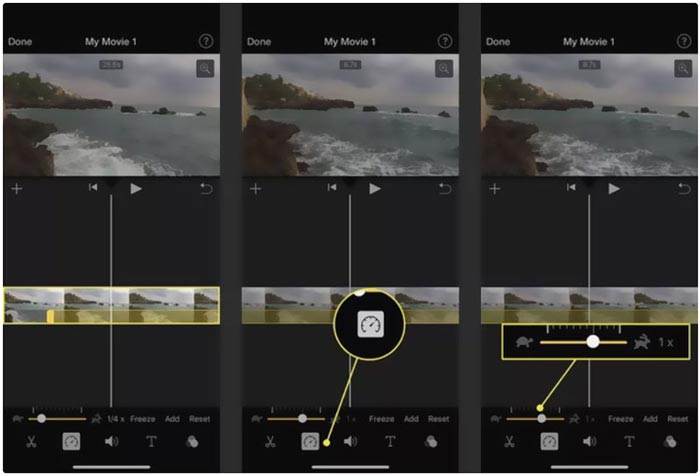
iMovie is the official video editor for iOS and macOS devices like iPhone, iPad, and Mac. It is equipped with many commonly-used editing features. You can easily fast forward or slow down a video on iPhone using iMovie.
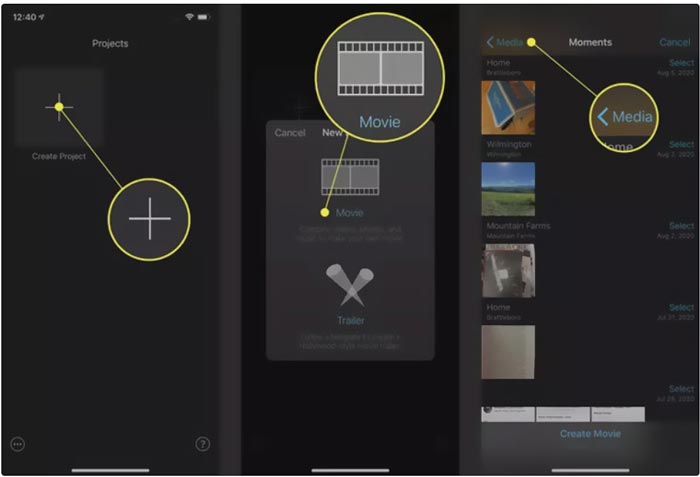
Step 1. To fast forward a video on your iPhone using iMovie, you should free install the app from App Store and then create a new project for the video speed changing. Select and load the video you want to speed up to the created project.
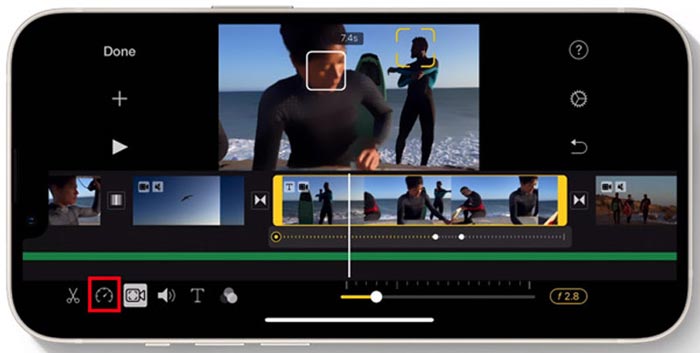
Step 2. Highlight the video clip on the timeline to reveal editing options at the bottom of the iPhone screen. You can tap on the second clock icon to access the playback speed controls. Now you can easily increase the video playback speed by dragging the bar to the right.
パート 3. iPhone で録画したビデオを早送りする方法
For these videos captured by your iPhone, you can choose to edit them on your computer and handily change the playing speed. Here we introduce you to the all-featured video editing and converting software, Video Converter Ultimate to change the video speed.

FVCビデオコンバーターアルティメット
5,689,200以上のダウンロード- ビデオを早送りまたはスローモーションにするビデオ スピード コントローラー ツールを提供します。
- MP4、MOV、AVI、FLV、MKV など、一般的なビデオ形式をすべてサポートします。
- 10のビデオ再生速度オプションを変更して、ビデオの速度を上げたり下げたりします。
- 動画編集、画像・効果音のカスタム、クオリティアップなど多彩な編集機能。
無料ダウンロードWindows 7 以降に対応安全なダウンロード
無料ダウンロードMacOS 10.7 以降に対応安全なダウンロード
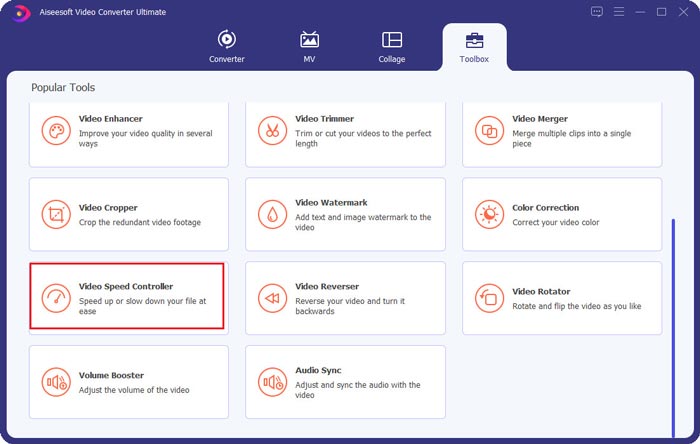
Step 1. Download and open this Video Converter Ultimate on your Windows 11/10/8/7 PC or Mac. Click on the Toolbox to access more tools. Locate and open the Video Speed Controller to fast forward a video.
Step 2. Add your video by clicking the big plus icon. After that, you have 10 options to fast forward or slow motion the video speed. With the built-in media player, you can directly view the speed changing. You can speed up a video to 1.25X, 1.5X, 2X, 4X, or 8X speed based on your need.
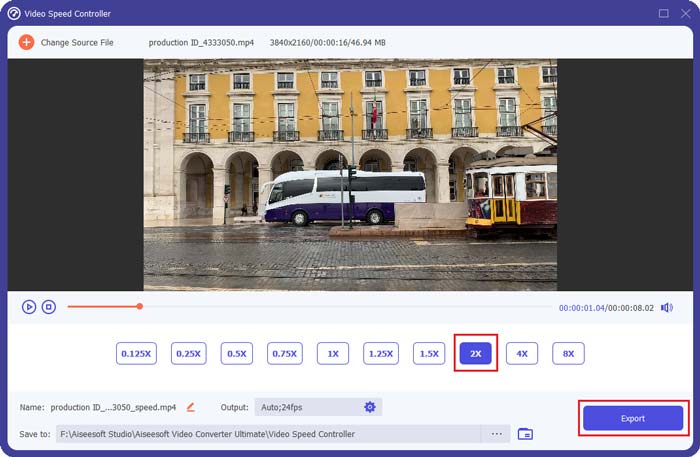
Step 3. When you are satisfied with the video playback speed, you can simply click on the Export button to save the edited video on your computer.
関連記事:
2 Effortless Ways on How to Speed up a Video on TikTok
6 Trendy Video Speed Controllers to Speed up or Slow-down Videos
パート 4. iPhone でのビデオ再生速度の変更に関する FAQ
iPhoneでオンラインでビデオを早送りする方法は?
iPhone で動画をスピードアップする必要がある場合は、Clideo、Kapwing、Media.io などのオンライン動画スピード チェンジャーを使用して、簡単に作業を完了できます。
TikTok アプリで動画を早送りできますか?
はい。 TikTokアプリを開き、速度を上げたいビデオをタップアンドホールドして、下部の画面にさらにメニューが表示されるまで押し続けます.次に、これらのメニューを右から左にスクロールして、[速度] オプションを見つける必要があります。選択して使用し、TikTok ビデオを早送りします。
iPhone でビデオを 2 倍以上早送りできますか?
iMovie では、ビデオの速度を 2 倍まで上げることができます。 iPhone で動画の再生速度を 2 倍以上に早送りしたい場合は、サードパーティのアプリに頼る必要があります。また、iPhone のビデオをコンピューターにコピーすることもできます。その後、推奨されるビデオ スピード コントローラーを使用してビデオの速度を調整します。
結論
This post covers how to fast forward a video speed on iPhone using the Photos app, iMovie, and third-party video speed changer. You can select your preferred method to speed up or slow down the video playback speed.
-
 マルチプラットフォームで使用するトップ8のビデオ解像度コンバーター[2022年更新]
 お使いのデバイスで最高のビデオ解像度コンバーターについて何か考えがありませんか?もしそうなら、あなたは利用可能なビデオコンバーターについてもっと知るためにこの記事を完全に読むことができます。
-
 最高のGIFエディターでGIFにフィルターを追加するトップ3の方法[お気に入り]
 GIFにフィルターを追加して改善する方法を知りたいですか?このブログでは、GIFにフィルターを追加するためのさまざまな手法を簡単に学ぶことができます。
-
 Android と iPhone でダウンロードできるトップ 6 ビデオ フィルター アプリ [2022]
 最高のビデオフィルターモバイルアプリが欲しいですか?さて、私たちはあなたが望むものをあなたに与えます。この記事では、ダウンロードできる最新の6つのフィルターアプリのレビューを紹介します。
