


 ビデオコンバーター究極
 スクリーンレコーダー
 ビデオ修復
ビデオ修復簡単な方法でWindows10/11でファイルの詳細を変更する方法
ビデオ、画像、オーディオを取得したりダウンロードしたりするたびに、そのファイルに何が含まれているかを認識するのに役立つデータの配列が存在します。これがメタデータと呼ばれるものです。さまざまなメディアファイルに付いているタグは、専用ソフトを使わなくても、標準搭載されているアプリケーションで簡単に確認できます。しかし、メタデータを“修正”するとなると、Windows上のすべてのメタデータビューアでできるわけではありません。もし「Windows 10 または 11 で詳細情報(メタデータ)を変更する方法」が知りたいのであれば、必要な要点情報をすべて得るために、本記事を最後まで読む必要があります。

パート1。Windows10および11でビデオファイルの詳細を簡単に変更する方法
Windowsでのプロパティの使用
誰もが知っているように、Windows の「プロパティ」を使えば、そのファイル形式が対応しているかどうかを気にせず、各ファイルのメタデータを確認できます。この標準搭載のタグビューア兼エディターを使えば、必要に応じて作業を完了でき、インターネット接続がなくても問題なく動作します。また、すでに述べたようにこれは Windows デスクトップにのみ搭載されている機能なので、追加のソフトウェアを用意する必要もありません。
逆に、追加したメタデータがこの無料のビルトインにまったく保存されない場合があります。それはプロのツールではないので、それを期待してください。それでも、特にメタデータを通常より頻繁に編集していない場合、ユーザーはこれらの機能を引き続き使用します。ドライブ用のスペースをダウンロードして保存する代わりに、これはWindowsでの使用方法を学ぶ必要がある理想的な手法です。 Windows 10または11でファイルの詳細を変更する方法を知りたい場合は、以下の手順に従ってください。
ステップ1.Windows 10 または 11 の画面で、エクスプローラーを開き、対象となるメディアファイルを探します。
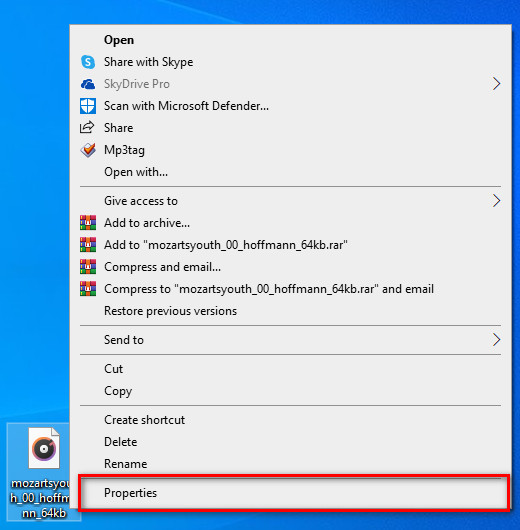
ステップ2.ファイルを見つけたら、そのファイルを右クリックし、「プロパティ」を選択します。
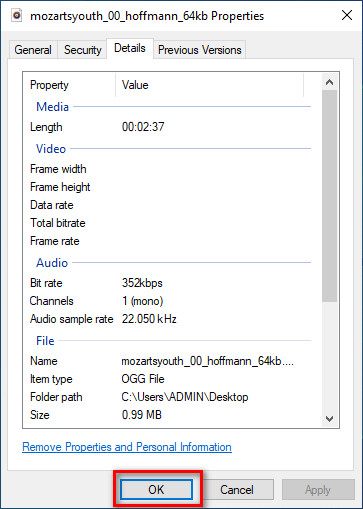
ステップ3.表示されたウィンドウで「詳細」タブをクリックします。各項目の欄に、プロパティを使ってメタデータの詳細を追加または変更できます。タグの編集が終わったら「OK」をクリックして保存します。
Video Converter Ultimateの使用–Windows10/11でメタデータを編集する際の最良の選択
アルバムカバーやその他の重要な情報の追加は「プロパティ」だけでは行えません。では、これらを追加したい場合はどうすればよいのでしょうか。幸いなことに、「Video Converter Ultimate」なら、ファイルやアルバムカバーに重要な情報を追加して、オリジナリティを出すことができます。ファイルへのメタデータ追加は、「プロパティ」で行えるだけでなく、この Ultimate 版を使えば、より専門的な編集も可能です。
そのうえ?メタデータの編集と表示に最適なソフトウェアですが、その機能ははるかに優れているため、より多くの機能を備えています。このツールでできる最善のことの1つは、ビデオファイルをWMV、AVI、MP4などの再生可能なWindows形式に変換することです。さらに、複数のファイルを同時に変換することもできますが、他のツールでは提供できない、プロパティでさえも、これまでにない最速の変換プロセスを実行できます。素晴らしいですね。まだまだ伝えたいことがありますが、今日は、WindowsとMacの究極のソフトウェアの完璧なガイダンスを使用して、mp3ファイルやオーディオおよびビデオ形式の詳細を簡単に変更する方法を説明します。
ステップ1.Windows 版のダウンロードボタンをクリックしてください。Mac ユーザーの場合は、もう一方のボタンをクリックします。インストールを素早く完了させ、起動してメタデータの追加を行います。
無料ダウンロードWindows 7 以降に対応安全なダウンロード
無料ダウンロードMacOS 10.7 以降に対応安全なダウンロード
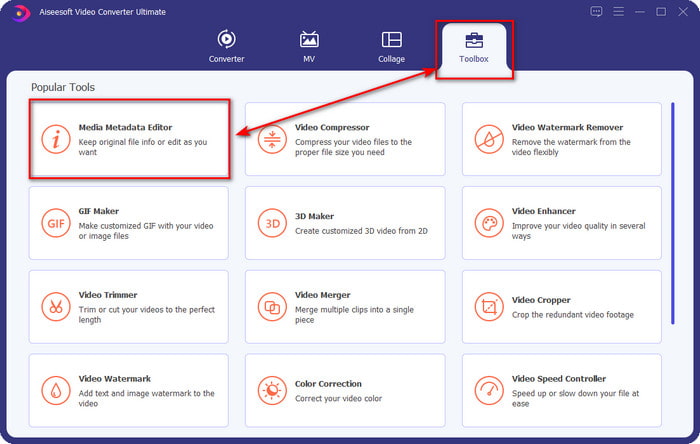
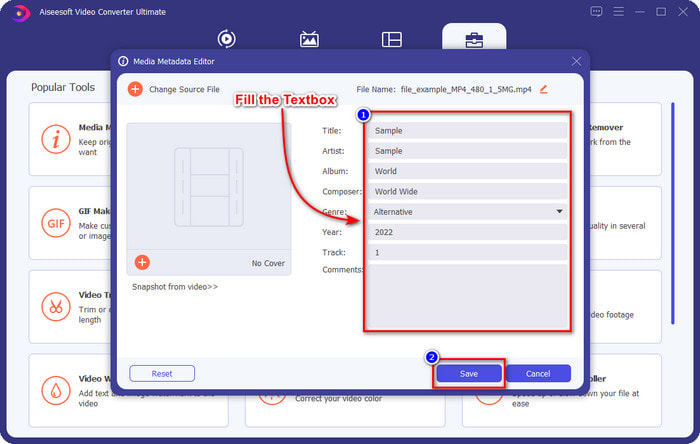
ステップ2.ツールを起動したら、「ツールボックス」をクリックし、「メディアメタデータエディター」に進みます。
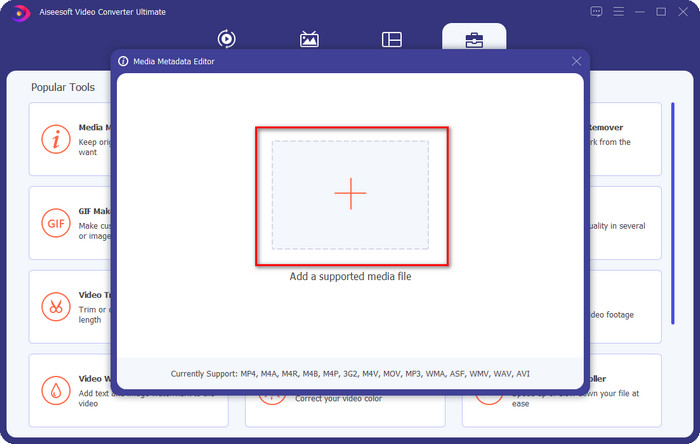
ステップ3.ここに任意のメディアファイルをアップロードします。「追加」ボタンをクリックし、フォルダー内からファイルを選択して「開く」を押します。
ステップ4.各テキストボックスに必要な情報を入力し、重要な詳細を追加します。すべての入力が終わったら、「保存」ボタンをクリックして、このツールで行った変更を保存します。「プロパティ」では追加できなかった重要な情報も、この Ultimate ソフトを使えば、わずか数クリックで簡単に反映できます。
関連記事:
MP4 メタデータを修正・編集する方法
MP3 メタデータを編集する方法
パート2:Windows10および11で詳細ファイルを編集する際のより良い選択
どちらの側を選ぶべきかについて、まだ混乱がありますか?その場合、以下のこの比較チャートは、メタデータ編集とそれらが提供できる他の機能の点で両方のツールの違いを理解するのに役立ちます。あなたがどちらの側を選ぶべきかを決定するために読み続けてください。
| Video Converter Ultimate –Windows10/11でメタデータを編集する際の最良の選択 | VS | Windowsのプロパティ |
 | メタデータ編集の最良の選択 | |
| メタデータに関する重要な詳細を追加する |  |
| アルバムカバーを簡単にアップロード | |
| タグエディタ以外の機能には、コンバータ、ビデオエディタなどがあります。 | |
| 自由に使用できます | |
パート3。Windows10/11でファイルの詳細を変更する方法に関するFAQ
WindowsのプロパティはWindowsの下位バージョンで機能していますか?
幸い、これらはすべて、上記で紹介した手順と同じように機能します。ただし、何年にもわたって更新されたため、外観が変更されました。外観は異なりますが、全体的な機能は上記の手順と同じです。ファイルのメタデータを編集する場合は、Windowsのプロパティを確認し、上記の手順をコピーしてください。
音楽のメタデータを変更する方法はありますか?
はい、Windowsの別の組み込みアプリであるGrooveMusicを使用できます。ただし、ツールを使用する前に、Windowsにプリインストールされていないため、ツールをダウンロードして検索バーで検索すると、自動的にダウンロードが開始されます。ツールを開き、ファイルを1回右クリックして、[情報を見る]に移動します。この領域で、メタデータを追加または削除し、完了したら[保存]をクリックします。
メタデータの追加にプロパティを十分に使用していますか?
プロパティは、メディアファイルで必要となる基本情報をサポートするため、基本的なメタデータの調整には十分です。ただし、詳細を追加するには、このタスクを簡単に処理できる信頼性の高いソフトウェアをインストールする必要があります。それでも、プロパティは優れたタグエディタですが、プロのメタデータ編集には最適ではありません。
結論
ここまで記事を読み進めていただき、「Windows 10/11 で詳細情報(メタデータ)を変更する方法」について理解していただけたはずです。この記事の情報から、Windows のドライブ容量を節約したい場合は「プロパティ」を使えばよい、ということがより明確になったでしょう。標準機能とはいえ、決して侮れない存在です。しかし、メタデータにより多くの詳細情報を持たせたい初心者や上級者にとっては、Ultimate ツールを選ぶべきでしょう。Windows におけるメタデータエディターの中で、Video Converter Ultimate は一歩抜きん出た存在です。Ultimate ソフトに不安がありますか? その不安を解消する唯一の方法は、このツールをドライブにダウンロードして、実際に使ってみることです。その使い心地をぜひ体感してください。
-
 iOSで写真やビデオのメタデータを簡単に表示する方法
 iPhoneとiPadでメタデータを表示する方法を知りたいですか?次に、この記事を読むと、この問題を簡単に解決できる場合があります。
-
 iTunesでiD3タグを編集するためのベストテクニック[効果的なヒント]
 iTunesでタグを編集する方法を知る必要がありますか?その後、あなたは正しい場所にいます。方法について説明したように、iTunesを使用してタグを編集することができます。
-
 Windows10/11およびMacでWAVファイルのプロパティを編集する方法[解決済み]
 Windows 10/11でWAVファイルのプロパティを編集する方法をお探しですか?この記事を読み続けると、この質問に対する答えが得られます。
