


 ビデオコンバーター究極
 スクリーンレコーダー
 ビデオ修復
ビデオ修復
 安全なダウンロード
ソニーベガスであなたのビデオをスピードアップする簡単な方法
Sony Vegas は、プロレベルの編集に使える高機能なツールです。このツールを使えば、動画出力に対してさまざまな編集を行うことができます。それだけではなく、Sony Vegas では動画を速くしたり遅くしたりして、友人と共有するのにぴったりな、自然なトランジションの動画を作成することもできます。もし「Sony Vegas で動画を高速化する方法」が気になっているなら、この記事を最後まで読んでください。

パート1。ソニーベガス-あなたのための最高の編集ツール
多彩なツールを備えた最高の編集ソフトを探しているなら、このツールがその答えです。Sony Vegas は、インターネット上でも広く知られている編集ソフトです。テレビ番組、映画、ミュージックビデオの編集に最適なソフトとして使われています。さらに、字幕の追加、フィルターやエフェクトの適用、画像の最適化といった高度な機能も多数備えています。また、マルチカム編集、手ブレ補正、マスキング機能も提供しています。
また、4k、8k、およびHD解像度のビデオがある場合、このツールはそれで機能します。このツールは使いにくいソフトウェアインターフェースを備えていますが、一度理解すると直感的になります。さらに、ビデオを高速化できるツールを探している場合は、このツールが最適です。このツールについて詳しく知りたい場合は、以下の機能をお読みください。
主な機能:
-字幕の追加、ビデオへのフィルターや効果の追加など、高度な編集機能があります。
-HD、4k、および8kビデオをサポートできます。
-OpenFXプラグインをサポートします。
-優れたオーディオおよびビデオ効果があります。
-WindowsやMacを含むほぼすべてのメディアプラットフォームで利用できます。
パート2。ソニーベガスでビデオを高速化する方法に関する3つのオプション
上記のように、SonyVegasはビデオの速度を上げたり下げたりすることもできます。 Sony Vegasを使用してビデオを高速化するには、3つの簡単な方法があります。したがって、この部分を包括的に読んで、SonyVegasでビデオを高速化する方法を理解してください。
オプション1.再生フレームレートを使用する
最初の方法は、動画の再生フレームレートを設定するやり方です。まず、パソコンで Vegas Pro を開き、プロパティ(Properties)に進みます。プロパティ画面にある再生(Playback)オプションを見つけてください。上下のボタンをクリックして、動画の再生フレームレートを調整します。調整ができたら、OK をクリックして適用します。
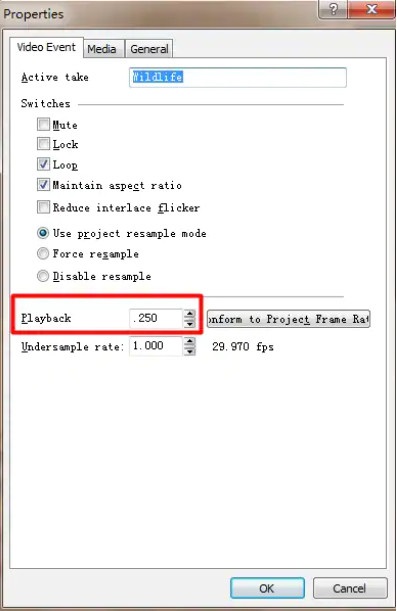
オプション2.速度を調整します
速度とは何か疑問に思っている場合、速度はオブジェクトの速度と方向です。この方法は、SonyVegasを使用してビデオの速度を調整する方法を知るのに役立ちます。
速度を上げたい動画を右クリックし、表示されるドロップダウンメニューからInsert/Remove Envelop(エンベロープの挿入/削除)をクリックします。そのあと、Velocity(速度)を選択します。
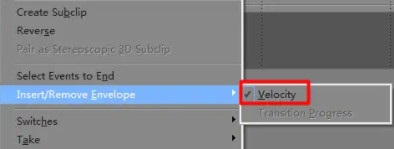
次に、必要な速度でエンベロープをドラッグします。エンベロープを上にドラッグすると速度が速くなり、エンベロープを下にドラッグするとビデオの速度が遅くなります。
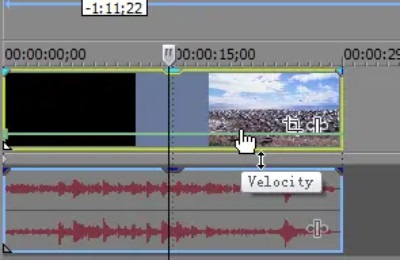
オプション3.トリムストレッチ
これは、3つのオプションで行うのが最も簡単です。 Ctrlキーを押して、ビデオの任意の端をドラッグします。ビデオを伸ばすと遅くなります。ただし、ビデオを圧縮すると、その速度は速くなります。
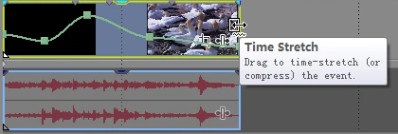
変更が適用されているかどうかを確認するには、プロパティに移動してから、ビデオの再生速度を確認します。
パート3.2ビデオをスピードアップする簡単な方法
ソニーベガスには多くの高度な編集機能があり、多くのプロの編集者がそれを使用していますが、人々はツールのインターフェースを理解するのに苦労しています。そのため、使いやすいソフトウェアインターフェイスを備えたインターネット上で人気のあるビデオスピードチェンジャーツールを探しました。ビデオを高速化するための、より便利な3つのツールを次に示します。
FVCビデオコンバーターアルティメット
FVC Video Converter Ultimate は、動画の速度を変更するための最高のソフトウェアです。このソフトウェアはオフラインツールで、動画のウォーターマーク削除、動画の反転再生、音声の同期調整など、多くの機能を備えています。MP4、AVI、WMV、MOV、FLV をはじめ、インターネット上で一般的な 1000 種類以上の形式に対応しています。
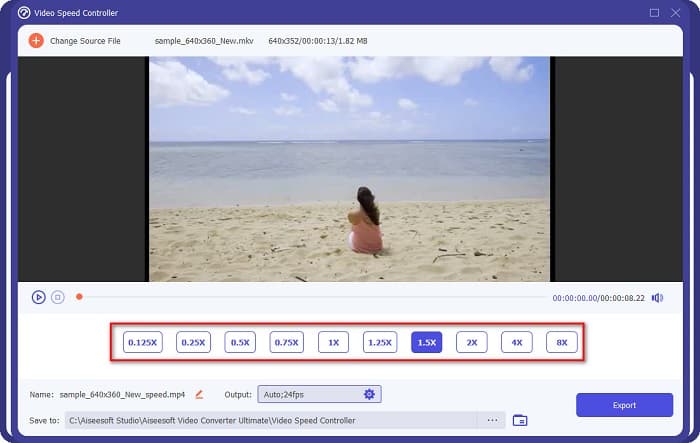
さらに、シンプルなユーザーインターフェイスを備えているため、初心者向けのツールです。また、ビデオの速度を0.125x、0.25x、0.5x、0.75x、1.25x、1.5x、2x、4x、および8x変更できます。したがって、このツールの使用に興味がある場合は、以下の簡単な手順に従ってください。
ステップ 1. FVC Video Converter Ultimate をダウンロードするには、下のダウンロードボタンをクリックします。その後、インストール手順に従い、アプリを起動します。
無料ダウンロードWindows 7 以降に対応安全なダウンロード
無料ダウンロードMacOS 10.7 以降に対応安全なダウンロード
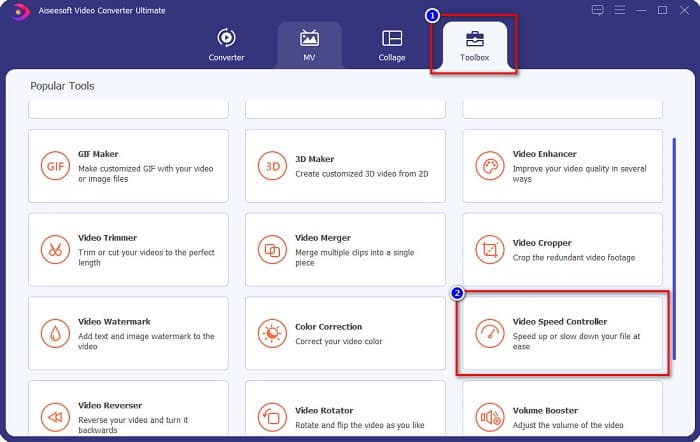
ステップ 2. 次に、ソフトの最初の画面上部にあるツールボックス(Toolbox)パネルをクリックします。そしてVideo Speed Controller(動画速度コントローラー)をクリックします。
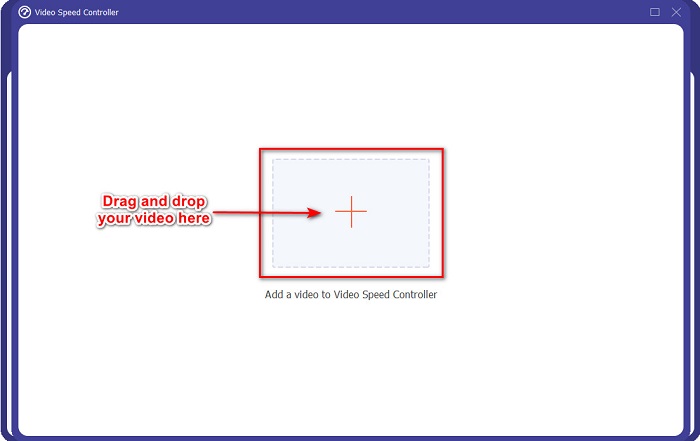
ステップ 3. 次の画面で、+ボタンをクリックするか、動画をその上にドラッグ&ドロップして読み込みます。
ステップ 4. その後、動画プレビューの下にある速度オプションから、希望する再生速度を選択します。より速く再生したい場合は、1.25倍速から 8倍速の中から選んでください。
ステップ 5. 最後に、Exportボタンをクリックして、変更した動画速度を適用します。
![[エクスポート]をクリックします](/images/2022/04/click-export.jpg)
長所
短所
- 特別な機能にアクセスする前にアプリを購入してください。
ファストリール
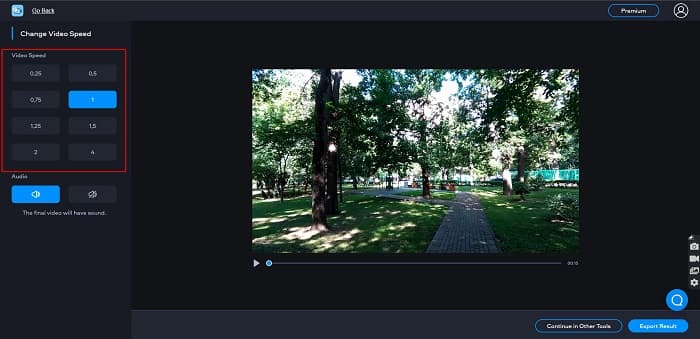
Fastreel は、動画の再生速度を 0.25倍から 4倍まで変更できるオンラインツールです。このツールは操作しやすいユーザーインターフェースを備えており、セキュリティレベルも高くなっています。さらに、出力された動画は自動的にファイルに保存されますが、ウォーターマークが入ります。
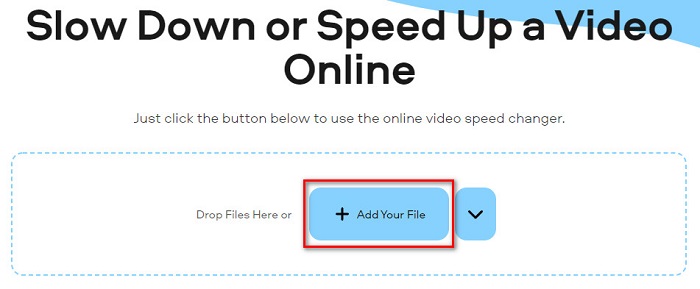
ステップ 1. ブラウザで Fastreel video speed changer を検索します。そのあと、[Add Your File]ボタンをクリックして動画をアップロードします。パソコン内のファイルが表示されるので、アップロードしたい動画を選択します。
ステップ 2. 次に、ソフトウェア画面左側で、希望する動画速度を選択します。
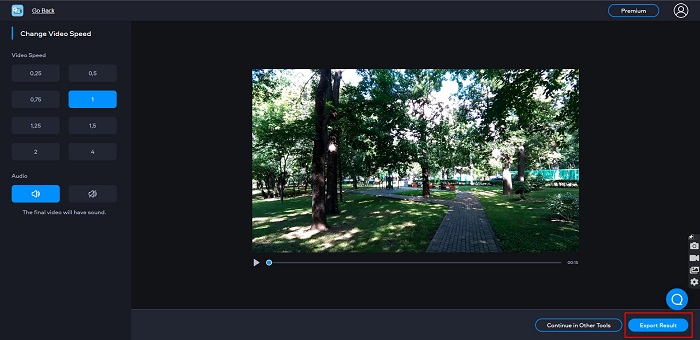
ステップ 3. 最後に、動画の速度を変更するためにExport Resultをクリックします。
長所
- シンプルなGUIを備えています。
- 無料で安全に使用できます。
短所
- インターネット接続が遅い場合、読み込みプロセスが遅くなることがあります。
パート4。ソニーベガススピードアップビデオに関するFAQ
Sony Vegasには無料トライアルがありますか?
はい。 Sony Vegasには、30日間の無料試用版があります。 30日間の無料試用期間が終了した場合、アプリを継続して使用するにはアプリを購入する必要があります。月額$16.67かかります。
Sony VegasとFilmoraのどちらが良いですか?
多くの専門家は、FilmoraはSony Vegasよりもユーザーインターフェイスが簡単なため、FilmoraはSonyVegasよりも優れていると言います。プロの編集者はまた、FilmoraはSonyVegasよりも高品質の出力を生成できると述べています。
Sony Vegasでビデオ速度を変更すると、ビデオの品質に影響しますか?
いいえ。SonyVegasでビデオ速度を変更しても、ビデオの品質には影響しません。
結論
まとめると、「Sony Vegas で動画を高速化する方法」という疑問には、すでに答えが出ています。Sony Vegas は、最高クラスの動画編集ソフトの一つです。その優れた機能の多さから、たくさんのユーザーに利用されています。しかし、より手軽で使いやすい動画スピードチェンジャーを求めるなら、多くの人からも推薦されている FVC Video Converter Ultimate を試してみてください。
-
 [4つの方法]オンラインで動画を簡単に高速化する方法
 オンラインでビデオをスピードアップしたいですか?さまざまな方法でビデオを高速化する方法について詳しくは、この記事をお読みください。
-
 MP4形式のビデオを高速化する簡単な方法[オフラインおよびオンライン]
 ビデオを高速化したいのですが、MP4形式ですか?この記事は、ビデオをオンラインまたはオフラインで高速化する方法の違いを理解するのに役立つ場合があります。
-
 [無料&有料] GIFスピードチェンジャー:2021年のホットピック
 面倒で遅いので、オンラインで作成したGIFに不満がありますか? GIFスピードチェンジャーとそれを使用して習得するのに役立つ詳細についての記事を紹介するので、これはあなたの幸運な日になるでしょう。
