


 ビデオコンバーター究極
 スクリーンレコーダー
 ビデオ修復
ビデオ修復
 安全なダウンロード
これらの迅速で簡単な方法を使用して画質を向上させる
ぼやけていたり画質の低い画像はありませんか? 画像の画質を上げることこそが、まず行うべき最善の解決策です。幸いなことに、画像の品質を向上させるためのツールは数多く存在します。しかし、パソコンに入っているすべてのアプリケーションやツールが最高の機能を備えているわけではありません。そこで、オンライン・オフライン・iPhone で使える人気の写真高画質化ツールを調査しました。画像の画質を改善する方法を知りたい方は、この記事をお読みください。

パート1。オンラインで画質を向上させる方法
オンラインイメージエンハンサーを使用すると、コンピューターにソフトウェアアプリケーションをダウンロードするよりも便利です。オンラインツールを使用する利点は、Web上で自由にアクセスできることです。このパートでは、最もすばらしいオンラインフォトエンハンサーを使用して画像の品質を向上させる方法を説明します。
FVC Free Image Upscaler は、多くのユーザーに人気のあるオンライン無料画像高画質化ツールです。このオンラインアプリでは、拡大倍率を 2 倍、4 倍、6 倍、8 倍に設定できます。さらに、PNG、JPG、JPEG、BMP など、一般的な画像形式に対応しています。Google、Firefox、Safari など、あらゆるウェブブラウザーからアクセス可能です。また、このツールは安全性が高いため、データの保護について心配する必要はありません。
さらに、画像のぼやけた部分を自動的に認識する強力なAIテクノロジーを備えています。また、FVC Free Image Upscalerは、失われたピクセル、カラーテクスチャ、および詳細を修正できます。この優れた画像アップスケーラーを使用する場合は、以下の簡単なガイドに従ってください。
FVC Free Image Upscalerを使用してオンラインで画質を向上させる方法:
ステップ1. ブラウザーを開き、検索ボックスで FVC Free Image Upscaler を検索します。記載されているリンクをクリックすれば、直接公式ページにアクセスできます。
ステップ2. 次に、メイン画面の Upload Photo ボタンをクリックして、高画質化したい画像をアップロードします。画像のアップロードが完了するまで待ち、次のステップに進みます。
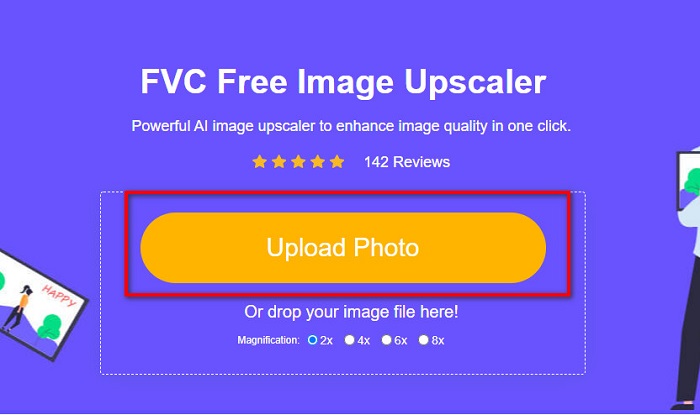
ステップ3. その後、画像に適用したい倍率(Magnification)を選択します。2x、4x、6x、8x の中から選べます。
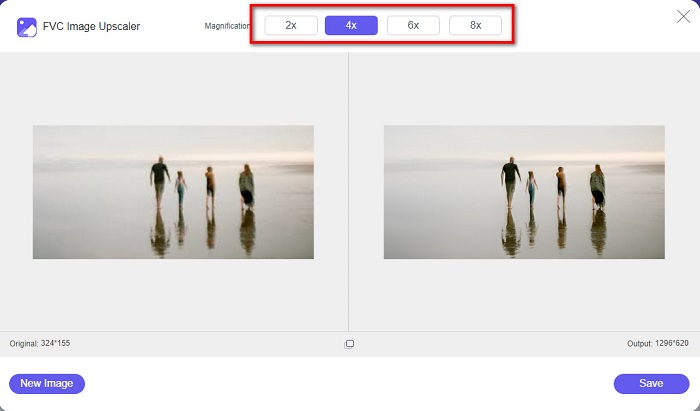
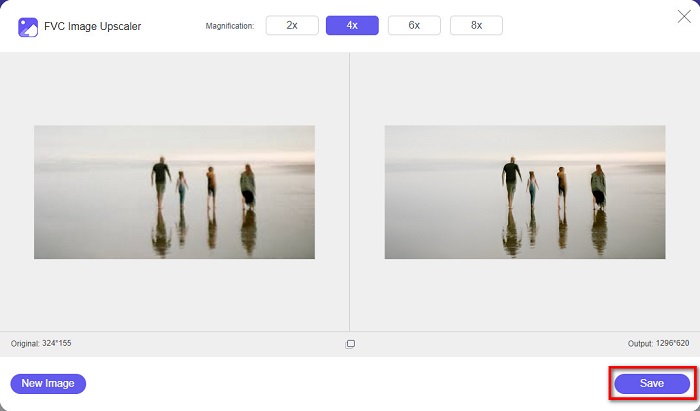
ステップ4. 画像のプレビューを確認し、仕上がりに満足したら、Save ボタンをクリックして、高画質化された画像をデバイスに保存します。
以上です!これで、高品質のビューを使用してコンピューターで画像を表示できます。
パート2。Photoshopで画質を向上させる方法
プロフェッショナルなツールを使用して画像の品質を向上させたい場合は、必要なものが揃っています。このパートでは、AdobePhotoshopを使用して写真の品質を向上させる方法を説明します。
Adobe Photoshop は、画像の画質を向上させるのに利用できるプロフェッショナル向け編集アプリです。Adobe Photoshop には画像編集に使える豊富なツールが搭載されています。多くのプロがこのツールを使用しているのは、機能が非常に多彩だからです。また、このアプリケーションは、SNS やウェブサイトで共有できる高品質な成果物を出力します。さらに、Adobe Photoshop は Adobe 社の代表的な製品のひとつで、ほぼすべての主要プラットフォーム向けに提供されています。この編集アプリを使えば、ロゴ、バナー、パンフレットなど、さまざまなデザインを制作できます。しかし、多くのユーザーは、Photoshop で画像の画質を向上できることを知らないようです。また、ソフトウェアのインターフェース操作が難しく、導入コストもやや高いことから、使いこなすのが大変だと感じるユーザーも少なくありません。
Photoshopで画質を向上させる方法の手順:
ステップ1. まず、パソコンに Adobe Photoshop をダウンロードします。インストール手順に従ってセットアップし、アプリを起動します。
ステップ2. メイン画面で File > Open に進み、画質を改善したい画像を選択します。
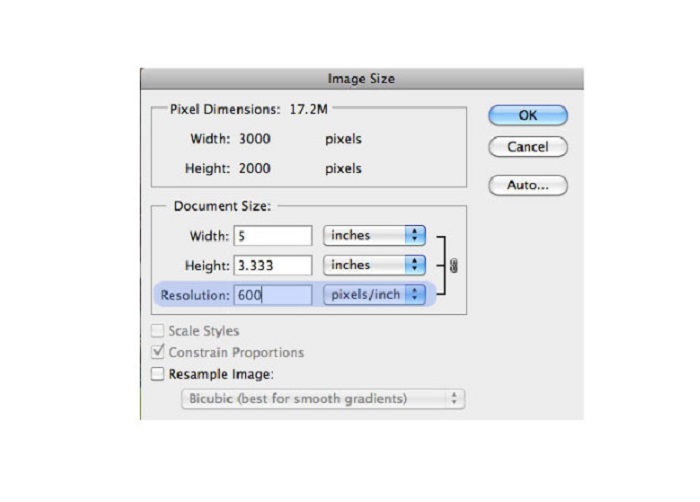
ステップ3. 次に、Image > Image Size をクリックします。ダイアログボックスが表示されたら、画像の解像度だけを変更するために Resample Image のチェックを外します。そして、Resolution の項目に、希望する解像度の数値を入力します。
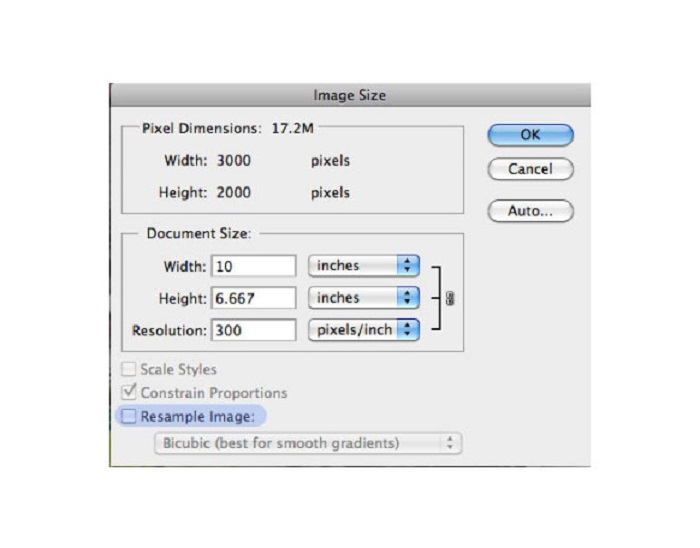
ステップ4. Resolution を変更すると、画像の幅(Width)と高さ(Height)も自動的に変更されます。その後、OK ボタンをクリックして、行った変更を画像に反映させます。この方法を使えば、低解像度の画像を高解像度に変換することができます。
パート3。iPhoneで写真の品質を向上させる方法
一部のアプリは、iPhoneユーザーの場合、低品質の画像を向上させることができます。 AppStoreには多くのフォトエンハンサーアプリがありますが、その中で最も有名なものを選びました。このパートを読んで、iPhoneの写真の品質を向上させる方法を学びましょう。
Remini は、低画質な画像を高画質化するのに最適なアプリのひとつです。この優れたアプリはインターフェースがシンプルで、とても使いやすい点が特徴です。さらに、AI 技術を搭載しており、画像のぼやけた部分を自動で検出して補正してくれます。また、安全に利用できるアプリのため、使用中もファイルの安全性が確保されています。難点としては、結果を表示・ダウンロードするには広告を視聴する必要がある点で、広告なしで利用したい場合は有料版を購入する必要があります。
Reminiアプリを使用してiPhoneの画質を向上させる方法:
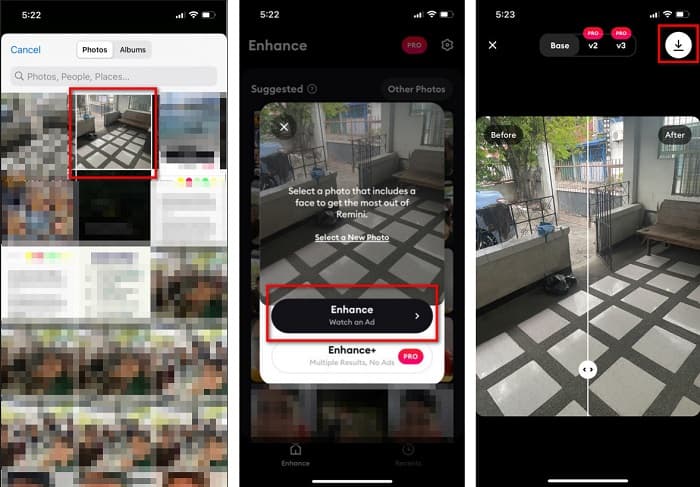
ステップ1. App Store から Remini アプリをダウンロードします。ダウンロード後、スマートフォンでアプリを開きます。
ステップ2. 次に、アプリのメイン画面で、高画質化したい画像を選択します。
ステップ3. 続いて、Enhance ボタンをタップして画像の画質を向上させます。アプリのプロ版を利用している場合は、広告を見る必要はありません。無料版の場合は、結果を表示・保存する前に広告の視聴が求められます。
ステップ4. 改善された画像を確認できるようになったら、画面右上のダウンロードアイコンをタップします。これで完了です。これらの簡単なステップだけで、画像の画質を向上させることができます。
パート4。写真の品質を向上させる方法に関するFAQ
Androidの画質を向上させるアプリはありますか?
写真の品質を向上させるツールは、画質を向上させるための最高の画質向上アプリの1つです。 pic Beautifying Effectsを使用すると、画像にプロフェッショナルな外観を与えることができます。
Lightroomで写真の品質を向上させる方法は?
Adobe Lightroom は、画像の解像度を高めるために利用できる、もうひとつの Adobe 製品です。Lightroom で写真の画質を向上させる手順は以下のとおりです。1. パソコンに Adobe Lightroom をダウンロードします。2. Lightroom で画像を開きます。3. Choose Photo > Enhance をクリックします。4. 次に Super Resolution を選択し、Enhance をクリックします。5. すると、Lightroom が画像の解像度を自動的に上げ、DNG ファイルとして保存します。
画像をアップスケールすると、ファイルサイズに影響しますか?
印刷解像度を変更しても、画像のピクセル数は変更されず、画像のサイズにも影響しません。
結論
画像の画質を改善することは、ここで紹介した手順さえ押さえておけば、とても簡単です。パソコンや iPhone には、画像をアップスケーリングできるアプリが数多くあります。しかし、ぼやけた画像を自動で高画質化したい場合は、無料で使える画像アップスケーラー FVC Free Image Upscaler をぜひお試しください。
-
 最高のツールを使用してB612透かしを削除する方法の5つの方法
 写真からB612透かしを削除する方法を知りたいですか?これらの優れたツールを使用して、画像からB612透かしを簡単に削除できます。
-
 WOWスライダー透かしを削除する方法の簡単な手順[解決済み]
 WOW Sliderは、素晴らしいスライドショーを作成するためのアプリです。ただし、出力には透かしが埋め込まれています。 WOWスライダーの透かしを削除する方法については、以下をお読みください。
-
 シュートプルーフ透かしを削除する方法の簡単な方法
 これらの簡単な方法に従って、シュートプルーフ透かしを削除します。これらの驚くべき透かしリムーバーを使用して、画像から耐射透かしを簡単に削除します。
