


 ビデオコンバーター究極
 スクリーンレコーダー
 ビデオ修復
ビデオ修復
 安全なダウンロード
これらの簡単な方法で画像をより鮮明にする方法を学ぶ
When you capture an image that turns out to be blurry, it is considered a defect. And it is very dissatisfying when you have a blurry image. But luckily, there are tons of applications nowadays that can help you sharpen and unblur your image. Adobe Photoshop is among the famous photo editing applications. However, it is not a beginner-friendly tool. Therefore, we will present the more straightforward methods you can use to make your blurry picture have excellent quality. Read this passage below to learn how to make a picture clearer with easy steps.

パート1.オンラインで画像をより鮮明にする方法
AI テクノロジーを使用することで、画像を自動的にシャープにすることができるオンライン画像アップスケーラーが数多くあります。オンライン アプリを使用すると、デバイスに何もダウンロードする必要がないため、写真がより鮮明になります。ブラウザからアクセスできるため、デバイスのストレージ容量も節約できます。
FVC Free Image Upscaler is the most renowned online application if you want to sharpen or make your image clearer. This tool is easy to use because it has a straightforward user interface. In addition, you can enhance the quality of your image by 2x, 4x, 6x, and 8x magnification. Also, FVC Free Image Upscaler uses an AI (Artificial Intelligence) technology that automatically detects the blurry parts of your image, then enhances it. It enables you to precisely fix the lost pixels, color textures, and more details.
さらに、PNG、JPG、JPEG、WebP などの複数の画像形式をサポートしています。このオンライン ツールのさらに優れた点は、アクセスするのにアカウントが必要ないことです。また、無料で安全に使用できます。また、オンライン アプリであるにも関わらず、気を散らすような厄介な広告は含まれておらず、高速で効率的に使用できます。したがって、便利なツールを探しているなら、FVC Free Image Upscaler が最適なツールです。
FVC Free Image Upscaler を使用してオンラインで画像を鮮明にする方法:
Step 1. On your computer, open your browser and search FVC Free Image Upscaler on the search box. Or, you can click the provided link to go directly to the app’s main page. Click the Upload Photo button to launch the app.
Step 2.0 After launching the app, click the Upload Photo again to add the image you want to upscale/sharpen. Your computer files will prompt where you will locate your image and open it.
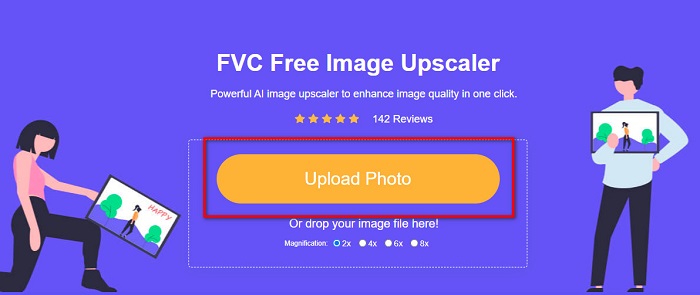
Step 3. And then, select the magnification preset that you prefer. The higher the magnification, the higher the sharpness of your image will become. But note that the file size will also increase as the quality increases. You can choose magnification between 2x, 4x, 6x, and 8x.
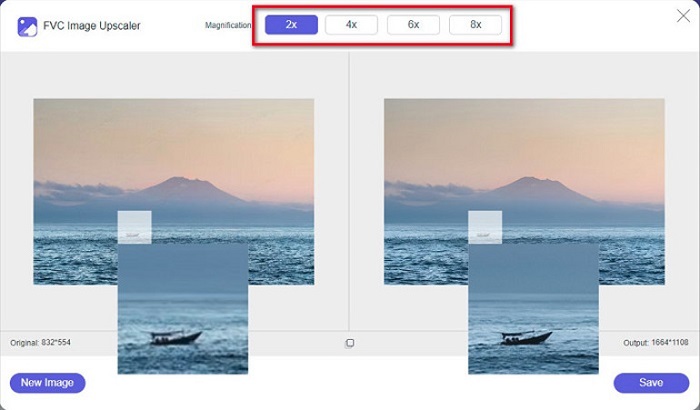
Step 4. You will see the results on the right side of the interface. And if you are content with your output, click the Save button to save your image output on your device.
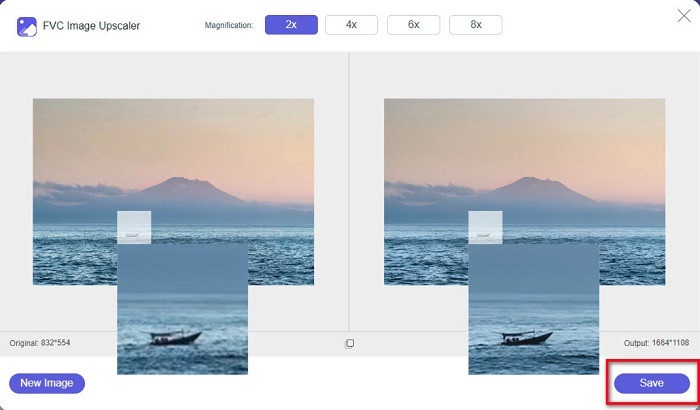
画像が保存されるのを待ってください。素晴らしい写真を友達や他のソーシャル メディア プラットフォームで共有できるようになりました。
パート 2. オフラインで画像を鮮明にする方法
画像をシャープにしたり編集したりしたい場合は、オフラインアプリを使用するのも良いでしょう。多くの写真編集アプリケーションはオフラインです。使用する前に購入する必要があります。でも心配はいりません。このパートでは、デスクトップで使用できる無料のオフライン ツールを提供します。
Paint.net is among the most used photo editing applications that is free and safe to use. This offline tool has an easier user interface than Adobe Photoshop, which many professionals use. Although it has a simple user interface, it can still produce exceptional outputs and enables you to sharpen your blurry image. Additionally, it has other editing features that can help you improve your image. With Paint.net, you can sharpen, color correct, and add background to your picture.
さらに、スライダーを動かすことで、画像のシャープネスを選択したり、ぼやけた部分を削除したりできます。ただし、Windows デバイスでのみ使用できます。それでも、画像をシャープにしながら大きくしたい場合は、Paint.net を使用できます。
Paint.net を使用して画像を大きく鮮明にする方法:
Step 1. First, download and install Paint.net on your desktop, and open it once it is done installing. Then, upload your image by clicking File > Open.
Step 2. And then, go to Effects > Photo > Sharpen. Another tab will appear where you will adjust the sharpness of your image to deblur it.
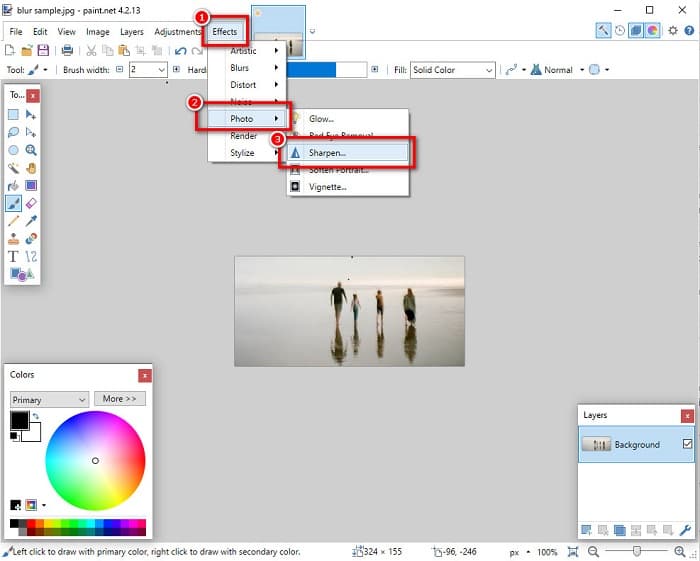
Step 3. On the Sharpen tab, move the slider head to select the preferred sharpness of your image. You can also tick the up/down arrow to choose the sharpness amount of your image numerically.
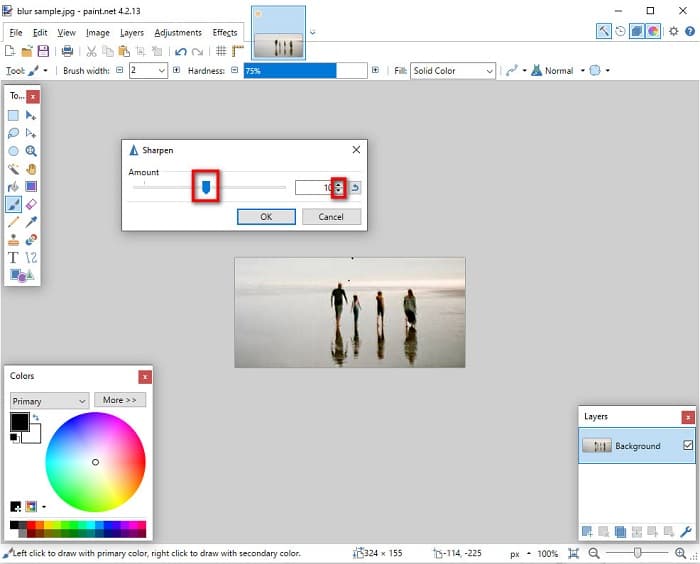
Step 4. Finally, click the OK button and go to File > Save to save your output on your desktop.
パート 3. iPhone で画像を鮮明にする方法
また、iPhone を使用してキャプチャしたぼやけた画像がある場合は、iPhone デバイス用のブレ除去アプリを使用することもできます。 AppStore からダウンロードできる多数の画像編集アプリは、画像のぼやけを解消するのに役立ちます。ただし、すべてのアプリが無料で使用できるわけではありません。使用する前に購入する必要があります。幸いなことに、AppStore から無料で使用できるブレ除去アプリを見つけました。このセクションを最後まで読んで、iPhone デバイスで画像をより鮮明にする方法を学んでください。
If you are wondering what the free photo editing app that can help you deblur an image is, VSCO is the app you are looking for. VSCO is a known photo editing application available to download from AppStore. In addition, when you are unblurring an image using VSCO, there are some settings that you need to focus on. To unblur your photo using VSCO, you need to adjust your image’s clarity, sharpness, clarity, and exposure. VSCO also has other editing tools that you can use to edit your images. Furthermore, it supports iPhone's most common image formats, like HEIC and HEIF. A little setback of this app is that it only supports a few image formats, and you need to purchase it to use its other editing features.
VSCO を使用して iPhone で画像を鮮明にする方法:
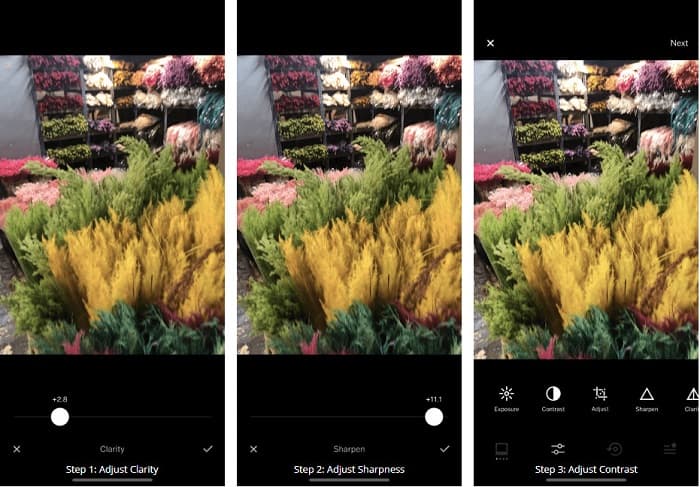
Step 1. Install VSCO from the AppStore, then open the app on your iPhone.
Step 2. Open your image, then go to Clarity. The Clarity option will help you remove the large-scale noise on your image. Just move the Clarity slider a little below the interface.
Step 3. Next, we will adjust the sharpness of your image. The Sharpen function will help you get the crispiness that you want on your image. And then, by moving the slider, you can select the sharpness you want for your image.
Step 4. Once you are done editing the clarity and sharpness of your image, let us know to adjust the Contrast. Move the Contrast option and the Contrast slider to select the brightness and darkness you want for your image.
Step 5. Lastly, we will now adjust your photo's Exposure to brighten it a little. Increasing the Exposure of your image will help you balance the darkness with the Contrast. And that’s it! By adjusting these features, you can unblur your blurry image. Click here to learn how to resize an image on an iPhone.
パート 4. Android で画像を鮮明にする方法
Android には、写真をより鮮明にするために使用できるアプリもあります。したがって、ぼやけた写真をギャラリーに保存したい場合は、このアプリで画像を強化できます。 Android デバイスで画像のブレを除去する方法については、このパートをお読みください。
Remini app (for Android) is probably one of the best photo editing apps you can use on your Android device. This app allows you to edit and even unblur your blurry image. Moreover, it is easy to use, and it is free. By using the Enhance option, you can make your picture clearer. However, you need to create an account first before you can use this app. And on its Pro version, you can access this app's advanced unblurring features.
Remini for Android を使用して画像のぼかしを解除する方法:
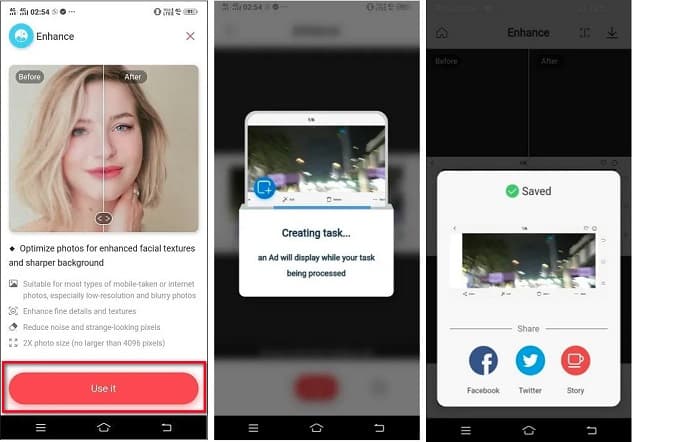
Step 1. Install Remini on your Android device. After installing the app, open it immediately. On the app’s main user interface, tap the Use it button to proceed to unblurring your image.
Step 2. And then, select the image and click the red button at the bottom of the interface. It will create a task and will display an ad while processing.
Step 3. After that, the final output will appear, where you can compare the before and after of your image. And if you are already satisfied with your output, save your image.
パート 5. 写真をより鮮明にする方法に関する FAQ
GIMP を使用して画像のブレを取り除くことはできますか?
はい。 GIMP は、画像のブレを取り除くために使用できる素晴らしい写真編集ソフトウェアです。このアプリを Windows デバイスにダウンロードすることもできます。
画像のブレを除去するとファイル サイズが大きくなりますか?
はい。画像のブレ除去とは、画像の品質と解像度を向上させることを意味します。解像度が上がると、画像のファイル サイズも大きくなります。
画像をぼかすにはどのアプリを使用できますか?
YouCam Perfect は、画像をぼかすのに役立つアプリケーションです。その AI テクノロジーにより、画像をすぐにぼかすことができます。
結論
This post has written what you need to learn about how to make a picture clearer. So, if you are searching for applications that enable you to unblur an image, the methods above will help you with your goal. But if you prefer using an online tool with an easy-to-use interface, use FVC Free Image Upscaler.
-
 2022年に知っておくべき事実のPicResizeレビュー
 PicResize が画像編集に最適なオプションであるかどうかを知りたいですか?この記事を読んで、ツール全体を確認してください。
-
 Waifu2x とその代替品について知っておくべきことすべて
 Waifu2x についてもっと知りたいですか?この記事では、このアプリとその代替で強調する必要がある情報を提供します。
-
 最適なソリューションを使用して Web 用に画像を最適化する方法 [クイック]
 Web 用に画像を最適化する方法信頼できるソフトウェアとチュートリアルが必要です。すべての情報はここにあります。
