


 ビデオコンバーター究極
 スクリーンレコーダー
 ビデオ修復
ビデオ修復
 安全なダウンロード
MacとPCでQuickTimeを使用してMacで音声付きの画面を録音する方法
あなたのMacには多くのソフトがプリインストールされており、そのひとつがQuickTime Playerです。もしQuickTime PlayerをMac用のメディアプレーヤーとしてしか見ていないなら、それは違います。実はその中にはいくつかの隠れた機能があり、画面録画(スクリーンレコーディング)もそのひとつです。

画面で再生されているものをキャプチャする場合でも、カメラから画面を記録する場合でも、QuickTimePlayerで簡単に作成できます。
ビデオ画面の録音とは別に、Macでオーディオを録音することもできます。
つまり、Macでオーディオ付きのビデオ画面を録画できます。
この詳細なチュートリアルでは、Macで音声付きの画面録画を開始する方法を紹介します。
パート1。Macでのオーディオを使用したQuickTime画面記録
Macで画面の記録を開始するのは簡単です。 Macの画面を音声で録音したい場合は注意が必要です。
心配はいりません。ここでは、Macビデオをオーディオで録画する方法を紹介します。
手順1.QuickTimeの記録を開始する
このプロセスは、MacでQuickTimePlayerを開くことから始まります。
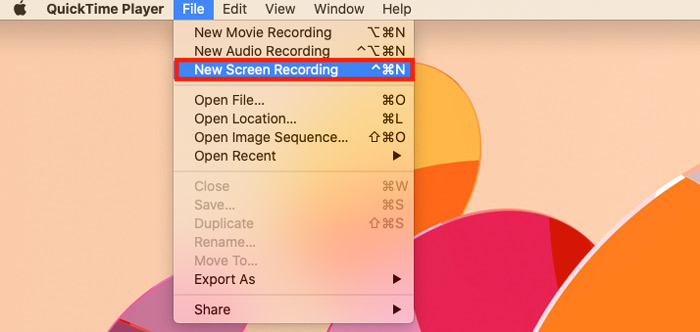
1. メニューバーのファイルから新規画面収録または新規ムービー収録を選択します。
新規画面収録:Macのデスクトップ上で起きていることをすべて録画し、マイクの音声を入れるか入れないかを選べます。
新規ムービー収録:カメラからの映像を録画し、Macのマイクやスピーカーの音声と一緒に記録します。
ここでは、新規画面収録を選択します。
2.画面記録プロンプトが表示されます。ここで、[オプション]メニューをクリックして録音設定を行う必要があります。
マイク:画面を音声付きで録画するか、無音で録画するかに応じてマイクあり/なしを選択します。ポップアップが表示された場合は、QuickTimeによるマイクへのアクセスを許可してください。
オプション:マウスクリックを表示するかどうかを選択します。
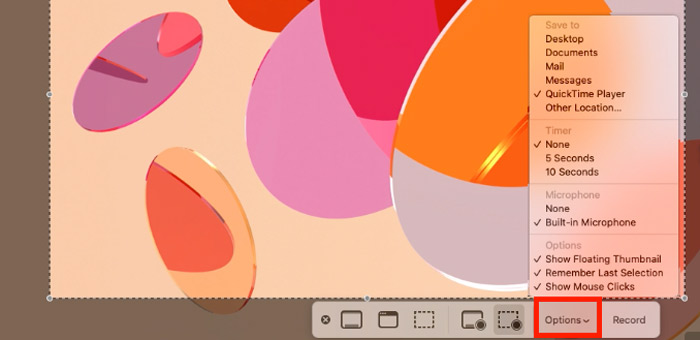
録画範囲:画面全体を録画するには画面全体を収録をクリックし、画面の一部だけを録画するには選択部分を収録をクリックして、録画したい範囲をドラッグして選択します。

ステップ2.Macの画面を音声で録音する
すべての設定が完了したら、収録ボタンをクリックしてMac画面の録画を開始します。録画範囲内で再生されている画面はすべてQuickTimeでキャプチャされます。

手順3.QuickTimeの記録を一時停止および停止します
新規画面収録では一時停止はできません。録画を終了するには、メニューバーにある停止ボタンをクリックします。Wi‑Fiボタンの左側に表示されます。

ステップ4.QuickTime画面記録をエクスポートする
QuickTimeの画面録画を停止している間、プレビューウィンドウが表示され、再生ボタンをクリックして画面録画を再生できます。
録画した動画を書き出すには、メニューバーのファイルをクリックし、保存を選択して、動画に名前を付け、保存先を指定します。形式はMOVで保存されます(QuickTimeをMP4に変換する方法はこちらを参照してください)。
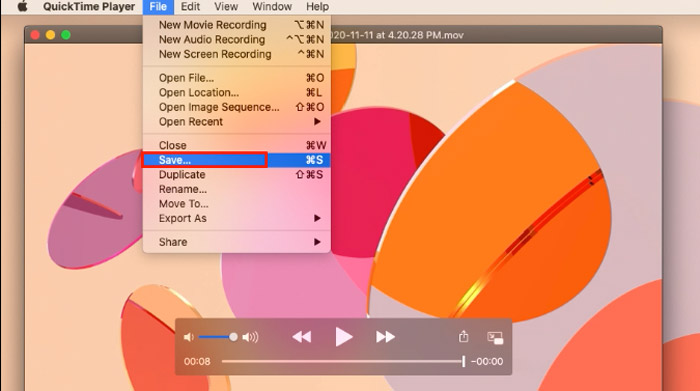
QuickTimeの画面収録を高画質で保存したい場合は、ファイルをクリックし、書き出すから720pを選択してください。
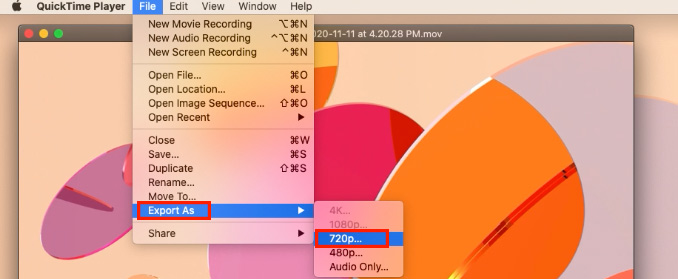
Macでオーディオ付きのMac画面をすばやく録音するのに必要なのはこれだけです。
パート2。QuickTime画面記録のトラブルシューティング
QuickTimeの画面収録でFPS(フレームレート)を変更するには?
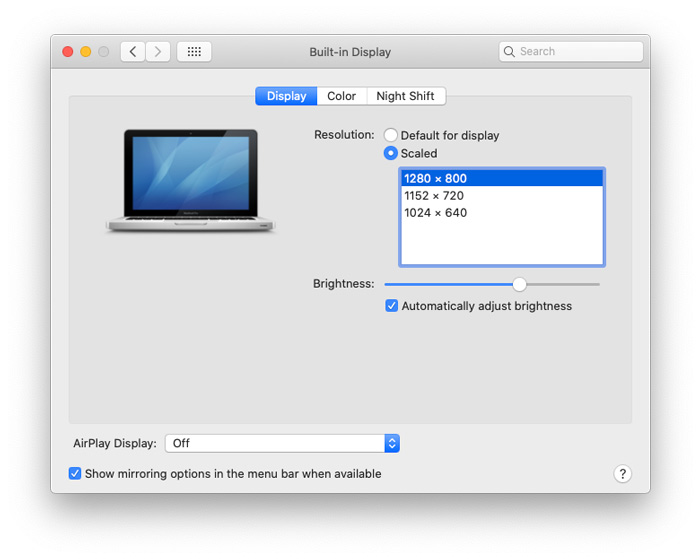
一般的に、QuickTime画面の記録フレームレートを変更するための公式設定はありません。通常の記録フレームレートは30FPSですが、表示スケールを変更することで60FPSに向上させることができます。
Appleメニューをクリックし、システム環境設定を選択してからディスプレイをクリックします。次にディスプレイタブを選び、調整を選択して、文字を拡大を選択し、最後にOKをクリックして変更を保存します。
QuickTimeの画面収録で音が出ないときの対処法は?
QuickTimeで画面に音が出ないのを修正するには、次の方法を実行します。
- 1.オーディオのボリュームアップが有効になっていることを確認します。
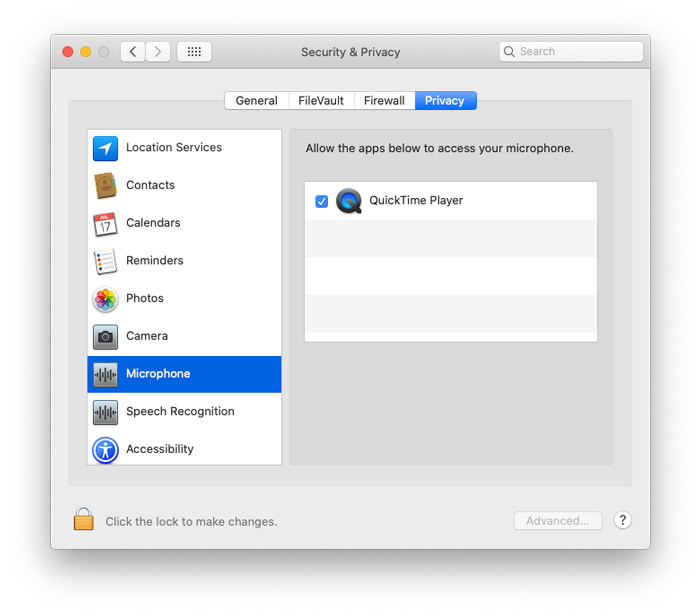
- 2.次の手順で、マイク録音を選択したことを確認します ステップ1 この投稿のパート1で。
- 3.QuickTimeがマイクにアクセスできるようにします。 (クリックしてください 林檎 メニュー、開く システム環境設定、クリック セキュリティとプライバシー、ナビゲート プライバシー タブをクリックし、下にスクロールして選択します マイクロフォン 左側のペインから、のボックスにチェックマークを付けます QuickTimeプレーヤー.)
QuickTimeで画面録画をトリミング(クロップ)するには?
QuickTimeで画面記録をカットするには、
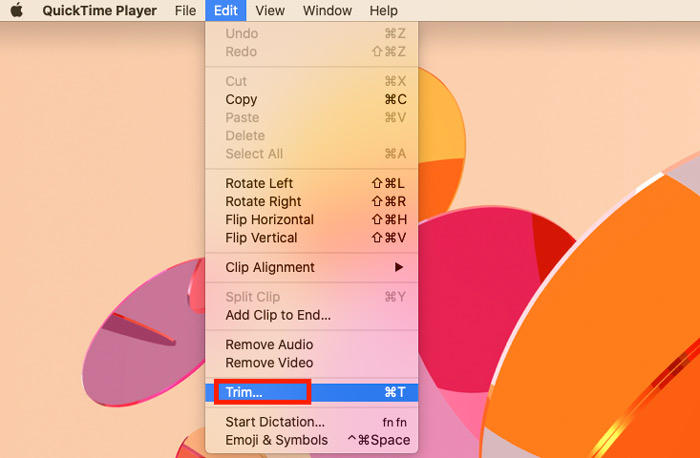
- 1.最初にビデオ録画を開き、次にクリックする必要があります 編集 トップメニューバーから。
- 2.選択します トリム ドロップダウンメニューから。
- 3.次に、ハンドルをドラッグして開始点と終了点を設定します。黄色いバーの内側はすべて残ります。
- 4.をクリックします トリム 再生アイコンを選択してビデオをプレビューするには、右側に移動します。
- 5.フォローする ステップ4 パート1では、トリミングされた画面の記録をQuickTimeに保存します。
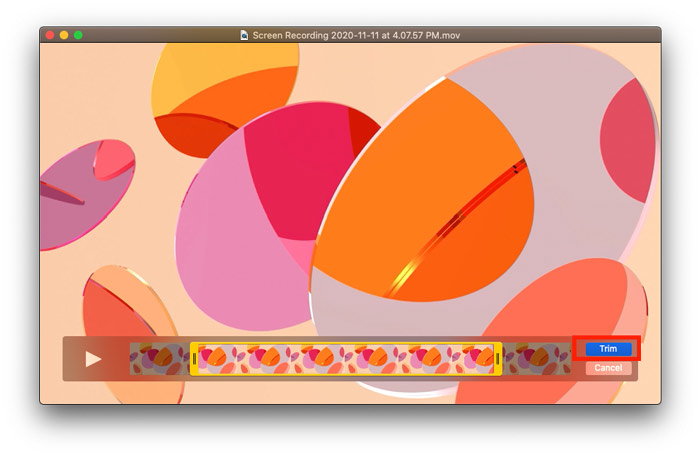
パート3。PCでのQuickTime画面記録
QuickTimeを使用してMacで画面を記録するのは簡単です。ただし、QuickTime画面記録が機能しない場合、またはWindowsコンピュータで画面を記録する場合は、QuickTimeは解決策ではありません。
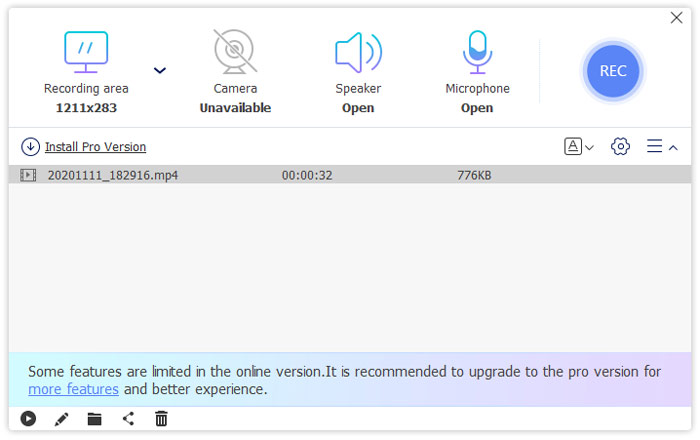
ここでは、Free Online Screen Recorderを使えば、これらすべての問題を解決でき、より簡単な方法で録画が行えます。
Free Online Screen Recorderは、PCおよびMacで再生されているすべての画面を音声で記録できるWebキャプチャソフトウェアです。 YouTubeやFacebookなどからオンラインビデオを保存したい場合でも、SoundCloudやPandoraから音楽を把握したい場合でも、ゲームプレイを記録してTwitchにアップロードしたい場合でも、この魔法のツールが鍵となります。
- •Windows10/8/7およびmacOSでビデオ、画面、およびオーディオを記録します。
- •カメラから記録して、ピクチャーインピクチャー記録を作成します。
- •コンピューターからマイクとスピーカーから音声を録音します。
- •PCストレージが無制限に実行されている限り記録します。
- •画面の記録中のリアルタイム編集。
ここでWindowsで画面記録を開始する方法を知るには、以下に説明する簡単な手順に従ってください。
ステップ1. ブラウザから無料のオンライン画面録画ソフトを起動します。
画面の指示に従ってランチャーをダウンロードしてインストールします。ランチャーは、追加の手順を実行せずに、記録を直接記録および保存できます。
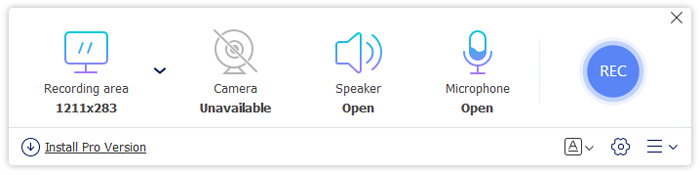
ステップ2. マウスドラッグで録画範囲を選択します。さらに、必要に応じてスピーカー、マイク、カメラをオンにして、録音したい音声やカメラ映像を同時に記録します。
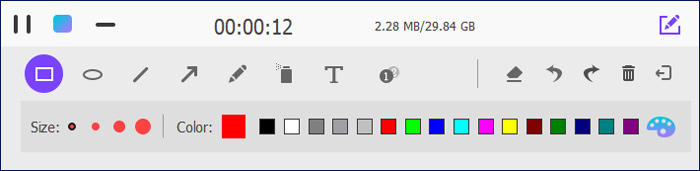
ステップ3. RECをクリックして画面録画を開始します。録画中は、フローティングバーの編集ボタンをクリックして、図形を描いたり、テキストを追加したり、その他のエフェクトを適用したりできます。
ステップ4. 録画を終了するには停止ボタンをクリックします。録画が終了すると、自動的に画面録画が書き出され、あなたのパソコンにダウンロードされます。
パート4。FAQQuickTime画面記録
WindowsでQuickTimeを使用してスクリーン録画できますか?
いいえ。QuickTimeforWindowsはAppleではサポートされなくなりました。画面をWindows画面に記録するには、Windows用のプロフェッショナルなスクリーンレコーダーが必要です。
QuickTime Screen Recordingは音声を録音しますか?
はい。 QuickTime Screen Recordingはマイクからの音声を録音しますが、Macコンピュータからの内部音声は録音しません。 QuickTime Movie Recordingは、カメラからの録音中にMacでオーディオを再生しない限り、内部オーディオとマイクの両方のサウンドを録音できます。さらに、サードパーティのソフトウェアであるSoundflowerをダウンロードできます。これは、QuickTimeに組み込まれており、Macから内部オーディオ録音を開始できます。
QuickTimeの画面記録を小さくするにはどうすればよいですか?
QuickTime画面記録ファイルをエクスポートするときに、1080pではなく480p、720pなどの低解像度を選択することで、ファイルサイズを小さくすることができます。
結論
QuickTimeは、無料のメディアプレーヤーであり、Macの画面記録プログラムです。これを使用すると、マイクからの音声でMac画面を録音できます。ただし、QuickTimePlayerはWindowsユーザーには使用できません。 Windowsの画面を記録するには、無料のオンラインスクリーンレコーダーを使用できます。これは、スピーカーとマイクからの音声で画面をキャプチャするWebレコーダーです。
今、それはあなたの番になります。
QuickTimeは簡単な画面記録ツールだと思いますか?
PC画面の記録にどのソフトウェアを使用していますか?
QuickTimeでMac画面を記録しているときに他に問題がありますか?
コメントを残してお知らせください。
-
 チュートリアル–iPhone上のビデオを新しいものにマージする4つの無料の方法
 iPhoneでビデオをマージする4つの簡単な方法を読んで入手してください。すべてのiPhoneモデルとiOSバージョンがサポートされています。 iPhoneの2つ以上のビデオをすばやく新しいビデオに組み合わせることができます。
-
 MacとPCでARFをMP4に変換する2つの無料の方法(100%が機能しています)
 ARFファイルを取得しますが、それを開く方法がわかりませんか?この投稿は正確にあなたを助けることができます。 MacとPCでARFをMP4に変換する2つの無料の方法を詳しく説明します。
-
 無料でビデオを圧縮する方法/これらの7つのオンラインビデオコンプレッサーを試す
 コンピューターまたは電話で無料でビデオを圧縮する7つの方法を読んで入手してください。メール、Twitter、Instagram、YouTube、WhatsAppなどの大きなビデオを小さなファイルサイズに簡単に縮小できます。
