


 ビデオコンバーター究極
 スクリーンレコーダー
 ビデオ修復
ビデオ修復
 安全なダウンロード
WebP を JPG に変換する方法に関するウォークスルー ガイド
WebPは新しい画像ファイル形式です。このファイル形式は、非可逆圧縮と可逆圧縮の両方に対応しています。Web上で見られる多くの写真画像、グラフィック画像、透過画像に使用できます。しかし互換性という点では制限があります。ブラウザーによってはWebP形式に対応していないものもあります。また、WebP画像をアップロードできない場合もあります。そのようなときは、本記事で紹介する方法が最適な解決策となります。効果的な方法の一つが、WebP画像を別の形式に変換することです。互換性の面ではJPG形式のほうが優れています。WebPと異なり、JPG画像はすべてのブラウザーにアップロードできます。この記事を読んで、WebPをJPGに変換する最良の方法を学びましょう。信頼して使える画像変換ツールもすべて紹介します。

パート 1. WebP と JPG
| ファイル形式 | WebP | JPG / JPEG |
| ファイル拡張子 | .webp | .jpg |
| によって開発された | グーグル | 共同写真専門家グループ |
| フルネーム | ウェブサイト上の画像 | 共同写真専門家グループ |
| 説明 | WebP ファイルは、新たに開発された画像形式です。優れた可逆圧縮と非可逆圧縮を提供します。アニメーションとアルファ透明度も含まれます。 Google は 2010 年にこの新しい画像ファイル形式をリリースしました。主な機能は、コンパクトで高品質の写真を生成することでした。 | ユーザーが広く使用 JPG ファイル。写真や Web グラフィックに使用されます。 JPEG または JPG ファイルとも呼ばれます。このチームは、広く使用されている画像ファイルを作成したチームです。 JPG は非可逆形式であるため、過剰な圧縮は画質に影響します。 |
| 圧縮 | ロッシーとロスレス | ロッシー |
| 関連プログラム/ブラウザ | Google Chrome、Internet Explorer、Microsoft Edge、Mozilla Firefox | Photoshop、Microsoft、GIMP、ペイント、FastStone イメージ ビューアー、Google Chrome、Internet Explorer、Chrome、Explorer、Edge |
パート 2. オンラインで WebP を JPG に変換する簡単な方法
FVC Free Image Converter を使用して WebP を JPG に変換する
WebPをJPGに効率よく変換したい場合は、FVC Free Image Converterを利用してください。JPG、JPEG、PNG、GIF、BMP、TIFF、WEBP、ICO、SVGなど、標準的な画像形式を一通りサポートしています。そのため、特定のツールやデバイスで画像ファイルが開けないのではないかと心配する必要はありません。さらに、元画像の優れた画質を保ったまま変換できます。変換後のファイルは元の画像とほぼ同一品質のままです。また、この画像コンバーターは一括変換機能も備えています。最大40枚までの画像を一度にアップロードして変換できます。
ステップ1: まず、FVC Free Image Converterのサイトにアクセスします。Convert toオプションからJPG形式を選択します。
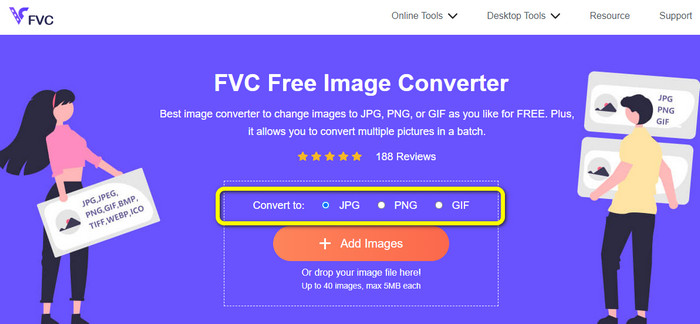
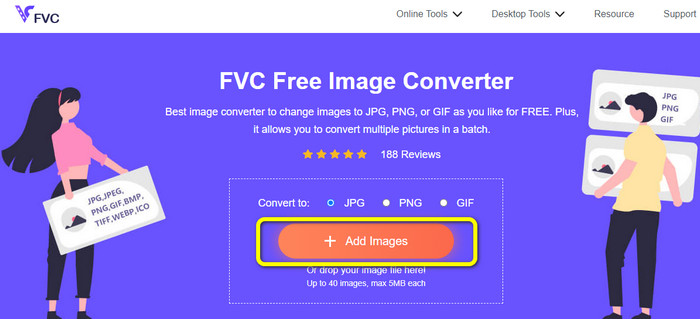
ステップ2: Add Imagesボタンをクリックします。パソコンのフォルダーが表示されたら、変換したいWebP画像を開きます。複数の画像を同時に変換したい場合は、さらにファイルを追加できます。WebP画像をボックス内にドラッグ&ドロップしてアップロードすることも可能です。
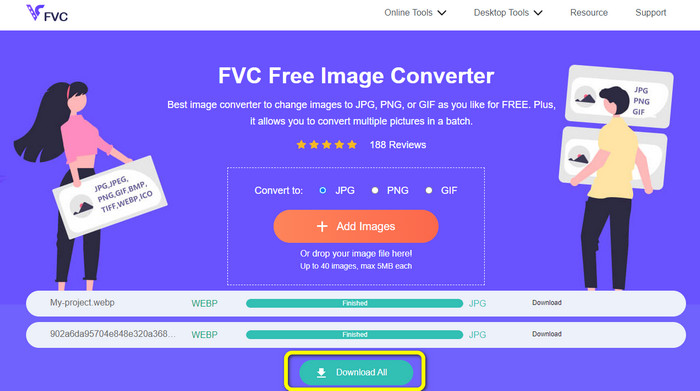
ステップ3: 画像をアップロードすると、ツールが自動的にJPGへ変換します。変換処理が完了したら、Download Allボタンをクリックします。これで、すべての画像をワンクリックで保存できます。
Canvaを使用してWebPをJPGに変換する
Canvaは、WebPをJPGに変換できる便利なオンラインツールです。このオンラインアプリはユーザーインターフェースが分かりやすく、操作が簡単です。変換手順もシンプルなので、初心者にも適しています。変換速度が速く、必要なだけファイルを変換できます。Google、Firefox、Edgeなど、あらゆるブラウザーからCanvaにアクセスできます。さらに、画像を変換する際にさまざまな編集も行えます。写真のサイズ変更やトリミングが可能なほか、ステッカーやアイコンを追加することもできます。そのため、ファイル形式を変更しながら写真を編集できます。ただしCanvaにも欠点があります。無料版では多くの制限があり、利用できる機能、クラウドストレージ、編集ツールなどが限られます。豊富な機能をすべて利用するには有料プランの購入が必要です。また、オンラインの画像コンバーターであるため、インターネット接続も必須です。
ステップ1: WebPをJPGに変換するには、まずCanvaの公式サイトにアクセスします。次に、Apply your imageボタンをクリックしてWebPファイルを追加します。別の方法として、WebP画像ファイルをサイト上にドラッグ&ドロップしてアップロードすることもできます。
ステップ2: WebP画像をアップロードした後、変換前にできることがいくつかあります。画像を編集して、仕上がりをより良くすることが可能です。エフェクトの適用、回転、トリミングが行えるほか、明るさや彩度の調整もできます。
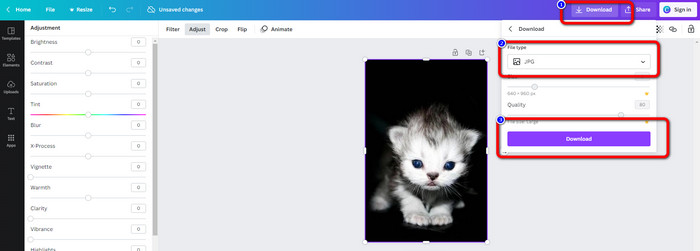
ステップ3: 画面右上のDownloadボタンをクリックします。クリック後、File Typeオプションに進み、JPG形式を選択します。その後、最後にもう一度Downloadボタンをクリックして画像を保存します。
パート 3. Windows で WebP を JPG に変換する最良の方法
Video Converter Ultimate を使用して WebP を JPG に変換する
Video Converter Ultimateは、WindowsでWebPをJPGに変換するのに最適な方法を提供します。変換手順が分かりやすく、簡単に操作できます。また、このオフラインコンバーターはシンプルなインターフェースと基本的なオプションだけで構成されており、初心者にぴったりです。さらに、Video Converter Ultimateは一括変換にも対応しています。これにより、一度の操作で複数ファイルを変換できます。対応形式も豊富で、PNG、JPG、BMP、WEBP、TIFF、SVGなどさまざまなファイル形式をサポートしています。加えて、このオフラインコンバーターは無料でダウンロードでき、サブスクリプション料金を支払う必要はありません。WindowsだけでなくMacにも対応しているため、あらゆるユーザーにとって便利です。最後に、このプログラムは変換後の写真にウォーターマークを一切追加しません。そのため、不要なロゴなどに邪魔されることなく画像を閲覧できます。以下の詳細な手順に従って、Video Converter Ultimateを使ってWebPをJPGに変換しましょう。
ステップ1: WindowsにVideo Converter Ultimateをダウンロードします。インストールが完了したら、ソフトを起動します。下のDownloadボタンをクリックしてプログラムを素早く入手することもできます。
無料ダウンロードWindows 7 以降に対応安全なダウンロード
無料ダウンロードMacOS 10.7 以降に対応安全なダウンロード
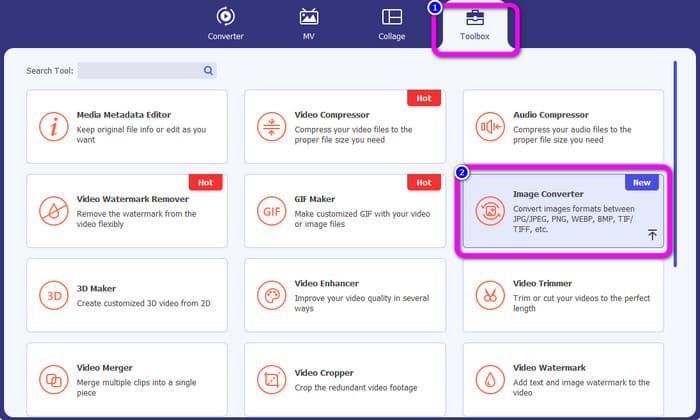
ステップ2: インターフェースが表示されたら、Toolboxタブをクリックします。そして、Image Converterツールを選択します。新しいインターフェースが画面に表示されます。
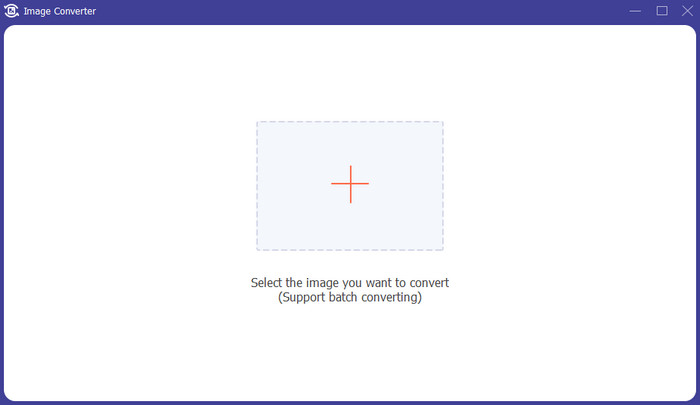
ステップ3: 中央のインターフェースにある+アイコンをクリックします。フォルダーウィンドウが表示されたら、変換したいWebP画像ファイルを開きます。さらにWebP画像を追加したい場合は、Add Source fileをクリックします。
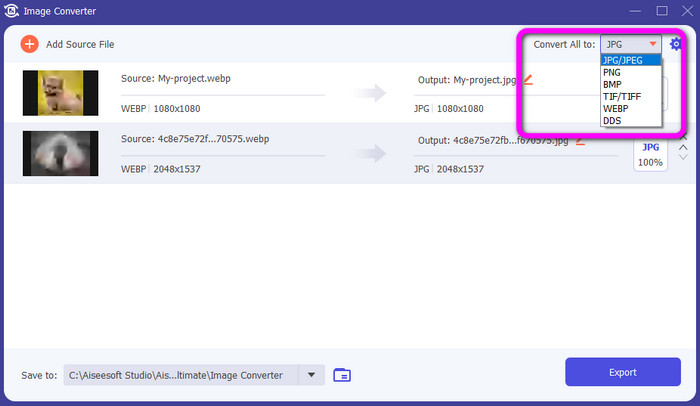
ステップ4: 画像を追加したら、Convert All toオプションに進みます。ここでJPG形式を選択します。
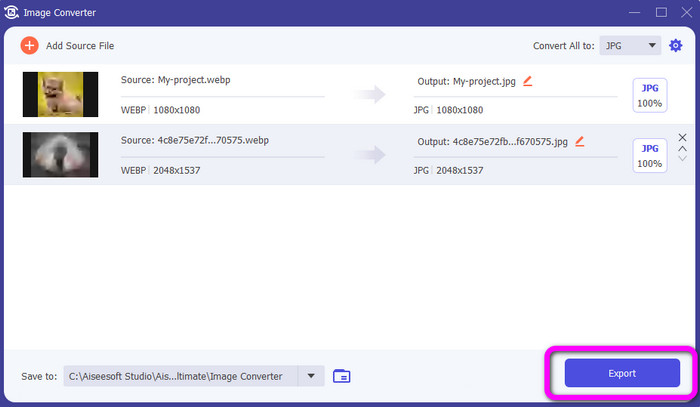
ステップ5: 最後のステップとして、Exportボタンをクリックします。書き出しが完了すると、プログラムが変換済み画像をデスクトップに保存します。
ペイントを使用して WebP を JPG に変換する
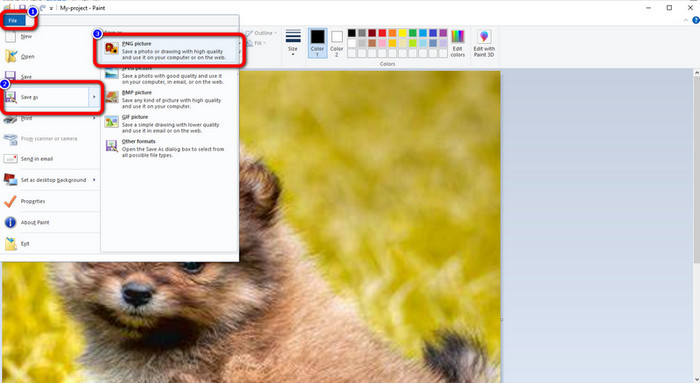
WebPをJPGに変換する標準的な方法を使いたい場合は、ペイント(Paint)を利用しましょう。この標準搭載のプログラムを使えば、画像ファイルを簡単に変換できます。このオフラインソフトを使うと、数ステップで画像ファイルを変換可能です。ただし、ペイントが対応している形式はJPG、BMP、PNGなど限られています。ファイルを他の形式に変換したい場合には適していません。
ステップ1。 パソコンでペイント(Paint)を起動します。
ステップ2。 その後、画面左上のファイル(File)メニューに進みます。そこで開く(Open)を選択し、変換したいWebP画像ファイルを読み込みます。
ステップ3。 最後にもう一度ファイル(File)メニューに移動し、名前を付けて保存(Save as)を選択します。形式の一覧が表示されたら、PNG形式を選びます。
パート 4. Mac で WebP を JPG に変換する効果的な方法
特定のWebP写真をMacでJPGに変換したいとお考えですか?もしそうなら、Macでは比較的簡単にこの操作ができることを知っておくとよいでしょう。しかも、追加のソフトウェアをインストールする必要はありません。というのも、macOSにはすでにこの機能が備わっているからです。ただし、Macの操作に慣れていない場合、画像の変換は難しく感じるかもしれません。加えて、標準機能でサポートされている形式は限られています。変換手順自体もやや複雑です。そのため、別の画像変換方法を検討したほうがよい場合もあります。以下の手順で、WebP画像ファイルをJPG形式に変換する方法を確認しましょう。
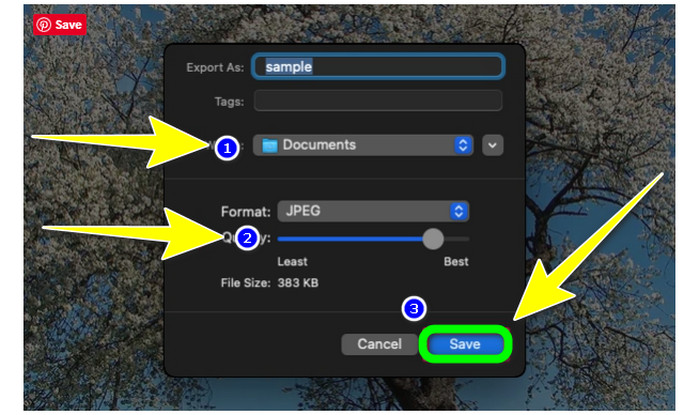
ステップ1: まずMacで新しいFinderウィンドウを開きます。パソコン内からWebP画像ファイルを探し出し、ダブルクリックするとプレビュー(Preview)アプリが起動します。
ステップ2: 画面上部のメニューバーからファイル(File)を選択します(現在のウィンドウがプレビューアプリであることを確認してください)。次に、ドロップダウンメニューから書き出す(Export)を選択します。
ステップ3: すると、プレビューに小さなポップアップウィンドウが表示されます。エクスポートファイルのフォーマット(Format)として、デフォルトでTIFFが選択されているのが分かります。形式ボタンをクリックし、JPEG形式を選択します。
ステップ4: メニューからJPEGを選択すると、画質(Quality)スライダーが表示され、画質とファイルサイズを調整できるようになります。保存先を指定したら、保存(Save)をクリックしてエクスポート(変換)した画像を保存します。BMPをJPGに変換する方法については、こちらのBMPをJPGに変換するガイドもご覧ください。
パート 5. WebP を JPG として保存する方法
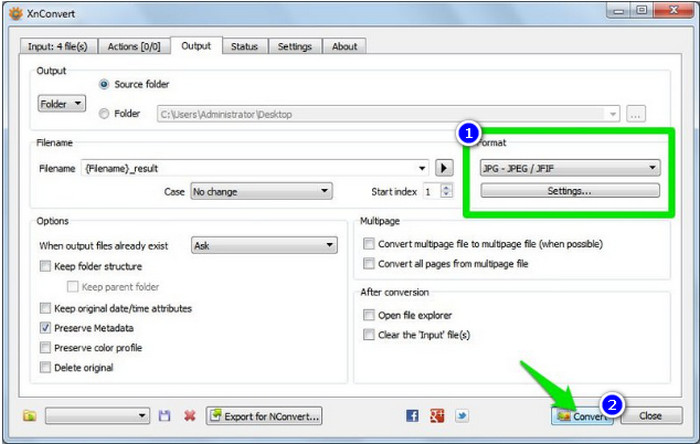
WebP画像ファイルを保存したいものの、オンライン変換は使いたくないという場合は、オフラインコンバーターを利用する必要があります。そのようなときはXnConverterを使用できます。このプログラムはWindows、Mac、Linuxに対応しており、無料でダウンロード可能です。ただし、XnConverterにも欠点があります。プログラムのファイルサイズが大きいため、十分なストレージ容量を確保する必要があります。また、変換手順もそれほど簡単ではなく、行うべき手順が多い点も注意が必要です。
ステップ1: パソコンでプログラムを起動します。次にInputタブに移動し、Add FilesをクリックしてWebP画像を追加します。
ステップ2: Outputタブを選択すると、調整可能なオプションが多数表示されます。細かく設定することもできますが、基本的には希望する出力形式を選択するだけで十分です。画質などの出力設定をさらに変更したい場合は、形式のドロップダウンメニューからSettingsを選びます。
ステップ3: その後、Convertをクリックすると、すべての画像が変換され、指定したフォルダーに保存されます。
パート 6. WebP から JPG への変換に関する FAQ
1. WebP 画像がソース画像よりも大きくなることはありますか?
確かにそうです。特に、損失のあるファイル形式から WebP 損失のない形式に、またはその逆に変換する場合はそうです。
2. WebP 画像の最大サイズは?
WebP は幅と高さに 14 ビットを採用し、VP8 と互換性のあるビットストリームです。 WebP 画像の最大ピクセル サイズは 16383 x 16383 です。
3. WebP が Safari で動作しない場合、どうすれば修正できますか?
最も良い方法は、別の形式に変換することです。FVC Free Image Converterを使えば、WebP画像をJPGなどの別形式に変換できます。手順は、希望する出力形式を選択し、WebP画像を追加して変換するだけです。これにより、Safari上でも画像を開くことができます。
結論
WebPは多くの機能を備えた新しい画像ファイル形式です。しかし、一部のブラウザーでは使用できないため、別の形式に変換したほうがよい場合があります。本ガイドでは、WebPをJPGに変換するという最適な解決策を紹介しました。画像ファイルを手間なく変換したいなら、FVC Free Image Converterを利用してみてください。
-
 TIFF を JPG/PNG に簡単に変換する便利な方法
 TIF を JPG/PNG 形式に変換する優れた方法をお見逃しなく。この投稿では、知っておく必要がある必要な情報を提供します。それらの違いも含まれます。
-
 PNG を JPG にすばやく変換するためのトップ 5 チュートリアル
 PNG ファイルを JPG 形式に変換する必要がある場合は、ここで最良の方法を学ぶことができます。また、PNG ファイル形式と JPG ファイル形式の違いについても学習します。
-
 SVG を JPG 形式に変換する簡単な方法
 SVG を JPG に変換する最良の方法をお探しですか?この投稿では、試すことができる確実なチュートリアルをいくつか紹介します。また、SVGからJPGへのコンバーターも見つかります
