


 ビデオコンバーター究極
 スクリーンレコーダー
 ビデオ修復
ビデオ修復
 安全なダウンロード
WebP を PNG に変換する方法: あなたに最適な方法
Googleは、優れた圧縮システムを用いてWeb画像を表示するためにWebPを開発しました。これにより、従来のJPEGやPNG形式と比べて、ファイルサイズを最大3分の1程度まで小さくできます。それでも圧縮後の画質を保てるのが特長です。問題は、一部の画像編集ソフト(有料のものも含む)がWebPに対応していないことです。そのため、再利用や編集をしたくても、デスクトップにダウンロードしたWebP画像ファイルを開けない場合があります。その最良の解決策の一つが、WebPをPNGなどのほかの形式に変換する方法です。ほとんどすべてのブラウザや画像編集ソフトがPNGファイルに対応しているため、変換しておけば、画像をどこにでもアップロードできます。この記事では、WebPをPNGに変換するための最適な方法を紹介します。信頼性の高い画像コンバーターをいくつか取り上げますので、ぜひ読み進めてください。

パート 1: WebP と PNG の比較
| ファイル形式 | WebP | PNG |
| ファイル拡張子 | .webp | .png |
| によって開発された | グーグル | PNG開発グループ |
| フルネーム | ウェブサイト上の画像 | ポータブル ネットワーク グラフィック |
| 説明 | Web 上の画像は、 WebP 画像フォーマット。 Web デザイナーは WebP を使用して、Web を高速化するリッチでコンパクトなグラフィックを生成できます。 PNG と比較すると、WebP ロスレス画像のサイズは 26% 小さくなります。 | ポータブル ネットワーク グラフィックまたは PNG デジタル画像と Web グラフィックを保存するためのものです。さらに、背景が透明な写真もあります。 PNG は、JPEG、TIFF、GIF、および EPS とともに、最もよく使用される画像ファイルの種類の 1 つです。 |
| 圧縮 | ロッシーとロスレス | 無損失の |
| 関連プログラム/ブラウザ | Google Chrome、Internet Explorer、Microsoft Edge、Mozilla Firefox | Photoshop、Microsoft、GIMP、ペイント、FastStone イメージ ビューアー、Google Chrome、Internet Explorer |
パート 2: オンラインで WebP を PNG に変換する最良の方法
FVC Free Image Converter を使用して WebP を PNG に変換する方法
FVC Free Image Converterは、WebPをPNGに変換する際に使える優秀なオンラインツールの一つです。このオンライン画像コンバーターは、あらゆる画像ファイル形式をPNGに変換できます。対応形式には、JPG、PNG、JPEG、TIFF、BMP、WEBP、ICOなどが含まれます。さらに、インターフェースがわかりやすく、操作項目もシンプルです。そのため、プロはもちろん初心者でも問題なく画像を変換できます。FVC Free Image Converterは、Google、Firefox、Microsoft Internet Explorer、Safariなど、すべての主要ブラウザで利用可能です。加えて、FVC Free Image Converterは画像変換を無料で提供しています。他のコンバーターと違い、変換中に邪魔な広告が表示されることもありません。写真のクオリティも高水準で維持されます。変換後も元の画像の見た目を保つことができます。また、FVC Image Converterはバッチ変換にも対応しており、多数の画像を一度に変換可能です。画像をJPGに変換したい場合も、以下の短い手順に従うだけで完了します。
ステップ1: まず最初に、ブラウザを開き、FVC Free Image Converterの公式サイトにアクセスします。Convert toオプションから出力したい形式を選択し、PNG形式を選びます。
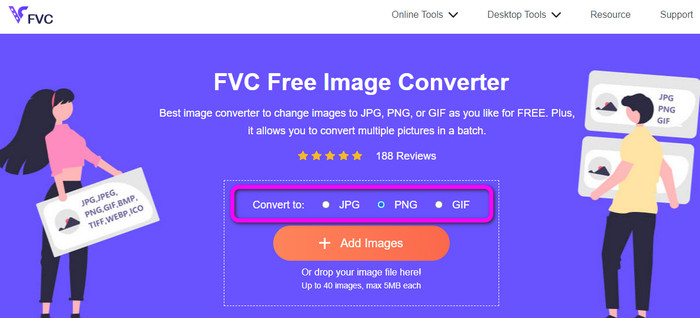
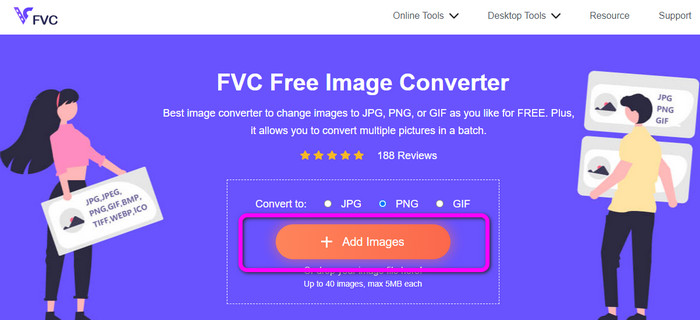
ステップ2: Add Imagesボタンをクリックして、変換したいWebP画像をアップロードします。必要であれば複数枚の画像をアップロードすることも可能です。パソコン内のフォルダーから画像を開いてください。アップロードが完了すると、自動的に変換処理が開始されます。
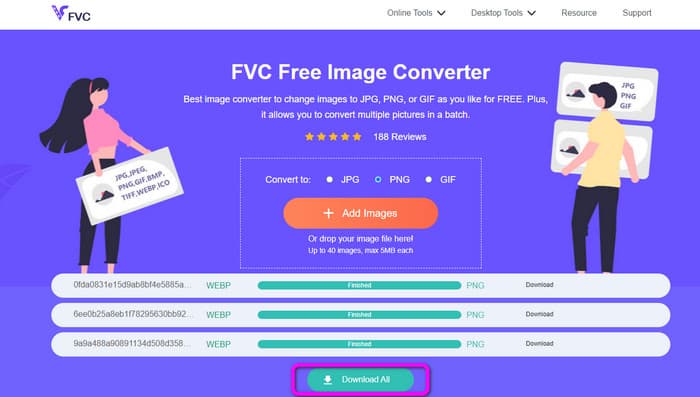
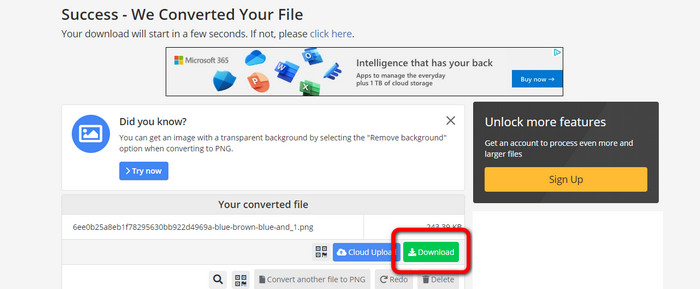
ステップ3: 最後のステップとして、横にあるDownloadボタンをクリックして、画像を1枚ずつ保存します。一度にすべてをダウンロードしたい場合は、Download Allボタンをクリックしてください。保存が完了したら、パソコン上で変換済みの画像を開けるようになります。
Convertio を使用して WebP を PNG に変換する方法
WebPをPNGに変換する別の方法として、Convertioを利用する方法があります。このWebP to PNGコンバーターを使えば、WebPファイルをPNG形式に変換可能です。さらに、ユーザーインターフェースがわかりやすいため、上級者だけでなく初心者でも簡単に利用できます。このツールもバッチ変換機能を備えており、多数の画像ファイルを一度に変換できます。また、他のコンバーターと比較して変換速度が速く、ファイル変換にそれほど時間がかかりません。Convertioはすべてのブラウザからアクセスでき、Google、Edge、Explorerなどさまざまなプログラムで利用可能です。さらに、このオンライン画像コンバーターは追加機能も提供しており、動画、音声、ドキュメントなどの変換にも対応しています。ただし、無料版にはいくつか制限があります。アップロードできるファイルサイズは最大100MBまでで、バッチ変換を行う場合、一度にアップロードできる画像は2枚までです。多くの画像を一括でアップロードしたい場合は、サブスクリプションプランを購入するのが最適です。最後に、このツールを利用するにはインターネット接続が必要です。
ステップ1: ブラウザを開いてConvertioを検索します。その後、Choose Filesボタンをクリックします。パソコンのフォルダーが表示されたら、変換したいWebP画像を選択して開きます。
ステップ2: WebP画像をアップロードしたら、形式オプションに進みます。出力形式としてPNGファイルを選択します。
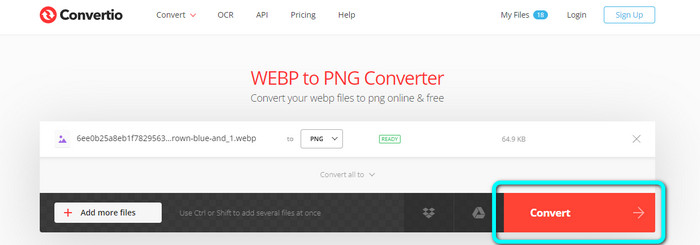
ステップ3: PNGファイルの選択が完了したら、Convertボタンをクリックします。変換処理が終わるまで待ち、Downloadボタンをクリックして、変換された画像をデスクトップに保存します。
Online-Convert を使用して WebP を PNG に変換する方法
Online-Convertも、WebPからPNGへの変換に信頼して使える、別のオンライン画像コンバーターです。JPG、BMP、GIF、TIFFなど、さまざまな画像形式に対応しています。変換手順は非常に簡単で、WebP画像ファイルをPNG形式に変換するのに必要なのは3ステップだけです。そのため、特に初心者でも簡単に操作できます。さらに、Online-ConvertはGoogle、Firefox、Edge、Explorerなど、すべての主要ブラウザで利用できるので、利便性も高いです。また、複数の画像を一度に変換できるバッチ変換機能も提供しています。ただし、無料版を利用する場合、1バッチでアップロードできる画像は最大3枚までで、ファイルサイズの上限は25MBです。加えて、変換処理がかなり遅く、時間がかかる点もデメリットです。これらの制限なく、より快適な機能を利用したい場合は、有料版へのアップグレードを検討するとよいでしょう。
ステップ1: ブラウザでOnline-ConvertのWebサイトにアクセスします。Choose Fileボタンをクリックして、WebP画像をアップロードします。バッチ変換を行う場合は、最大3枚までアップロード可能です。
ステップ2: アップロードが完了したら、Startボタンをクリックします。これで変換処理が開始されます。
ステップ3: Downloadボタンをクリックして、変換された画像を保存します。
パート 3: オフラインで WebP を PNG に変換する実用的な方法
Video Converter Ultimate を使用して WebP を PNG に変換する
オフラインでWebPをPNGに変換したい場合は、Video Converter Ultimateを利用できます。高速な変換機能を備えているため、ファイルをすばやく変換できます。また、バッチ変換機能により、複数のファイルを同時に変換することも可能です。さらに、対応している画像ファイル形式も豊富で、JPG、BMP、TIFF、GIF、SVGなどに対応しています。Video Converter Ultimateはシンプルな変換手順を採用しており、どのレベルのユーザーにも扱いやすい設計です。新規ユーザーであっても、問題なくコンバーターを操作できるでしょう。加えて、このオフラインコンバーターはMacとWindowsの両方に対応しているため、多くのユーザーにとって便利です。このプログラムは無料でダウンロードでき、コンバーターの基本機能を利用するのに料金はかかりません。このコンバーターの大きな利点の一つは、変換した画像に不要なウォーターマークが入らないことです。そのため、仕上がりの画像をきれいで満足のいく状態で保存できます。以下の簡単な手順に従って、WebP画像を効率的にPNG形式へ変換しましょう。
ステップ1: WindowsまたはMacにVideo Converter Ultimateをダウンロードします。その後、インストールを進め、コンバーターを起動します。コンバーターにすぐアクセスしたい場合は、下のDownloadボタンをクリックしてください。
無料ダウンロードWindows 7 以降に対応安全なダウンロード
無料ダウンロードMacOS 10.7 以降に対応安全なダウンロード
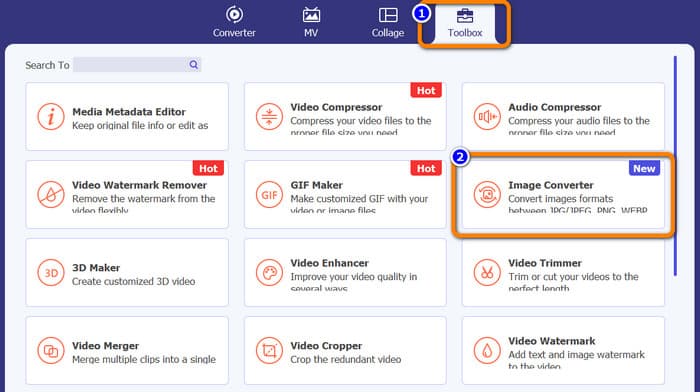
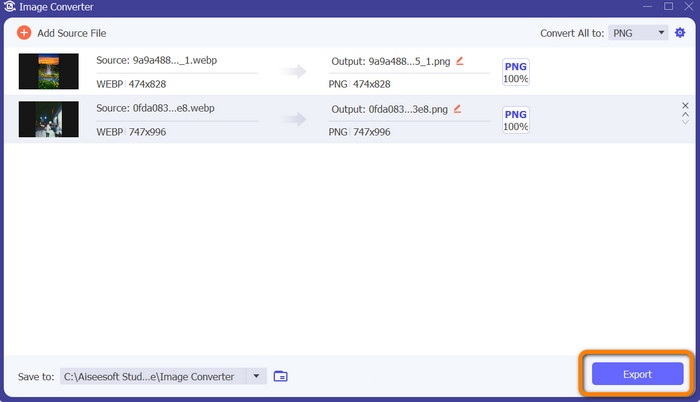
ステップ2: 画像コンバーターを起動したら、Toolboxパネルに移動します。そこで、下部にあるImage Converterツールを選択します。クリックすると、別の画面が表示されます。
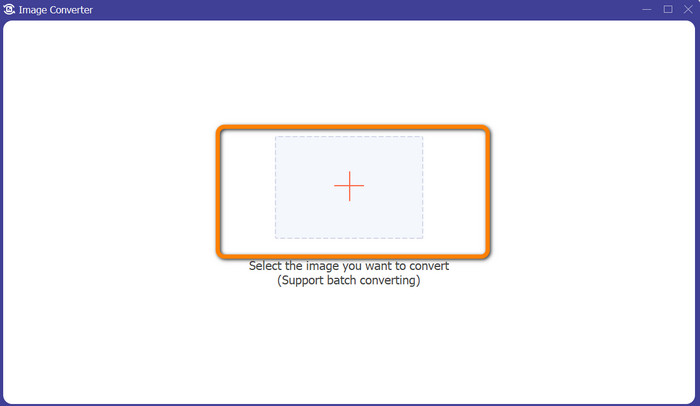
ステップ3: 画面中央のPlusマークのボタンをクリックします。パソコンのフォルダーが表示されたら、変換したいWebP画像を選択して開きます。さらに画像ファイルを追加したい場合は、Add source fileボタンをクリックして追加します。
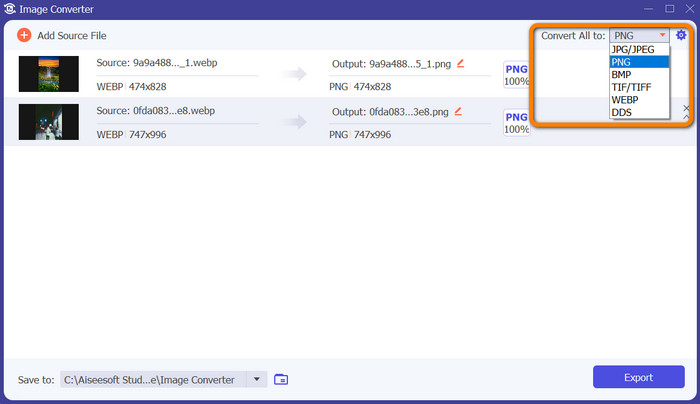
ステップ4: 変換したいファイルを追加し終えたら、画面右上のConvert All toオプションをクリックします。そこでPNG形式を選択します。
ステップ5: 最後に、画面右下のExportボタンをクリックします。エクスポート処理が完了したら、パソコンから変換済みの画像を開けるようになります。また、このソフトを使ってWebPをJPGに変換することも可能です。
パート 4: WebP から PNG への変換に関する FAQ
1. Microsoft Paint で WebP を PNG に変換する方法
適切な手順さえ知っていれば、WebPをPNG形式に変換するのは簡単です。まず、Windowsの検索ボックスに「Paint」と入力し、スタートメニューからMS Paintを起動します。検索結果の一番上に表示されるPaintを選択してください。Paintが開いたら、メニューからファイル > 開くを選択します。パソコンのファイルシステムから変換したいWEBP画像ファイルを選び、開くをクリックします。WEBP画像がPaintに読み込まれたら、メニューからファイルを選択し、名前を付けて保存をクリックします。サイドメニューでJPEG画像を選択してください。名前を付けて保存ダイアログが表示されたら、変換後の画像に付けるファイル名と保存先のフォルダーを入力します。形式がJPEGに設定されていることを確認したら、保存をクリックします。
2. GIMP で WebP 画像を開くには?
GIMP で WebP 画像ファイルを開きます。 Gimp-web は、WebP 画像を開くために必要な GIMP プラグインの名前です。このプラグインのおかげで、新しい WebP 画像形式を使用してファイルの読み込みと保存を行うことができます。良いニュースは、このプラグインがすべての一般的なオペレーティング システムでアクセスできることです。これには、Mac、Linux、および Windows が含まれます。
3. WebP の利点は何ですか?
WebP の主な利点は 4 つあります。 Web サイトのパフォーマンスを向上させ、帯域幅を節約し、検索エンジンの最適化を高め、高品質の画像を表示できます。
結論
以上、WebPをPNG形式に変換する4つの優れた方法を紹介しました。なかでも、シンプルな手順で無料で使える画像コンバーターを探しているなら、FVC Free Image Converterの利用がおすすめです。
-
 ICO を PNG に変換する方法に関する段階的なチュートリアル
 このガイドポストをクリックして、ICO を PNG に変換する最も簡単な方法を学びましょう。オンラインおよびオフラインの手順で ICO から PNG へのコンバーターを見つけてみましょう。
-
 SVG を PNG に変換する最も簡単な方法
 便利な画像コンバーターを使用して、画像ファイルを SVG から PNG に変更する方法を学びます。このガイドポストを読んで、変換について知っておくべきことをすべて学んでください。
-
 オンラインおよびオフラインで JPG を PNG に変換する本格的な方法
 JPG を PNG ファイル形式に変換する便利な方法をお探しですか?この道しるべには、あなたが必要とする答えがあります。これらの方法については、記事をお読みください。
