


 ビデオコンバーター究極
 スクリーンレコーダー
 ビデオ修復
ビデオ修復
 安全なダウンロード
MP3 を AIFF に変換する方法: オンラインおよびオフラインでの理想的なアプローチ
MP3 ファイルを AIFF ファイル形式に変換すると、プロのオーディオ制作やアーカイブの目的でロスレスの高品質オーディオ形式が必要な場合に役立ちます。 AIFF ファイルは、録音の元の音質を保持する非圧縮オーディオ ファイルであり、録音、ミキシング、およびマスタリングに最適です。
このガイドでは、Windows と Mac で利用できるさまざまなソフトウェアツールを使って、MP3 ファイルを AIFF ファイルに変換する手順を順を追って説明します。このガイドに従えば、簡単にMP3 ファイルを AIFF に変換し、録音の元の音質を保つことができます。

パート 1. AIFF と MP3 を比較する
下の表は、AIFF と MP3 の主な違いをまとめたものです。
| AIFF | MP3 | |
| オーディオ品質 | ロスレス オーディオ フォーマット、高品質 | 非可逆オーディオ形式、AIFF より低品質 |
| ファイルサイズ | ファイルサイズが大きい | ファイルサイズが小さい |
| 圧縮 | 非圧縮オーディオ形式 | 圧縮オーディオ形式 |
| 互換性 | デバイスおよびソフトウェアとの限定的な互換性 | ほとんどのデバイスとソフトウェアとの幅広い互換性 |
| 使用法 | プロのオーディオ制作に最適 | オンラインでの音楽のストリーミング、共有、保存に最適 |
| メタデータ | 埋め込みメタデータをサポート | 埋め込みメタデータをサポート |
| ライセンス | 独自フォーマット | オープンフォーマット |
パート 2. Video Converter Ultimate を使用して MP3 を AIFF に変換する
Video Converter Ultimate は、元の音質を損なうことなく MP3 ファイルを AIFF 形式に変換できる高機能なソフトウェアです。このプログラムは、デバイスがインターネットに接続されているかどうかに関わらず、素早く変換処理を行えます。さらに、このアプリケーションはユーザーインターフェースがわかりやすく、操作も簡単でストレスがありません。本ソフトには、MP3 から AIFF への変換方法をステップバイステップで学べる、追加機能も多数備わっています。
ステップ 1. アプリの最新バージョンを入手する
音声ファイルの変換を始めるには、まず最新バージョンのプログラムを入手します。任意の 無料ダウンロード ボタンをクリックし、アプリケーションをパソコンにインストールしてください。
無料ダウンロードWindows 7 以降対応安全なダウンロード
無料ダウンロードMacOS 10.7 以降に対応安全なダウンロード
ステップ 2. MP3 ファイルをツールに追加する
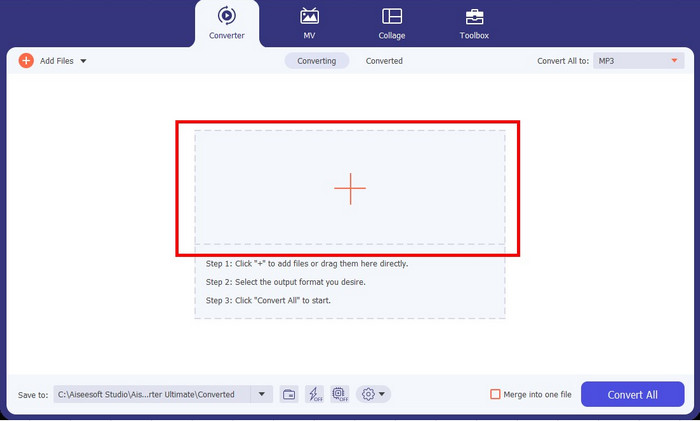
ソフトを起動したら、インターフェース中央にある プラス アイコンのボタンを探してクリックします。ローカルフォルダーから MP3 ファイルを選択する画面が表示されるので、変換したいファイルを選んでプログラムに読み込みます。
ステップ 3. 出力形式として AIFF を選択する
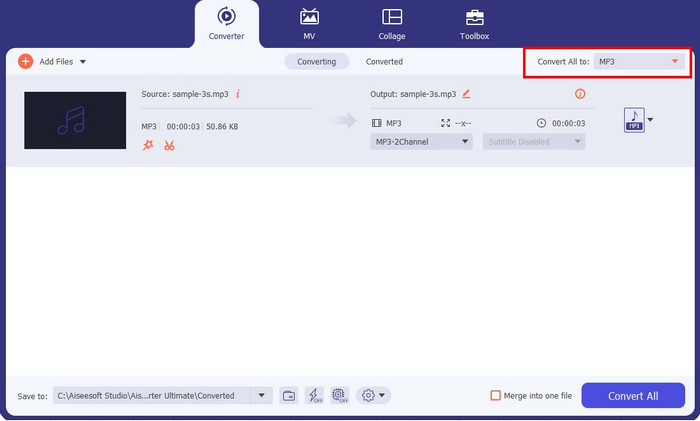
MP3 ファイルを読み込んだら、プロフィール(Profile) ドロップダウンメニューを開き、[Audio]タブに移動します。そこで、左側のパネルに表示される音声形式の一覧から AIFF を選択します。あわせて、出力ファイルの希望する音質も選択してください。
ステップ 4. 変換を開始する
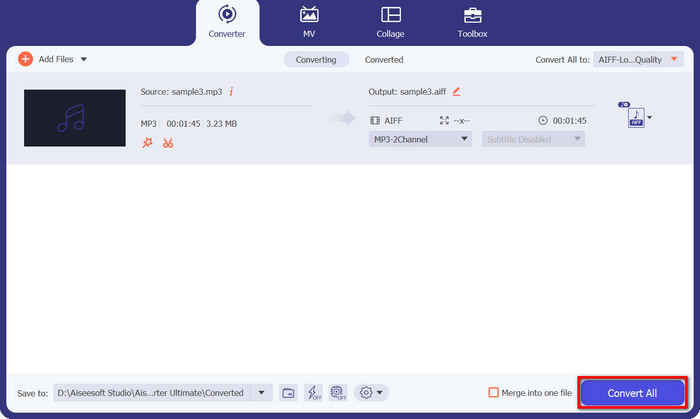
適切な出力形式と音質を選択したら、インターフェース左側に表示されている 一括変換(Convert All) ボタンをクリックして変換処理を開始します。プログラムが MP3 ファイルを AIFF に変換し始めます。変換が完了したら、同じ画面のタブを確認して出力ファイルをチェックできます。
パート 3. 無料の MP3 コンバーター オンラインを使用して MP3 を AIFF に変換する
1. CloudConvert
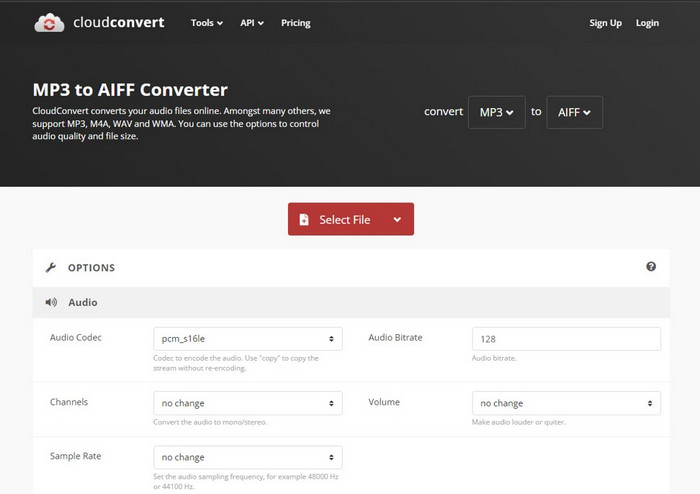
CloudConvert は、MP3 ファイルを AIFF 形式に変換できるオンライン ツールです。 MP3 以外にも、MP3、M4A、WAV、WMA などの他の形式に変換する機能を提供し、目的の出力形式を自由に選択できます。さらに、このツールを使用すると、好みに応じて音質とファイル サイズをカスタマイズできます。さらに、CloudConvert を使用すると、ドキュメント、ビデオ、電子ブック、アーカイブ、画像など、さまざまなファイル タイプを変換できます。 CloudConvert を使用する大きな利点は、iPhone、iPad、Android などのモバイル デバイスと互換性があり、外出先でファイルを変換できることです。 MP3 をオンラインで AIFF に変換するには、以下の手順に従ってください。
ステップ 1. まず、パソコンの任意のウェブブラウザーでツールの公式サイトにアクセスします。
ステップ 2. メインページにある赤い SELECT FILE ボタンをクリックします。
ステップ 3. ファイルのアップロード後、利用可能なオプションの中から出力形式として AIFF を選択します。
ステップ 4. Convert ボタン をクリックして変換処理を開始します。
長所
- ソフトウェアのインストールは必要ありません。
- インターネット接続を使用すると、どのデバイスからでもアクセスできます。
短所
- アップロードとダウンロードの速度は、インターネット接続の影響を受ける場合があります。
- 一部のオンライン コンバーターには、ファイル サイズの制限がある場合があります。
2.ザムザール
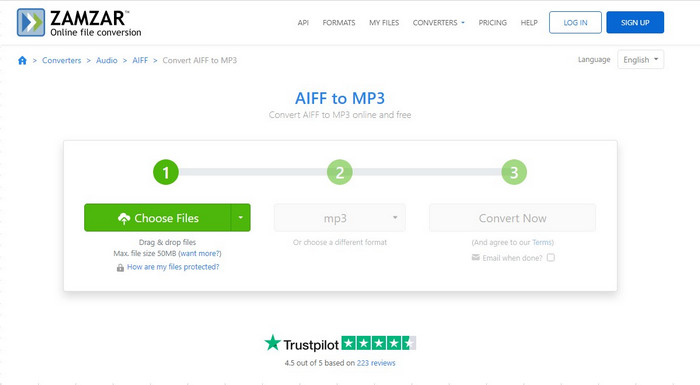
Zamzar は、MP3 ファイルを AIFF 形式に変換するために無料で使用できる非常に効果的なオンライン ツールです。 Dropbox や Google Drive などのローカルおよびクラウドベースのストレージ ソリューションからファイルをインポートできる、便利なアップロード オプションが用意されています。無料ユーザーの最大アップロード制限は 50 MB ですが、大きなファイルを変換する必要がある場合は、アカウントの登録が必要になる場合があります。さらに、利用できるオーディオ圧縮オプションが他にもあります。 Zamzar の使用方法については、以下の手順を参照してください。
ステップ 1. プログラムのウェブブラウザーにアクセスし、緑色の Choose Files ボタンを押してファイルをアップロードするか、ドロップダウンメニューから URL、Box、Dropbox、Google Drive、OneDrive などからアップロードするオプションを選択します。
ステップ 2. アップロードが完了したら、フォーマットのオプションを開き、MP3 format をクリックします。形式オプションの横にある ドロップダウンアイコン をクリックすると、設定を変更できます。
ステップ 3. 最後に、Convert ボタンをクリックして、MP3 から AIFF への変換を開始します。
長所
- これにより、ユーザーは Web サイトを離れずにファイルを変換およびダウンロードできます。
- クラウドベースの変換ツール。
短所
- アップロードとダウンロードの速度は異なる場合があります。
- 変換できるファイルのサイズに制限があります。
パート 4. Itunes を使用して MP3 を AIFF に変換する
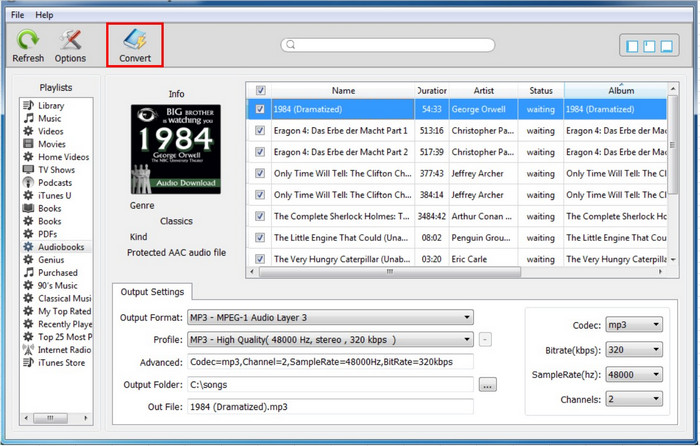
Apple が開発したメディア プレーヤーおよびライブラリ ソフトウェアである iTunes を使用して、Mac および Windows コンピュータで MP3 ファイルを AIFF 形式に変換できます。以下の手順に従って、iTunes を使用して MP3 を AIFF に変換します。
ステップ 1. パソコンで iTunes を起動します。
ステップ 2. iTunes メニューをクリックして 環境設定(Preferences) を選択します(Mac の場合)。Windows の場合は Edit メニューから Preferences を選択します。
ステップ 3. 環境設定ウィンドウで 一般 タブを開き、インポート設定(Import Settings) ボタンをクリックします。
ステップ 4. インポート設定ウィンドウの インポート方法(Import Using) の横にあるドロップダウンメニューから AIFF エンコーダ(AIFF Encoder) を選択します。
ステップ 5. OK をクリックして設定を保存します。
ステップ 6. 変換したい MP3 ファイルを iTunes にドラッグ&ドロップします。
ステップ 7. MP3 ファイルを右クリックし、AIFF バージョンを作成(Create AIFF Version) を選択します。iTunes は MP3 ファイルの AIFF 形式のコピーを作成し、iTunes ライブラリに追加します。
ステップ 8. 変換された AIFF ファイルを見つけるには、そのファイルを右クリックし、Mac の場合は Finder に表示(Show in Finder)、Windows の場合は エクスプローラーで表示(Show in Windows Explorer) を選択します。
長所
- ほとんどの Mac および Windows コンピュータにプリインストールされています。
- シンプルで使いやすいインターフェースを備えています。
- 音楽ライブラリを管理し、プレイリストを作成できます。
短所
- 限られた数のオーディオ形式しかサポートできません。
- 他の専用オーディオ変換ソフトウェアよりも遅くなる可能性があります。
- 変換されたファイルは、最高品質ではない場合があります。
さらに詳しく読む:
Mac & PC で AIFF を MP3 に変換するためのベストな 4 つの方法
パート 5. MP3 と AIFF のよくある質問
MP3とAIFFのファイルサイズの違いは?
MP3 ファイルは通常、圧縮されているため、AIFF ファイルと比較してサイズがはるかに小さくなります。 AIFF ファイルは圧縮されておらず、より多くのオーディオ データが含まれているため、サイズが大きくなります。
AIFF ファイルは、すべてのオーディオ プレーヤーおよびデバイスと互換性がありますか?
ほとんどのオーディオ プレーヤーとデバイスは AIFF ファイルを再生できますが、一部の古いデバイスは形式をサポートしていない場合があります。互換性を確認するには、デバイスまたはプレーヤーの仕様を確認することをお勧めします。
MP3 を AIFF に変換すると品質が低下しますか?
MP3 などの非可逆オーディオ形式を AIFF などの可逆形式に変換する場合、圧縮および解凍プロセスにより品質が低下する場合があります。ただし、AIFF はロスレス形式であるため、通常、他の圧縮形式と比較して品質の低下は最小限です。変換品質は、変換プロセス中に使用されるソフトウェアと設定に依存することに注意することが重要です。
結論
本記事で紹介したアプリケーションはいずれも、効率的にMP3 を AIFF に変換できます。一般的に、デスクトップアプリケーションはインターネット接続を必要としないためより魅力的です。これにより、ネット環境に左右されることなく、いつでも変換処理を行うことができます。
-
 高品質のオーディオを生成するトップ4の無料AIFFサウンドレコーダー
 この記事では、AIFFと、高品質のAIFF形式を作成するために使用できる最も一般的なツールのいくつかについて説明します。
-
 AMR を MP3 に変換する方法を見つける [オンライン & オフライン]
 デスクトップで.amrファイルを再生できないために苦労していませんか?次に、この記事を読んで、AMRをMP3形式に変換する方法を学びます。
-
 WindowsとMacでMP3メタデータを修正および編集するための4つの最良の方法
 MP3メタデータを簡単に編集する秘訣を知りたいですか?このブログでは、簡単にアクセスできるさまざまなツールを使用したさまざまなテクニックを紹介します。
