


 ビデオコンバーター究極
 スクリーンレコーダー
 ビデオ修復
ビデオ修復
 安全なダウンロード
すべてのプラットフォームに最適なツールを使用して、AAC を MP3 に、またはその逆に変換します
オーディオファイルは現代社会に欠かせない要素となっています。私たちは、エンターテイメント、教育、コミュニケーションの目的で、音楽、ポッドキャスト、オーディオブック、ボイスメモなど、さまざまな種類のオーディオ ファイルに依存しています。多数のオーディオ形式が存在することを考えると、すべてのデバイスと普遍的に互換性のあるファイルを見つけるのは困難であることがわかります。 AAC と MP3 は、一般的に使用される 2 つのオーディオ圧縮形式です。
This post will demonstrate the process of converting AAC to MP3 and MP3 to AAC, allowing for the optimization of audio files to suit various devices and platforms. It will encompass an in-depth analysis of the advantages of each format, the most effective tools for conversion, and comprehensive guidelines to facilitate the optimization of your audio files. If you require file compression for space-saving or enhanced compatibility, please continue reading.

パート 1. AAC と MP3 の比較
どの形式を採用するかどうかを十分な情報に基づいて決定するには、次の比較表が役立ちます。
| AAC | MP3 | |
| 品質 | 一般に、ビットレートが低い場合は MP3 よりも高品質です | ビットレートが低い場合は AAC よりも品質が低くなります |
| ファイルサイズ | 同じビットレートの MP3 よりもファイル サイズが小さい | 同じビットレートでは AAC よりもファイル サイズが大きくなります |
| ビットレート範囲 | 通常は 8 ~ 230kbps の範囲です | 通常は 8 ~ 320 kbps の範囲です |
| 互換性 | ほとんどの最新のデバイスとソフトウェアで広くサポートされています | ほとんどのデバイスとソフトウェアで広くサポートされていますが、一部の古いデバイスではサポートされていない場合があります |
| サンプルレート | 通常は 8 ~ 96 kHz の範囲です | 通常は 8 ~ 48kHz の範囲です |
パート 2. Windows および Mac で AAC を MP3 に、または MP3 を AAC に変換するガイド
1.FVCビデオコンバーターアルティメット
The FVC Video Converter Ultimate is a robust and user-friendly software designed for video conversion. It enables you to convert both video and audio files into multiple formats. Also, you can convert AAC to MP3 and MP3 to AAC, along with various other audio and video formats, with ease.
さらに、バッチ処理、迅速な変換速度、使いやすさを促進するユーザーフレンドリーなインターフェイスなど、さまざまな補助機能を提供します。さらに、このソフトウェアは、AAC、MP3、WAV、FLAC などの一般的なオーディオ形式を含む、幅広い入出力形式をサポートしています。ビットレート、サンプルレート、チャンネルなどの変換設定をカスタマイズして、希望の出力品質を達成することもできます。この AAC から MP3 へのコンバーターがどのように機能するかを確認してください。
Step 1. Get the software
提供されるオプションからインストーラーを選択して、公式 Web サイトから Video Converter Ultimate をダウンロードしてください。その後、インストールを正常に完了するために、すべてのプロンプトに従っ て進みます。プログラムを実行してその機能を調べてください。
無料ダウンロードWindows 7 以降対応安全なダウンロード
無料ダウンロードMacOS 10.7 以降に対応安全なダウンロード
Step 2. Upload audio file(s)
To upload a video, tap Add Files or the plus sign icon, then locate the audio file in your files. To import the video into the software, kindly double-click on it. Another way is to directly drag the video to your files and drop it into the program.
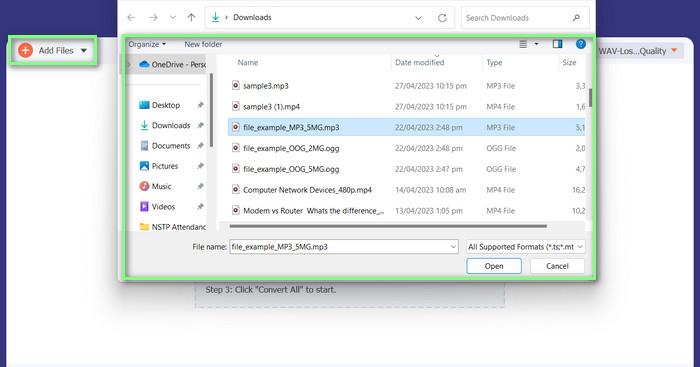
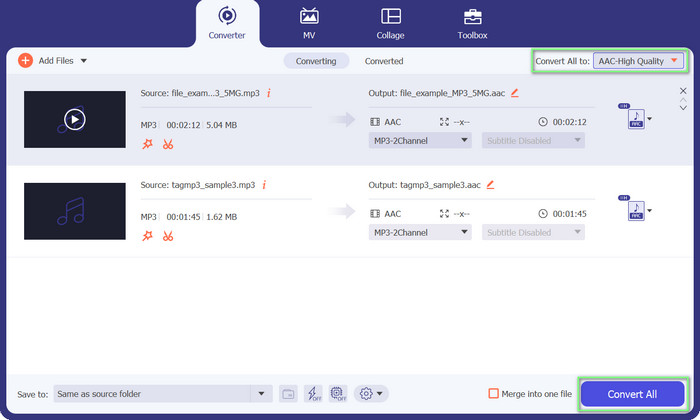
Step 3. Change the audio format and convert
It is evident that the audio file's format is MP3. We will now convert it to AAC. Please access the Convert All to option located in the top right corner of the tool's interface. Next, navigate to the Audio tab and locate the AAC format. Subsequently, initiate the conversion process by selecting the Convert All option.
長所
- ファイルのバッチ変換機能があります。
- オーディオ トラックのビットレート、周波数、チャンネル数を変更できます。
- オーディオ ファイル メタデータ エディターが付属しています。
短所
- いくつかの不明瞭なファイル形式のサポートは限定的です。
2.無料のMP3コンバーターオンライン
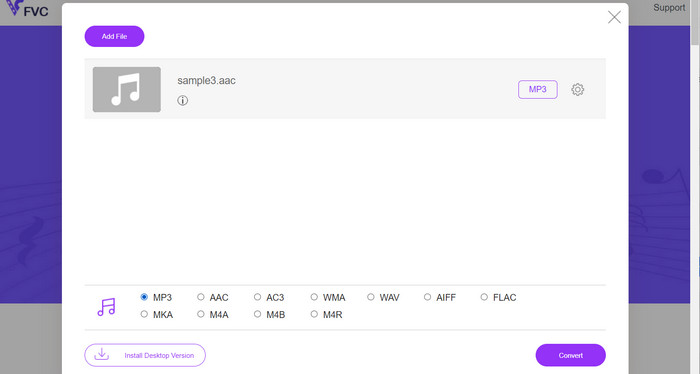
With Free MP3 Converter Online, you can convert your audio files to various formats, including popular ones like AAC and MP3. Know that you can actually customize your conversion settings. This means you can adjust the bitrate, sample rate, and channels to get the exact output quality you're looking for. Pretty cool, right? Moreover, you can convert AAC to MP3 and MP3 to AAC without spending any money on software because it's a free tool. Have you seen this guide on how to use this AAC converter to MP3 online? It's easy peasy!
Step 1. Go to the Free MP3 Converter Online page by FVC at https://www.freevideoconverter.online/audio-converter.
Step 2. Select the AAC file you want to change by clicking the Add Files to Convert button. You may also drag and drop the file into the place on the page where it should go.
Step 3. Once the file has been uploaded, choose MP3 from the drop-down choice under Audio format as the file format you wish the file to be in.
Step 4. Alternatively, you can click the Settings icon to change things like the bitrate, sample rate, and channel options for the output. To commence the conversion process, click the Convert button.
長所
- さまざまな入出力オーディオ形式をサポートします。
- 自由に使用できます。
短所
- 音量正規化などの高度なオーディオ編集機能はありません。
3.FFmpeg
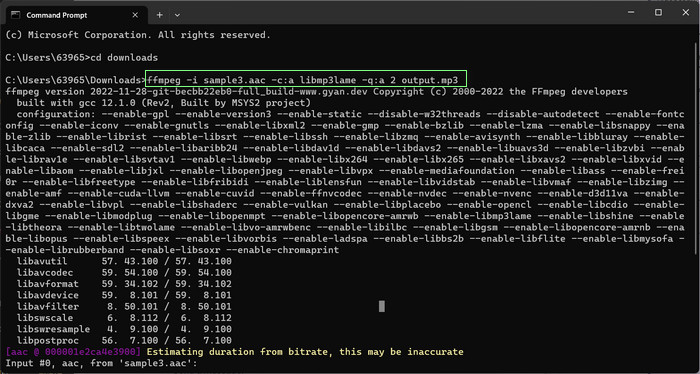
AAC から MP3 へのコンバーターの無料プログラムに興味がある場合は、FFmpeg を見逃さないでください。このツールはオーディオとビデオの処理に非常に優れています。これを使用すると、AAC から MP3 へ、MP3 から AAC へ簡単に変換できます。ちょっと、そこ!コマンド ラインの使用に慣れている場合は、このツールを使用したオーディオ変換で得られる柔軟性とカスタマイズ性を気に入っていただけるでしょう。そうは言っても、以下の AAC から MP3 FFmpeg への変換チュートリアルをチェックしてください。
Step 1. Open a terminal on your computer. Navigate to the folder where the input audio file is located using the cd command.
Step 2. Use the following command to convert AAC to MP3: ffmpeg -i input.aac -c:a libmp3lame -q:a 2 output.mp3
このコマンドは、input.aac ファイルを取得し、品質設定 2 の libmp3lame コーデックを使用して、output.mp3 ファイルに変換します。必要に応じて品質設定を調整して、目的の出力品質を達成できます。
Use the following command to convert MP3 to AAC: ffmpeg -i input.mp3 -c: a aac -b: a 128k output.aac
このコマンドは、input.mp3 ファイルを取得し、AAC コーデックを使用し、ビットレート 128k で、output.aac ファイルに変換します。必要に応じてビットレートを調整して、希望の出力品質を達成できます。
長所
- 誰でもアクセス可能。
- 高度な柔軟性とカスタマイズ。
短所
- 効果的に使用するには、ある程度の技術的な知識が必要です。
4.iTunes
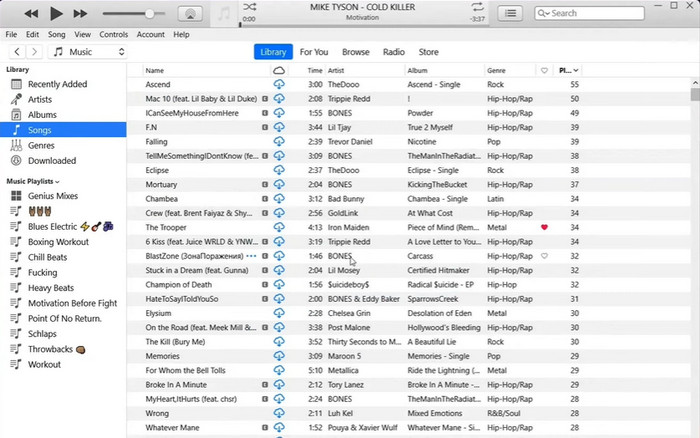
MP3 から AAC、AAC から MP3 など、ある形式から別の形式へのオーディオ ファイルの変換は、iTunes の組み込み機能です。その主な機能は音楽の管理と再生ですが、ビデオを見たり、ポッドキャストやオーディオブックを聴いたりするために使用することもできます。
Step 1. Launch iTunes on your personal computer. Then, select the Preferences option from the Edit menu.
Step 2. To access the Import Settings in the Preferences window, head to the General tab and select the Import Settings button.
Step 3. Within the Import Settings interface, one may select either the AAC Encoder or MP3 Encoder option from the Import Using drop-down menu, contingent upon the desired format for conversion.
Step 4. Select the OK option to terminate the Import Settings window. Choose the desired MP3 or AAC files for conversion from your iTunes library.
Step 5. To generate an AAC/MP3 version of the file, users should navigate to the File menu and opt for the Convert option, followed by selecting Create AAC/MP3 version based on their import settings. That is how easy it is to convert AAC to MP3 in iTunes.
長所
- Mac では AAC から MP3 コンバーターとしてより適切に機能します。
- ユーザーフレンドリーなインターフェース。
短所
- これはリソースを大量に消費するソフトウェアです。
パート 3. iOS および Android で AAC を MP3 に、または MP3 を AAC に変換する方法
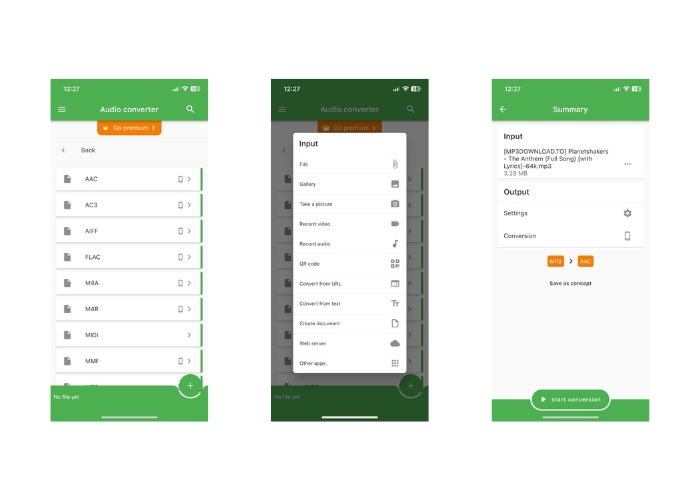
File Converter は、iOS と Android の両方のオペレーティング システムでアクセスでき、AAC や MP3 などのさまざまなオーディオ ファイル形式の変換を容易にします。したがって、AAC から MP3 への Android または iOS コンバーターをお探しなら、もう探す必要はありません。このソフトウェアはユーザーフレンドリーなエクスペリエンスを提供し、迅速かつ効果的なファイル変換を促進する合理化されたインターフェイスを提供します。
Step 1. Install the File Converter app on your iOS or Android device.
Step 2. Launch the app and select the Audio converter option from the list of conversion types. Next, select the output format as AAC from the list of available options.
Step 3. If you want to adjust the bitrate or other conversion settings, you can do so by tapping on the Settings button.
Start 4. After selecting the output format and settings, tap on the start conversion button to initiate the conversion process.
さらに詳しく読む:
Convert FLAC to MP3 Conversion to Preserve Audio Quality
5 MP3 Cutters to Cut Any Audio Easily [2023 Updated]
パート 4. MP3 と AAC の変換に関する FAQ
著作権で保護されたオーディオ ファイルを変換することは合法ですか?
一般に、著作権所有者の許可なしに著作権で保護されたオーディオ ファイルを変換することは違法です。
無料の変換ツールの使用に制限はありますか?
一部の無料変換ツールでは、変換できるファイルのサイズや数に制限があり、カスタマイズ オプションも制限されている場合があります。
オーディオ ファイルを AAC と MP3 以外の形式に変換できますか?
はい、WAV、FLAC、OGG など、変換できるオーディオ ファイル形式が他にもいくつかあります。
結論
The ability to convert between AAC and MP3 formats may prove to be crucial in situations involving diverse media players and devices. There exist multiple tools that can be utilized for the conversion of AAC to MP3 or MP3 to AAC, each possessing its own distinct advantages and disadvantages.
-
 知っておくべき 5 つの専用 AAC メタデータ エディター [2023]
 この記事で使用できる最も一般的なピックAACメタデータエディターについて説明します。すべてのツールは、事実を提供するために厳選され、徹底的にレビューされています。
-
 MP3をM4Aに変換して音質を向上させる方法
 専門的なヒントとコツを使って MP3 を M4A に変換することで、音楽ファイルの品質を向上させます。私たちのガイドでは、段階的な手順と推奨ソフトウェアを提供しています。
-
 Windows および Mac 用の優れた MP3 から AIFF へのコンバーター
 このチュートリアルでは、信頼できるツールを使用して MP3 を AIFF に変換する各段階について説明します。詳細については、それらをご覧ください。
