


 スクリーンレコーダー
 ビデオ修復
ビデオ修復
 安全なダウンロード
効果的なプログラムを使用して GIF から背景を削除する方法
GIFは「Graphics Interchange Format(グラフィックス・インターチェンジ・フォーマット)」の略で、メッセージのやり取りや投稿へのコメントなど、オンライン上のコミュニケーションで広く使われています。専用のソフトウェアがないと、GIFや画像の背景を削除するのは難しいことがあります。その人気の高さから、自分でGIFを編集・作成する方法に興味を持つユーザーも増えています。そこで、ユーザーがGIFの背景を削除するのに役立つ、信頼性が高く使いやすいオンラインソフトを厳選して紹介します。

推奨: FVC フリー背景リムーバー
FVC Free Background Removerは、写真の背景を削除する際に役立つ便利なツールです。AIを用いて写真内の人物を自動で検出し、切り抜いてくれます。さらに、このツールはWindowsとMacの両方に対応しています。いつでもどこでも使える、手軽で信頼性の高いツールといえるでしょう。
ステップ1.画像/GIFをアップロード
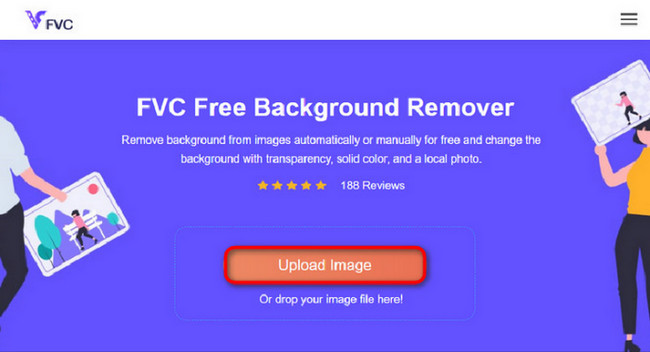
まずはパソコンでブラウザを開きます。オンラインツールを開くと、画像をアップロードするオプションが表示されます。背景を削除したいGIFを追加するために、画像をアップロードをクリックします。
ステップ2.画像を編集
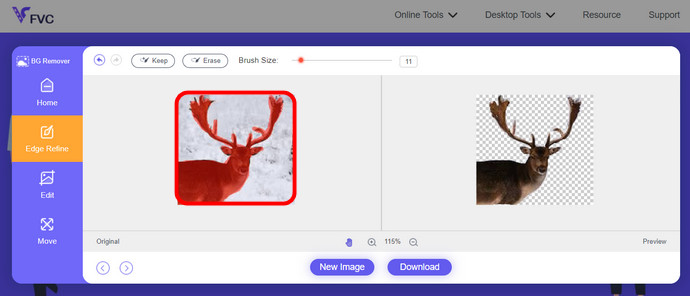
アップロード後、AI 認識から不正確なハイライトの削除を削除できるようになりました。マウスをクリックしてドラッグするだけで、お好みに合わせて操作できます。
ステップ3.編集した画像をダウンロード
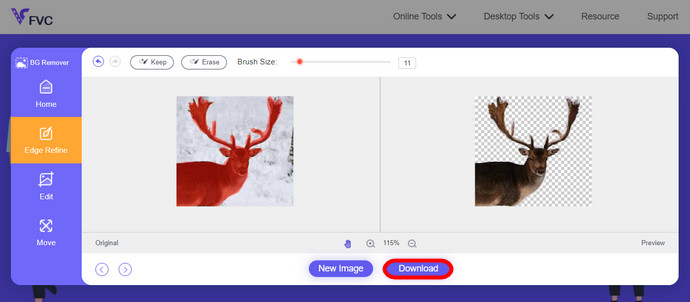
最後に、ダウンロードボタンをクリックします。これで画像の背景削除が完了し、保存されます。
パート 1. EZGIF.com を使用して GIF 背景を削除する
このオンライン ソフトウェアは、写真/gif 編集および変換ソフトウェアです。 GIF、PNG、WEBP、IMG、その他多くの形式を編集および変換できます。ここでは、ソフトウェアに付属の編集ソフトウェアを使用して GIF を編集できます。
ステップ1.サイトにアクセス
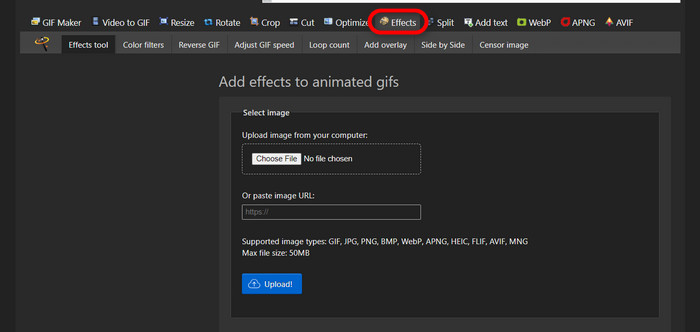
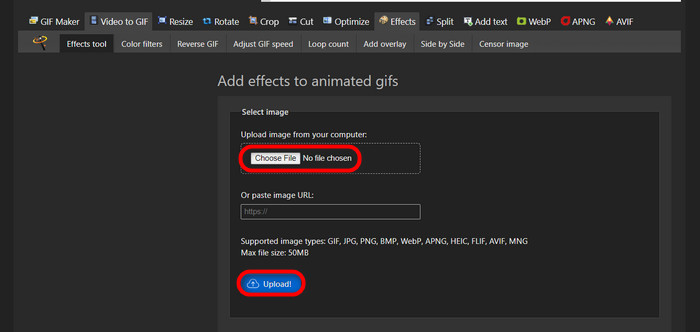
このオンラインツールを使うには、ブラウザを起動してリンクを入力します。アクセスすると、ニーズに応じたさまざまなオプションがすぐに表示されます。このサイトでは、GIFの背景を削除することができます。エフェクトをクリックして開始しましょう。
ステップ2.画像/GIFを選択してアップロード
次に、アップロードしたいファイルを選びます。ファイルを選択をクリックし、指定したフォルダからファイルを探して選択し、アップロードをクリックしてアップロードします。
ステップ3.画像を編集
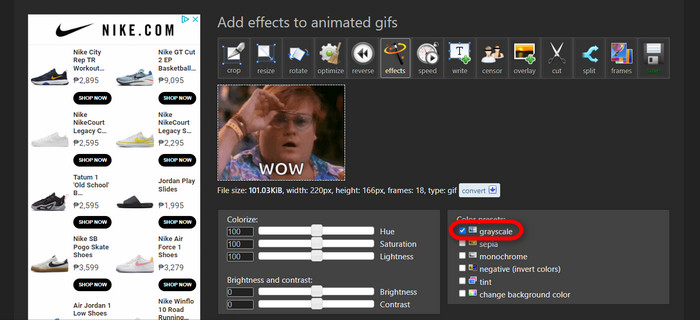
アップロードが完了したら、GIFの背景を削除したり、GIFの背景を黒にしたりする作業に入ります。グレースケールをクリックして、背景を暗くしましょう。
ステップ4.画像/GIFをプレビューして変換
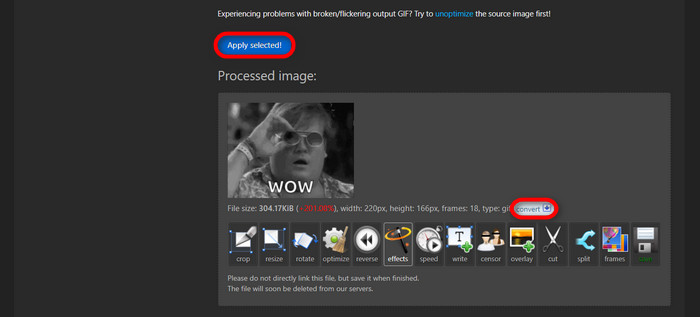
エフェクトの適用やリサイズ、トリミングを行ったら、選択を適用をクリックします。編集したGIFのプレビューが表示されます。その後、変換ボタンをクリックしてファイルをダウンロードします。
パート 2. Remove.bg で背景なしの GIF を作成する
このサイトは、写真から背景を削除するように設計されています。ここでは、自動的に削除された背景写真を引き続き編集するオプションが提供されます。主要な被写体を認識し、その背景を完璧に除去できる優れた AI を搭載しています。
ステップ1.画像/GIFをアップロード
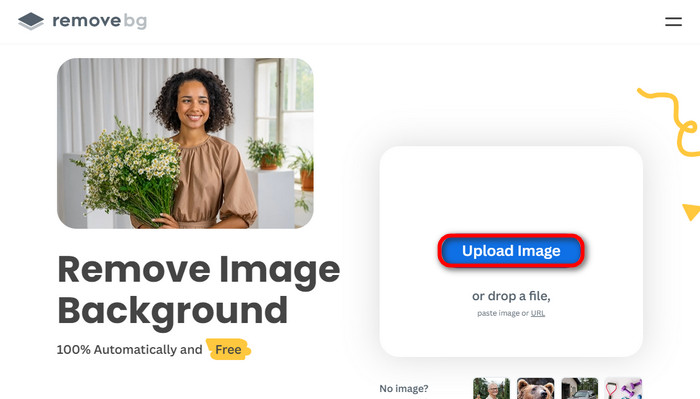
まずは画像をアップロードしましょう。ブラウザでオンラインソフトを開き、ページを表示させます。そして画像をアップロードをクリックします。
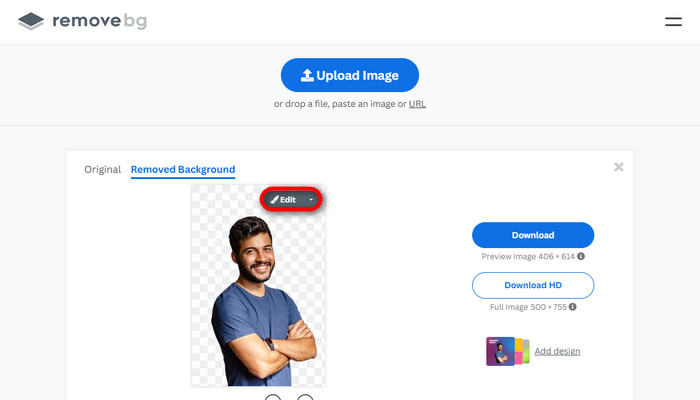
ステップ2.画像を確認・編集
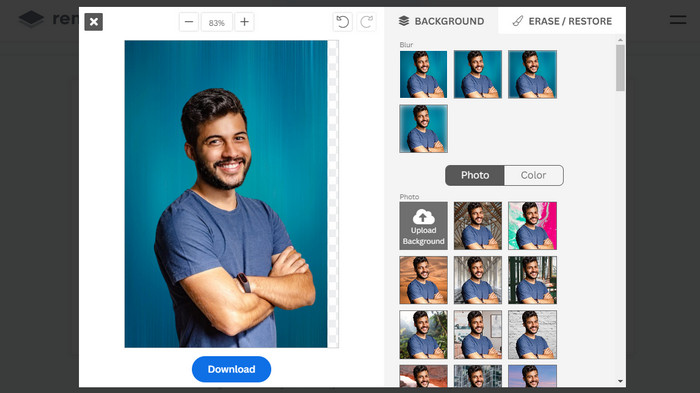
画像がアップロードされると、自動的に背景が削除された状態になりますが、さらに編集することもできます。背景を削除ボタンの隣にあるオリジナルボタンをクリックすることで、元の写真を確認できます。このソフトを使えば、画像に黒い背景を簡単に追加することも可能です。
ステップ3.編集した画像をダウンロード
このパートでは編集作業が完了したので、画像をダウンロードできます。写真の下にあるダウンロードボタンをクリックするだけです。
パート 3. GIF 背景の削除に GIFMagic を利用する
GIFMagic では、特殊効果、テキストの追加、アニメーション化などを行うことができます。これらはすべて、このオンライン プログラムを使用して可能になります。このソフトウェアでの編集に関しては、GIF を簡単に扱うことができます。
ステップ1.画像/GIFをアップロード
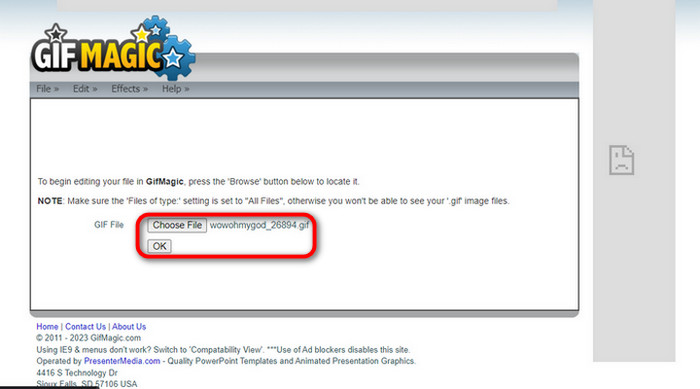
ログイン後、サイト上で選択したファイルをソフトにアップロードできます。.gifファイルや.imgファイルをアップロードでき、さまざまな用途に役立ちます。ファイルを選ぶにはアップロードをクリックし、ファイルを選択したらOKボタンをクリックします。
ステップ2.画像を編集
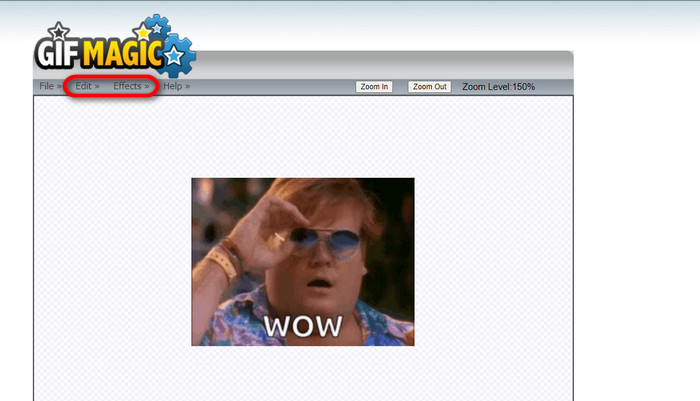
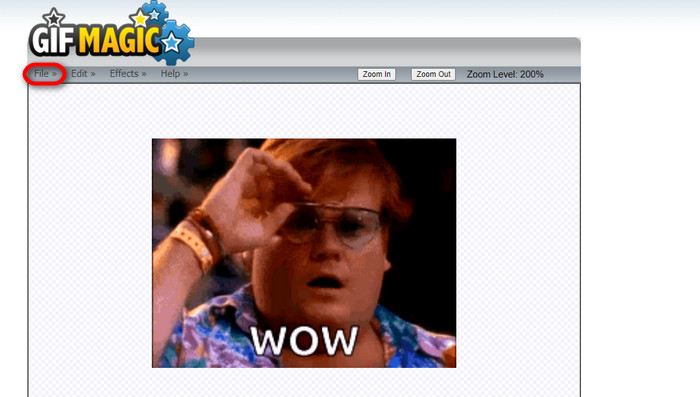
ページを開くと、ファイルボタンの隣に編集とエフェクトボタンが表示されます。このセクションでファイルを編集できるので、自由に操作して編集を楽しみましょう。
ステップ3.編集したGIFをダウンロード
GIFの背景を透明にできたら、ファイルボタンをクリックし、保存を選択します。これで完了です。ダウンロードも済みました。
パート 4. LunaPic を使用して GIF の背景を透明にする
LunaPic は、オンラインで背景 GIF を削除できる無料のオンライン ツールです。 PNG、GIF、JPG、JPEG、その他多くの種類の画像を評価および編集できます。これは、多くのプラットフォームで編集に使用される、十分に根拠のあるソフトウェアです。
ステップ1.画像/GIFをアップロード
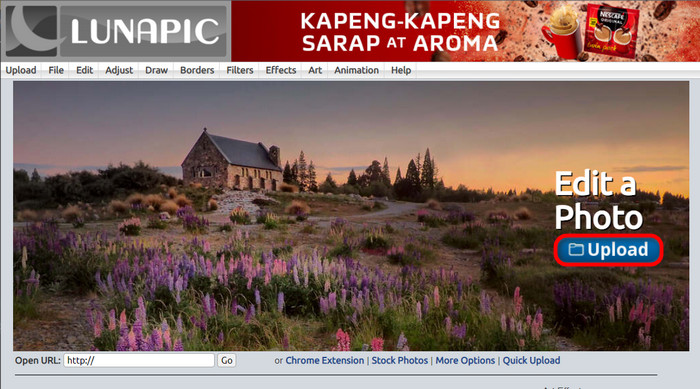
お使いのブラウザ(既定のブラウザでも他のブラウザでも構いません)でサイトにアクセスしたら、.imgまたは.gifファイルをアップロードします。アップロードボタンをクリックするだけです。
ステップ2.画像/GIFを編集
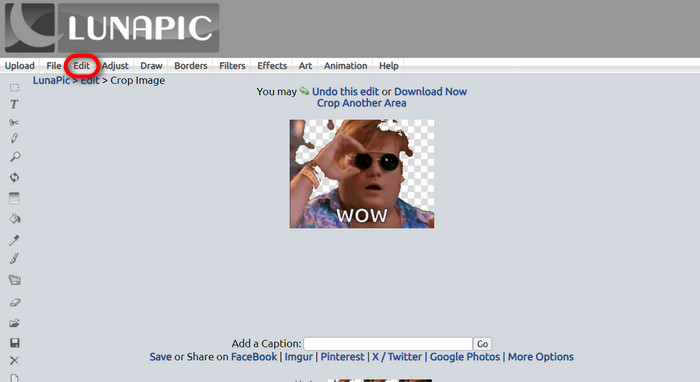
続いて、編集をクリックし、画像を切り抜きツールボタンを選択して、GIFの背景を透明にしていきます。背景部分をトリミングしていきましょう。
ステップ3.編集したGIFをダウンロード
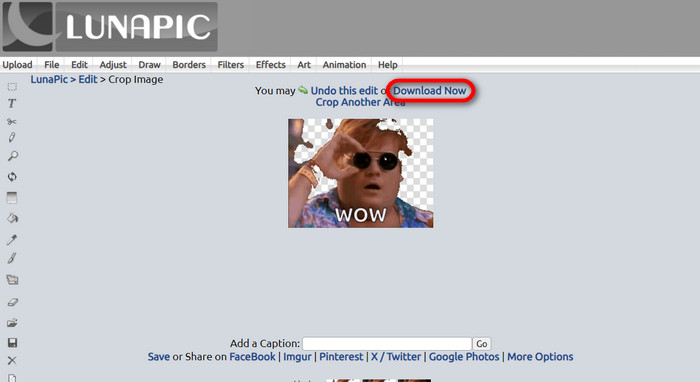
背景をトリミングし終えたら、あるいは白い背景のGIFに編集した場合は、今すぐダウンロードボタンをクリックして編集したファイルを保存できます。
さらに詳しく読む:
GIFのウォーターマークを削除する4つのベスト方法【オンライン&オフライン】
デスクトップ・オンライン・モバイル向けのトップGIF作成ツール徹底解説

ビデオコンバーター究極
345 件以上のダウンロード- コンテンツをブロックする煩わしいウォーターマークなしでビデオを楽しんでください。
- 見やすくするために高解像度の高品質のビデオを作成します。
- あらゆる種類のビデオからウォーターマークを削除できます。
- ファイルを変換できる無数の形式を提供します。
無料ダウンロードWindows 7 以降対応安全なダウンロード
無料ダウンロードMacOS 10.7 以降に対応安全なダウンロード
パート 5. 背景の削除に関するよくある質問
アニメーション PNG を GIF に変換できますか?
はい、PNG を GIF に変換することができます。ただし、適切なプログラムがあれば、さまざまな形式に変換できるデータの種類がいくつかあります。
GIF の背景を削除した後にその色を変更できますか?
もちろん、そのような作業に対応したプログラムは数多く存在します。背景を簡単に削除したいなら、FVC Background Removerを試してみてください。
ペイントでGIFの背景を透明にすることはできますか?
いいえ、塗料にはそのような機能はありません。しかし、そのような仕事を提供する他のプログラムを探すことはできます。
透明度のあるアニメーションGIFとは何ですか?
透明アニメーションGIFとは、特定のWebサイトに掲載すると、画像の特定の部分だけが表示される画像です。別の Web サイトに配置すると、複数の画像を表示できます。
GIF は透明化を許可しますか?
はい、ただし完全に透明ではありません。 1 ビットの透明度のみをサポートします。
結論
現在、上記のようなGIF編集ソフトの需要と重要性は非常に高まっています。トリミング、編集、レイヤー処理、削除などが、今や数クリックで行えるようになりました。ユーザーは白い背景のGIFを作るといった、これまでになかったアイデアにも挑戦しています。こうしたユーザーのニーズに応えるために、FVC Background Removerのような高性能なプログラムが開発されているのです。
-
 GIFをトリミングするためのオンラインおよびオフラインの最高のGIFクロッパーを選択してください[2023]
 GIF メーカーのこの機能を利用できる間は、最適なトリミング ツールを選択することが必須です。では、ファイルをトリミングするための最良の選択とその使用方法は何でしょうか?
-
 画像から GIF を作成する 4 つの方法を学ぶ [オンライン & オフライン]
 画像を編集して GIF を作成する方法を知りたいですか?次に、このリンクをクリックして次の例を読んでください。
-
 WindowsとMacで最高のアニメーションGIFルーパーを使用してGIFをループする
 最高のループ GIF の秘密を知り、ループ GIF を作成したいですか?もしそうなら、あなたは正しい場所にいます。利用可能な最高のルーパーを使用してループを作成する方法を学びましょう。
