


 ビデオコンバーター究極
 スクリーンレコーダー
 ビデオ修復
ビデオ修復
 安全なダウンロード
0xC10100BE エラーを簡単に修正するための 3 つの必須ソリューション
動画を再生していると、エラーコードが表示されることがあります。多くの場合、これらのエラーメッセージには、なかなか理解しづらいコードが含まれています。その中でもよく見られるもののひとつが、エラーコード 0xc10100be とともに表示される「このファイルは再生できません」というエラーです。この問題が発生しているのであれば、まさに適切なページにたどり着きました。ここでは、0xc10100be エラーへの効果的な対処法とポイントを詳しく解説し、スムーズな動画再生を取り戻すお手伝いをします。代替メディアプレーヤーから動画修復ツールまで、この再生トラブルを解消し、動画を快適に楽しむための手順を順を追ってご案内します。

パート1. 0xC10100BEビデオエラーとは何か
ビデオ ファイルの 0xC10100BE エラーは、Windows Media Player に関連する特定のエラーです。これは通常、重大な問題ではなく、さまざまな解決策を使用して解決できることがよくあります。このエラーが発生すると、エラー コード 0xC10100BE でこのファイルは再生できないというメッセージが表示されることがあります。この問題は、MP4 または MOV などの他のビデオ ファイル形式を再生しようとするとよく発生します。
パート2. 0xC10100BEビデオエラーの原因
0xC10100BE ビデオ エラーは、さまざまな原因が考えられる一般的な問題です。ビデオの再生時に 0xC10100BE エラーが発生する根本的な要因は次のとおりです。
原因 1: ビデオ ファイルが破損または損傷しています。
ビデオ ファイル自体が破損している場合、Windows Media Player で再生に問題が生じ、0xC10100BE エラーが発生する可能性があります。
原因 2: 互換性のないビデオ コーデック。
ビデオ ファイルを正しくデコードして再生するには、特定のコーデックが必要です。必要なコーデックが見つからないか、Windows Media Player と互換性がない場合は、エラーが発生する可能性があります。
原因 3: ビデオ ドライバーが古いか故障しています。
ビデオ ドライバーは、ビデオ再生が適切に機能するために不可欠です。ビデオ ドライバーが古かったり、故障していると、互換性の問題が発生し、0xC10100BE エラーが発生する可能性があります。
原因 4: 競合するサードパーティ製ソフトウェア。
サードパーティのメディア プレーヤーやマルチメディア関連のアプリケーションなど、インストールされているその他のソフトウェアが Windows Media Player と競合し、再生エラーが発生することがあります。
原因 5: Windows Media Player アプリケーションの問題。
破損したファイルや誤った設定など、Windows Media Player アプリケーション自体の問題によっても、0xC10100BE エラーが発生する可能性があります。
パート3. 0xC10100BEビデオエラーを修正する方法
0xC10100BE エラーに対処するにはいくつかの方法があり、それぞれ異なるアプローチを提供します。このビデオ エラーを効果的に解決する 3 つの方法を以下に示します。
解決策1: 別のメディアプレーヤーを使用する
ビデオ エラー コード 0xc10100be は互換性のないコーデックによって発生する可能性があるため、別の解決策としては別のメディア プレーヤーに切り替えることです。組み込みの Windows Media Player または QuickTime Player では、ビデオ ファイル形式またはその特定のコーデックがサポートされていない可能性があります。
MP4、AVI、MOV、3GP、FLV など、幅広い動画形式に対応していることで知られる代替プレーヤーとして、VLCメディアプレーヤーおよびその代替ソフトの利用を検討してください。
別のメディア プレーヤーを使用すると、潜在的な互換性の問題を回避し、0xc10100be ビデオ エラーを解決できる可能性が高まります。特に、VLC メディア プレーヤーは、さまざまなビデオ形式をシームレスに再生するための堅牢で多用途なプラットフォームを提供します。
解決策2: 適切なコーデックをダウンロードする
コーデックはオーディオ ファイルとビデオ ファイルのデコードとエンコードを行うため、適切なコーデックをダウンロードすると、エラー コード 0xC10100BE を修正できる可能性があります。このエラー コードが表示される場合、通常はメディア ファイルの再生に必要なコーデックが見つからないか、古いか、互換性がないことを示しています。
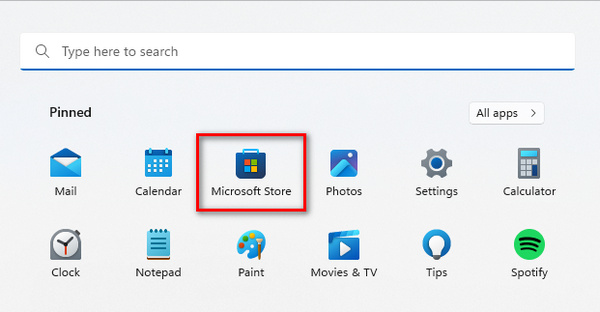
ステップ1. まず、パソコンの Windows アイコンをクリックしてスタートメニューを開きます。次に、検索バーに Microsoft Store と入力し、表示されたアイコンをクリックします。
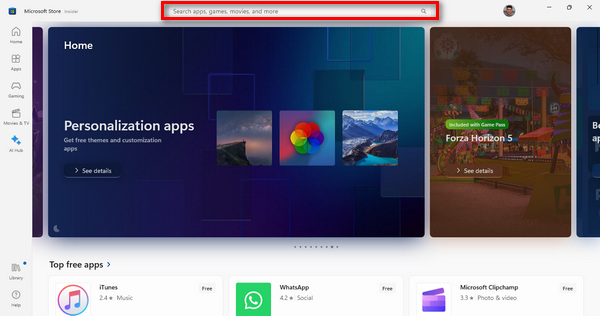
ステップ2. Microsoft Store の画面内で検索バーを見つけ、必要なコーデックまたは動画拡張機能の名前を入力します。
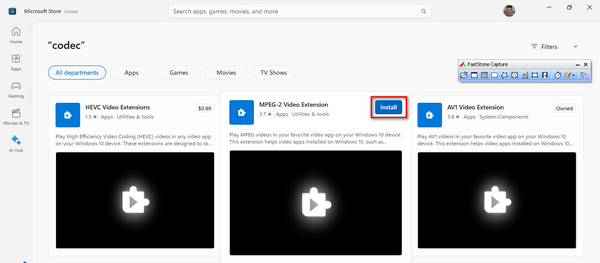
ステップ3. 必要なコーデックまたは拡張機能が見つかったら、それをクリックしてインストールを開始します。
インストールが完了したら、メディア プレーヤーを起動し、これまで再生できなかったビデオを再生します。この手順は、ビデオが問題なくシームレスに動作することを確認するために不可欠です。
解決策3: ビデオ修復ツールを使用する
それでも問題が解決しない場合、エラーコード 0xC10100BE を直す最も有効な方法は、動画修復ツールを使うことです。FVC Video Repair は、最新のAIアルゴリズムを用いて、再生不能な動画の原因となっているさまざまな問題を自動的に修復できる、ユーザーフレンドリーなソリューションです。MP4、MOV、3GP などの形式に対応しており、高品質な修復結果を実現します。また、保存前に修復済み動画をプレビューできるため、仕上がりを確認してから保存することができます。使用するには、以下の手順に従ってください。
ステップ1. まず、ソフトウェアを入手するために無料ダウンロードをクリックします。ダウンロードが完了したら、パソコンにインストールしてください。
無料ダウンロードWindows 7以降に対応安全なダウンロード
無料ダウンロードMacOS 10.7以降に対応安全なダウンロード
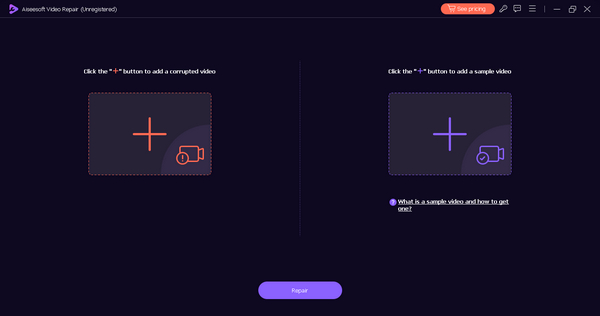
ステップ2. FVC Video Repair を起動します。画面左側には赤いプラスボタン、右側には青いプラスボタンが表示されます。赤いプラスボタンをクリックして 0xC10100BE エラーが出る動画を追加し、青いプラスボタンをクリックしてサンプル動画を追加します。
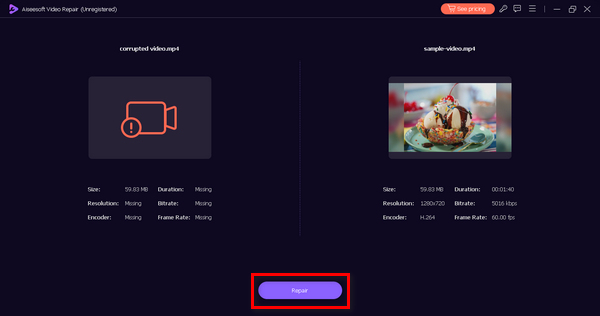
ステップ3. その後、修復ボタンをクリックします。ソフトウェアが動画ファイルの修復処理を行います。
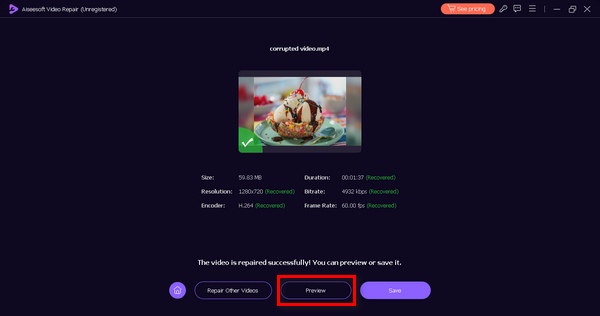
ステップ4. 最後に、プレビューボタンをクリックして、0xC10100BE 動画エラーが正常に修復されているか確認します。問題なく再生できれば、そのままファイルを保存できます。
FVC Video Repair は、特に問題がブラウザにない場合に、0xC10100BE ビデオ エラーを修正するための優れたソリューションです。
パート4. 0xC10100BEエラーに関するよくある質問
0xc00d36c4 はどういう意味ですか?
エラー コード 0xc00d36c4 は Windows Media Player に関連付けられており、多くの場合、ファイル形式またはコーデックに問題があることを示しています。プレーヤーがサポートしていないメディア ファイルを再生しようとしたときに発生することがあります。
ファイルが再生できないのはなぜですか? 0xc00d36c4?
コード 0xc00d36c4 の「ファイルを再生できません」というエラーは、通常、ファイル形式、コーデック、またはメディア ファイル内の破損の問題が原因で発生します。これは、ファイルが使用しているメディア プレーヤーと互換性がないことを示しています。
ファイル システム エラーが発生するのはなぜですか?
ファイル システムのエラーは、ファイル システムの破損、ストレージ デバイスの問題、ファイル権限の問題など、さまざまな理由で発生する可能性があります。メディア ファイルの読み取りや再生が困難になり、0xC10100BE などのエラー コードが表示される場合があります。
エラーコード 0xC10100BE を解決するにはどうすればよいですか?
エラー コード 0xC10100BE が発生した場合は、コーデックの互換性に問題がある可能性があるため、別のメディア プレーヤーに切り替えてみてください。また、ファイルが破損していないことを確認し、再生の問題が解決しない場合はビデオ修復ツールの使用を検討してください。
メディア ファイルが再生できなくなる一般的な原因は何ですか?
メディア ファイルは、サポートされていないファイル形式、コーデックの欠落または古さ、転送またはダウンロード中の破損、メディア プレーヤーの問題などの要因により再生できなくなる場合があります。ファイルの整合性を確認し、互換性のあるプレーヤーを使用すると、これらの問題の解決に役立ちます。
結論
エラーコード 0xC10100BE は、スムーズな動画視聴を妨げる厄介な存在かもしれません。しかし、このエラーについて理解を深めると、単なる「運の悪さ」で起きたわけではなく、原因となり得るさまざまな要因があることがわかります。とはいえ、FVC Video Repair のような動画修復ツールの利用を含め、このエラーを解消する方法は数多く存在します。
-
 ビデオを再生できないエラー 150 を修正するための簡単な解決策
 ビデオ視聴中に、ビデオを再生できないイライラするエラー 150 に遭遇したことがありますか?修正方法については説明しているので、ご安心ください。
-
 ビデオの0xc10100bfエラーとは何ですか、そしてそれを修正する方法
 エラー 0xc10100bf が原因でビデオが再生されず、それを修正する方法をお探しですか?この記事では、それが何であるか、そしてそれを修正する方法について学びます。
-
 ビデオエラーコード224003を修正する方法: 究極の修正ガイド
 このビデオを再生できないエラー コード 224003 をトラブルシューティングし、シームレスなユーザー エクスペリエンスのために問題を解決する方法を説明します。私たちのガイドと一緒に軌道に戻りましょう!
