


 ビデオコンバーター究極
 スクリーンレコーダー
 ビデオ修復
ビデオ修復
 安全なダウンロード
VLCメディアプレーヤーで簡単にスクリーンショットを撮る
Capturing screenshots while watching videos is a convenient way to preserve memorable moments or extract valuable information. It becomes a way of taking a specific moment to video to preserve that moment. VLC Media Player is a user-friendly video player that works on Windows, macOS, or Linux. VLC provides built-in functionality to capture frames with precision. Unlike many other media players, VLC simplifies the process, requiring just a few clicks or keystrokes to grab the desired image. By mastering this feature, users can quickly compile a collection of snapshots from their favorite videos. In this article, we'll explore the step-by-step process of how to take VLC screenshots to empower users in harnessing the screenshot capabilities of VLC Media Player, enriching their multimedia experience with ease. Continue reading this article to find out how to take screenshots via shortcuts and a menu, VLC strengths and limitations, and alternative software.

パート1. VLCでスクリーンショットを撮る方法
VLC メディア プレーヤーでスクリーンショットを撮るのは、ショートカット キーまたはメニュー オプションを使用して簡単にできます。両方の方法を使用して、ビデオからフレームを簡単にキャプチャできます。数回キーを押すだけで、お気に入りの瞬間のスナップショットをキャプチャして保存できます。VLC の多機能なスクリーンショット機能は、マルチメディア体験を向上させ、思い出に残るシーンを簡単に保存できるようにします。
ショートカットキーを使用して VLC でスクリーンショットを撮る手順:
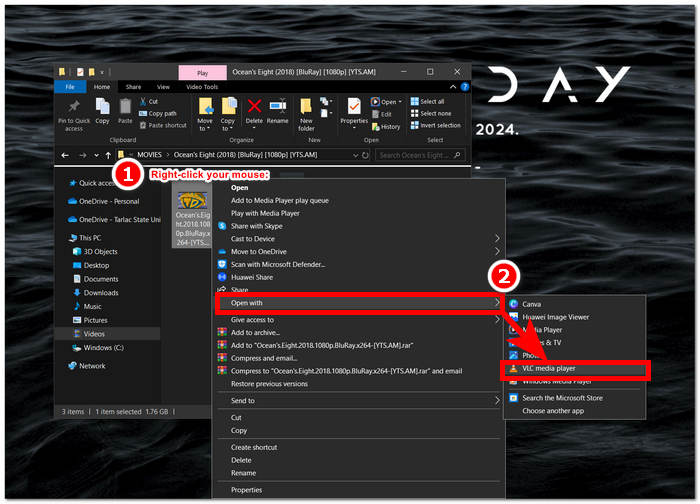
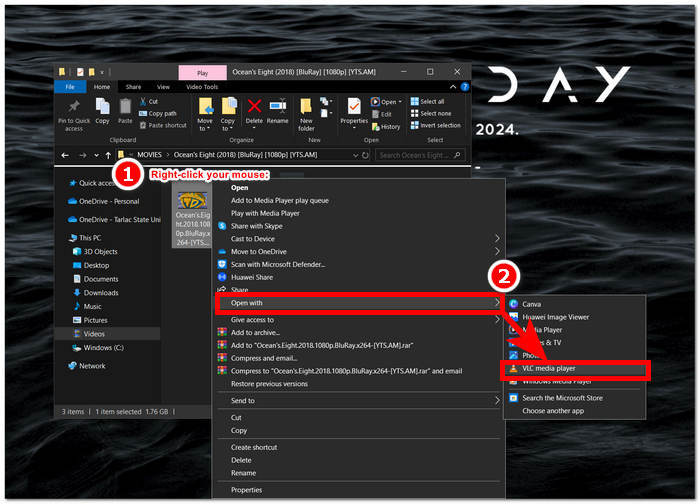
Step 1. Open the video from your desktop by right-clicking your mouse and choosing the VLC Media Player.
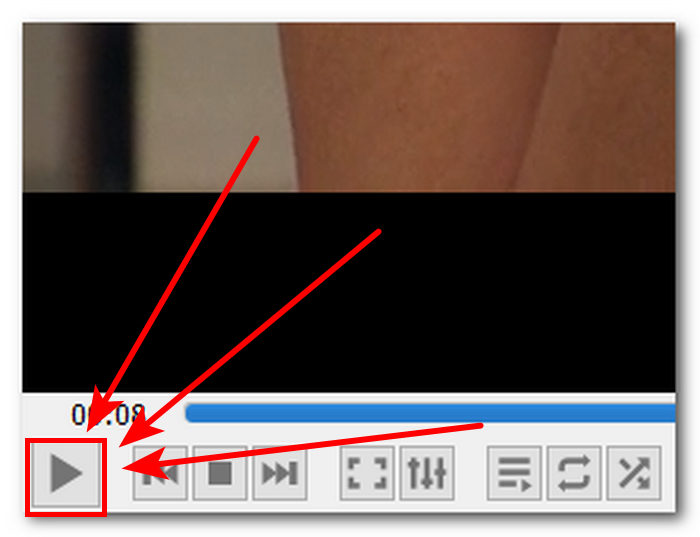
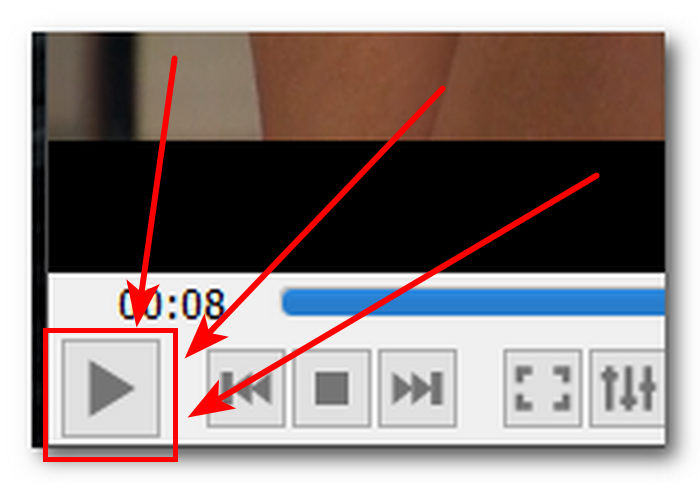
Step 2. Play your video or go through the part where you want to take a screenshot and click the Pause button.
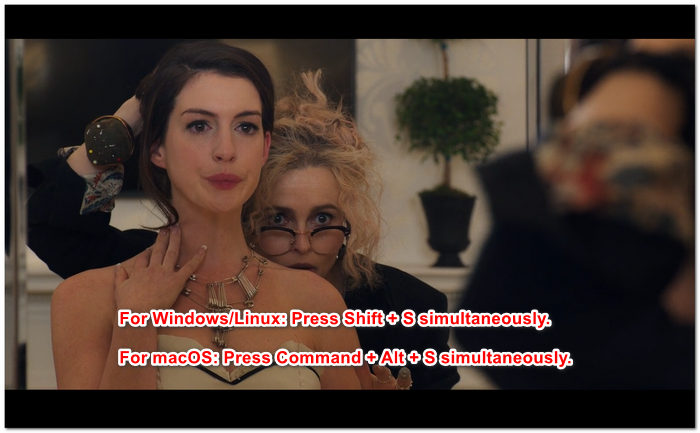
Step 3. To take a screen using shortcut keys for Windows/Linux, press Shift + S simultaneously, while for macOS, press Command + Alt + S simultaneously.
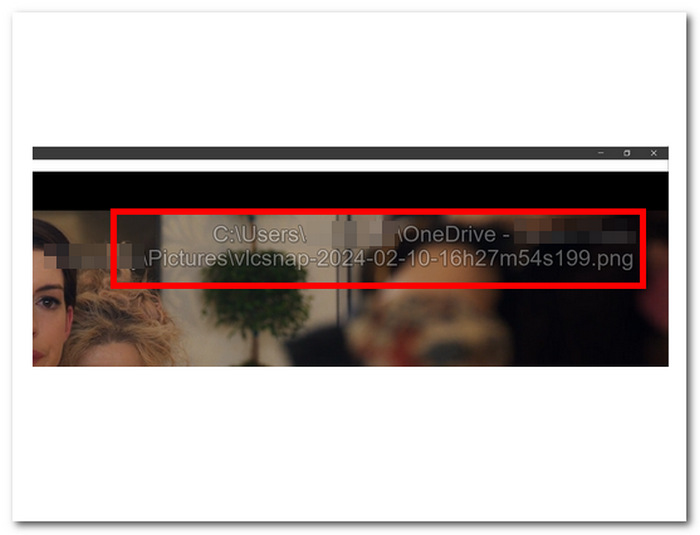
Step 4. Once you press the shortcut keys, a text will appear on the right corner of your screen indicating the location of the VLC screenshot folder. Just follow it, and you'll be able to view all your screenshots.
メニューからVLCでスクリーンショットを撮る手順:
Step 1. Locate and open your video using the VLC Media Player on your desktop.
Step 2. Click the Pause button located on your lower-left screen, to pause to the part you want to take a screenshot.
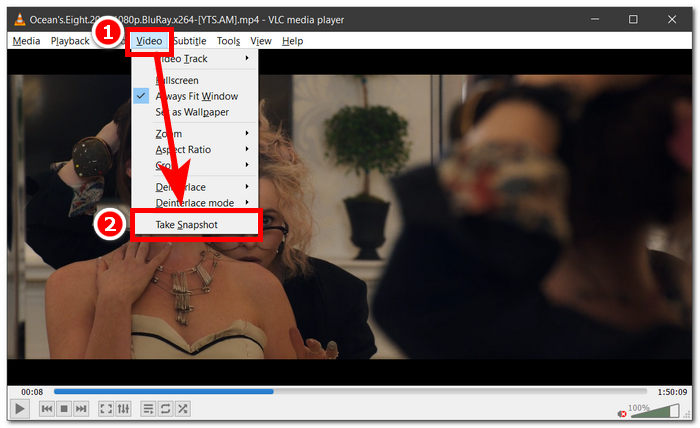
Step 3. Once your video is paused, click on the Video settings located in the upper-left corner of the media player.
Step 4. Locate the Take Snapshot in the setting and click on it to take a screenshot of your video.
It doesn't matter which method you choose, as VLC lets you take screenshots easily, enabling users to save their favorite moments from videos with minimal effort. Whether you like using VLC screenshot shortcut keys or prefer menu options, VLC guarantees a smooth experience when capturing snapshots.
パート2. VLCスクリーンショットの長所と限界
VLC スクリーンショットは、VLC メディア プレーヤーで再生されるあらゆる種類のビデオのスクリーンショットを撮る 2 つの方法を提供します。VLC メディア プレーヤーは優れた点が多く、ユーザーはその限界に疑問を抱くかもしれません。そこで、以下に VLC メディア プレーヤーの長所と限界をいくつか挙げました。
Strengths of VLC Screenshot:
◆ スナップショットをキャプチャするための、使いやすくすぐに利用できるインターフェースが提供されます。
◆ ショートカットキーとメニューオプションの両方が用意されており、利便性が向上します。
◆ 画像フォーマットや品質を調整するためのカスタマイズ設定が利用可能です。
◆ お気に入りの瞬間を簡単に保存し、マルチメディア体験を向上させます。
Limits of VLC Screenshot:
◆ 撮影した画像を編集するための高度な編集ツールは利用できません。
◆ 専用のスクリーンショットソフトウェアは、このツールに比べてより高い精度を提供できる場合があります。
◆ 著作権保護のため、暗号化されたDVDやBlu-rayディスクのスクリーンショットを撮ることはできません。
◆ 専用のスクリーンショットツールと比較すると、制御とカスタマイズが制限されます。
◆ より複雑な編集が必要な場合は、外部ソフトウェアを使用する必要がある場合があります。
◆ このツールは、主に基本的なスクリーンショットの要件に適しており、高度な編集タスクには適していません。
VLC メディア プレーヤーのスクリーンショットは、単にスクリーンショットを撮るだけという方向性をとっており、ユーザーが別の目的で必要とする可能性のある他の機能は含まれていません。VLC メディア プレーヤーはビデオ プレーヤーであり、スクリーンショット ソフトウェア ツールではないことに注意してください。そのため、基本的なスクリーンショットが実行されます。
パート3. VLCスクリーンショットの最良の代替品
Screen Recorder is a software that lets users take screenshots of their favorite frames in a video. The software is composed of advanced features and can be used as a Video Recorder, Audio Recorder, and Game Recorder. This tool has indeed got the best screen recording and screenshot capabilities that are accessible to Windows and Mac computers. As a powerful software, it offers features that are not within the capabilities of VLC Media Player screenshots. Features like a Scrolling Window that lets you screenshot a long post in one frame which is good for those reading websites and documents, as well as Popup Menu Capture that lets you screenshot menu windows of any kind hassle-free.
Step 1. Go to the Screen Recorder website to download and install the software.
無料ダウンロードWindows 7以降に対応安全なダウンロード
無料ダウンロードMacOS 10.7以降に対応安全なダウンロード
Step 2. On your desktop, once the software has finished installing, launch the app.
Step 3. In the software interface, click on the Snapshot button to take a screenshot of your screen.
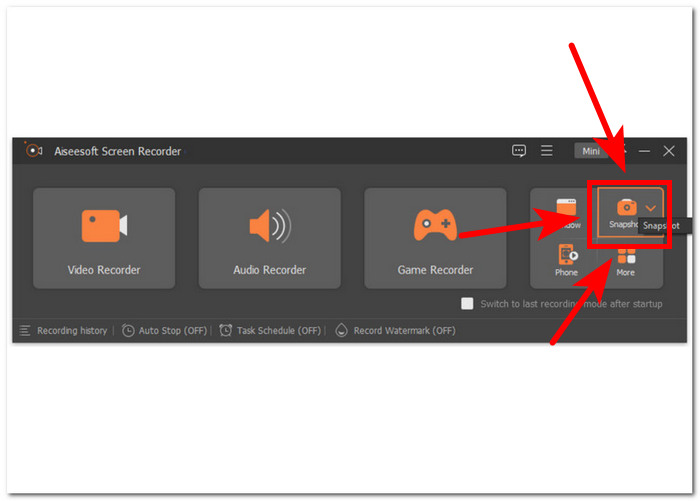
Step 4. You have the flexibility to choose the desired screenshot area, whether it is an active window or a freehand area. Once you have selected the area, you can click on Save to store the snapshot in a suitable image format.
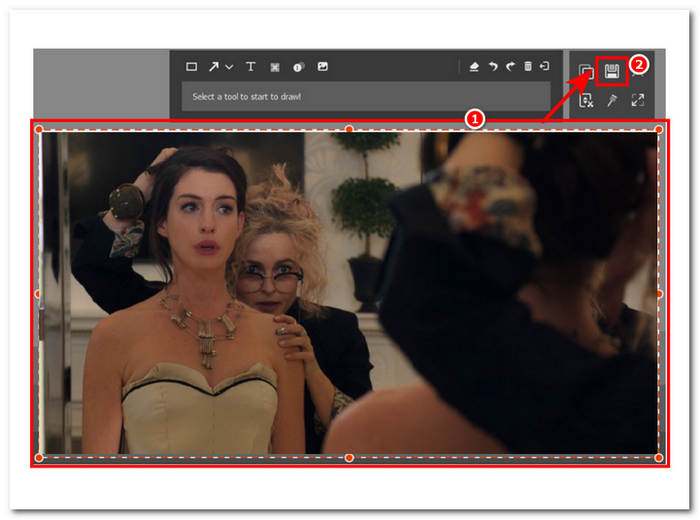
結論として、Aiseesoft スクリーン レコーダーは、スクリーン レコーディングとスクリーンショットを同時に行うというタスクを考慮すると、多機能なソフトウェアです。VLC メディア プレーヤーと Aiseesoft スクリーン レコーダーは、キーボードを使用するだけで簡単にスクリーンショットを撮れるショートカット キー コントロールを提供します。どちらもスクリーンショットを撮るという点では優れた結果をもたらしますが、Aiseesoft スクリーン レコーダーは、ソフトウェアに搭載されている機能からもわかるように、スクリーンショットを撮るだけではありません。
パート 4. VLC メディア プレーヤーでスクリーンショットを撮る方法に関する FAQ
VLC スクリーンショットのデフォルトの場所はどこですか?
VLC スクリーンショットは、デフォルトではコンピューターの「ピクチャ」フォルダーに保存されます。これを変更するには、「ツール」>「設定」>「ビデオ」に移動し、「ビデオ スナップショット」ディレクトリの下の新しいフォルダーを選択します。
連続して複数のスクリーンショットをキャプチャできますか?
はい、必要なフレームごとにこのプロセスを繰り返すことで、複数のスクリーンショットをキャプチャできます。ただし、指定した間隔で複数のスクリーンショットを自動的にキャプチャする機能は組み込まれていません。
VLC はストリーミング ビデオのスクリーンショットのキャプチャをサポートしていますか?
はい、上記と同じ方法を使用して、VLC メディア プレーヤーでストリーミング ビデオのスクリーンショットをキャプチャできます。必要な瞬間にビデオを一時停止し、スナップショットを撮るだけです。ただし、スクリーンショットの品質は、ストリーミング ソースとインターネット接続速度によって異なる場合があることに注意してください。
VLC Media Player でスクリーンショットを撮る際に制限はありますか?
1 つの制限は、著作権保護対策のため、暗号化された DVD または Blu-ray ディスクのスクリーンショットをキャプチャできないことです。さらに、VLC のスクリーンショット機能は、一部のビデオ コーデックまたはストリーミング ソースではスムーズに動作しない可能性があり、互換性の問題が発生する可能性があります。
全画面モードでビデオのスクリーンショットをキャプチャできますか?
はい、VLC メディア プレーヤーでフルスクリーン モードで再生されているビデオのスクリーンショットをキャプチャできます。ビデオがフルスクリーン モードのときに、キーボードで Shift + S を押すか、メニュー バーからビデオ > スナップショットの取得に移動します。これにより、フルスクリーン再生を終了せずに特定のフレームのスクリーンショットをキャプチャできます。
結論
In conclusion, capturing screenshots in VLC Media Player provides a straightforward way to preserve memorable moments or extract valuable information from videos. VLC's user-friendly interface makes it a popular video player choice for users across different platforms. Whether using shortcut keys or menu options, VLC simplifies the process, allowing users to capture and save snapshots of their favorite scenes effortlessly. However, for users seeking more advanced features such as precise editing or capturing scrolling windows, alternative software like Aiseesoft Screen Recorder offers a comprehensive solution. By understanding the strengths, limitations, and alternatives to VLC screenshots, users can enhance their multimedia experience and efficiently manage their screenshot needs.
-
 Windows 10/11でスクロールスクリーンショットを簡単に撮る方法
 Windows 10/11 でスクロール スクリーンショットを撮る方法を習得して、スクリーン キャプチャの潜在能力を最大限に引き出しましょう。役立つソフトウェアと Web 拡張機能を見つけてください。
-
 Macで数分でスクロールスクリーンショットを撮る方法
 部分的なキャプチャで満足しないでください。Mac でスクロール スクリーンショットを撮る簡単な手順を学びます。Web ページやドキュメント全体を簡単にすぐにキャプチャします。
-
 Windows Media Player で効率的にスクリーンショットを撮る方法
 Windows Media Player でスクリーンショットを簡単にキャプチャする最も簡単な方法をご紹介します。当社の包括的なガイドで、スクリーン キャプチャ体験を向上させましょう。
