


 ビデオコンバーター究極
 スクリーンレコーダー
 ビデオ修復
ビデオ修復
 安全なダウンロード
[解決済み] iPhone でスクリーンショットが機能しない問題を解決する 5 つの方法
Taking screenshots is one of the things we do with our iPhones. When we randomly scroll on our social media feed or read some news, we often encounter things that are worthy of being saved. But what if there’s a photo or an important text that you wanted to capture with a screenshot, but your iPhone's screenshot function was not working? Don’t worry because we got you with this problem. There are five methods to address this, so if you're currently facing this issue, this article has prepared you with a step-by-step solution to troubleshoot and resolve issues with screenshots not working on iPhones.

パート1: iPhoneでスクリーンショットが機能しない理由
iPhone でスクリーンショットが機能しないことは、時々困惑したり不便になったりすることがあります。iPhone でなぜこのようなことが起こるのか疑問に思う場合は、問題の原因として考えられる次の要因を検討してください。
ソフトウェアの不具合
iPhone でスクリーンショットが機能しない理由の 1 つは、ソフトウェアのバグです。iPhone は複雑なソフトウェア システムである iOS 上で動作します。このシステム内でバグや不具合が発生する場合があり、スクリーンショット機能を含むさまざまな機能に影響することがあります。
ボタンの組み合わせが間違っています
iPhone でスクリーンショットを撮るときは、通常、電源ボタンや音量アップボタンなど、いくつかのボタンを同時に押す必要があります。これらのボタンを適切に同時に押さなかった場合、または誤って他のボタンを押した場合、iPhone のスクリーンショットは機能しません。
アプリの制限
一部のアプリ、特に銀行やメッセージング アプリなどの機密情報を含むアプリでは、個人データへの不正アクセスを防ぐためにスクリーンショット機能がオフになっている場合があります。これは、ユーザーのプライバシーを保護するためにアプリ開発者が実装したセキュリティ対策です。
バッテリー残量低下
iPhone のバッテリー残量が極めて少なくなると、スクリーンショットなどの特定の重要でない機能をオフにして電力を節約することがあります。これは、残りのバッテリー電力を他の重要と思われる機能に使用し、デバイスが予期せずシャットダウンするのを防ぐためです。
ストレージ不足
iPhone のストレージ容量には限りがあるため、デバイスのストレージがいっぱいになると、スクリーンショットなどの iPhone のパフォーマンスと機能に影響する可能性があります。そのため、不要なファイル、画像、プログラムを削除することで、iPhone のスペースを解放し、全体的なパフォーマンスを向上させることができます。
iOS アップデート
最後に、iPhone でスクリーンショットが機能しない問題の原因は、古い iOS である場合があります。Apple は iOS オペレーティング システムを定期的に更新しており、これにはバグ修正、セキュリティ パッチ、既存機能の改善が含まれることがよくあります。
パート2:iPhoneでスクリーンショットが機能しない問題を解決する方法
方法1: 写真アプリを再度開く
iPhone でスクリーンショットが機能しない問題により、写真アプリで撮影したスクリーンショットが見つからない場合は、iPhone でアプリを再度開いてみてください。写真アプリのバックグラウンド プロセスの不具合により、スクリーンショット機能が妨げられる場合があります。写真アプリをシャットダウンして再起動すると、スクリーンショットが意図したとおりに保存されていることを確認できます。
Note: If this method doesn’t work, as this only addresses potential software issues, proceed to method 2.
方法2: iPhoneを再起動する
iPhone を再起動すると、スクリーンショットの問題など、さまざまなソフトウェア関連の問題が解決することがあります。
For iPhone X, 11, 12, 13, 14, and 15:
Step 1. Simply press and hold either the Volume button along the Side button until the power-off slider appears.
Note: The Volume button is positioned on the left side, while the side button is located on the right side of the device.
Step 2. Slide the Power-off slider, then allow your device about 30 seconds to power off. If your device becomes unresponsive, perform a force restart.
Step 3. To power your device back on, just press the Side button, hold it, and wait until the Apple logo appears on the screen.
次に、iPhone でスクリーンショットを撮って、問題が解決したかどうかを確認します。
For iPhone 6, 7, 8, or SE 2nd or 3rd generation:
Step 1. Press and hold the side button until the power-off slider emerges.
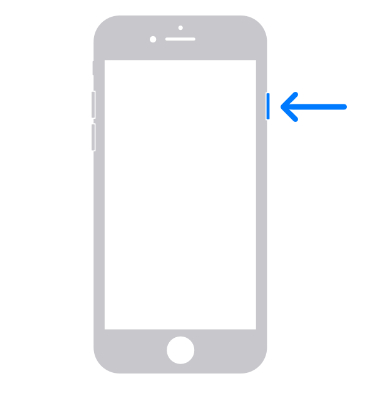
Step 2. Slide the slider to power off your device. In case of unresponsiveness, initiate a force restart.
Step 3. To switch it on, press the side button and wait until the Apple logo appears.
For iPhone SE 1st generation, 5, or earlier models:
Step 1. Press and hold the top button until the power-off slider becomes visible.
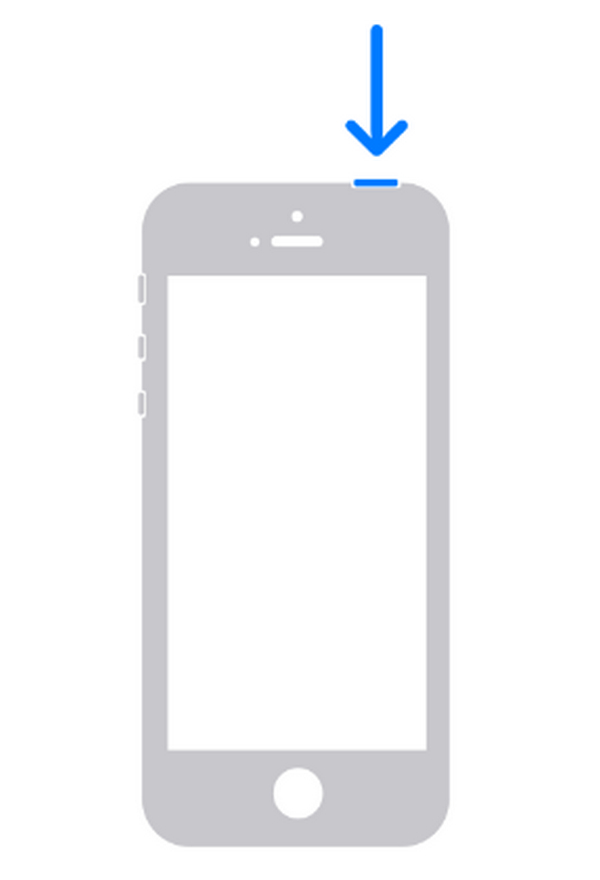
Note: The power button is situated at the top of the device.
Step 2. Slide the slider to turn off your device, and wait for around 30 seconds for it to complete the shutdown process. If your device freezes, perform a force restart.
Step 3. To switch it on, press the side button and wait until the Apple logo appears.
したがって、デバイスのシステム プロセスを更新し、スクリーンショット機能に影響している可能性のある一時的な不具合や競合を解消すると、iPhone でスクリーンショットが機能しない問題を解決できる可能性があります。
方法3: iOSを最新バージョンにアップデートする
iPhone が最新バージョンの iOS であることを確認することが重要です。通常、Apple はバグ修正や改善を含むアップデートをリリースしており、スクリーンショット機能に関する問題に対処する場合があります。
iPhoneをアップデートするには:
Go to your iPhone’s Settings > General > Software Update, then download and install any available updates.
iPhone を最新バージョンにアップデートすると、スクリーンショットの問題が解決されるだけでなく、デバイスが最新の機能とパフォーマンスの向上の恩恵を受けることができます。
This is also the solution to fix iPhone videos not playing or buffering.
方法4: Assistive Touch機能を使用する
iPhone の物理ボタンが機能しない場合は、AssistiveTouch 機能を使用してスクリーンショットを撮ることができます。
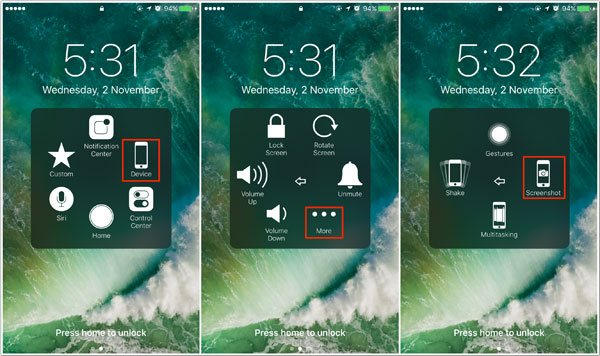
これをする:
Step 1. Go to your iPhone’s Settings, then proceed to General. From there, look for Accessibility and find Touch/ AssistiveTouch. Now, customize it by adding the Screenshot option.
Step 2. Once set up, you can now take screenshots by just simply tapping the AssistiveTouch button and selecting the Screenshot from the menu.
この方法は、iPhone のボタンが機能しない場合に優れた代替手段となります。ただし、AssistiveTouch を使用するには追加の手順と調整が必要になる場合があり、技術に詳しくない初心者ユーザーにとっては負担になる可能性があることに注意してください。
方法5: iPhoneを充電する
バッテリー残量が少ないと、スクリーンショットなど iPhone の特定の機能の動作に影響する場合があります。iPhone のバッテリー残量が極めて少ない場合は、適切な充電器とケーブルを使用して充電してください。バッテリーが十分に充電されたら、もう一度スクリーンショットを撮って、問題が解決するかどうかを確認してください。
Note: This cause is often overlooked. Therefore, charging your phone can potentially fix the screenshots not working on iPhone problems.
パート3:iPhoneでスクリーンショットが撮れないときにスクリーンショットを撮る別の方法
Now, if any of the methods above don't work on your iPhone, using a third-party tool such as FVC Screen Recorder is the best for you. This tool allows you to screenshot anything on your iPhone screen through the screen mirroring feature of this tool connected to your iOS device. This is quick and easy to do, so this won’t take much of your time to screenshot on your iPhone’s screen.
Step 1. Download and open FVC Screen Recorder on your laptop.
無料ダウンロードWindows 7以降に対応安全なダウンロード
無料ダウンロードMacOS 10.7以降に対応安全なダウンロード
Step 2. Now, click on the Phone recorder option. You’ll find this on the right side of the tool’s window together with the other 3 options.
Step 3. Next, you’ll see two options there, but since you are using an iPhone device, click on the iOS Recorder.
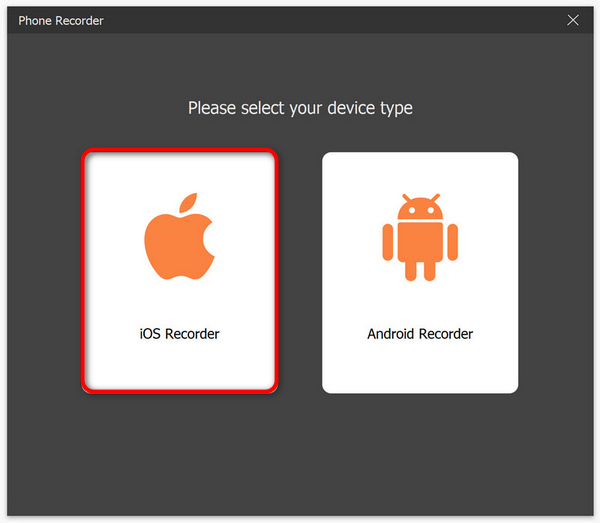
Step 4. After that, a new window containing an on-screen instruction will apear. From there, you’ll choose between Screen Mirroring or Audio Mirroring, in your case, choose Screen Mirroring.
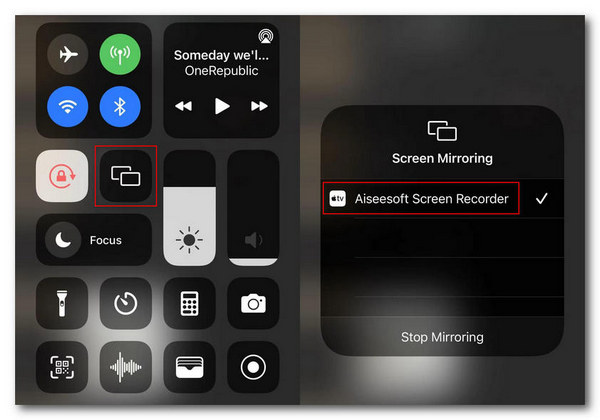
ステップ5. iPhoneの場合は、まずコントロールセンターを開き、そこから画面ミラーリングをタップしてドロップダウンリストを表示します。次に、「Aiseesoft Screen Recorder」を選択して、iPhoneとパソコンを接続します。
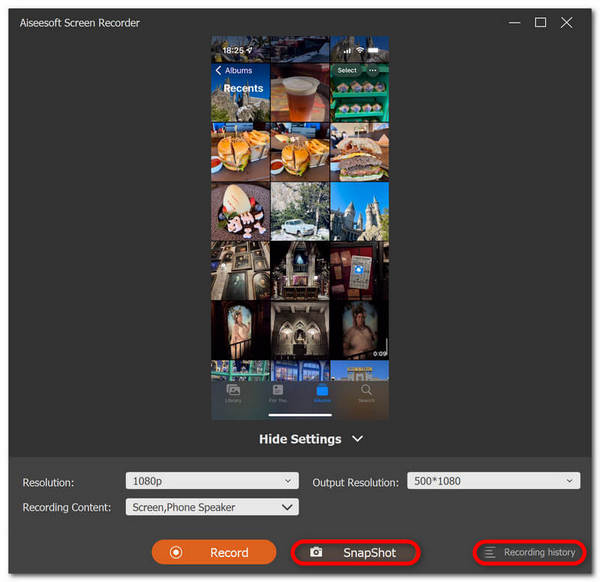
Step 6. Lastly, when set, just click on the Snapshot icon when you want to take a screenshot and access it in its respective Windows folder.
FVC スクリーン レコーダーを使用すると、iPhone でスクリーンショットが機能しない問題を解決できます。直感的な機能により、iPhone のミラーリングされた画面のスクリーンショットをすばやく簡単に撮ることができます。これは間違いなく、これまでのところ使用できる最良の代替手段です。
パート4: iPhoneでスクリーンショットが機能しないというFAQ
iPhone は長いスクリーンショットの撮影をサポートしていますか?
はい。保存する前に全ページオプションを選択すると、iPhone で長いスクリーンショットを撮ることができます。ただし、このスクリーンショット機能の使用は、Safari で Web ページ全体のスクリーンショットをキャプチャすることに限定されます。
iPhone をリセットすると、iPhone でスクリーンショットが機能しない問題は解決しますか?
これは非常に重要な方法です。iPhone のリセットは、この問題に対する最後の手段として行うべきものです。また、このプロセスまたは方法は、デバイス上のすべてのデータと設定を消去することを意味することに注意することが重要です。したがって、最初にこの記事で概説されている他の方法を試すことをお勧めします。それが機能しない場合は、iPhone をリセットする前にデータをバックアップしてください。
iPhone のスクリーンショットの問題の原因はハードウェアの問題ですか?
はい。iPhone のスクリーンショットの問題の最も一般的な原因はソフトウェアの不具合ですが、ボタンの故障などのハードウェアの問題も影響することがあります。したがって、ハードウェアの問題が問題の根本原因であると思われる場合は、Apple 認定サービス プロバイダに問い合わせて追加の診断と修理を受けるのが最善の方法です。
結論
Indeed, it’s understandable that dealing with screenshots not working on your iPhone issue can be frustrating and discouraging, especially when this is part of your workflow. However, you can simply resolve this issue by using the appropriate techniques outlined in this article. So, don't let screenshot issues ruin your iPhone experience any longer. Learn them today and enjoy taking screenshots of important moments and information on your iPhone device.
-
 HP でスクリーンショットを簡単にキャプチャする方法 [2025 ガイド]
 Dell コンピューターでスクリーンショットを撮る方法を、ステップバイステップ ガイドで学びましょう。この簡単なプロセスで効率を高め、時間を節約できます。今すぐお読みください。
-
 この基本ガイドで簡単にビデオのスクリーンショットを撮る方法 [2025]
 これらの簡単な方法で、ビデオからスクリーンショットを簡単に撮る方法を学びましょう。ガイドに従って、今すぐお気に入りのビデオのスクリーンショットを撮り始めましょう。
-
 この基本ガイドでMacで簡単にスクリーンショットを撮る方法
 Mac でスクリーンショットを撮りたいけれど、やり方がわからないということはありませんか? 大丈夫です! 画面のスクリーンショットを撮って画像を保存する最も簡単で素早い方法を紹介します。
