


 ビデオコンバーター究極
 スクリーンレコーダー
 ビデオ修復
ビデオ修復
 安全なダウンロード
3 つのベストなオンライン方法で MP4 をテキストに変換する
情報系の動画を見るのはお好きですか? 動画から情報をメモしたいのに、話している内容を正確に書き取るのが難しいと感じることはありませんか? その結果、正しく書き取るために動画を何度も一時停止してしまうこともあるでしょう。ですが、もう心配はいりません。この問題への対策をご紹介します。視聴や音声に集中したくて、マルチタスクが苦手な方がいることも理解しています。そこで本記事では、動画を視聴しながら一時停止してメモを取る必要なく、簡単に情報を取り出せるように、MP4 をテキストに変換する 3 つの方法をご紹介します。さあ、始めましょう!

パート 1: MP4 をテキストに変換する無料オンライン ツールの概要
今日では、私たちの生活を楽にしてくれるオンライン ツールが数多くあります。以前は、視聴した MP4 ファイルからメモを取るのに苦労していましたが、今では MP4 からテキストに抽出する方法がたくさんあります。
| 製品 | 使いやすさ | 正確さ | コラボレーション | 長所 | 短所 |
| ハッピースクライブ | ⭐⭐⭐ | 85% | 番号 | • ユーザーフレンドリーな Web アプリ エクスペリエンス。 • 編集可能なトランスクリプトを簡単に共有できます。 | • 転写は校正する必要があります。 |
| 文字起こしへ | ⭐⭐⭐⭐ | 80% | 番号 | • ユーザーフレンドリーで効率的に使用できます。 • さまざまなビデオ形式をサポートします。 | • 転写に時々矛盾が生じることがあります。 |
| オッター | ⭐⭐⭐⭐ | 83% | はい | • 録音されたファイルとライブ会議の両方の文字起こしをサポートします。 • 文字起こし編集およびチームコラボレーションツールを提供します。 | • 複雑なビデオ音声テストの転写精度が低い。 • 英語の文字起こしのみをサポートします。 |
パート 2: MP4 をオンラインでテキストに変換する 3 つの方法 [無料]
ハッピースクライブ
Happy Scribe は、文字起こしや字幕作成によく使用される専門ツールです。動画や音声を簡単にテキストに書き起こすことができる文字起こし機能を備えています。さらに、高精度の文字起こし結果とユーザーフレンドリーなインターフェースで知られているため、MP4 をテキストに変換するツールをお探しの場合は、これが最適でしょう。
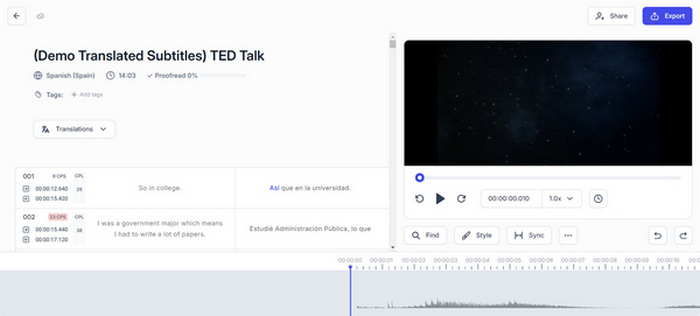
手順 1.ブラウザで Happy Scribe の公式サイトにアクセスします。
手順 2.サイトにアクセスしたら、まずアカウントを作成します。すでにアカウントがある場合は、ログインしてください。
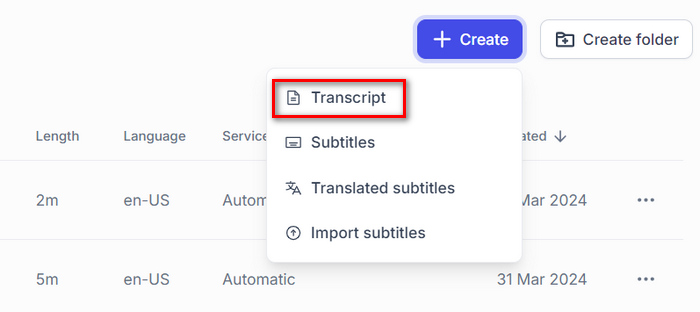
手順 3.メイン画面が表示されたら、Create をクリックし、Transcript を選択して、テキストに変換したい MP4 ファイルを選びます。
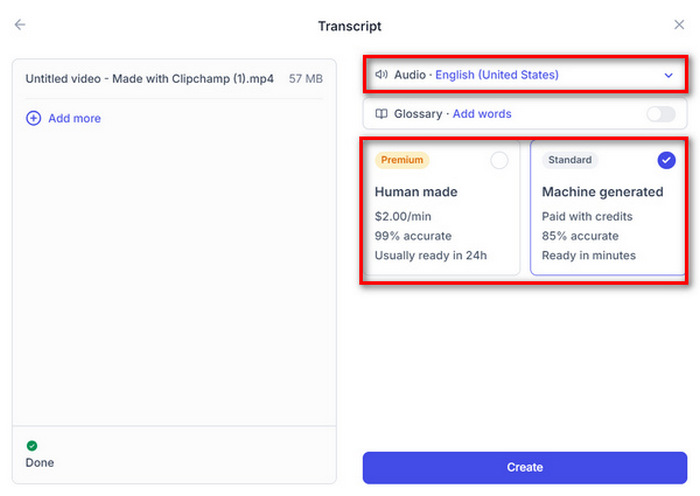
手順 4.次に、動画の言語(Language)を選択します。また、文字起こしを Human-made(人力)にするか Machine generated(自動生成)にするかを聞かれますが、ここでは Machine generated を選び、Create ボタンをクリックします。
手順 5.すると、MP4 ファイルから抽出されたテキストが表示されます。保存したい場合は、Export ボタンをクリックするだけです。
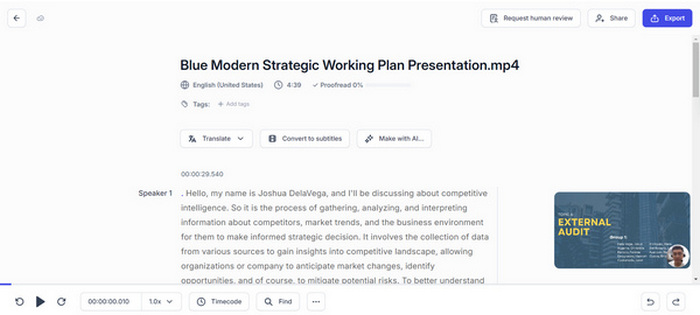
Happy Scribe では、機械による文字起こし機能を使用して MP4 ファイルを簡単にテキストに書き起こすことができます。ただし、ビデオの文字起こしをより正確にするには、書き起こした結果を校正する必要があります。
反対に、動画に文字を追加したい場合は、こちらの記事を参照してください。
文字起こしへ
Go Transcribe は MP4 をテキストに変換するもう 1 つの方法です。このツールは、迅速で手頃な自動文字起こしサービスを提供します。オーディオまたはビデオ ファイルをアップロードするだけで、数分で文字起こしが返されます。人間の文字起こしに比べると完璧ではありませんが、はるかに高速で安価です。さらに、このツールを使用すると、文字起こしされたメモから重要な部分を強調表示し、他のユーザーと共同で編集することができます。
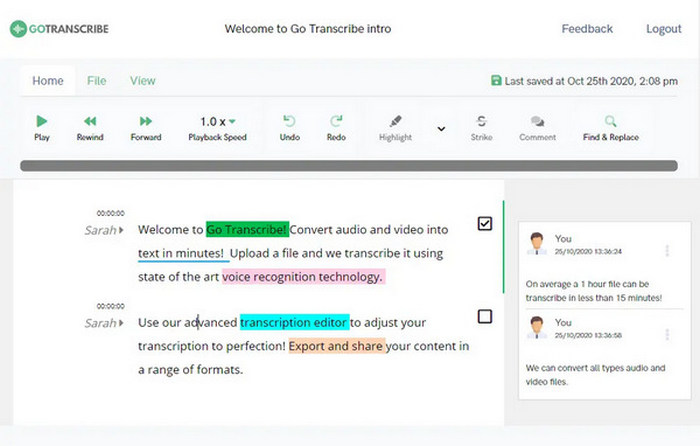
手順 1.まず、サービスのウェブサイトにアクセスします。
手順 2.サイトにアクセスしたら、Create ボタンをクリックします。テキストに変換したい MP4 ファイルをドラッグするか、Select to Transcribe ボタンをクリックしてインポートできる新しいウィンドウが開きます。
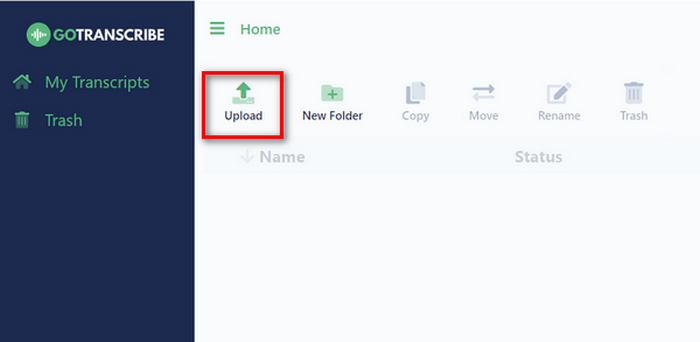
注意:変換したい MP4 ファイルの言語を選択するのを忘れないでください。設定できたら、下にある Upload and Transcribe ボタンをクリックします。
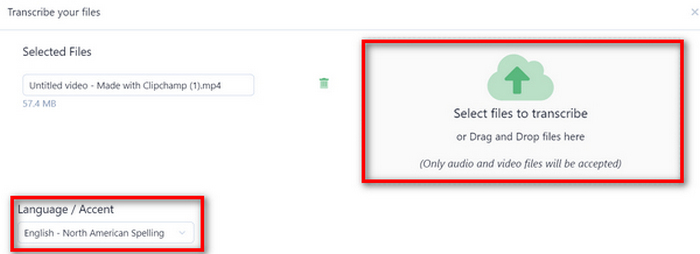
手順 3.その後、必要に応じて誤認識を修正したり、文字起こしを調整します。完了したら、Word、PDF、SRT など、さまざまな形式で文字起こしデータを共有・エクスポートできます。
ユーザーは、機械による文字起こしの結果にいくつかのエラーがあることに注意する必要があります。そのため、このツールでは、エクスポートする前に抽出された結果を編集できます。しかし、全体として、Go Transcribe は MP4 からテキストを文字起こしするプロセスを効率化するため、MP4 をテキストに変換するための実用的なソリューションを提供します。
オッター
Otter.ai は、主に音声をテキストに変換する機能で知られる有名な文字起こしツールです。Zoom や Google Meet で会議メモを書いたり要約したりする会議アシスタントとしてよく使用されます。ただし、MP4 をテキストに変換する機能も含まれています。この機能により汎用性が高まり、ユーザーはビデオのオーディオ コンテンツを迅速かつ正確に文字起こしできます。
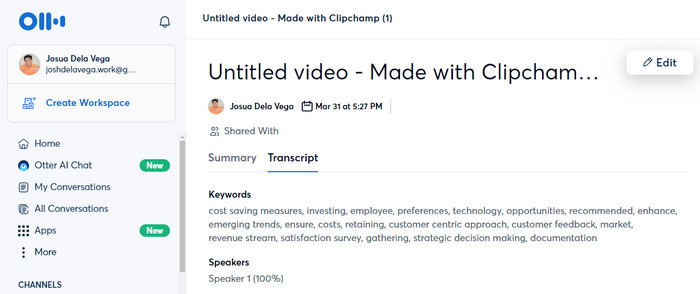
手順 1.ウェブサイト上で、まずアカウントを作成します。
手順 2.その後、Create ボタンをクリックし、テキストに変換したい MP4 ファイルを参照して選択するかドラッグします。動画がインポートされたら、Go to Transcript をクリックします。
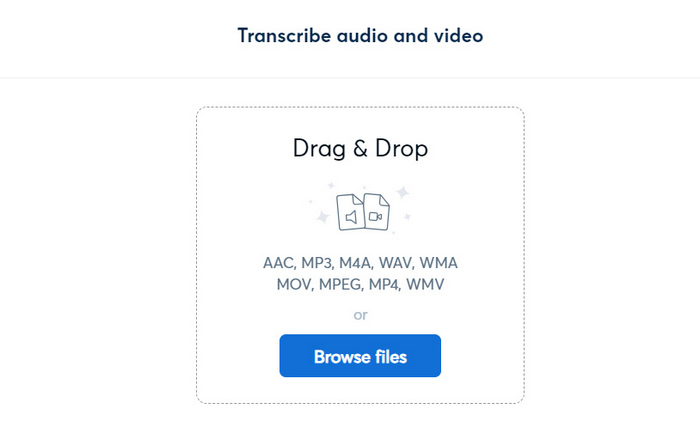
手順 3.これでテキストが準備できました。保存前に、校正や編集を行うこともできます。問題なければ、右上の三点アイコンをクリックして Export を選択します。
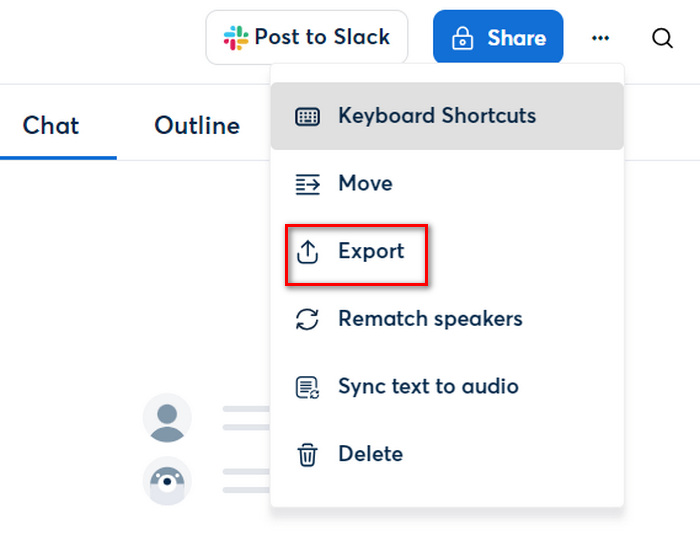
Otter.ai を使用すると、MP4 をテキストに変換できるため、手動での文字起こしにかかる時間を節約できます。また、他のユーザーと共同で文字起こしを編集できる機能により、このツールは他の MP4 からテキストへの変換ツールとは一線を画しています。
パート3: MP4をテキストに変換する際のよくある質問
MP4 ファイルから変換されたテキストは正確に転写されますか?
オンライン ツールは MP4 をテキストに変換するのに便利ですが、文字起こしの精度は異なる場合があります。オーディオ品質、アクセント、背景ノイズなどが文字起こしの品質に影響を与える可能性があります。
正確さを保つために、MP4 ファイルから機械で生成された文字起こしを編集できますか?
はい。MP4 ファイルをテキストに変換するほとんどのオンライン ツールでは、ユーザーがトランスクリプトを編集して改善することができます。この手動編集プロセスには、トランスクリプトを校正し、テキスト、特にその内容の正確性を向上させるために必要な調整を行ってから、トランスクリプトを最終決定することが含まれる場合があります。
英語以外のコンテンツを含む MP4 ファイルをテキストに書き起こすことはできますか?
はい。複数の言語をサポートし、英語以外のコンテンツを含む MP4 ファイルを転記できる MP4 からテキストへのオンライン コンバーター ツールは数多くあります。そのため、ユーザーは転記プロセスを開始する前にオーディオ コンテンツの言語を選択して、正確な結果を確実に得ることができます。
結論
動画の視聴や音声だけに頼らず、テキストを読むことの力をあなどってはいけません。この記事で紹介した方法を使えば、MP4 をテキストに変換できます。ご自身のニーズや好みに合った方法を選んでください。この機会を逃さず、動画コンテンツを手軽に文章へと変換してみましょう。
-
 Windows/Mac/オンラインで画像からテキストを削除する方法
 画像内の気を散らすテキストに別れを告げましょう。テキスト削除用にシームレスに設計されたこれらのスムーズなソリューションを使用して、画像からテキストを削除する方法を確認してください。
-
 MacとiPhoneでiMovieを使用してビデオにテキストを追加する簡単な方法
 iMovieを使用してビデオにテキストを追加する必要がありますか?詳細な手順を使用してiMovieにテキストタイトルを追加する方法については、ブログ投稿全体をお読みください。
-
 スクリーンショットから Snapchat テキストを削除する最も簡単な方法
 オンラインとオフラインの信頼できるツールを使用して、写真やビデオから Snapchat テキストを削除しましょう。簡単な方法をご紹介します。今すぐ試してみましょう。
