


 ビデオコンバーター究極
 スクリーンレコーダー
 ビデオ修復
ビデオ修復
 安全なダウンロード
コンピューターでMPGファイルをマージする方法
DVD からパソコンに映画をリッピングしようとすると、通常 MPG 形式で保存されます。リッピングした映画は複数の短い MPG クリップに分割されていることが多いため、完全な映画ファイルを得るには、複数の MPG 形式のムービークリップを 1 つに結合したくなるでしょう。この記事では、MPG ファイルを結合する方法を 2 通りご紹介します。

パート1。VideoConverterUltimateでMPGファイルを結合する方法
MPGムービーをマージして編集するには、プロのビデオ参加ソフトウェアが必要になる場合があります。 Video Converter Ultimateは、問題を解決するための最良の方法です。強力なビデオのマージ、変換、および編集機能を使用すると、多くのMPGファイルを自由に結合して、コンピューター上で調整できます。
- 1.ワンクリックでMPGファイルを含むさまざまなタイプのビデオフォーマットに参加して変換します。
- 2.トリミング、分割回転、透かしと字幕の追加など、複数のMPGビデオ編集機能。
- 3.ビデオ品質をアップグレードするためのMPGビデオエンハンサーを提供する特別なツールボックス。
- 4.テーマとフィルターを追加してmpgムービークリップを装飾します
無料ダウンロードWindows 7 以降に対応安全なダウンロード
無料ダウンロードMacOS 10.7 以降に対応安全なダウンロード
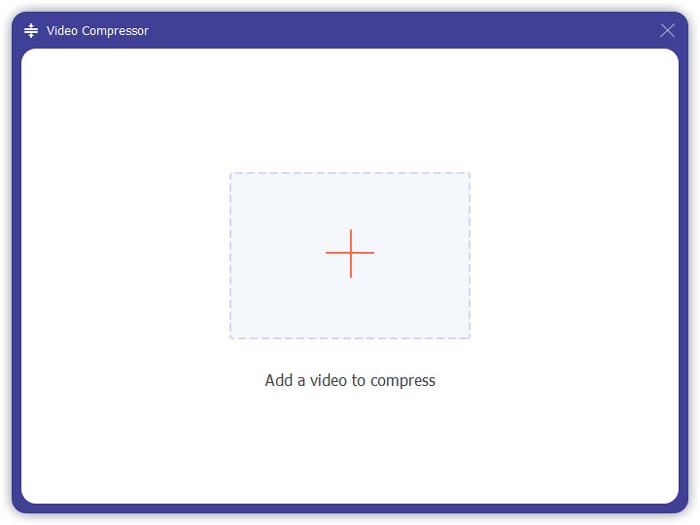
ステップ 1. Video Converter Ultimate をダウンロードしてセットアップします。[Converter]インターフェースを選択します。次に、画面中央にある[Add Files]と書かれた四角形をクリックして、結合したい MPG ファイルを追加します。複数の MPG ファイルをドラッグしてその四角形に入れることでも追加できます。複数の MPG ファイルを追加し、それらを 1 つに結合することが可能です。
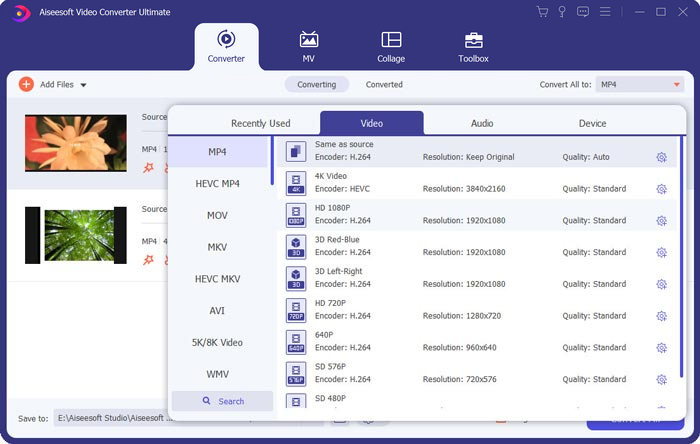
ステップ 2. 右側にある[Convert All to]欄をクリックして、出力したい動画形式を選択します。メニューから MP4、MOV、MKV など、さまざまな形式を選べます。[歯車]アイコンをクリックすると、その形式のパラメーターを手動で調整できます。
ステップ 3. 動画を編集するには、[ハサミ]アイコンをクリックして編集インターフェースを起動します。開始時間と終了時間を設定してトリミングできます。左側のバーにある MPG 動画は時系列順に並んでいます。動画の順番を変更したい場合は、ドラッグして別の順番に並べ替えてください。最終的に結合された動画では、上にある動画が下にある動画よりも先に再生されます。
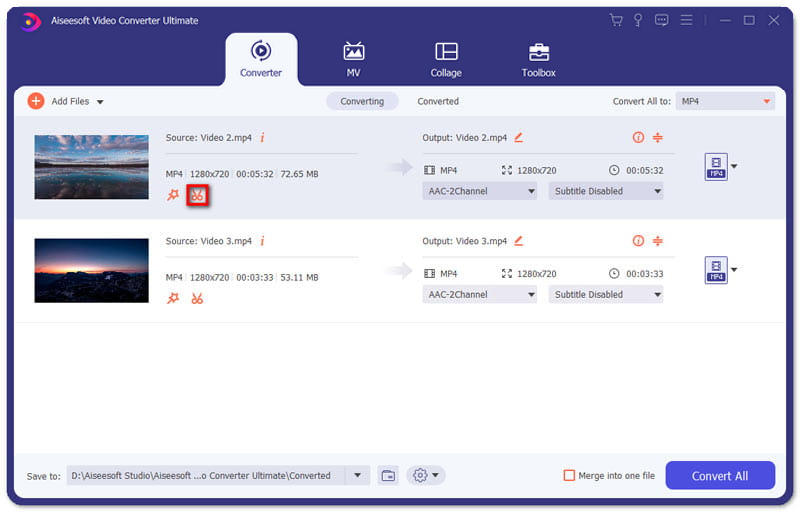
ステップ 4. 編集が完了したら、動画を結合して最終プロジェクトを書き出します。編集インターフェース上での順番に従って、動画は時系列順で結合されることを理解しておきましょう。結合を開始するには、[Merge into One File]ボックスにチェックを入れ、[Convert All]ボタンをクリックします。完了後、結合された動画は指定フォルダー内に保存されます。
その後、MPG ファイルは MPG MPEG プレーヤーで直接再生できます。
パート2。MPGファイルを無料でオンラインで参加する方法
無料でオンライン上で MPG ファイルを結合したい場合は、Free Online Video Merger を利用できます。シンプルで洗練されたインターフェースは、すべてのユーザーにとって使いやすい設計になっています。
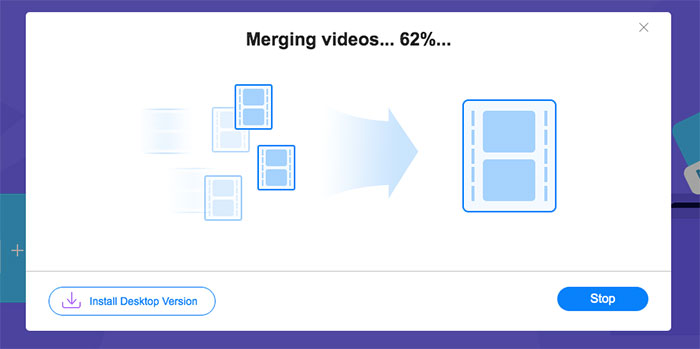
ステップ 1. ランチャーをダウンロードしてセットアップし、マージツールを起動します。その後、インターフェース上の「+」をクリックして MPG ファイルを追加します。画面下部のメニューでは、結合後の動画の解像度と形式を調整できます。画面上では、動画は左から右へ、時系列順に並んでいます。
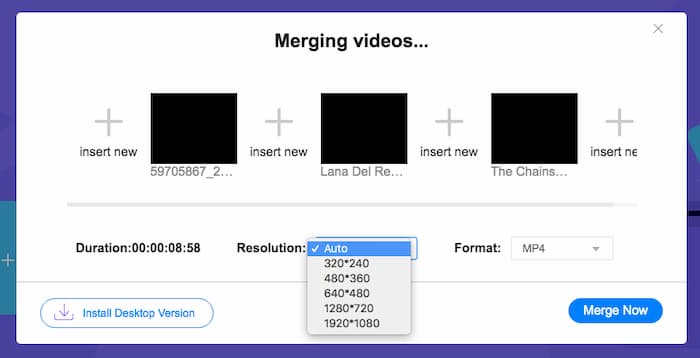
ステップ 2. 結合を開始するには、[Merge Now]ボタンをクリックします。結合が完了すると、動画はパソコンの既定フォルダー[Download]内に保存されます。
パート3。MPGファイルの結合に関するFAQ
1. MPGビデオファイルを開くにはどうすればよいですか?
通常、MPGビデオファイルはMPEG-1およびMPEG-2バージョンです。 MPEG-1は、Windows MediaPlayerやVLCMediaPlayerなどの主流のメディアプレーヤーのほとんどと互換性があります。 MPEG-2はDVDビデオ用に設計されています。サードパーティのDVDデコーダーをダウンロードして開くことができます。
2. MPGファイルとは何ですか?
MPGファイルは、ビデオおよびオーディオデータを保存するために頻繁に使用されるビデオファイルです。品質を損なうことなく、大きなオーディオおよびビデオデータを小さなサイズで保存および圧縮できます。これは、Moving Picture Experts Group(MPEG)によって標準化されています。 MPGは、インターネット上で映画を保存および配布するために使用されます。 MPGファイルは、PSまたはMPEG-PSとしてプログラムストリームコンテナ形式で保存されます。
3. MPGビデオファイルを無料でマージするにはどうすればよいですか?
インターネット上には多くの無料のビデオ参加ツールがあります。上記の無料オンラインビデオ合併は、あなたの要求を満たすことができる簡単で明確なインターフェースを備えた無料のツールです。
結論
複数の MPG ファイルを 1 つに結合したい場合は、プロフェッショナルな動画結合ソフトが必要です。この記事では、動画結合ソフトを使ってそのニーズを実現する方法を紹介しました。動画結合ツールについて質問がある場合や、MPG ファイルを一緒に結合する方法についてさらに知りたい場合は、下にコメントをお寄せください。
-
 SonyX70のMXFビデオに参加するための2つの究極の方法
 Sony X70からMXFビデオをいくつか撮影した場合、MXFファイルを結合するための最良の方法は何ですか?ビデオを高品質で組み合わせるための2つの効率的な方法を次に示します。
-
 YouTubeのビデオを圧縮する2つの方法
 YouTubeビデオは大きくてアップロードが遅いですか?オンラインとコンピューターの2つの方法で、YouTube用にビデオファイルのサイズを小さくするだけです。
-
 GIFプレーヤー-WindowsPC、Mac、Android、iPhoneに最適な5つのGIFプレーヤー
 どのプログラムがGIFファイルを開きますか? AndroidでGIFを表示するにはどうすればよいですか? iPhoneにはGIFを開くためのGIFプレーヤーがありますか?この投稿では、5つの最高のGIFプレーヤーを共有しています。
