


 ビデオコンバーター究極
 スクリーンレコーダー
 ビデオ修復
ビデオ修復
 安全なダウンロード
VLC DVD リッピング: VLC を使用して DVD を簡単に変換する方法 [2024]
確かに、DVD プレーヤーで映画を見ることは、かつては生活の一部でした。子供の頃、初めてアニメや映画を見たのはどこでしたか教えてください。懐かしい気持ちになりますよね。今日、Netflix がすべてのメディア ストリーミング プラットフォームを圧倒しているため、映画を見ることはかつてないほど簡単でアクセスしやすくなりました。これにより、多くのディスクが見過ごされ、時間の経過とともに腐るのを待っています。
さて、もしコレクションを保存する方法をお探しなら、それを実現する唯一の方法は、VLC を使って 1 枚ずつリッピングすることです。VLC は無料のマルチメディアプレーヤーで、さまざまな種類の動画を再生・変換・修復できます。それだけでなく、このツールは DVD のリッピングにも対応しており、中のメディアコンテンツを抽出できます。そこでこの記事では、VLC を使って DVD をリッピングする方法をまとめたガイドを用意しました。さらに、記事の最後では、より簡単で高機能な VLC の代替ソフトもご紹介します。さあ、何を待っていますか?下へスクロールして、本文を読み進めていきましょう。

パート1. VLCでDVDをリッピングする
VLC は、Windows、macOS、Linux ユーザーが利用できるメディア プレーヤー ソフトウェア アプリです。このツールは、さまざまな機能で広く知られており、さまざまなビデオを再生できるだけでなく、DVD をリッピングして、さまざまなデバイスでアクセスおよび再生できるようにすることもできます。このツールは、ディスクからコンテンツを抽出し、簡単に保存または共有できるデジタル化されたビデオ ファイルに変換します。
価格:100% 無料
以下は、VLC を使って DVD をリッピングする手順ガイドです。
ステップ 1: まず、VLC をデバイスにダウンロードしてインストールします。その後、ディスクを挿入します。
ステップ 2: 次に、メディアタブを開き、一覧から変換/保存オプションを選択します。
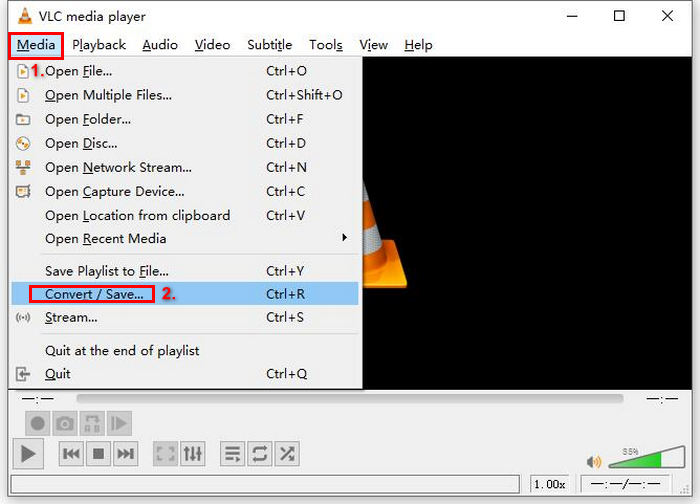
ステップ 3: その後、上部のタブからディスクをクリックし、DVDオプションにチェックを入れ、ディスクデバイスでリッピングしたい DVD を選択します。
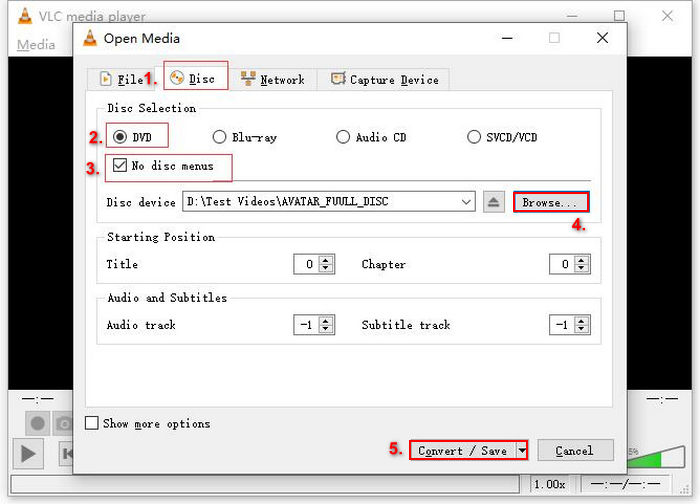
ステップ 4: 次に、変換/保存ボタンをクリックし、下にあるプロフィルのドロップダウンメニューから出力形式を MKV に設定します。
ステップ 5: その後、下部の宛先セクションで参照をクリックし、フォルダーを選択して出力ファイル名を指定します。
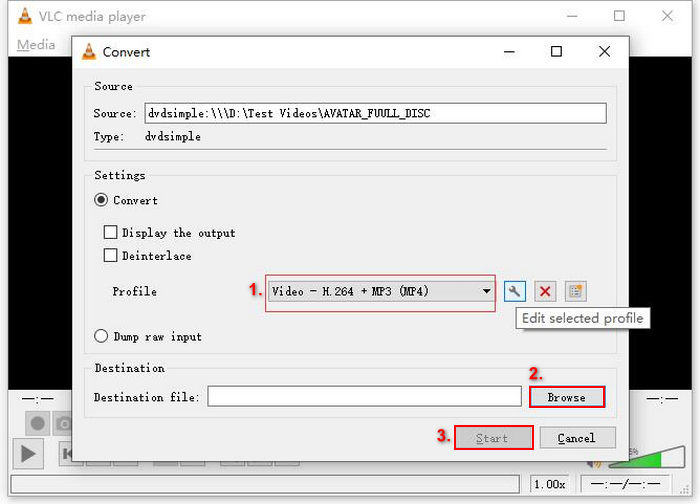
ステップ 6: すべての設定が完了したら、開始ボタンをクリックして VLC で DVD のリッピングを開始します。
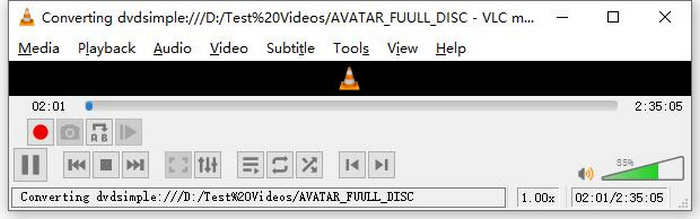
注意:画面下部に変換の進行状況バーが表示されます。VLC がリッピングを完了するまでそのまま待ちましょう。
コメント:
VLC メディア プレーヤーの素晴らしい点は、特に DVD をリッピングする無料のオプションを探しているユーザーにとって、非常に信頼性が高く多用途であることです。ただし、この機能にもかかわらず、そのインターフェイスは初心者には少し技術的であり、より専門的で専用の DVD リッピング ソフトウェアと比較するとプロセスが長く感じる場合があります。さらに、一部のコピー保護されたディスクではうまくいかない場合があり、その場合は効果が制限されます。それでも、VLC で DVD をリッピングすることは依然として推奨されます。
パート2. VLC DVDリッパーの代替品
VLC以外のDVDリッピングツールをお探しなら、AnyMP4 DVD Ripperが最適です。このVLC DVDリッピングの代替ソフトは、MP4、MOV、AVI、MKVなど、広く使用されている多くのビデオ出力形式をサポートするフル機能のツールです。これにより、DVDをデジタル形式に変換し、品質を損なうことなく様々なデバイスで再生できます。DVDリッピング機能は抜群で、自作DVD、市販DVD、ワークアウトDVD、99タイトルDVDなど、あらゆるDVDの変換に対応しています。
無料ダウンロードWindows 7 以降対応安全なダウンロード
無料ダウンロードMacOS 10.7 以降対応安全なダウンロード
AnyMP4 DVD Ripper を使用して DVD をリッピングする手順:
ステップ 1: まず、このツールをデバイスにダウンロードしてインストールします。その際、コンピューターの DVD ドライブに DVD を挿入し、認識されるまで数分待つことを忘れないでください。
無料ダウンロードWindows 7 以降対応安全なダウンロード
無料ダウンロードMacOS 10.7 以降対応安全なダウンロード
ステップ 2: 次に、ツールを起動し、「Load DVD」をクリックしてディスクを読み込みます。
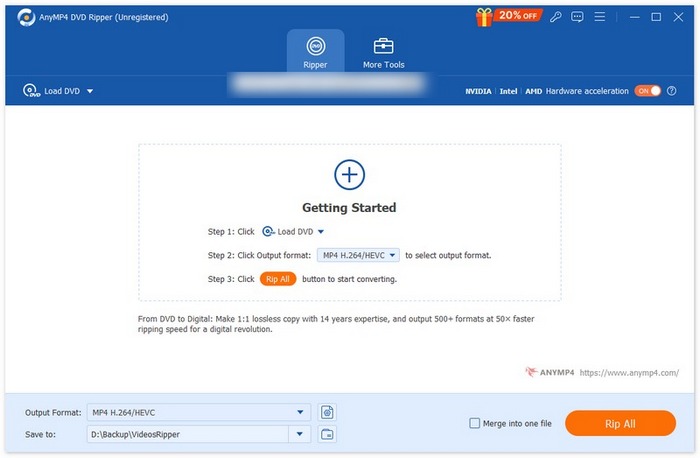
ステップ 3: その後、下部の「Output Format」をクリックし、「Video」タブから希望する動画形式を選択します。この操作により、DVD をさまざまなデバイスで再生しやすい、より一般的な動画ファイル形式に変換できます。選択が終わったら、「Rip All」ボタンをクリックして DVD のリッピングを開始します。

ずっと簡単でしょう?AnyMP4 DVDリッピングは、VLC DVDリッピングの優れた代替品です。インターフェース、リッピングプロセス、その他の必要な機能など、このツールは画期的なものであり、VLCのDVDリッピングよりもはるかに優れています。
パート3. VLCでのDVDリッピングに関するFAQ
DVD をリッピングするのに最適な形式は何ですか?
DVD をリッピングするのに最適な形式は、ユーザーのデバイスによって異なります。ただし、MP4 は広く一般的に使用されているビデオ形式です。したがって、DVD をリッピングする場合、選択できる最も安全な形式は MP4 です。
Windows 7 で DVD をリッピングできますか?
はい。VLC メディア プレーヤーを使用して、Windows 7 で DVD をリッピングできます。VLC は、Windows 7 を含むさまざまなオペレーティング システムをサポートしています。VLC で DVD をリッピングする場合は、他のバージョンの Windows と同じ手順に従ってください。ただし、互換性の問題を回避するために、DVD ドライブが機能していることと、VLC が最新であることを確認してください。
DVD をリッピングするにはどのくらい時間がかかりますか?
DVD のリッピングにかかる時間は、いくつかの要因によって変わります。DVD の容量、DVD ドライブの速度、そして解像度や形式などリッピング時に選択した設定を考慮する必要があります。一般的には、標準的な DVD のリッピングには 20 分から 1 時間以上かかることがあります。画質を高く設定したリッピングやファイルサイズが大きい場合は、処理時間が長くなる傾向があります。VLC の再生速度について知りたい場合は、こちらをチェックしてください。
コピー保護された DVD を VLC でリッピングできますか?
いいえ。暗号化とデジタル著作権管理による保護のため、コピー保護された DVD をリッピングすることはどのソフトウェアでも困難です。
結論
これでVLC を使って DVD をリッピングする方法がわかったので、いつまでも DVD を大量に保管しておく必要はありません。このガイドに従えば、すべてのディスクを、どこでも・どんなデバイスでも再生できるデジタルファイルに変換できます。一方、VLC がうまく動作しない場合は、代替ソフトとして AnyMP4 DVD Ripper を試すこともできます。わくわくしてきましたか?それでは、さっそく使って DVD のリッピングを始めましょう。
-
 Chromecastを介してPC / MacからTVにDVDムービーをストリーミングする方法
 Chromecast を介してテレビで DVD 映画を視聴する方法がわかりませんか?この記事では、Chromecast を介して DVD ムービーを PC からテレビにキャストする最も簡単な方法を説明します。
-
 Android DVDプレーヤー–AndroidモバイルでDVDビデオを再生する方法
 Android携帯でDVDファイルを再生する方法は? Android DVDプレーヤーはありますか?この記事では、外部ドライバーの有無にかかわらず、AndroidモバイルでDVDビデオを再生する3つの方法について学習します。
-
 PCでDVDビデオを再生するためのDVDFabプレーヤーのベスト3の選択肢
 DVDFabプレーヤーは購入する価値がありますか? 4Kビデオを再生できますか?有料版はどうですか?この記事では、その機能を詳細に紹介し、DVDFabプレーヤーに代わる3つの最良の選択肢があります。
