


 ビデオコンバーター究極
 スクリーンレコーダー
 ビデオ修復
ビデオ修復
 安全なダウンロード
DVDからオーディオをリッピングする方法(4つのアシスタント付き)の完全ガイド
今でもDVDを購入したり、自宅のDVDプレーヤーで映画や音楽を楽しんでいますか?DVDというフォーマットは、今の若い世代にとっては次第に馴染みのない、遠い存在になりつつあります。多くの人は、ストリーミングプラットフォームでオンライン動画を視聴したり、エピソードを端末のメモリにダウンロードしてゆっくり楽しむことを好みます。オーディオ・ビジュアルショップに足を運ぶ人もどんどん減っています。しかし、これはDVDが不要になったり、まったく使われなくなったという意味ではありません。多くの映画・音楽スタジオは、いまでも最高品質のコンテンツをDVDでリリースすることを選んでいます。また、一部の映画・音楽ファンは、高品質な映像・音声ファイルを収めたDVDを今でも収集しています。ご存じのとおり、ディスクの中身は専用のプレーヤーや光学ドライブを使わなければ再生できません。ディスク内の音楽を、いつでもどこでも楽しみたい場合は、プロ用ツールを使ってDVDから音声をリッピングする必要があります。では、具体的にどのように行い、どのツールを選べばよいのでしょうか。この記事では、最も詳しいガイドをご紹介します。

パート1. DVDからオーディオを削除する
DVDからオーディオをリッピングする場合、まずはプロの動画編集ソフトを使ってDVDからファイルをエクスポートし、デジタルオーディオ形式に変換するのが最善の策です。AnyMP4 DVD Ripperのようなプロの動画変換ソフトの使用をお勧めします。50倍のリッピング速度で500以上のフォーマットへのビデオ変換をサポートし、1,000以上のフォーマットに対応し、変換されたファイルを30倍の速度でエクスポートできます。様々なリージョンのDVDをロスレスでリッピングできるため、品質の低下を心配する必要はありません。AnyMP4 DVD Ripperのボタンと機能は一目で分かり、サウンドのリッピングに非常に便利です。このセクションでは、完全な操作手順も説明します。
無料ダウンロードWindows 7 以降対応安全なダウンロード
無料ダウンロードMacOS 10.7 以降対応安全なダウンロード
FVC Video Converter Ultimate を使用して DVD からオーディオを削除/取得するには、次の手順に従います。
ステップ1. まず、お使いのデバイスにツールをダウンロードしてインストールし、DVDをディスクドライブに挿入します。
無料ダウンロードWindows 7 以降対応安全なダウンロード
無料ダウンロードMacOS 10.7 以降対応安全なダウンロード
ステップ2. ツールが自動的にDVDを検出・解析します。自動で認識されない場合は、「Load DVD」ボタンをクリックして手動でDVDを追加してください。
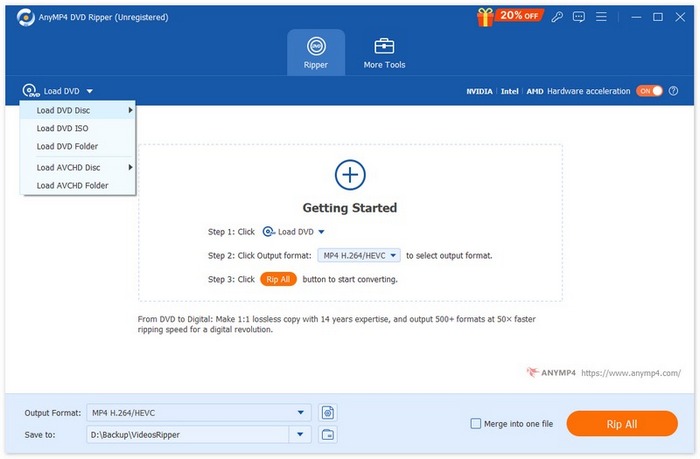
ステップ3. その後、下部の「Output Format」ボタンをクリックし、「Audio」タブからお好みの出力音声フォーマットを選択します。
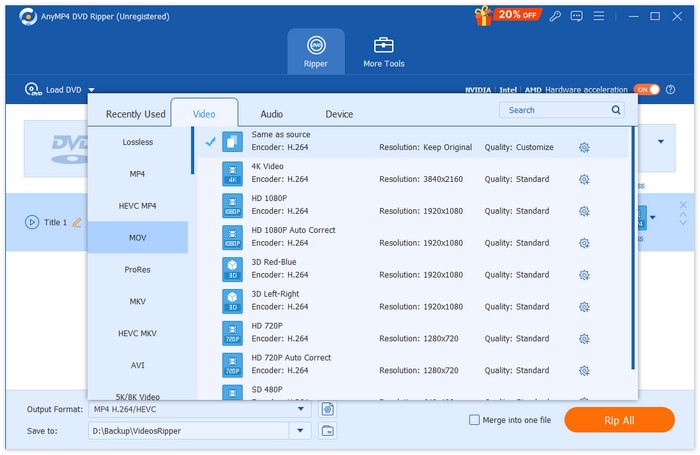
ステップ4. 必要に応じて、音声トラックのトリミングや結合も行えます。設定が終わったら、「Rip All」ボタンをクリックしてDVDから音声トラックを抽出します。
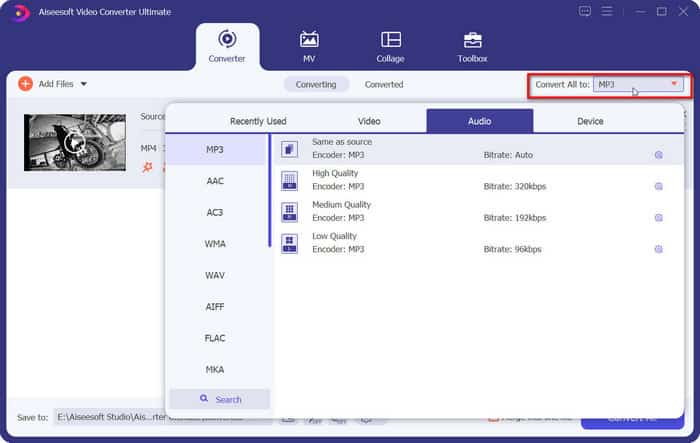
音声を編集する必要がある場合は、Cut または Edit をクリックしてください。
ステップ5. 最後に、Convert All をクリックして音声を出力します。

パート2. DVDからサウンドトラックを抽出する
DVDから曲をリッピングできる無料ソフトウェアをお探しなら、VLC Media Playerが最適です。主な機能は動画や音楽などの再生ですが、DVDフォーマットにも対応しており、DVDコンテンツの再生にも使用できます。さらに、このクロスプラットフォームツールでは、DVDから動画や音声ファイルを抽出できます。インターフェースには、シンプルな音声編集ツールもいくつか用意されています。VLC Media Playerは幅広い互換性を備えているため、WindowsとMacの両方のユーザーにとって、リッピングツールとして最適です。
VLC メディア プレーヤーを使用して DVD からサウンドトラック/音楽を抽出するには、次の手順を実行する必要があります。
ステップ1. 公式サイトから最新版のVLCメディアプレーヤーをパソコンにダウンロードしてインストールします。
ステップ2. デバイスのドライブにDVDを挿入します。
ステップ3. VLCメディアプレーヤーを起動し、画面上部の Media > Convert/Save をクリックします。
ステップ4. Open Media ウィンドウが開きます。Disc タブに移動します。
ステップ5. No disc menus オプションにチェックを入れ、Disc device セクションで使用するDVDを選択します。
ステップ6. 画面下部の Convert/Save をクリックします。
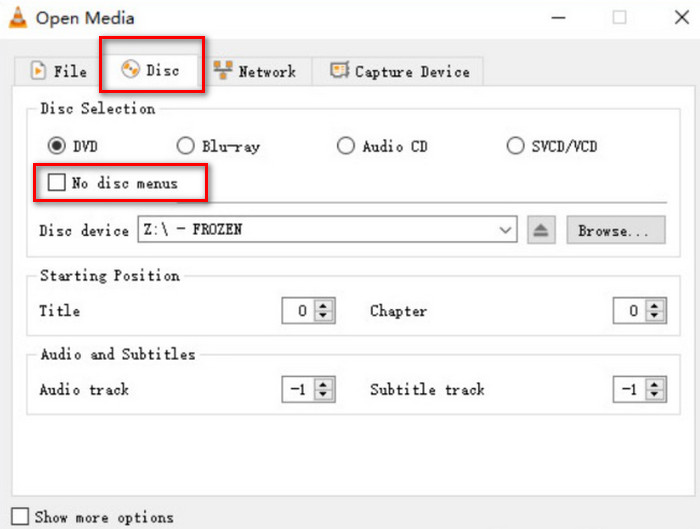
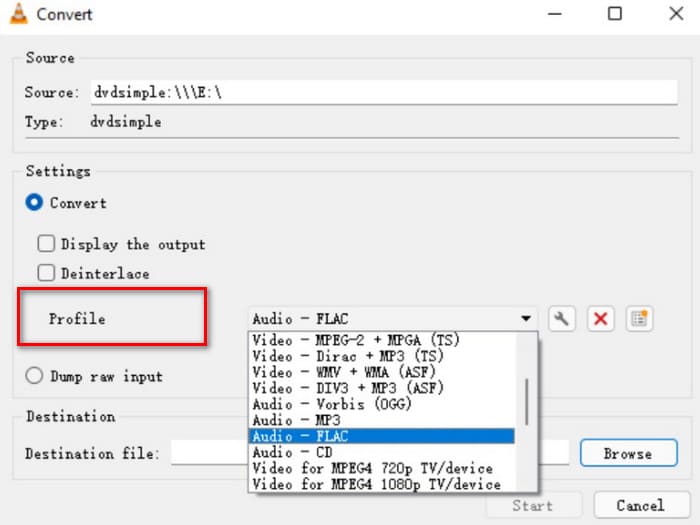
ステップ7. Convert ウィンドウで Profile を選択し、リッピング後のファイルの音声フォーマットを指定します。その後、Start をクリックします。
パート3. DVDから曲をリッピングする
Windowsパソコンをお持ちの場合は、XMedia Recodeという高品質のDVDリッピングソフトをお勧めします。Windowsパソコン向けに設計されており、完全に無料のサービスです。DVDからロスレスオーディオを抽出できるだけでなく、チャンネル、ビットレート、サンプルレートなど、さまざまなパラメータを調整できます。これにより、最高品質の音楽を入手し、様々なデバイスで聴くことができます。
XMedia Recode で DVD からオーディオをリッピングするには、次の手順に従います。
ステップ1. パソコンに対象となるバージョンのXMedia Recodeをダウンロードします。
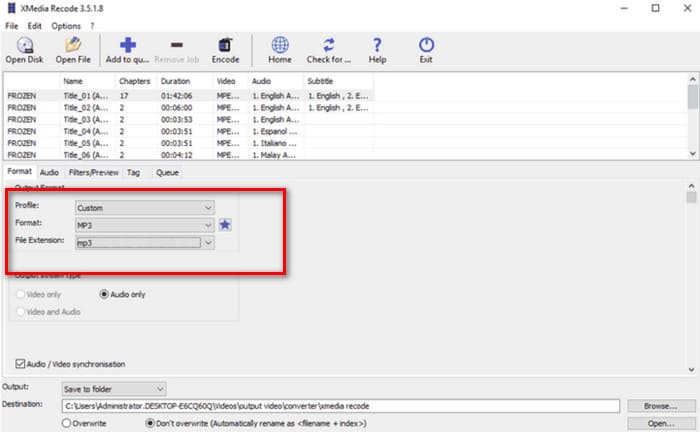
ステップ2. DVDをドライブに挿入し、Open disc をクリックして読み込みます。
ステップ3. Format タブに移動し、Audio のみにチェックを入れて、デジタル音声フォーマットを選択します。
ステップ4. Destination で音声を保存するフォルダーを指定します。最後に、Add to queue > Encode をクリックします。
パート4. DVDからオーディオをリッピングする方法
VLCメディアプレーヤー以外にも、無料ツールの中で優れた選択肢がもうひとつあります。それがHandBrakeです。HandBrakeはオープンソースの音声および動画編集ソフトで、最大の特徴は非常に幅広い互換性と、完全無料で利用できる点です。HandBrakeを使えば、DVDからファイルを書き出して、MKVやMP4など各種一般的な形式に変換できます。操作手順は自分の慣れに合わせてカスタマイズでき、とても使いやすい設計になっています。HandBrakeの画面デザインはやや伝統的ですが、動作は非常に軽快です。
HandBrake を使用して DVD からオーディオを取得する場合は、以下のガイドに従ってください。
ステップ1. 公式サイトからHandBrakeをパソコンにダウンロードします。
ステップ2. 接続されているドライブにDVDを挿入します。HandBrakeは自動的にDVDを検出し、すべてのファイルが画面上に表示されます。ここでチャンネル数やオーディオコーデックなどを調整できます。
ステップ3. Summary > Format に移動して出力フォーマットを選択します。Browse をクリックして、リッピングした音声の保存先パスを指定します。
ステップ4. 最後に、Start Encode をクリックして処理を開始します。

パート5. DVDからオーディオをリッピングする際のFAQ
DVD からオーディオだけをリッピングできますか?
もちろん可能です。まずファイルをリッピングし、エクスポート時にオーディオ形式を選択することもできます。多くのリッピングソフトでは、エクスポートするオーディオファイルのみを選択することもできます。
DVD からオーディオをリッピングするのに最適なソフトウェアは何ですか?
FVC Video Converter Ultimateは、あらゆる点で最良の選択です。非常に多機能であるだけでなく、非常に使いやすいです。
オーディオ DVD をリッピングすることは合法ですか?
DVDからデータをリッピングしてDVDプレーヤーで楽しむことができ、この操作自体に特別な手間はかかりません。ただし、そのコンテンツを商業目的で利用することはできません。
結論
この記事では、DVDからオーディオをリッピングするのに役立つ、機能の異なる4つのツールをご紹介します。どれも比較的使いやすく、あらゆるユーザー層に優しいツールです。また、詳細なステップバイステップガイドもご用意していますので、ご活用ください。最も包括的なサービスをお探しなら、AnyMP4 DVD Ripperをお勧めします。
無料ダウンロードWindows 7 以降対応安全なダウンロード
無料ダウンロードMacOS 10.7 以降対応安全なダウンロード
-
 WindowsとMacでVideo_TSをDVDに書き込む3つの方法
 TSファイルをお持ちで、DVDに保存したい場合は、このガイドをお読みください。WindowsまたはMacコンピューターでVideo_TSをDVDに書き込む方法を詳しく説明します。
-
 WondershareDVDCreatorから透かしを簡単に削除する方法
 この記事では、WondershareDVDCreatorから透かしを削除する方法について説明します。必要なすべての情報を入手するには、これを読む必要があります。
-
 My Bloody Valentine 3D の徹底したレビューと分析
 My Bloody Valentine 3D の徹底的なレビューをお探しですか?映画の各側面を解き明かすこの記事をチェックしてください。
