


 ビデオコンバーター究極
 スクリーンレコーダー
 ビデオ修復
ビデオ修復
 安全なダウンロード
Final Cut ProにDVDをインポートする簡単な方法【初心者向けガイド】
Final Cut Proは、macOSユーザー向けに設計されたビデオ編集ソフトウェアです。あらゆる種類のビデオ編集に非常に役立つ包括的な機能セットで知られています。その優れた機能により、Macエコシステムで最も好まれるビデオ編集ソフトウェアの1つとなっています。
しかし、ほとんどの動画編集ツールと同様に、このツールはDVD形式をサポートしていません。とはいえ、心配は無用です。本記事では、DVDをFinal Cut Proに取り込む簡単な方法をご紹介し、デジタル化された形式で編集できるようにします。役に立ちそうだと感じた方は、そのまま読み進めて詳しい手順をご確認ください。

パート1. Final Cut ProはDVDをサポートしていますか?
Final Cut Proは、Macユーザー向けに設計されたプロ仕様のビデオ編集ソフトウェアです。包括的なビデオ編集機能と直感的なインターフェースで知られています。このビデオ編集ソフトウェアは幅広いビデオフォーマットをサポートしていますが、DVDフォーマットには対応していません。DVDフォーマットはサポートされていないものの、DVDをFinal Cut Proにインポートすることは可能です。
Final Cut ProはMOVをはじめ、様々なフォーマットをサポートしています。つまり、ユーザーはDVDをこのビデオ編集ソフトウェアにインポートする方法がまだあるということです。そのためには、DVDをこのビデオ編集ソフトウェアがサポートするフォーマットに変換するためのDVDリッピングツールが必要です。
Final Cut Pro がサポートしている形式:
• ProRes(422、4444、RAW)
• クイックタイム (.MOV)
• AVC-イントラ
• XAVC
• XF-AVC
• DNxHD/DNxHR
• DV/DVCPRO
• H.264
• H.265/HEVC
• MPEG-4(MP4)
• AVCHD(MTS、M2TS)
• MXF
• レッドコードRAW(R3D)
• アリロウ
• Blackmagic RAW(プラグイン使用)
リストにあるように、DVDを変換する際に選択できる一般的なコンシューマーフォーマットは、MP4やMOVコンテナで一般的に使用されているH.264と、H.265/HEVCです。そのため、DVDをFinal Cut Proにスムーズにインポートするには、これらのフォーマットに注意することが重要です。Final Cut Proはこれらのフォーマットのみに対応しているからです。
パート2. DVDをFinal Cut Proがサポートするフォーマットに変換する方法
DVD を Final Cut Pro に直接インポートできないことがわかったので、DVD をリッピングするオプションが必須になります。
DVDをFinal Cut Proがサポートするフォーマットに簡単に変換するには、FVCが選んだAnyMP4 DVD Ripperが最適です。このツールを使えば、DVDをMOV、MP4など様々なフォーマットに簡単にリッピングできます。数百もの入出力フォーマットに対応しているため、あらゆるユーザーが様々なフォーマットに対応できます。また、直感的でシンプルなインターフェースで、簡単に操作できます。さらに、高品質な出力に関しては、高度なエンコード技術とBlu-ray Hyperテクノロジーにより、リッピング中だけでなくリッピング後もDVDコンテンツの品質が維持されることが保証されています。
ここでは、FVC が厳選した AnyMP4 DVD Ripper を使って DVD をリッピングする方法をご紹介します。
ステップ1 最初に、プロ仕様のDVDリッパーをダウンロードして、お使いのデバイスにインストールします。
無料ダウンロードWindows 7以降に対応安全なダウンロード
無料ダウンロードMacOS 10.7以降に対応安全なダウンロード
注意: 次のステップに進む前に、MacのDVDドライブにDVDを挿入し、認識されるまで数分待つ必要があります。
ステップ2 デバイスがDVDを読み込んだら、このプログラムを起動し、中央にあるプラスアイコンの「Getting Started」ボタンをクリックしてDVDを読み込みます。
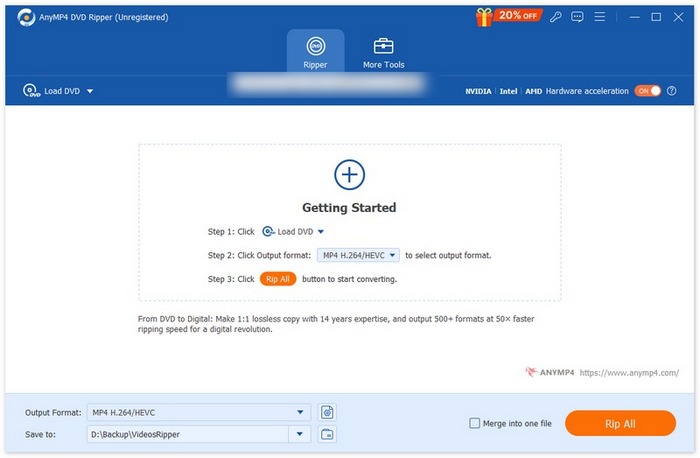
ステップ3 その後、「出力形式」をクリックし、「動画」タブからFinal Cut Proがサポートしている形式を選択します。選択できたら、「すべてリッピング」ボタンをクリックしてDVDのデジタル化を開始します。
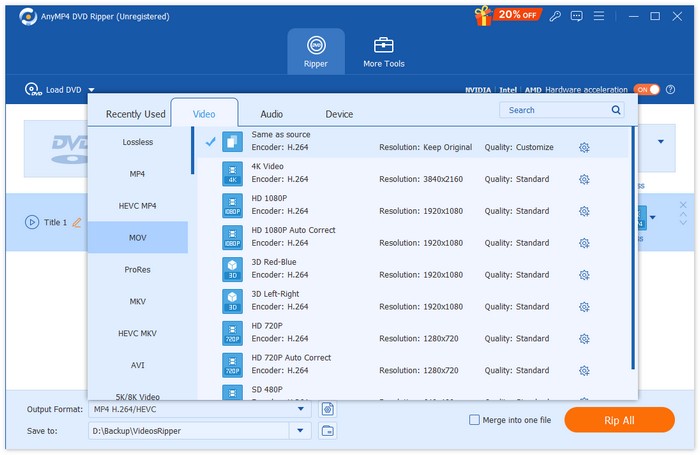
早くて簡単ですよね?FVCが選んだVideo Converter Ultimateを使えば、DVDを簡単にリッピングできます。この優れたDVDリッピングソフトウェアを使い終わったら、次のパート、Final Cut ProへのDVDインポート方法に進みましょう。
パート3. リッピングしたDVDをFinal Cut Proにインポートする方法
DVD を Final Cut Pro がサポートする形式にリッピングする方法を学習しました。次に知っておく必要があるのは、変換した DVD を Final Cut Pro にインポートして編集する方法です。
DVDをFinal Cut Proにインポートするには、次の手順に従ってください。
ステップ1 まず、Final Cut Proの上部メニューバーでファイルをクリックします。
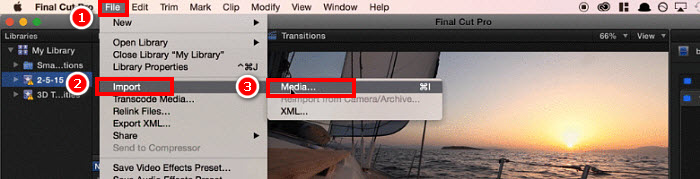
ステップ2 ファイルメニューから読み込みを選択し、メディアを選ぶか、キーボードで Command+I を押します。
ステップ3 最後に、Mac上のローカルストレージから該当のDVDファイルを選択すると、Final Cut Proに読み込まれます。
ヒント: Finder を使ってリッピング済みのDVD動画を見つけ、そのファイルをFinal Cut Proのタイムラインにドラッグ&ドロップするだけでも、素早く簡単にインポートできます。
パート4. Final Cut ProへのDVDのインポートに関するよくある質問
Final Cut Pro は DVD を直接インポートできますか?
残念ながら、できません。Final Cut ProはDVDフォーマットをサポートしていないため、DVDファイルを直接扱うことはできません。ただし、DVDをMOVやMP4などFinal Cut Proがサポートするフォーマットにリッピングすることで、インポートできます。その後、DVDをデジタル化フォーマットにリッピングすれば、簡単にインポートできます。
DVD を Final Cut Pro にインポートするのに最適なフォーマットは何ですか?
DVD を Final Cut Pro にインポートする場合に推奨される形式は、広くサポートされており、高いビデオ品質を維持できる MOV と MP4 です。
DVD を Final Cut Pro がサポートする形式にリッピングするのに最適なツールはどれですか?
FVC は、Video Converter Ultimate を、Final Cut Pro がサポートする MOV、MP4 などの形式にDVDをリッピングできる優れたツールとして選定しています。この動画編集ソフトは高品質な出力を実現し、1000種類以上の入力・出力形式に対応しています。
変換後にリッピングした DVD コンテンツを Final Cut Pro で直接編集できますか?
はい。リッピングしたDVDはFinal Cut Proで直接編集できます。ただし、サポートされている形式にリッピングされていることを確認してください。その後は、リッピングしたDVDファイルをインポートして編集を開始するだけです。
リッピングした DVD を Final Cut Pro にインポートする簡単な方法はありますか?
はい。Finderを使ってリッピングしたDVDファイルを見つけることができます。Final Cut Proのタイムラインにファイルを直接ドラッグするだけです。
結論
Final Cut Pro がDVDファイルを直接扱えないのは事実ですが、心配する必要はありません。FVC が選んだ Video Converter Ultimate のようなサードパーティ製ソフトを使えば、まずDVDをこの動画編集ソフトがサポートする形式にリッピングすることで、この問題を解決できます。DVDファイルをFinal Cut Proに取り込む方法が分からず諦めかけている方も、ここで紹介した手順に従えば、手間なくDVDをインポートし始めることができます。
-
 空のCD/DVDの容量を確認する方法 [ガイド]
 DVDの容量を知りたいですか?この記事で、DVDの容量を簡単に確認する方法と、黒のCD/DVDの容量についてご紹介します。
-
 DVD リージョンコードとは何か、なぜ使用されるのか [解説]
 DVDのリージョンコードについて疑問に思っていませんか?この記事では、DVDのリージョンコードが存在する理由と、DVDのリージョンコードを解除して世界中のコンテンツを制限なく楽しむ方法をご紹介します。
-
 Windows/MacOS/Linux向け無料DVDリッピングソフト5選【レビュー】
 ディスク用の無料DVDリッピングソフトをお探しですか?この記事では、DVD変換にかかるコストを節約できる5つのDVDリッピングツールをご紹介します。
