


 ビデオコンバーター究極
 スクリーンレコーダー
 ビデオ修復
ビデオ修復
 安全なダウンロード
フォーマットを変換してiPhoneでAVIビデオを再生するためのベスト2の方法
大きなAVIムービーをiPhone / iPadに送信するのに数時間を費やし、iPhone / iPadでお気に入りのムービーを視聴したい場合、「このビデオ形式は再生をサポートしていません」というエラーのみが表示されます。それは非常にイライラするに違いありません。これは、iOSシステムがMP4、MOV、およびM4Vビデオの再生のみをサポートしているためですが、多くの制限があります。
iOS向けのサードパーティ製動画プレーヤーの中には、確かにiPhoneでAVI動画を簡単に再生できるものが数多くあります。ただし、AVI動画ファイルは一般的に容量が大きく、iPhoneのストレージを大きく消費してしまう点には注意が必要です。そのため、iPhoneで再生しやすい対応形式に変換してから視聴することをおすすめします。この記事では、AVI動画をMP4/MOV/M4V形式に変換する2つの簡単な方法を紹介します。

パート1:AVIとは何ですか? iPhoneでAVIビデオを再生できないのはなぜですか?
AVIは「Audio Video Interleaved(オーディオ・ビデオ・インターリーブ)」の略で、動画・音声・字幕ファイルを含む形式です。Microsoftが開発したフォーマットのため、WindowsではWindows Media Playerに対応しています。圧縮率が低く抑えられているため、AVIファイルは一般的に容量が大きい一方で高画質です。現在では、CDに収録された映画やテレビドラマの保存形式としてよく利用されています。
iPhoneでAVIビデオを再生できない理由は、iOSシステムがMP4、MOV、およびM4V形式のみをサポートしているためです。さらに、ビデオにはいくつかの制限もあります。
&#8226コーデック:H.264
&#8226解像度:1080p
&#8226フレームレート:60 fps
パート2:無料でiPhoneで再生するようにAVIビデオを変換する方法
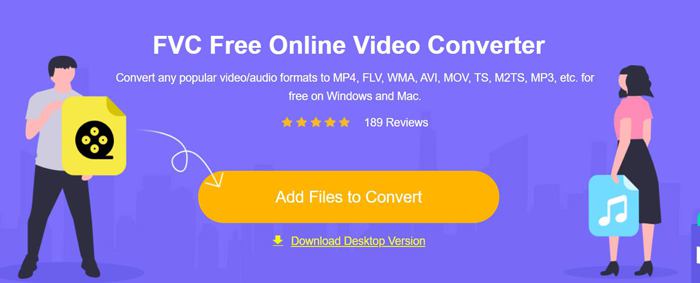
FVC Free Online Video Converterは、AVI動画を10種類以上の形式に変換できる高機能な動画コンバーターです。さらに、iPhoneでの再生条件に合わせて、動画コーデック・解像度・フレームレート・ビットレートなどを細かく調整することができます。
ステップ1:任意のブラウザでFVC Free Online Video Converterにアクセスします。Add Files to Convertボタンをクリックして数秒でランチャーをインストールし、再度ボタンをクリックして、変換したいAVIファイルを選択し、AVI動画コンバーターに追加します。
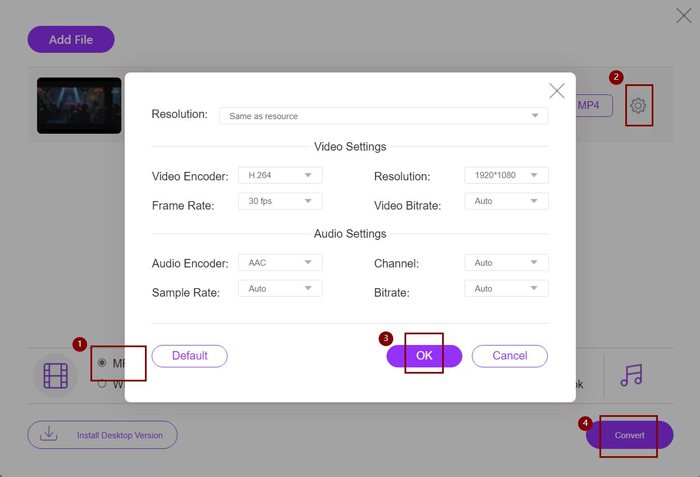
ステップ2:画面下部の動画形式一覧からMP4、M4V、またはMOV形式を選択します。Settingsアイコンをクリックして、動画コーデックをH.264に変更し、解像度を1920x1080pに設定します。その後、OKボタンをクリックして設定を保存します。メイン画面に戻ったら、Convertボタンをクリックして保存先フォルダーを指定し、iPhoneで再生できるようAVI動画の変換を開始します。
これは、AVIビデオをiPhoneと互換性のある形式に変換する非常に簡単な方法ですが、iPhoneビデオの制限に応じて詳細なパラメーターを変更する必要があります。また、iPhoneでビデオを再生できない場合があります。したがって、事前設定されたiPhone形式でAVIビデオをiPhoneで再生するように変換する最も簡単な方法もあります。この記事を読み続けてください。
パート3:AVIビデオをiPhoneで再生するように変換する最良の方法
FVC Video Converter Ultimateは、FVC Free Online VideoConverterのProバージョンです。 iPhone、iPad、および多くのAndroidモバイル用のプリセットを含む、インポートおよびエクスポートする500以上の形式をサポートしています。さらに、字幕、透かし、テーマをビデオに追加するための編集機能を提供します。
- 1. AVIビデオをMP4、MOV、またはM4Vビデオに変換してiPhoneで再生します。
- 2. iPhone、iPad、およびAndroidモバイル用に複数のプリセット形式を提供します。
- 3.AVIビデオのバッチをiPhoneで再生するように変換できます。
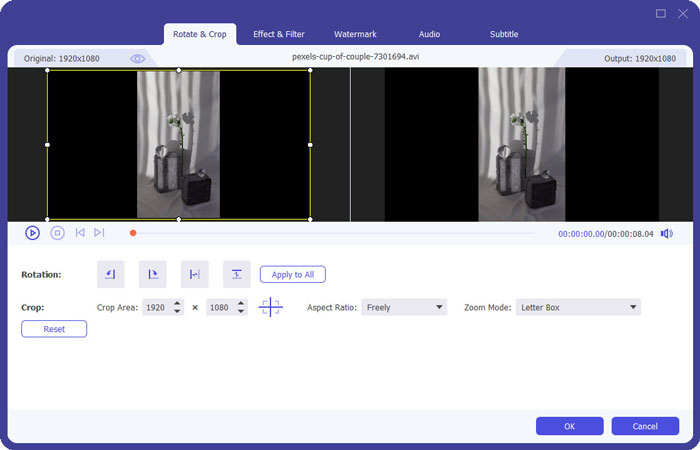
- 4.回転、トリミング、フィルター、コラージュなどのAVIビデオの編集をサポートします。
無料ダウンロードWindows 7 以降に対応安全なダウンロード
無料ダウンロードMacOS 10.7 以降に対応安全なダウンロード
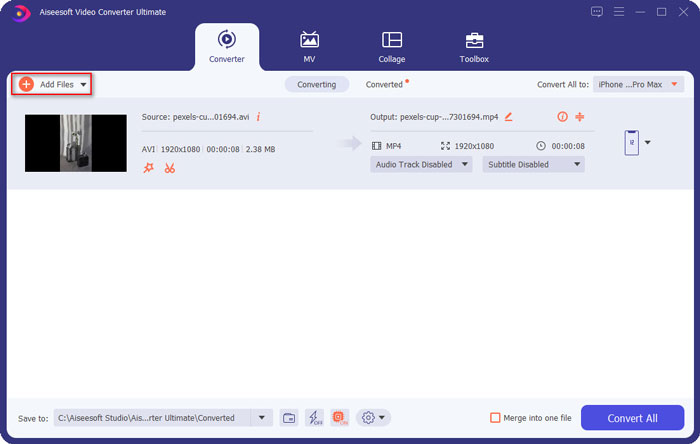
ステップ1:WindowsにFVC Video Converter Ultimateをダウンロードし、パソコンで起動します。Add Filesボタンをクリックして、iPhoneで再生したいAVI動画を選択します。または、ファイルをドラッグ&ドロップしてソフトに追加することもできます。
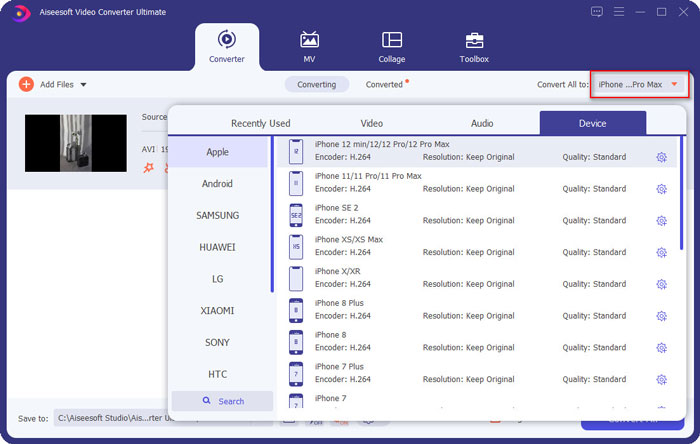
ステップ2:右上のConvert All to横のプルダウンメニューをクリックし、Deviceタブを選択します。その中から、お使いのiPhoneモデルをクリックして選びます。
ステップ3:メイン画面に戻り、保存先フォルダーを指定します。最後に、Convert Allボタンをクリックして、iPhoneで再生するためにAVI動画の一括変換を開始します。
ステップ4:出力する動画を編集したい場合は、変換前にEditアイコンをクリックします。そこで、エフェクト・フィルター・ウォーターマーク・字幕などを追加することができます。
パート4:iPhoneでAVIビデオを再生する際のFAQ
1.フォーマットを変換せずにiPhone / iPadでAVIムービーを再生できますか?
はい、できます。 iPhone / iPadには多くのサードパーティ製ビデオプレーヤーがあり、AppStoreまたはGooglePlayで目的のプレーヤーを直接検索して、iPhoneでAVIビデオを再生できます。
2. iPhoneでビデオを再生するための最適なフォーマットとビデオ設定は何ですか?
iPhoneは、MP4、MOV、およびM4V形式をサポートしています。また、推奨される設定は、H.264コーデック、1080p解像度、および60fps未満のフレームレートです。
3. AVIビデオを転送してiPhoneで無料で再生するにはどうすればよいですか?
この記事で言及されているAVIビデオをiPhoneで再生するように変換する方法は2つあります。無料のオンラインビデオコンバーターを使用して、ビデオパラメーターを調整できます。また、FVC Free Video Converterを使用して、最も簡単な方法でAVIをiPhoneと互換性のある形式に転送することもできます。
結論
ほとんどの映画やテレビシリーズは常にAVI形式で保存されますが、AVIビデオはiPhoneまたはiPadで再生できません。 iPhoneのどこからでもお気に入りの映画を見るには、サードパーティのビデオプレーヤーを選択できます。しかし、最も簡単で安全な方法は、AVIビデオをiPhoneで再生するように変換することです。この記事から2つの簡単な方法を学びました。他にご不明な点がございましたら、以下にコメントを残してください。
-
 Windows / Mac / Onlineで大きなAVIファイルを無料で圧縮する方法
 コンピューターでAVIファイルを圧縮する3つの無料の方法を読んで入手してください。品質を損なうことなく、AVIビデオのファイルサイズを小さくすることができます。 AVIビデオのサイズは想像するほど小さくすることができます。
-
 AVI VS MP4 –AVI形式とMP4形式の相違点と類似点
 AVIとMP4のどちらがより良いビデオフォーマットですか?詳細な比較が必要な場合は、このAVI VSMP4の記事を確認してください。 AVIとMP4の違いと類似点は多くの面で知ることができます。
-
 6つの最高のAVI合併:WindowsとMacでAVIビデオファイルを結合する方法
 DVD用のAVIビデオに参加したい場合は、無料のオンラインツールやデスクトッププログラムなど、上位6つのAVIジョイナーの機能について記事から学ぶことができます。
