


 ビデオコンバーター究極
 スクリーンレコーダー
 ビデオ修復
ビデオ修復MacOSでAVIファイルをiMovieにインポートする方法を理解する
ご存じのとおり、iMovie は Mac で動画編集を行うソフトとしてよく知られています。このツールを使えば、なぜ iMovie が優れた編集ソフトのひとつといわれるのかがよく分かるはずです。しかし iMovie の便利さについて語る一方で、編集するための動画をインポートできない場合もあります。特に AVI 形式のファイルを読み込もうとしたときに、こうした問題がよく発生します。AVI は幅広いコーデックを扱えるためユーザーの間で人気の形式ですが、使用しているツールがそのコーデックに対応していないと、扱うのが非常に難しくなります。そのため、「あとで編集できるようにAVI を iMovie 対応形式に変換するにはどうすればいいのか」と悩んでいる方も多いでしょう。以下のリストでは、AVI 形式を変換するために使えるツールと、なぜ iMovie に動画ファイルを読み込めないのかについて説明します。

パート1.iMovieがAVIファイル形式のインポートに失敗した理由
ただし、iMovieはMacでのみ有効であるため、Windowsのコーデックが提供する優先度は低くなると予想されます。ただし、動画をインポートできない理由はいくつかあります。このリストでは、iMovieに別のフォーマットをインポートできない2つの理由について説明します。
理由1: iMovie が対応しているコーデックの種類は多くありません。コーデックの互換性がないことが、iMovie で編集できない原因になっている可能性があります。AVI 形式の場合、MJPEG データとしてエンコードされていないと、ファイルをインポートできません。
理由2: iMovie や Mac OS が最新バージョンに更新されていない可能性があります。この理由は単純で、ソフトウェアや OS が古いままだと、最新の動画形式をサポートできない場合があるからです。
以上が iMovie で編集できない主な理由ですが、どんな問題にも必ず解決策があります。そこで、この問題を解消するいくつかの方法と、提示されている形式やコーデックに変換して、AVI ファイルを iMovie で扱えるようにする方法を紹介します。
パート2。最高のAVIコンバーターの助けを借りてAVIをiMovie互換フォーマットに変換する
1.FVC無料オンラインビデオコンバーター
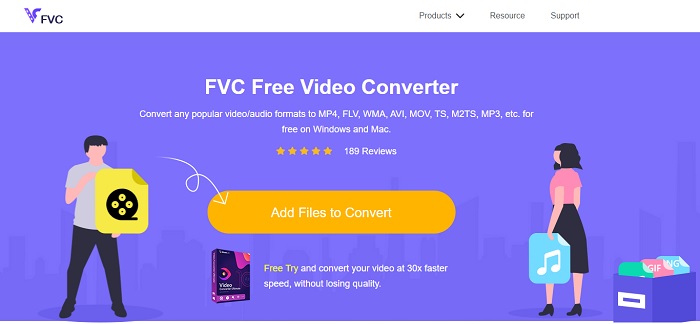
この無料の AVI iMovie 変換ツールは、AVI の変換処理を行うことができます。下で紹介するツールとは異なり、FVC Free Video Converter は無料で利用でき、インストールも不要です。また、このオンラインツールは、下で紹介するツールの無料版にあたります。高い圧縮性能を備えている点は共通していますが、違いとして、このツールには有料版のような高度な機能や、選択できる豊富な出力形式がありません。それでもなお、他のオンラインコンバーターと比べれば、最も信頼して使える優秀なオンラインツールのひとつです。では、前置きはこのくらいにして、以下の簡単な手順に従いながら、このツールの使い方を見ていきましょう。
手順1. このリンクをクリックして、ツールの公式ページにアクセスします。
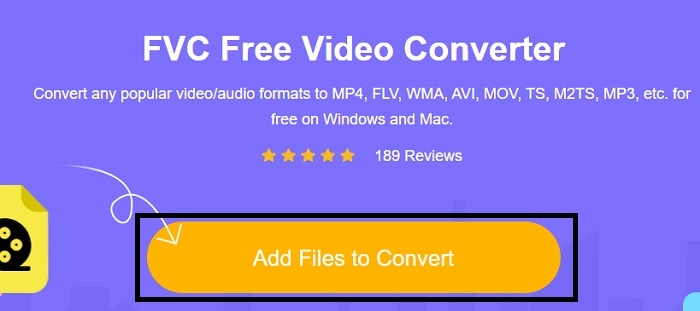
手順2. 「Add Files to Convert」をクリックして、オンラインコンバーターを起動します。
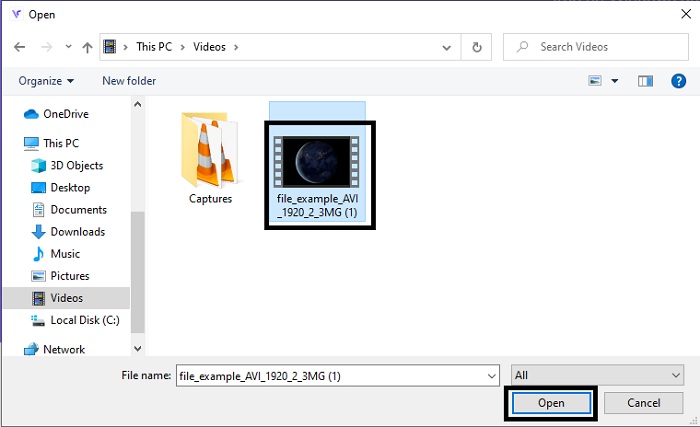
手順3. 続いて、変換したい AVI ファイルを選択し、「開く」をクリックしてインターフェースに追加します。
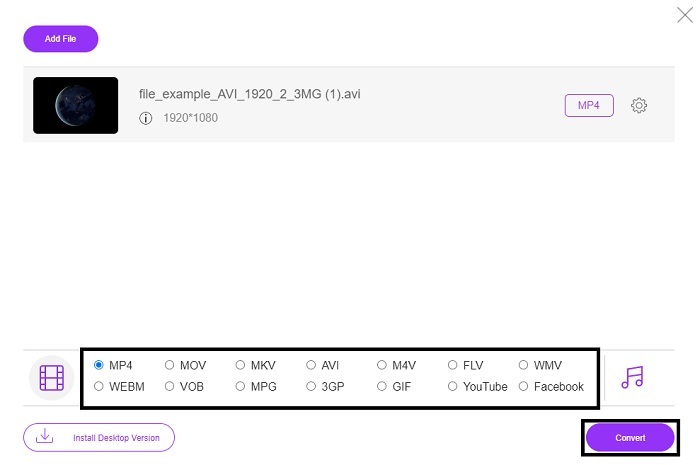
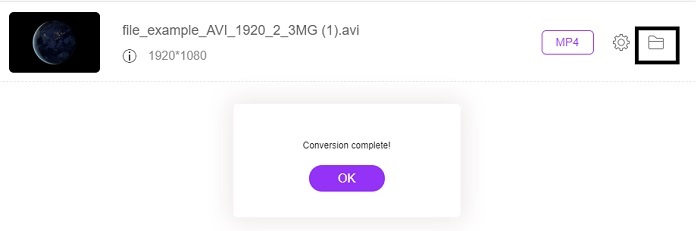
手順4. 出力したい iMovie 対応形式を選択します。形式を選んだら、「Convert」をクリックして変換を開始します。
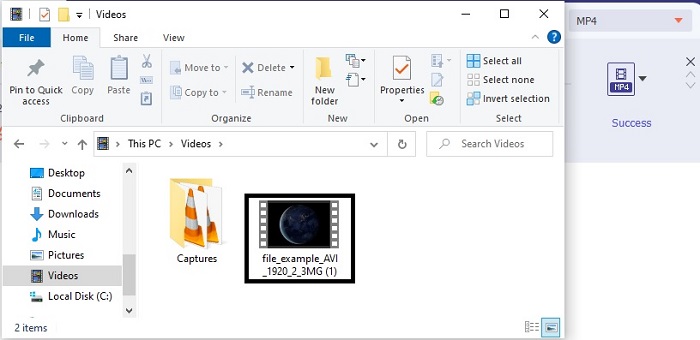
手順5. ファイルマネージャーを開き、変換後のファイルを探します。
2.FVCビデオコンバーターアルティメット
前に述べたように、オンラインツールは編集機能やその他の形式も提供していません。 FVC Video Converter Ultimateは、特に編集時にiMovieの代わりに使用できます。これにより、ユーザーと顧客は、すべてのメディアファイルを操作し、新しいバージョンを拡張、編集、または作成することができます。しかし、このツールは支払う必要がありますが、費用はかからないので、このツールに支払うすべてのペニーはまだ価値があるので心配する必要はありません。
このようにAVI を iMovie 対応形式に変換すれば、その後 iMovie に取り込む前に画質を調整したり、あるいは iMovie を使わずにこのツール上で編集作業を完結させることもできます。このツールの優秀さについて語ろうとすれば、正確に説明するために記事をあと二つ三つ書く必要があるほどです。では、これ以上引き延ばさず、以下の手順を参考にしながら、AVI を新しい形式へ確実に変換していきましょう。
手順1. まずこのツールを使用するには、デスクトップにダウンロードする必要があります。お使いのパソコンに合った OS 用のインストーラーを選択してください。ダウンロードが完了したら、セットアップ手順に従ってインストールを進め、「完了」をクリックしてツールを起動します。
無料ダウンロードWindows 7 以降に対応安全なダウンロード
無料ダウンロードMacOS 10.7 以降に対応安全なダウンロード
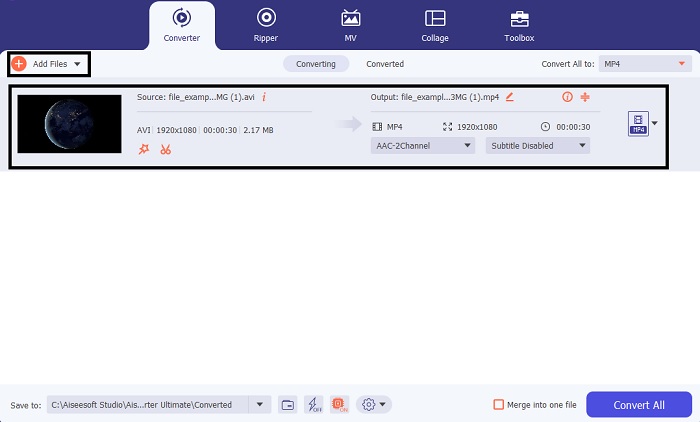
手順2. 変換したい AVI ファイルを追加するには、「Add Files」ボタンか、プラスアイコンのどちらかをクリックします。変換したいファイルを選択し、「開く」をクリックして次へ進みます。
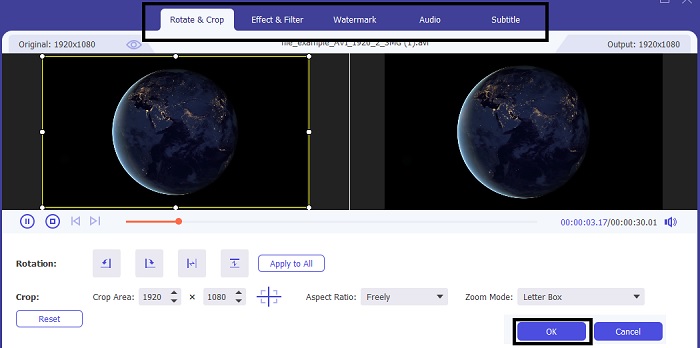
手順3. FVC ツールのインターフェース上に、魔法の杖のような形をしたボタンがありますので、それをクリックします。すると新しい画面が表示され、そこで動画をより良い状態に編集できます。この工程は、変換前に編集しておきたい場合の「おまけ機能」ですので、必須ではありません。事前に編集しておけば、あとから iMovie で編集し直す必要がなくなる場合もあります。「OK」を押して編集内容を保存します。
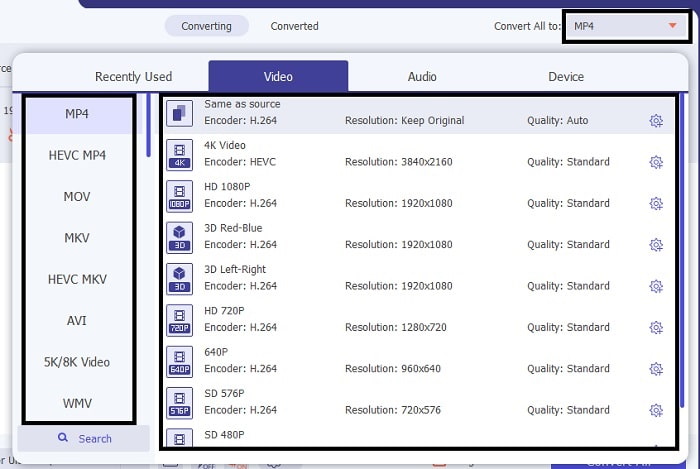
手順4. すべての準備が整ったら、「ドロップダウン」メニューをクリックし、出力したい iMovie 対応形式を選択します。新しい AVI 形式(iMovie 対応の形式)を選び終えたら、「Convert All」をクリックして、変換開始の指示を出します。
手順5. 変換処理は数秒程度で完了します。完了後、新しい形式のファイルが入ったフォルダが自動的に表示されます。そのファイルをクリックして再生し、問題なく再生できれば成功です。これで iMovie で編集できる状態になりました。
パート3。AVIからiMovieに関するFAQ
iMovieの作成者は誰ですか?
iMovieは、独自の編集ツールとしてAppleInc。によって作成されました。 Apple Inc.に関するその他の事実も、Macユーザー向けのネイティブメディアプレーヤーおよびフォーマットとしてQuickTimeプレーヤーおよびMOVフォーマットを開発しました。
MacでのAVI形式の最良の代替手段は何ですか?
iMovie で扱う場合、最も推奨されるのは Mac 向けに設計された MOV 形式でしょう。AVI ファイルを MOV 形式に変換する方法を知りたい方は、このリンクをクリックして、AVI から MOV への変換ツールについて詳しくご覧ください。
AVI形式を使用することの欠点は何ですか?
このフォーマットにはさまざまなコーデックを含めることができると上で述べましたが、これは良いことです。ただし、AVI形式は圧縮されていないため、2〜3分のビデオを使用すると、ファイルサイズが大きくなることが予想されます。それでも、AVIについて詳しく知りたい場合は、これをクリックしてAVIとは何かを確認してください。
結論
以前は、この問題への対処法が分からず、戸惑ったり困惑したりしていたかもしれません。しかし今では、iMovie で編集するには AVI ファイルを変換する必要があるとはっきり理解できたはずです。もうこれで、あとから編集できるようにAVI ファイルを iMovie に取り込む方法について悩む必要はありません。もしあなたが FVC Video Converter Ultimate を選んだのであれば、自分に拍手を送りたくなるはずです。なぜなら、このツールを選んだということは、今後発生しうるあらゆる変換、結合、強化、圧縮などの問題に対応できる解決策を手に入れたことを意味するからです。あなたにとって何がベストなのかを見極めてください。そして、その「ベスト」が FVC Video Converter Ultimate なのです。
-
 AVIをFLVに無料で変換するのに役立つ具体的なガイド
 AVIをFLVに変換するには、強力なビデオコンバーターが必要です。幸いなことに、この1つの記事から、2つとそのステップバイステップガイドを学ぶことができます。
-
 Windows / MacでAVIビデオをアニメーションGIFファイルに変換する方法
 興味深いAVIセグメントを選択してGIFミームを作成したいですか?この記事では、AVIビデオをクリップし、AVIをアニメーションGIFファイルに無料で変換するための2つの最良の方法を説明します。
-
 [2つのベストソリューション] iPhone / iPadでAVIムービーを簡単に再生する方法
 iPhone / iPadでAVIムービーを再生できず、サードパーティのビデオプレーヤーをダウンロードしたくないですか? AVIビデオをiPhoneで再生するように変換する2つの効率的な方法を学ぶことができます。
