


 ビデオコンバーター究極
 スクリーンレコーダー
 ビデオ修復
ビデオ修復
 安全なダウンロード
MP4 を DVD に書き込む: 最高のビデオを PC で効率的に DVD に変換
確かに、動画やファイルをDVDに保存するのは、データをバックアップするうえで賢い方法です。信頼性の高い保存手段であるだけでなく、DVDはコンテンツを再生するときに、より高品質な映像と音声を提供してくれます。もちろん、これらの利点は特定の動画やメディア形式だけに限られるものではありません。MP4形式の大切な動画をディスク、特にDVDへ保存することもできます。そのため、こうしたメリットを活かしたいものの、どのMP4 DVD 書き込みソフトを使うのがベストなのかまだ分からない方もいるでしょう。本記事では、WindowsとMac向けの厳選したソフトウェアおよびハードウェアをまとめ、動画をDVDに書き込むためのステップバイステップガイドも併せてご紹介します。それでは、以下の内容を読み進めながら、一緒に見ていきましょう。

パート 1. iTunes 経由で iMovie を使用して macOS で MP4 ファイルを DVD に書き込む
iMovie は Mac 用のシンプルなビデオ エディタで、通常は Mac デバイスに無料で付属しています。ただし、プロジェクトを DVD に書き込む場合には特に制限があります。iMovie にはこの機能がなく、多くの DVD 作成プログラムは iMovie プロジェクトをサポートしていないため、扱いが難しくなります。幸い、効果的な方法があり、その 1 つが iTunes です。知らない人のために説明すると、iTunes には DVD を書き込む機能があります。データ ディスク、ビデオ DVD、オーディオ CD など、さまざまな種類のディスクを作成できます。ただし、iTunes で書き込んだ DVD は、標準の DVD プレーヤーと互換性がない可能性があることに注意してください。つまり、iTunes で作成した DVD は、DVD 再生機能を備えたコンピューターまたはデバイスでのみ再生できる可能性があります。では、iMovie を使用して Mac で MP4 を DVD に書き込んでみましょう。
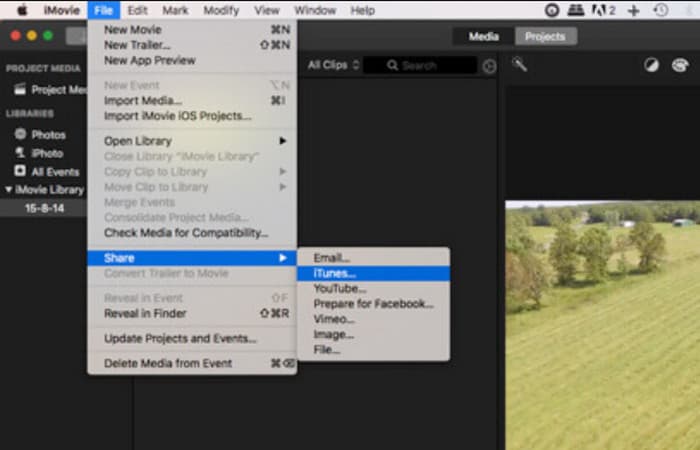
ステップ1. iMovieアプリを開き、DVDに書き込みたいMP4ファイルを読み込みます。そのファイルをプロジェクトの一つとして追加してください。開いたら、ファイル > 共有 > iTunesへと進み、iTunesで表示できるようにします。
ステップ2. iTunesでは、ムービー > ライブラリ > ホームビデオセクションに移動し、先ほど共有したMP4動画を探します。
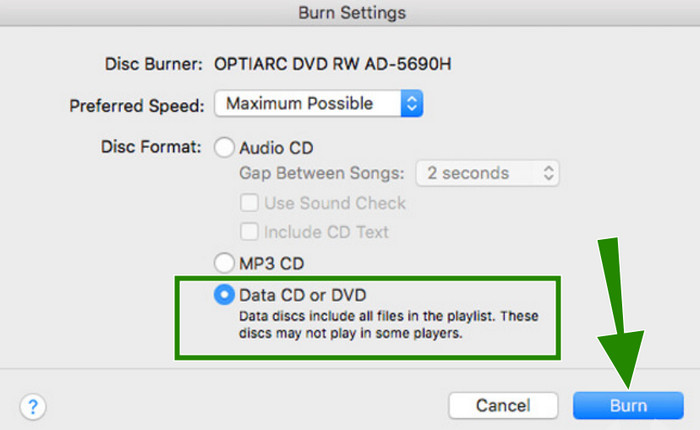
ステップ3. ここで、MacのディスクドライブにDVDを挿入し、書き込み作業に進みます。そのためには、ファイルメニューを開き、プレイリストをディスクに書き出すオプションを選択します。ポップアップウィンドウでデータCDまたはDVDオプションを有効にし、作成ボタンをクリックします。
パート 2. HandBrake を使用して Windows/Mac の MP4 ファイルから DVD を書き込む
次に紹介する、MP4をDVDに書き込むのに役立つソフトはHandBrakeです。こちらも使い勝手の良いツールです。書き込みだけでなく、動画のエンコードにも対応しており、MP4のほかにMOVやAVIなど幅広い形式をサポートしています。さらにHandBrakeは、古い動画の元の画質を蘇らせ、より高解像度で懐かしい映像を楽しめるようにしてくれます。また、この変換作業を無料でたっぷりと行える点も見逃せません。加えて、HandBrakeを使えばDVDのリッピングができるほか、音量やダイナミックレンジといったオーディオ設定も細かく調整できます。字幕の扱いにも優れており、既存の字幕を保持できるだけでなく、自分で追加することも簡単です。一方で、以下の簡単な手順に従えば、書き込み作業にHandBrakeを問題なく活用できます。
ステップ1. パソコンにインストールしたHandBrakeを起動します。このとき、空のDVDをドライブに挿入しておく必要がある場合もあります。
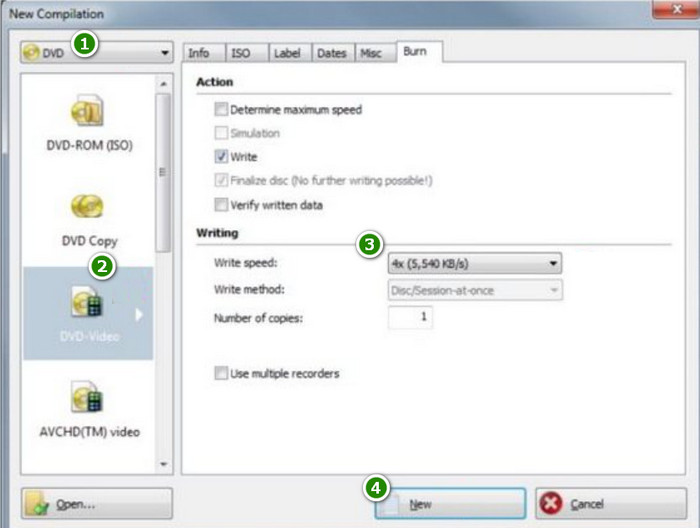
ステップ2. プログラムが起動したら、ソースメニューに進み、DVD-Videoを選択します。その後、書き込みたいMP4ファイルを読み込みます。
ステップ3. 準備ができたら、Newボタンをクリックして書き込みを開始します。
パート 3. Windows 10/8/7 用の Freemake Video Converter を使用して MP4 から DVD を書き込む
Windows 10、8、または 7 OS を搭載したデスクトップをお持ちの場合は、この Freemake Video Converter が必須のツールです。これは、Windows 10 でメディア ファイルの変換、編集、そしてもちろん MP4 ファイルの DVD への書き込みができる無料ツールです。Freemake では、カットやトリミングなどの基本的な編集オプションが用意されており、ニーズに合わせて設定を微調整できます。ただし、他の専用書き込みツールとは異なり、Freemake は書き込みが遅く、頻繁に更新されるため、イライラすることがあります。それでも、書き込み作業は完了します。
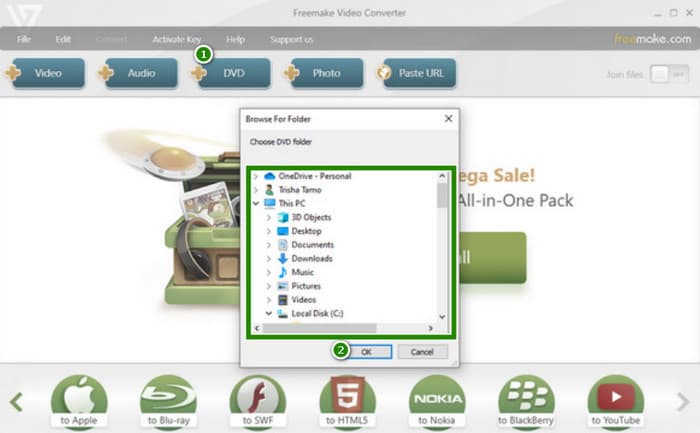
ステップ1. デスクトップでFreemake Video Converterを起動したら、DVDメニュータブをクリックします。このとき、空のDVDを用意してドライブにセットしておきます。
ステップ2. メニュータブをクリックしたら、書き込みたいMP4ファイルを選択し、続けてOKボタンをクリックします。
ステップ3. その後、ツール側でいくつかの調整可能なプリセットが表示されます。必要に応じて設定を変更し、問題なければBurn(書き込み)ボタンをクリックして処理を開始します。
パート4. ヒント: DVDを無料でオンラインで視聴する方法
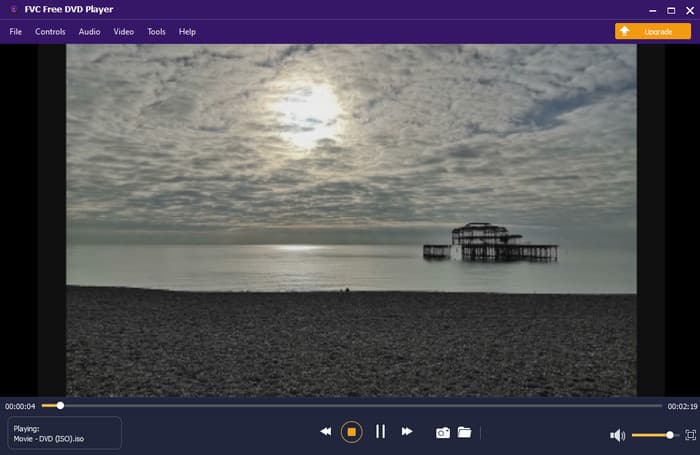
ここまでで、PCで使える優秀なDVD書き込みソフトをご覧いただきました。ここからは、PCで自由に使えるおすすめのオンラインDVDプレーヤーをご紹介します。FVC Free DVD Playerは、重いメディアプレーヤーソフトをダウンロードすることなく、Webブラウザ上で直接DVDを視聴できる便利なツールです。
これは、まったく新しいレベルの映画鑑賞体験を提供するため、人気のプレーヤーに代わる最良の選択肢です。驚くべきことに、そのシンプルなインターフェイス、追加のメニュー コントロール サポート、再生設定により、DVD 鑑賞体験が確実に向上します。さらに、高品質の映像とオーディオをきっと気に入っていただけるでしょう。
高度なビデオ エンコーディング テクノロジーのおかげで、DTS-HD や Dolby TrueHD などのトップクラスのオーディオ フォーマットをサポートし、妥協のない素晴らしいサウンド効果を体験できます。
パート 5. MP4 ファイルからの DVD 書き込みに関する FAQ
MP4 ファイルを DVD に書き込むのはなぜですか?
MP4 を DVD に書き込む理由はいくつかあります。最も一般的な理由は、ディスク内のファイルをバックアップし、DVD プレーヤーで再生できるようにするためです。
MP4 を DVD に書き込むには何が必要ですか?
DVD を書き込むには、ディスク ドライブ、空の DVD、書き込みソフトウェアを備えたコンピューターを準備する必要があります。
MP4 は DVD にどれくらい収まるでしょうか?
それは DVD の容量と MP4 データのサイズによって異なります。高解像度の MP4 はより多くのスペースを占めることを覚えておいてください。標準的な DVD には約 4.7 GB のデータが保存できます。
結論
この記事を読み終えた今、動画をDVDに書き込む正しい手順が理解できたはずです。本記事で取り上げたMP4 DVD 書き込みソフトのおかげで、こうした変換をMacでもデスクトップPCでも自由に行えます。そして、DVDプレーヤーのハードウェアがなくてもDVDを視聴したい場合は、FVC Free DVD Playerをぜひ活用してみてください。
-
 Mac用DVDプレーヤーソフトウェアの無料ダウンロード2025
 DVDドライブなしでMacでDVDを再生するにはどうすればよいですか? Macで外付けDVDプレーヤーを使用するにはどうすればよいですか?この投稿では、Mac用の5つの無料DVDプレーヤーを共有しています。
-
 DVDを再生しないWindowsMediaPlayerを解決するための2つの最良の解決策
 Windows Media PlayerでDVDビデオを再生したいが、「ファイルの種類はサポートされていません」というエラーしか表示されない場合、DVDを再生しないWindows MediaPlayerを修正する3つの簡単な方法を学ぶことができます。
-
 [解決済み] VLCがDVDを再生しない、修正方法
 VLCはDVDを再生できますか? VLC が DVD を再生できないのはなぜですか? VLC で Windows 10 で DVD を再生するにはどうすればよいですか?この投稿では、VLC が DVD を再生しない問題を修正するための 3 つのヒントを共有しています。
