


 ビデオコンバーター究極
 スクリーンレコーダー
 ビデオ修復
ビデオ修復信頼できる信頼できる方法でAMVをFLVに変換する方法
AMVに馴染みのない方のために説明すると、AMVとはAnime Music Video(アニメ・ミュージック・ビデオ)の略です。.amvファイル拡張子は圧縮された動画ファイルに使われます。中国製のポータブルメディアプレーヤーでAMVファイルが採用されていることが多く、低解像度の動画ファイルがプレーヤーの画面サイズに合わせて表示され、再生できるようになっています。一方で、Adobe Systemsが開発しているのがFLV(Flash Video File)形式で、短いヘッダー、インターリーブされた音声・映像、メタデータパケット、そしてSWFファイル内に保存された音声および映像データを含んでいます。Flash Videoは、Adobe製アプリケーションやFlashプラグイン内で動画ストリームとして埋め込むことができます。ここまででこの2つの形式について簡単に理解できたと思いますので、次は変換ツールについて見ていきましょう。ここではAMVをFLVに変換することを検討するとよいでしょう。

パート1。AMVからFLVへの変換に使用する最も優れたコンバーター
Video Converter Ultimateは、動画変換をまとめてこなせるプロフェッショナルなプログラムです。WindowsとMacの両方に対応しており、FLVからMOVへの変換を手軽かつ無劣化で行うことができ、しかも無料で利用できます。さらに、このツールはハイビジョンファイルを含む100種類以上の形式間での変換に対応しています。クロップ、トリミング、カット、ウォーターマークの追加、特殊効果の適用などが可能な本格的な動画編集機能も搭載されています。動画変換に加えて、Video Converter Ultimateは動画ダウンロード、動画転送などの機能もサポートしています。このソフトの使い方を学ぶには、本セクションで紹介する手順に慣れておく必要があります。
ステップ1: ソフトウェアにアクセスするには、まずコンピューターにダウンロードする必要があります。そのためには、このステップの下部にある無料ダウンロードボタンをクリックします。ご覧のように、ダウンロード時にはWindows版とMac版の2つから選択できます。ダウンロードが完了したらソフトをインストールし、その後起動してください。
無料ダウンロードWindows 7 以降に対応安全なダウンロード
無料ダウンロードMacOS 10.7 以降に対応安全なダウンロード
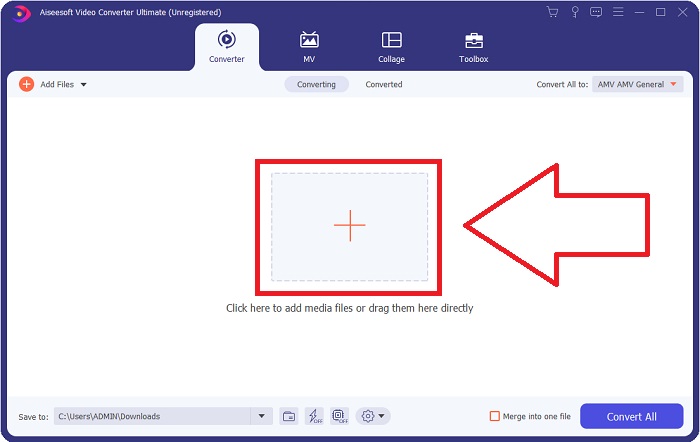
ステップ2: ソフトを起動すると、ウィンドウがポップアップ表示されます。画面には変換インターフェースが表示され、アップロードエリアも確認できます。+ボタンをクリックするか、デスクトップから任意の動画ファイルをドラッグ&ドロップして次へ進みます。
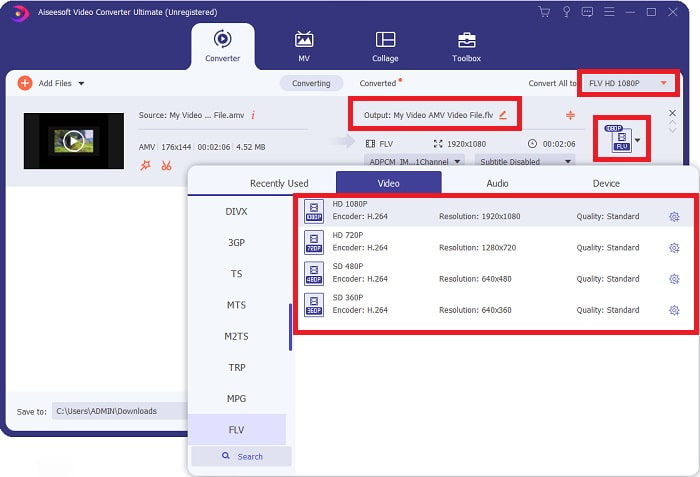
ステップ3: AMV動画形式をFLVに変換するには、ファイルをアップロードした後、ソフト内で出力形式を選択し、FLV形式を指定します。その後、好みの動画品質を選ぶこともできます。
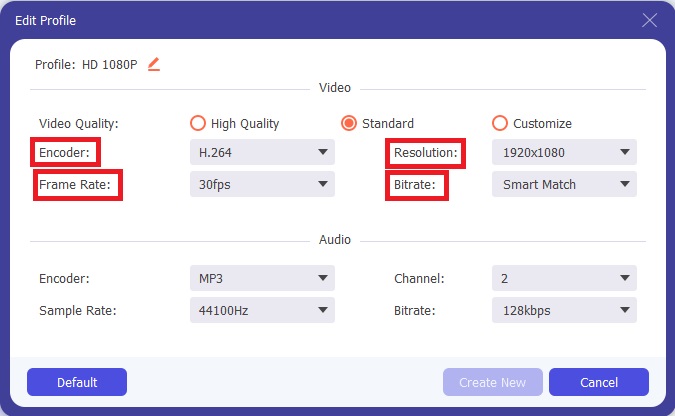
ステップ4: 希望する動画品質をカスタマイズしたり、新しく作成したい場合は、画質の選択欄の横にある歯車アイコンをクリックします。
ステップ5: もう少しで完了です。希望どおりに各種設定や調整が済んだら、ウィンドウ右下の保存先欄の横にあるフォルダアイコンをクリックして、変換後ファイルの保存場所を指定します。あとはすべて変換ボタンをクリックすれば、動画ファイルの変換が開始されます。
![[変換して名前を付けて保存]をクリックします](/images/2021/12/click-convert-and-save-as.jpg)
パート2。AMVからFLVへの変換で使用することを検討するオンラインツール
オンラインコンバーターは、ソフトウェアをダウンロード・インストールする必要がないため、手軽に利用できます。Free Video Converter Onlineは、AMVをFLVに素早く簡単に変換できる優れたオンラインプログラムの一つです。このプログラムを使えば、幅広いオーディオ・ビデオ形式を無料で変換できます。変換用に2つまでファイルをアップロードでき、処理が完了すると変換されたファイルは自動的にハードドライブへ保存されます。ここでは、この便利なオンラインツールを使うために知っておくべき手順を紹介します。
ステップ1: このリンクをクリックして、オンラインツールのメインページにアクセスします。ページに移動したら、ファイルを追加して変換をクリックして変換したいファイルの選択を始めます。その後、画面の上部にダウンロードボタンが表示されます。ランチャーのインストールが完了したら、パソコンからこのツールへファイルのアップロードを開始できます。
![[ファイルの追加]ボタンをクリックします](/images/2021/12/click-the-add-file-button.jpg)
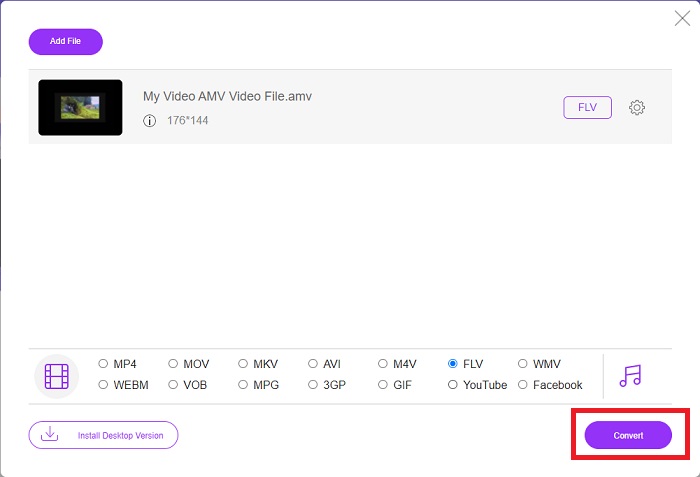
ステップ2: インポートしたファイルの準備ができたら、下部に表示されているFLV動画形式をクリックします。デスクトップ版ソフトと同様に、歯車アイコンをクリックすれば、出力動画の各種設定を調整することができます。
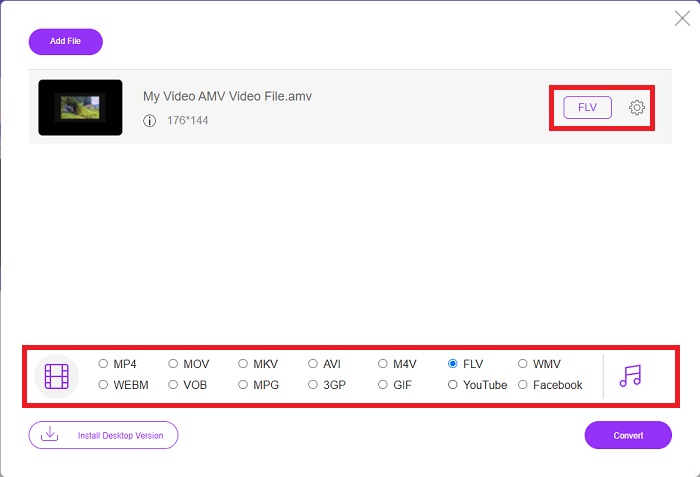
ステップ3: 最後に、変換ボタンをクリックして、AMVファイルをFLV形式へ変換します。
関連記事:
パート3。AMVとFLVに関する拡張知識
AMVは、S1 MP3プレーヤーのように、CPUが低速で画面が小さい低用途のメディアプレーヤーを最適化します。ビデオコーデックは、固定量子化テーブルを備えたMotionJPEGです。オーディオコーデックはIMAADPCMであり、各フレームの最初の8バイトは、ソース(16ビット)、インデックス(16ビット)、および暗号化された16ビットサンプル(32ビット)の量です。これらの簡略化されたコーデックのデコードオーバーヘッドはごくわずかです。ビデオ圧縮は低いですが(4ピクセル/バイト対MPEG-2の場合は10ピクセル/バイト以上)、解像度が低下し(96x96が208x176以上)、fps(10、12、または16フレーム/秒)。 128x96ピクセルおよび12フレーム/秒に圧縮された30分のビデオは80MBになります。
ただし、Adobe FlashPlayerまたはAdobeAirからインターネット経由でビデオまたはオーディオをストリーミングする場合は、FLVファイル拡張子を使用できるextension.flvのビデオファイル。長い間、Flash Videoは、YouTube、Hulu、その他数え切れないほどのサイトの動画を含む、ほぼすべてのオンライン動画のデフォルトの動画形式でした。このため、ストリーミングサービスとソフトウェア開発者はアドビ独自のFlash形式を使用しなくなりました。このすべての比較が述べられているので、ここにあなたのための少しの助けがあります、この記事はあなたに比較チャートを提供しました:
| ファイル拡張子 | AMV | FLV |
| ファイル名 | アニメミュージックビデオ | Flashビデオファイル |
| によって開発された | ジム・カポスタス | Adobe System Incorporated |
| 長所 | ◆AMVは、これまでで最も人気のあるファン製のアニメミュージックビデオの1つです。 ◆ファイルサイズが小さい。 | 動的でインタラクティブなWebページ用のAdobeFlashは、大きな利点になります。これは単純なプロセスですが、結果はかなりのものになる可能性があります。 Flashは、かつては単純なビデオゲームでも人気のある選択肢でした。 |
| 短所 | ◆ほとんどのメディアプレーヤーおよびデバイスと互換性がありません。低品質。 | FLVの人気の低下は欠点でした。 FLVコンテンツの作成には、時間と費用がかかる場合があります。 iOSデバイスでのFlashのサポートの欠如は、新しいユーザーを引き付ける能力を大幅に制限します。 |
| ファイルをサポートするプログラム | ◆VLCメディアプレーヤー ◆iOrgsoftAMVコンバーター | ◆RealPlayer ◆AppleQuickTime Player ◆VLCメディアプレーヤー ◆MPlayer |
パート4。AMVからFLVへの変換に関するFAQ
AMVの目的は何ですか?
AMVの同期と統合により、さまざまなビデオ編集スタイルを実現できます。単純なズームインとズームアウトの「エフェクト」と単純なトランジショントランジションでRAW編集を実現できます。多くの例の中には次のものがあります。
AMVはどのように作られていますか?
AMVを成功させるには、主題に密接に関連し、ほぼ完全に説明している曲を使用する必要があります。これを読んでいる人は誰でも、「うわー、これはすごい!この曲は彼の彼女の主題歌です。このため、あなたは良い作品を選びました。
FLVの方が品質は良いですか?
FLVフォーマットとMP4は、高品質のビデオとオーディオのデジタルコーディングを保存できます。 FLVファイルの品質は議論の余地がありますが、FLVの長所と短所はファイル形式について議論することができます。 MP4の圧縮率が高いほど、品質の低下が少なくなります。
結論
結論として、AMVをFLVに変換する際に最適なコンバーターを選択することの重要性を理解できます。他の人は、ビデオが変換された後、低品質で非同期のビデオを生成します。しかし、この記事で推奨する2つのコンバーターは、品質を気にする必要のない一流のコンバーターです。
-
 AMVからAVIへの変換に使用するのに最適な方法[承認済み]
 AMV形式のビデオファイルをAVIに変換するのに苦労していますか?この記事でしか見つけられないヒントをいくつか紹介します。
-
 AMVをMOV形式に変換するために利用できる3つの最新のAMVコンバーター[2022]
 AMVファイルをMOV形式に変換する方法がわかりませんか?次に、この記事では、オンラインまたはオフラインで使用できる3つのAMVからMOVへのコンバーターについて説明します。
-
 デスクトップ/オンラインで TS を FLV に変換する 4 つの検証済みメソッド
 デフォルトでは、コンピューターまたはモバイルでTSを開くことはできません。ビデオファイルを視聴する唯一の方法は、具体的なガイドを使用してTSをFLVまたはその他の形式に変換することです。
