


 ビデオコンバーター究極
 スクリーンレコーダー
 ビデオ修復
ビデオ修復
 安全なダウンロード
PC / MacでFLVビデオファイルをAVI形式に変換する方法
This guide concentrates on how to convert FLV to AVI with desktop software and online apps. There are many reasons why you need to convert your FLV videos. FLV was developed for distributing video contents online, but not playback on digital devices. When you want to watch FLV on computer, you have to change it to another video format. Moreover, it is a good idea to edit your video files that converting FLV to an uncompressed video format.

パート1:FLVをAVIに変換するためのトップ2の無料の方法
方法1:無料のFLVコンバーターでFLVをAVIに変換する
When converting FLV to AVI, you may be worried about several factors, like output quality, easy to use, and more. FVC Free FLV Converter is the best choice. Although it is free of charge, you will get a lot of pro-level features without much technical skills. Plus, it provides plentiful bonus tools, like video editing.
最高のFLVコンバーターの主な機能
- 1.FLVビデオを他のマルチメディア形式に簡単に変換します。
- 2. AVI、MP4、MKVなどのほぼすべてのビデオ形式をサポートします。
- 3.変換ごとに数百のFLVファイルをバッチ処理します。
無料ダウンロードWindows 7 以降に対応安全なダウンロード
無料ダウンロードMacOS 10.7 以降に対応安全なダウンロード
デスクトップでFLVをAVIに無料で変換する方法
Step 1: Add FLV files
As long as you install the best free FLV converter on your computer, launch it. It is compatible with both PC and Mac. Click on the Add File(s) menu at the top left corner to activate the open-file dialog. Then find and select the FLV videos on your computer, and click the Open button to add them.

Step 2: Edit video and set format
If you wish to change your video files, select the FLV file and click the Edit menu. Then you will be taken to the video editor window. Follow the onscreen instructions to edit it and then go back to the main interface.
メインインターフェイスの下部にある[出力形式]ドロップダウンメニューをクリックして、プロファイルダイアログを開きます。次に、AVIを検索し、[一般的なビデオ]タブで選択します。

Step 3: Convert FLV to AVI
Hit the three-dot icon next to Output folder field and select a specific directory to save the AVI files. Finally, click on the Convert button to begin converting FLV to AVI immediately.

方法2:VLCを使用してFLVをAVIに変換する方法
VLCは単なるメディアプレーヤーではありません。あなたはビデオ変換を含む多くの便利な機能を見つけることができます。オープンソースプロジェクトとして、VLCを使用するとFLVをAVIに無料で変換できます。さらに、VLCは破損したAVIビデオを修復することができます。
Step 1: Open the free FLV converter. If you do not have VLC, download it from the official website for free.
Step 2: Go to the Media menu from the top ribbon and choose Convert/Save. Choose Convert/Stream from the File menu on Mac.
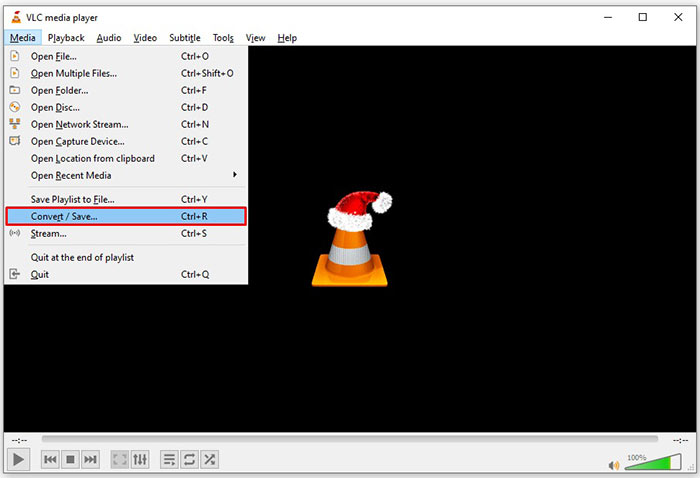
Step 3: Click the Add button on the open media dialog and add the FLV file that you want to convert.
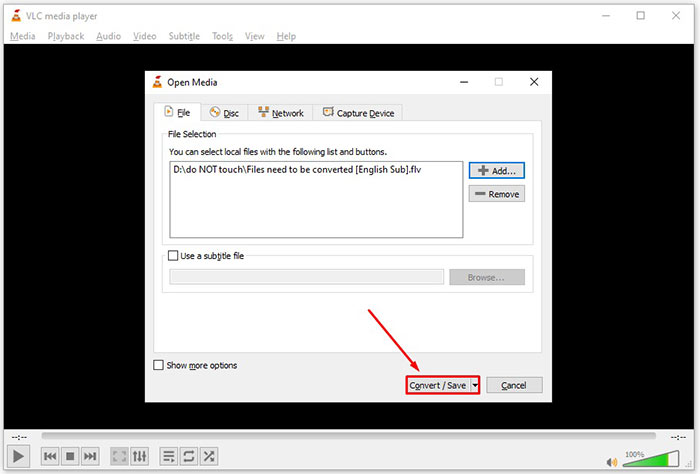
Step 4: Then hit the Convert/Save button to move to the next dialog.
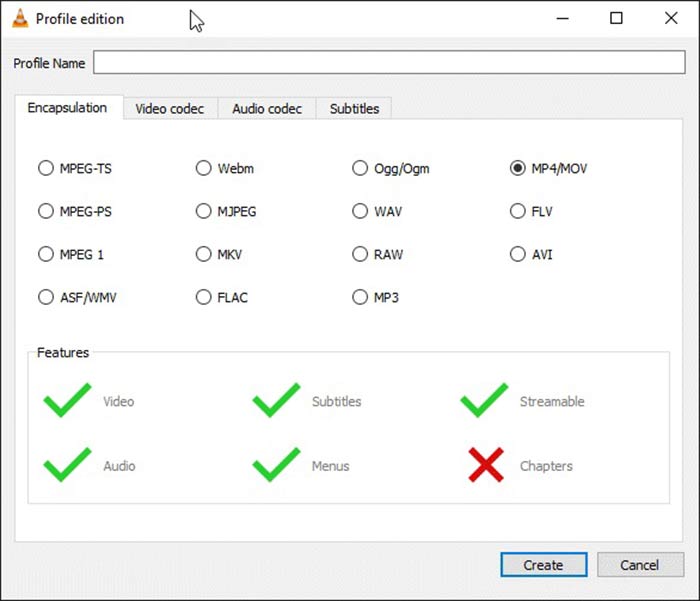
Step 5: Open the Profile dropdown list and select AVI. If you cannot find it, click the third button next to Profile. It will open the Profile edition dialog. Select AVI and write down a Profile Name. Click Create to confirm it. Then select the new item from Profile.
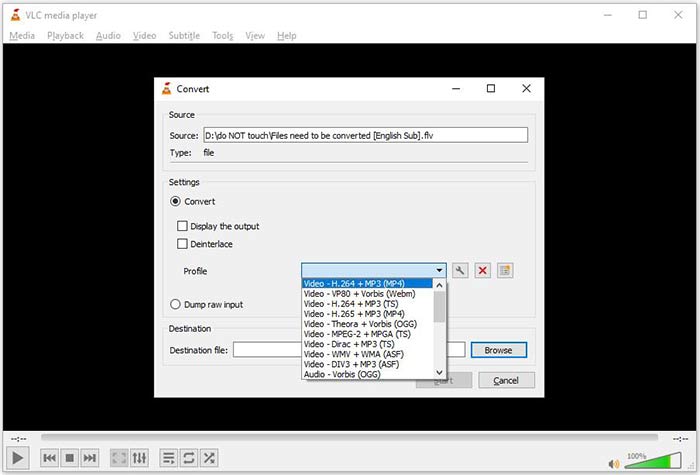
Step 6: Set the output folder by hitting the Browse button. Click on the Start button and VLC will convert the FLV to AVI.
お見逃しなく:
パート2:FLVをAVIオンラインに変換する方法
Sometimes, you just need to convert FLV to AVI online occasionally. Plus, some people do not like to install software. FVC Free Online Video Converter can meet your need. It works online, but is enough to convert several FLV files to AVI. Unlike other web apps, it does not have limit on file size, watermark and more.
Step 1: Visit https://www.free-videoconverter.net/free-online-video-converter/ in a browser when you need to convert videos. Click the Add Files to Convert button and download the launcher.
ファイルを一括変換するには、デスクトップ版をダウンロードしてください。
Step 2: After downloading, the launcher will pop up automatically. Click on the Add File button at upper left side and upload the FLV files that you wish to convert. Then choose AVI at the bottom.
To change the resolution, frame rate and other parameters, click the Gear icon to open the profile dialog.
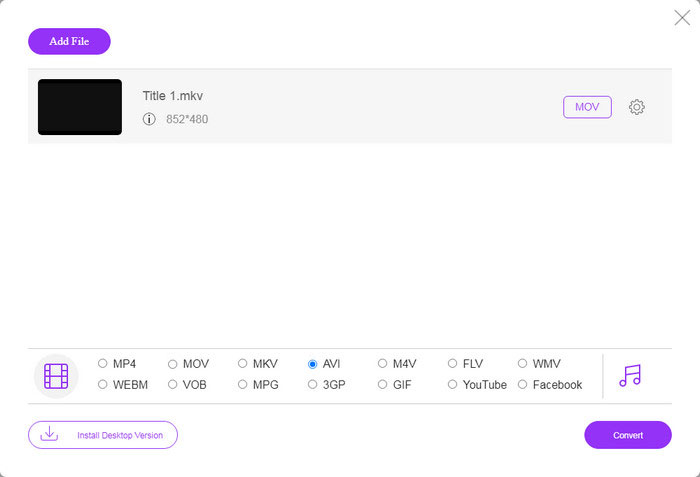
Step 3: Once you click on the Convert button, the web app will work as you wish. When prompted, download the AVI video files to your hard drive.
他のWebビデオコンバーターと比較して、無料のオンラインビデオコンバーターは高速に動作しますが、良好なインターネット接続も必要です。
FLVとAVI
Adobe Flash Playerは、FLVを使用して、映画やテレビ番組などのビデオコンテンツを配信しました。現在、アドビはプレーヤーを開発しておらず、セキュリティ上の理由からユーザーにアンインストールすることを推奨しています。ただし、Adobe/Macromedia以外の多くのプログラムでは引き続きFLV形式を使用できます。
Resource Interchange File Format(RIFF)に基づいて、AVI形式は1992年にMicrosoftによって導入されました。圧縮率が低いため、高品質のビデオ/オーディオを保存できます。ただし、これによりAVIファイルのファイルサイズが大きくなり、スペースが限られている場合に問題になる可能性があります。
パート3:FLVからAVIへのFAQ
FLVをAVIに変換するまでどのくらい待つ必要がありますか?
それはあなたの状況に依存します。一般的に言って、デスクトップでビデオを変換するのは非常に高速です。オンラインツールの場合、インターネット接続によって効率が決まります。
オンラインでFLVをAVIに変換するのは安全ですか?
ほとんどのオンラインFLVコンバーターアプリは、変換後にビデオを削除することを約束します。ただし、Webアプリが100%で安全に使用できることが確実でない限り、プライベートビデオをオンラインでアップロードしないでください。
AVIはFLVよりも優れていますか?
FLVは不可逆ビデオ形式ですが、AVIは非圧縮ビデオ形式です。同じ条件でFLVファイルがAVIよりも小さいことを意味します。ただし、AVIはより優れたビデオ品質を提供します。 FLVはビデオをオンラインで共有するために使用されますが、AVIはビデオを編集するのに適しています。
結論
このガイドでは、デスクトップソフトウェアとWebアプリを使用してFLVビデオファイルをAVI形式に変換する3つの方法を共有しています。 VLCは無料のメディアプレーヤーであり、ビデオコンバーターでもありますが、使用するのは困難です。さらに、ソフトウェアをインストールせずにオンラインで仕事をすることができます。ただし、出力品質が素晴らしいため、FVC Free FLVConverterを試してみることをお勧めします。さらに、使い方や操作はとても簡単です。 FLVからAVIへの変換に関して他に質問がある場合は、この投稿の下にメッセージを残してください。
-
 FLVをWAVに変換する3つの無料の方法
 FLVファイルを変換するにはどうすればよいですか? VLCはFLVをWAVに変換できますか?この投稿では、品質を損なうことなくFLVをWAVに変換する3つの無料の方法について説明しています。
-
 FLVをMPGに変換する3つの無料の方法
 FLVをMPEGに変換する方法は? FLVをMPGに無料で変換できますか?この投稿では、品質を損なうことなくFLVをMPGに変換するのに役立つ3つの無料のビデオコンバーターを共有しています。
-
 Xboxで再生するためにFLVを変換する3つの無料の方法
 XboxOneまたはXbox360でFLVファイルを再生できませんか? FLVをMP4、AVI、MOV、WMVなどのXbox対応形式に変換する必要がありますか?この投稿では、XboxでFLVを再生するための3つの無料のFLVからXboxへのコンバーターをリストしています。

