


 ビデオコンバーター究極
 スクリーンレコーダー
 ビデオ修復
ビデオ修復オフラインおよびオンライン変換プロセス:OGVをFLVに変換するための最良の方法
OGV ビデオを使用していると、この非可逆圧縮の動画形式は、編集や調整を行ったあとに画質がぼやけてしまうため、苛立ちを感じるかもしれません。しかし、オンラインで共有する前に OGV をいったん FLV 形式に変換しておけば、その状況は改善されます。唯一の問題は、使いやすくて高機能な動画変換ソフトを見つけることです。幸いなことに、オフライン・オンラインの両方で利用でき、簡単にOGV を FLV に変換できる最適なツールがあります。あとはこの記事で紹介する手順に従うだけです。

パート1。OGVを簡単にFLVに変換する方法[オフライン]
正直なところ、オンラインには数多くの動画変換ツールがありますが、その中で OGV 変換に対応しているものはごくわずかです。というのも、この形式は多くの動画視聴者にとって一般的ではないため、多くの変換ツールは対応形式に含めていないからです。そこで役立つのが Video Converter Ultimate です。本ソフトは OGV の入力に完全対応しており、OGV 動画ファイルを FLV 形式に素早く変換できます。さらに、OGV 動画を変換するだけでなく、実用的な編集ツールで加工することも可能です。必要な機能はすべて Video Converter Ultimate に揃っています。以下に、どなたでも簡単に使える最も分かりやすい手順を示します。
ステップ 1: ソフトを利用する前に、まずデスクトップにインストールする必要があります。お使いの OS に応じて、下にあるいずれかの無料ダウンロードボタンをクリックしてください。.exe または .dmg ファイルのダウンロードが完了するまで待ち、完了したらそれを開いてインストールを開始します。インストールが終わったら、今すぐ開始をクリックしてソフトを起動できます。
無料ダウンロードWindows 7 以降に対応安全なダウンロード
無料ダウンロードMacOS 10.7 以降に対応安全なダウンロード
ステップ 2: ウィンドウがポップアップ表示されると、中央に+ボタンのあるインターフェースが表示されます。変換したい動画ファイルを取り込むには、そのボタンをクリックするか、ファイルをプログラム画面内にドラッグ&ドロップしてください。
![[追加]ボタンをクリックします](/images/2021/12/click-add-button.jpg)
ステップ 3: 画面右側には、現在の動画ファイルの形式が表示されています。そこをクリックすると、選択可能なすべての形式が表示されます。本記事のケースでは、スクロールして FLV を選択するか、下部の検索バーに形式名を入力して検索します。さらにタブの右側では、変換後ファイルの画質(品質)も選択可能です。
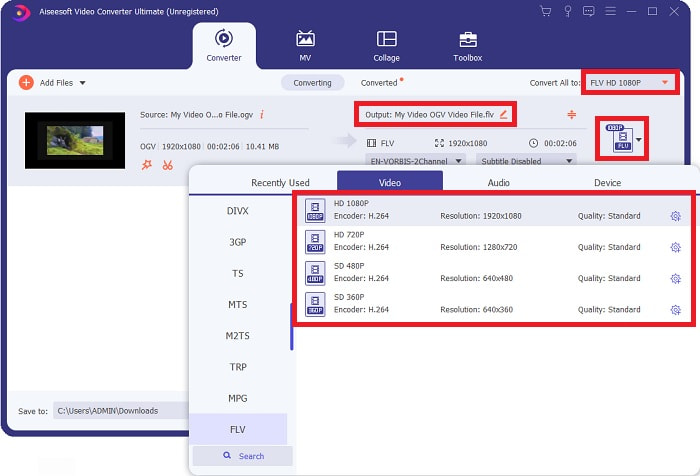
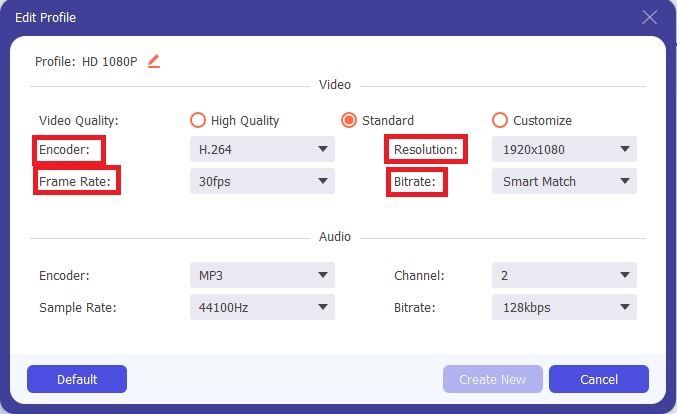
ステップ 4: さらに詳細な設定を行いたい場合は、選択した画質の横にある歯車アイコンをクリックします。ここでは解像度のほか、フレームレート、サンプルレート、ビットレート、エンコーダーなど、さまざまな項目を細かく調整できます。設定に満足したら、右下の新規作成ボタンをクリックして変更内容を保存してください。
ステップ 5: すべての調整が完了したら、右下にあるすべて変換ボタンをクリックして、本格的に変換を開始します。あとは処理が終わるまで待つだけです。
![[すべて変換]をクリックします](/images/2021/12/click-convert-all.jpg)
パート2。OGVをFLVに変換するために利用できる別の方法[オンライン]
時間がなく、とにかく OGV ファイルをできるだけ早く FLV に変換したい場合でも心配はいりません。同じソフトのオンライン版を使えば、変換プロセスはスムーズで、最大限の利便性を保ったまま利用できます。FVC Free Video Converter Online は、OGV ファイルを簡単に FLV に変換できる Web ツールで、解像度や音質に関する設定もデスクトップ版と同様に利用できます。使い方は次のとおりです。
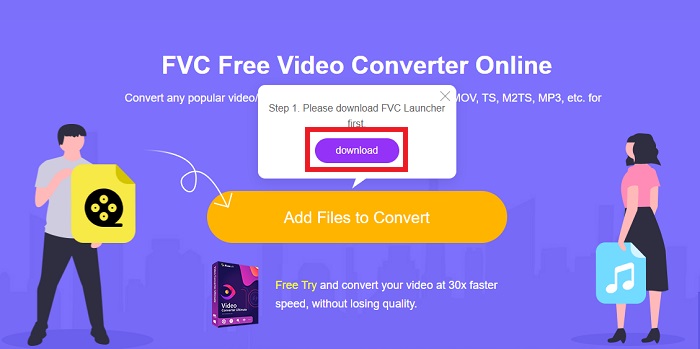
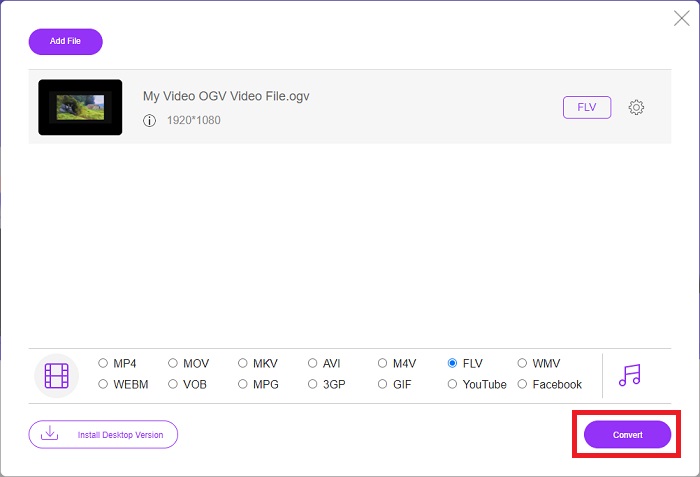
ステップ 1: このリンクをクリックすると、オンラインコンバーターのページに移動します。ページ中央に変換するファイルを追加というボタンが表示されているので、それをクリックしてランチャーをダウンロードします。変換したい動画ファイルを取り込むために、このランチャーが必要です。
ステップ 2: ダウンロードが完了したら、再度同じボタンをクリックしてファイルをアップロードします。アップロードが成功するとインターフェースが表示されます。そこで、ウィンドウ下部に並んでいる形式の中から FLV を選択してください。
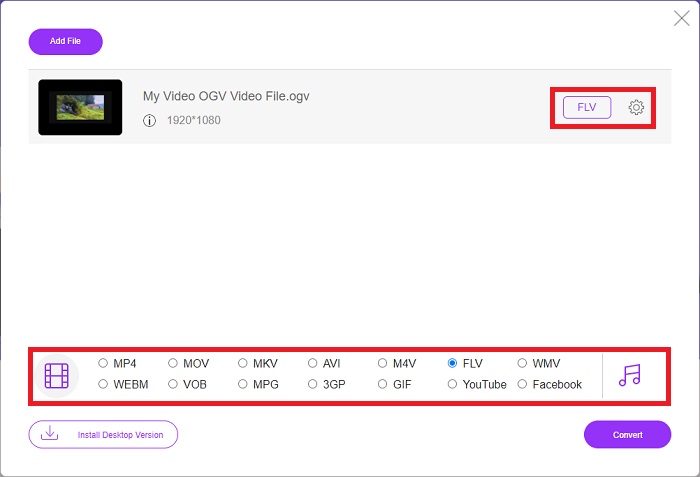
ステップ 3: 同様に、右端にある歯車アイコンから動画の詳細設定を行うことができます。クリックすると、エンコーダー、解像度、フレームレートなどを調整できる動画・音声設定が表示されます。設定後はOKをクリックし、右下の変換ボタンを押して変換処理を開始します。
パート3。OGVとFLVに関する拡張知識
比較されている2つのファイルについて詳しく知りたい場合は、ここで、読みたいと思う可能性のあるすべての必要な情報を提供します。
Ogg Vorbisビデオエンコーディング方式は、ほとんどの場合、.ogvファイル拡張子を持つファイルとリンクできます。 Ogg Vorbisは、オープンソースの特許取得済みのオーディオ圧縮形式です。オーディオ、ビデオ、および情報ファイルのコンテナ形式はOggと呼ばれ、オーディオ圧縮技術Vorbisにちなんで名付けられました。 OGVファイル形式はビデオファイルのコンテナです。 TheoraやDivXなどの1つ以上のビデオコーデックにリンクされたビデオストリームは、OGVファイルに含まれている場合があります。ユーザーは、これらのファイルを使用して、複数のメディアデバイスのコンテンツファイル内に記録された素材を再生できます。
一方、Adobe Flash Video(FLV)コンテナ形式で保存されたビデオファイルはFLVファイルです。 Adobe Flash Playerは主に、映画やTVエピソードなどのオンラインビデオコンテンツを提供するために使用します。また、Adobe/Macromedia以外のさまざまなアプリでサポートされているオープンフォーマットであることに注意する必要があります。 2つのより具体的な比較のために、私たちはあなたのためだけに表を作成しました。
| Ogg Vorbis(OGV) | Adobe Flash Video(FLV) | |
| ファイル拡張子 | .ogv | .flv |
| 開発者 | Xiph.Org Foundation | Adobe Systems Incorporated |
| 支援プログラム | MPlayer Classic、VLC Media Player、Jriver Media Center、MPUI | RealPlayer、Apple QuickTime Player、Mplayer、VLC Media Player |
| 利点 | OGGには、特許がなく、一般的に認められており、ほとんどのブラウザでネイティブにサポートされているという利点があります。そのため、Webサイトに映画をアップロードする場合は、この形式が適しています。 | Flashの利点は、モーションやインタラクティブなコンテンツを組み込みたいWebサイトを支援できることです。手順は簡単で、最終的には大きな影響を与える可能性があります。誰もがその最盛期に初歩的なゲームにFlashを利用しました。 |
| 短所 | 広く使用されているにもかかわらず、OGGビデオ形式にはいくつかの欠点があります。たとえば、SafariとInternet Explorerは、部分的にしかサポートしていません。したがって、ユーザーはこれらのブラウザでビデオを正しく表示できない可能性があります。 | もちろん、欠点は、FLV形式が近年人気がなくなっていることです。 FLVコンテンツの作成には時間がかかり、費用がかかる場合があります。もう1つの欠点は、Flash素材をiOSデバイスで再生できないため、新しいフォロワーを引き付ける能力が大幅に制限されることです。 |
パート4。OGVおよびFLV変換に関するFAQ
OGGとOGVは同じですか?
これは、ファイル拡張子が付いたOggビデオメディアタイプvideo/Oggの適切なサブセットです。 ogv。他のOggアプリはファイル拡張子を利用します。以来、メディアタイプapplication/oggのogv。 ogxはvideo/oggのスーパーセットです。
FLVの品質はMP4よりも優れていますか?
MP4 は高品質な動画および音声のデジタルコーディングを実現すると言われています。一方、FLV に対する一般的な評価はそれほど明確ではなく、その長所と短所は必ずしも画質そのものに集中しているわけではありません。高い圧縮率でも、MP4 は画質の劣化を比較的抑えられる形式です。こちらでは、FLV ファイルを MP4 に変換する方法を確認できます。
FLVはロスレスですか、それともOGVのようにロスがありますか?
Flash VideoのFLVファイル形式は、スクリーンキャストエンコーディング方式である2つのバージョンのスクリーン共有(スクリーンビデオ)コーデックをサポートします。これらの形式はビットマップタイルに基づいており、Zlibを使用して色深度を縮小および圧縮すると不可逆圧縮になります。
結論
ビデオファイルの変換にどれだけの時間がかかっていても、ソフトウェアとそれに対応するオンラインツールの両方が最も便利なものを提供します。つまり、簡単に言うと、VideoConvertUltimateとFreeVideoConverterは、インターネットを閲覧して最適なものを見つける時間を節約するために、ビデオ変換に関して最初に考えなければならないものです。ここでは、私たちはあなたに最善を渡します。
-
 VOBをFLVに変換する最良の方法[無料およびオンラインで含まれる]
 VOBファイルをFLVファイルに変換したいですか?デスクトップまたはオンラインコンバーターを使用して、タスクを簡単に完了することができます。このガイドを読み、VOBをFLVに簡単かつ迅速に変換する方法を学びます。
-
 デスクトップまたはオンラインのトップ4無料RMVBからFLVへのコンバーターアプリ
 この記事では、RMVB(RealMedia Variable Bitrate)ファイルをFLVビデオに変換できる最高のRMVBからFLVへのコンバーターソフトウェアとWebアプリについて説明します。
-
 品質を損なうことなくOGVファイルを圧縮する方法
 大きなOGVファイルを他の人に送信できませんか?この記事では、OGVファイルを簡単に圧縮するための2つの簡単な方法を紹介します。
