


 ビデオコンバーター究極
 スクリーンレコーダー
 ビデオ修復
ビデオ修復
 安全なダウンロード
Instagram ニュースフィードとリールで GIF にコメントする方法
GIFまたはGraphics Interchange Format(グラフィックス・インターチェンジ・フォーマット)は、アニメーションされた連続画像や圧縮された動画で、SNSでのやり取りに楽しさやエンターテインメント性を加えるために使えます。中には、この画像形式をミームとして使ったり、投稿に対するリアクションをコミカルに表現するために使う人もいます。しかし、2012年に再び注目されるようになる前、GIFはインターネットの世界から消えかけていたことをご存じでしょうか。幸いなことに、SNSユーザーの増加に伴い、多くのユーザーがオンラインコミュニケーションを盛り上げるためにGIFを使うようになったことで、これらのアニメーション画像は絶滅の危機から救われました。今ではInstagramのDM画面やコメント欄を含む、さまざまなSNSアプリを席巻しています。そこで本記事では、InstagramでGIFコメントをする方法を紹介します。

パート 1. Instagram は GIF をサポートしていますか?
Instagram は人気のあるソーシャル メディア アプリの 1 つで、人々は短いキャプションを付けて美しい写真を共有したり、変更したりできます。この写真共有プラットフォームは、ユーザーのエクスペリエンスを向上させるために継続的に進化してきました。そのような機能強化の 1 つは GIF の使用で、これによりユーザーはインタラクションに創造性と表現の追加レイヤーを追加できるようになります。当初、このアプリは面白い GIF を使用したり、かわいい IG ストーリーを作成してメッセージを送信することのみを目的としていた。しかし今では、リールやニュースフィードの投稿に GIF にコメントできるようになりました。
Instagram はいつこの機能を開始しましたか?
InstagramのコメントセクションのGIFは、昨年2023年5月に同社代表のアダム・モセリ氏とメタCEOのマーク・ザッカーバーグ氏によって立ち上げられた。この最新機能の導入は、Instagram の創設者と共同所有者にとってマイルストーンの 1 つであると主張されました。 Facebook のコメント セクションでは GIF にコメントするのが長年行われてきたため、彼らは、IG に投稿されるのをどのように待つかにも取り組みました。この成果により、IG ユーザーは GIF を使用してニュースフィード投稿やリールにコメントできるため、IG ユーザー間のエンゲージメントがさらに促進されることが期待されます。
サポートに地域制限はありますか?
IGのGIFコメント機能は、テスト期間中、アルゼンチン、アイルランド、イタリア、日本、メキシコ、米国に限定されていた。 Meta はこの機能がいつ誰にでも利用できるようになるか明らかにしませんでしたが、この新機能がプラットフォーム上で多くの関心を集めた場合には、この機能を世界中のユーザーに徐々に公開すると約束しています。したがって、地域限定についてのデータもありません。
パート 2. Instagram で GIF にコメントする方法
この新機能を初めて知る場合は、Instagram の投稿に GIF にコメントする方法を以下に示します (Instagram アカウントをすでに更新している場合)。
Instagram リールで GIF にコメントする方法:
ステップ1. まず、反応したいリールを開き、コメントをタップします。
ステップ2. 次に、GIFボックスをタップしてGIFコメントを入力します。
ステップ3. コメントしたいGIFコレクションの中から1つ選びます。じっくりスクロールして探すか、追加したいビジュアルのキーワードを入力して検索します。
ステップ4. 選択が終わったら、そのGIFをタップすると、すぐに送信されます。
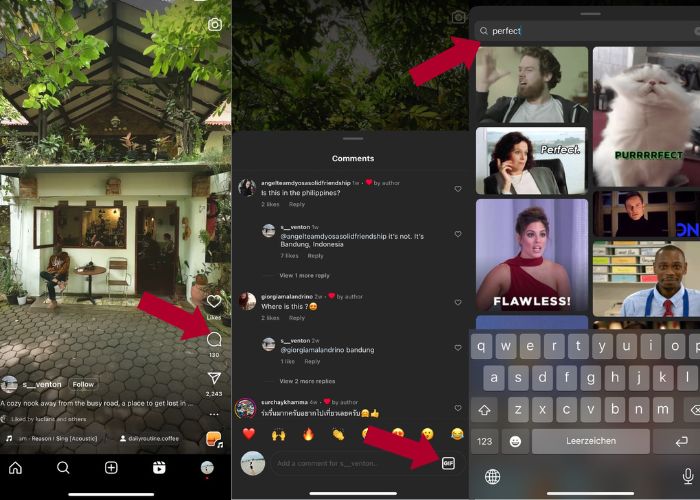
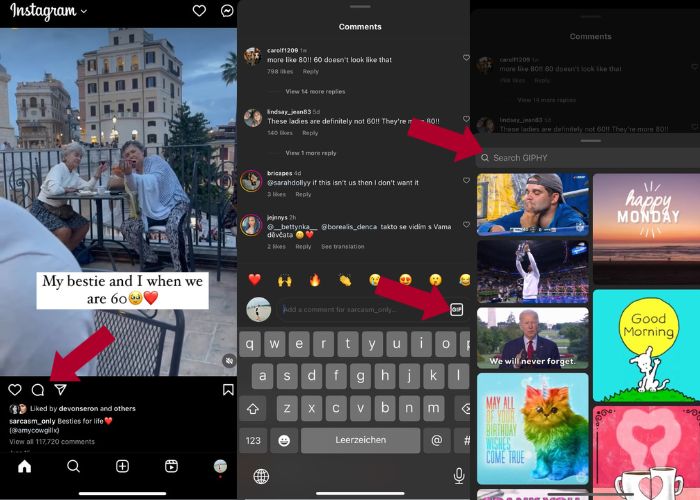
Instagram コメントに GIF を投稿する方法:
ステップ1. 友達やほかのInstagramユーザーのニュースフィードに移動し、GIFを付けたい写真をタップしてから、コメントアイコンをタップします。
ステップ2. 次に、コメント欄のGIFアイコンをタップします。
ステップ3. GIFを検索するか、スクロールしてほかのGIFを表示し、選択したGIFがコメント欄に戻って正しく追加されているか確認します。
パート 3. Instagram で GIF にコメントできないのはなぜですか
Instagram に GIF を使用してコメントを追加できない場合は、アプリを更新してみてください。偶然にも GIF ボタンがまだ見つからない場合は、あなたの国は Meta がこの新機能をまだリリースしていない地域に含まれている可能性があります。したがって、あなたの国に届くまで待つ必要があります。
パート 4. 最高の GIF メーカーで Instagram 用の GIF を作成する方法
GIFを自分用にカスタマイズするには、MP4形式の動画をGIFに変換する必要があります。また、複数の画像をアニメーションさせてGIFファイルを作成することも求められます。そのために、Video Converter Ultimateを活用しましょう。このソフトは、動画編集と変換を幅広くこなせる総合的なビデオ編集ツールで、編集や変換を簡単に行えます。中でもGIFメーカー機能を使えば、Instagram用のGIFをすぐに作成できます。さらにループアニメーション機能を使えば、静止画をGIFに変換できるその実力にきっと驚くはずです。
さらに、このツールには、GIF を強化するための重要な編集ツール (コントラスト、彩度、明るさ、色合いを編集する) も付属しています。フィルターを使用して GIF の雰囲気を設定することもできます。長いビデオがある場合は、この GIF Maker を使用してトリミングすることもできます。さらに、このソフトウェアを使用すると、GIF の出力形式とフレーム レートを変更できます。そして最も良い点は、このアプリが初心者向けの直感的なインターフェイスを備えていることです。
このビデオコンバーターが怖いと感じたら、Video Converter Ultimate がいかに使いやすいかを説明しましょう。以下の手順に従ってください。
ステップ1. Video Converter Ultimateをインストールして起動
変換を始めるには、下の無料ダウンロードボタンをクリックしてソフトをダウンロード・インストールします。インストール完了後、パソコンでプログラムを起動し、構成が終わるのを待ってから今すぐ開始をクリックして始めます。
無料ダウンロードWindows 7 以降対応安全なダウンロード
無料ダウンロードMacOS 10.7 以降に対応安全なダウンロード
ステップ2. メディアをアップロード
アプリ画面でツールボックスタブに進み、ツール群の中からGIFメーカーを探します。ここで、動画を変換したい場合は動画からGIF、複数画像をGIFにしたい場合は写真からGIFをクリックします。
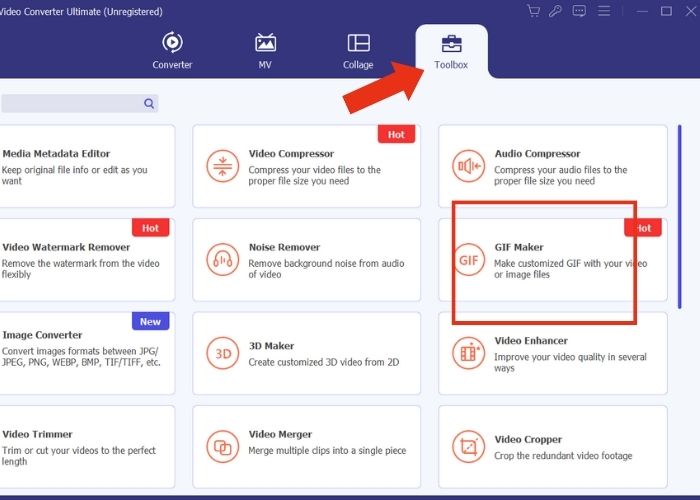
ステップ3. ファイルを編集
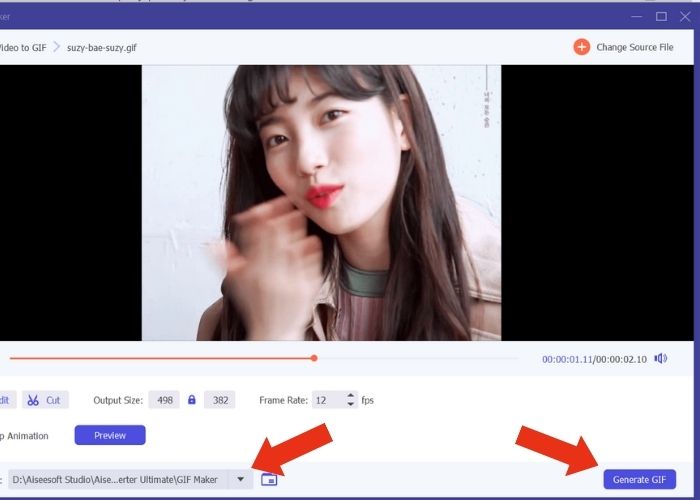
ファイルを追加したら、出力サイズとフレームレートを調整してGIFのプロパティを設定します。続いて編集をクリックし、動画の色味を調整したり、見栄えをよくするフィルターを追加します。次にカットをクリックして素材の長さをトリミングします。一般的にGIFは6秒以内に収めるのがおすすめです。
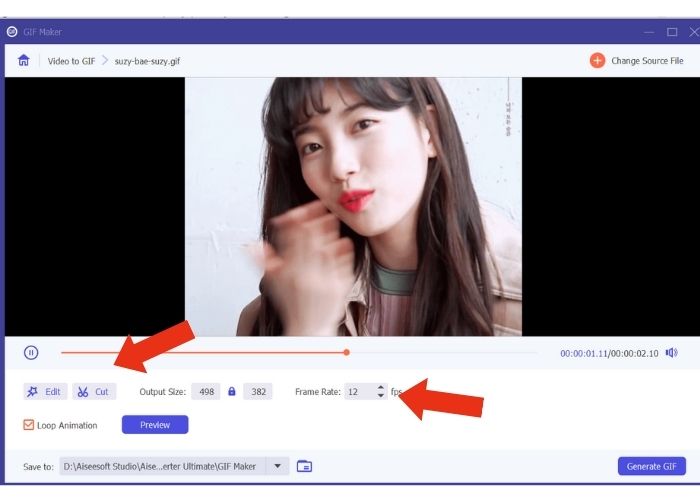
ステップ4. 書き出して保存
書き出す前に、出力ファイルを保存するフォルダーや場所を指定します。その後、GIF作成ボタンをクリックしてGIFを書き出します。ツールがGIFを処理するまで少し待ちます。完了すると、新しいウィンドウが表示され、最終的な出力を確認できます。
パート5. GIFをInstagramのコメントにアップロードする方法
独自の GIF がすでにあるので、このパートでは GIPHY Web サイトにアップロードする方法を説明します。実行する必要がある手順は次のとおりです。
ステップ1. GIPHYアカウントを作成します。
ステップ2. 事前に作成したGIFをインポートします。
ステップ3. タグを追加し、GIPHYにアップロードボタンをクリックします。
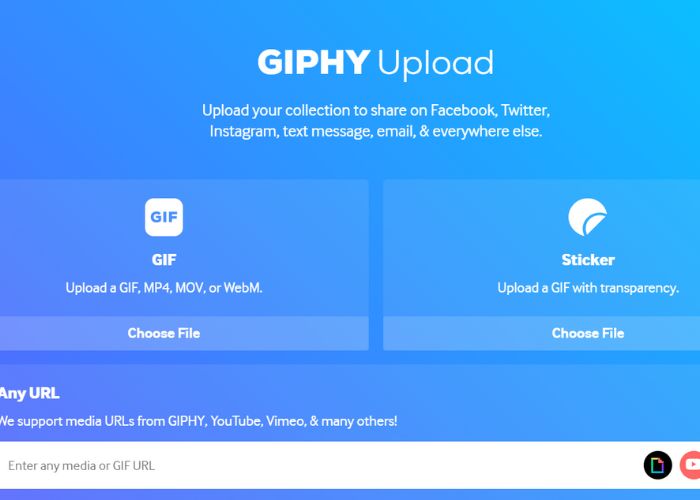
GIF が Instagram の GIPHY ライブラリにアップロードされるまで、数日待ちます。これは試行錯誤の作業ですが、この方法はあなたの国では機能しない可能性があります。
さらに詳しく読む:
Instagram用に写真サイズを変更(デスクトップ・iPhone・Android対応)
Windows&Macで使えるおすすめGIFルーパーでGIFをループ再生
パート 6. Instagram コメントに GIF を投稿する方法に関するよくある質問
Instagramのプロフィール写真にGIFを使用できますか?
いいえ。現在、Instagram 上の GIF は、ストーリー、メッセージング、リールのコメント ボックス、およびニュース フィードの投稿にのみ制限されています。
Instagram のメッセージに GIF は表示されますか?
はい。 GIF は Instagram メッセージでも機能します。
Instagramで画像付きで返信できますか?
メッセージングの場合は、可能です。ただし、リールとニュースフィードのストーリーやコメントボックスへの返信はまだ許可されていません。
カメラロールから Instagram ストーリーに GIF を配置するにはどうすればよいですか?
InstagramストーリーにGIFを投稿する方法は次のとおりです。
Video Converter Ultimateで動画をGIFに変換し、その出力をカメラロールに保存します。次に、そのGIFをGIPHYサイトにアップロードし、ライブラリに反映されるまで数日待ちます。あとは、自分で付けたタグを使って、その事前作成したGIFを検索します。
Instagramでコメントに返信できないのはなぜですか?
現時点では、Instagram はニュースフィード投稿とリールの GIF へのコメントのみをサポートしています。残念ながら、ユーザーが GIF を使用してコメントに返信することはできません。
結論
これで、Instagramの投稿にGIFコメントをする方法がわかったので、ニュースフィードやリールにおもしろいGIFでコメントして、Instagramの友達との交流をさらに楽しめます。また、優秀な動画変換ツール「Video Converter Ultimate」を使って、自作GIFを作ることもできます。ただし、GIFコメントの連投はスパム扱いされる可能性があるため、ほどほどにしておきましょう。
-
 iPhone に GIF をビデオとして保存する方法に関する 5 つのベストサイト
 GIF を iPhone に保存できませんか?この記事を読み続けて、iPhone に GIF を保存するための可能な解決策を紹介します。
-
 [無料 & 有料] GIF スピード チェンジャー: 2023 年のホット ピック
 面倒で遅いので、オンラインで作成したGIFに不満がありますか? GIFスピードチェンジャーとそれを使用して習得するのに役立つ詳細についての記事を紹介するので、これはあなたの幸運な日になるでしょう。
-
 画像とビデオを投稿する前にInstagramフィルターを追加して作成する方法
 Instagramのフィルターは何ですか?それを適用する方法は?作り方は?これらの質問は、この投稿で簡単に答えられるので、読んでください。
