


 ビデオコンバーター究極
 スクリーンレコーダー
 ビデオ修復
ビデオ修復
 安全なダウンロード
優れたコンバーターを使用して PNG を JPG に変換する究極の方法
PNGファイル形式は、ほかの形式と比べてファイルサイズが大きくなりがちです。その欠点のひとつが、Webサイトへのアップロードやダウンロード、共有に時間がかかることです。読み込み処理が遅くなり、時間がかかってしまいます。一方、JPGファイルはPNGよりもファイルサイズが小さくなります。そのため、画像を保存したりWebにアップロードしたりする作業を素早く行えます。また、ほかのアプリケーションやデバイスでも開きやすくなります。幸いなことに、この記事ではPNGをJPGに変換するための十分な情報を紹介します。変換するには、信頼できる画像コンバーターを使う必要があります。加えて、これらの形式の定義についても学べます。PNG画像をJPG形式に変更したい場合は、この投稿を読んでください。

パート 1. PNG と JPG の紹介
PNGとは
PNG (Portable Network Graphics) は、損失のないラスター形式です。これは、まったく新しい GIF 形式のバリエーションです。より高い色深度が利用可能で、数百万の色相を表示します。現在普及している画像形式の 1 つに PNG があります。パレットに基づいて RGBA と RGB の両方の画像形式を保存することは、PNG の特徴の 1 つです。さらに、オンラインで写真を転送しようとします。 PNG は印刷にもよく使用されます。ほとんどの人は、この特定のファイルを利用します。さらに、この画像形式は、Web グラフィックの専門家によって一般的に使用されています。透明色の背景には、PNG 形式も採用されています。この形式のファイル サイズの縮小は、もう 1 つの利点です。それでも、視覚的な品質の低下はほとんどありません。純正品と同等の品質を実現できます。 PNG には多くの利点があります。圧縮により、優れた画質が保証されます。
JPGとは
Joint Photographic Experts Group は、JPEG ファイル形式を作成します。これは、インターネットやその他のデバイスで標準的な画像ファイル形式の 1 つです。 10:1 から 20.1 が圧縮比です。非可逆拡張は拡張で行われます。ただし、圧縮率は調整可能です。これにより、画質とストレージ容量のバランスが取れます。写真共有プラットフォームとデジタル カメラはどちらも JPEG 拡張子を使用します。 JPEG にはいくつかの利点があります。アートワークと写真の両方に使用できます。ラスター編集の適応性のためです。アートワークや写真を高解像度・低圧縮で印刷できます。
パート 2. オンラインで PNG を JPG に変換する方法
FVC Free Image Converter を使用して PNG を JPG に変換する
FVC Free Image Converterは、利用できる最適なツールのひとつです。PNGをJPGに難なく変換することができます。インターフェースや操作手順がわかりやすく、ユーザーにとって扱いやすいのが特長です。また、複数のPNGファイルをJPGに変換したい場合でも問題ありません。この画像コンバーターは一括変換に対応しています。変換した複数ファイルもワンクリックで保存できます。それに加えて、PNG、BMP、TIFF、GIFなど、さまざまな入力ファイル形式をサポートしています。このツールの利点のひとつは、煩わしい広告が表示されないことです。インターフェースがすっきりしているため、変換作業に集中できます。また、このコンバーターをインストールする必要もありません。ブラウザー上で直接操作できます。さらに、変換後も画像品質は元のファイルと同じ水準を維持します。これにより、最終的な画像が見やすく使いやすい仕上がりになることを保証できます。FVC Free Image Converterはプライバシーも保護します。変換処理が完了したあとのデータは保存されません。
ステップ1: ブラウザーでFVC Free Image Converterのサイトにアクセスします。フォーマットのオプションからJPG形式をクリックします。
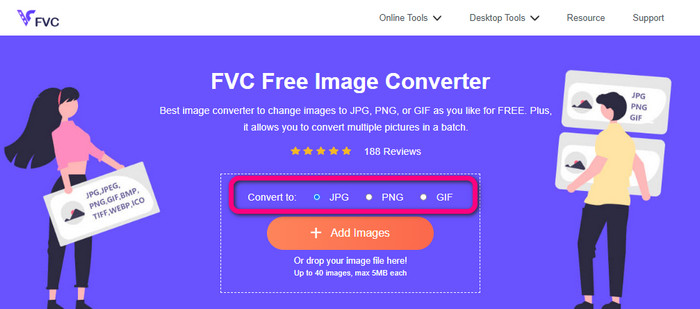
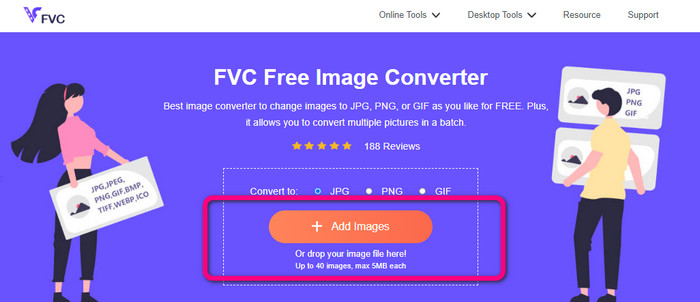
ステップ2: PNG画像を追加するには、プラスアイコン、またはAdd Imagesボタンをクリックします。画像ファイルをボックスにドラッグ&ドロップしても構いません。その後、自動的に画像の変換が始まります。
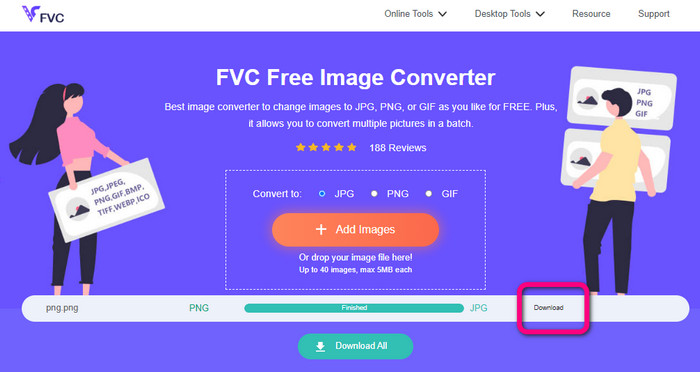
ステップ3: 最後に、Downloadボタンをクリックして、変換後の画像をパソコンに保存します。
Canvaを使用してPNGをJPGに変換する
PNGをJPGに変換するもうひとつのオンライン方法がCanvaの利用です。このオンラインツールは、親しみやすいユーザーインターフェースを備えており、操作がわかりやすいのが特長です。変換手順も簡単で、初心者にも適しています。高速な変換処理が可能で、必要な数だけファイルを変換できます。CanvaはGoogle、Firefox、Edgeなど、あらゆるブラウザーからアクセスできます。さらに、画像を変換している間にもできることが多くあります。写真のトリミングやサイズ変更ができるほか、アイコンやステッカーなどを追加することも可能です。このように、ファイル形式を変更しながら画像を編集・強化できます。ただし、Canvaは優れたツールである一方で、欠点もあります。無料版には多くの制限があり、利用できる機能、クラウドストレージ、編集ツールなどが限られています。無制限で高度な機能を利用するには、有料プランの購入が必要です。また、オンライン画像コンバーターであるため、インターネット接続も必須になります。
ステップ1: WebブラウザーまたはアプリでCanvaを開き、PNGからJPGへのコンバーター画面にアクセスします。デザインプロジェクトを開始するには、あらかじめ用意されたテンプレート、または空白のレイアウトを選択します。
ステップ2: 使用したいPNGファイルをページ上にドラッグ&ドロップするか、デバイスから選択して配置します。
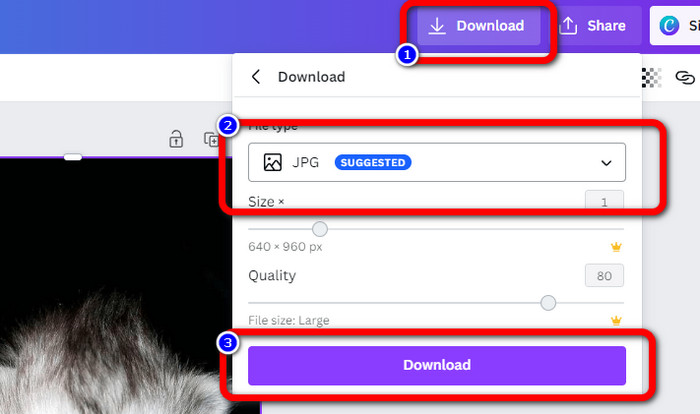
ステップ3: ダッシュボード右上にあるDownloadボタンをクリックします。希望する出力形式としてJPG形式を選択します。最後に、もう一度Downloadボタンをクリックして、画像をデスクトップに保存します。
Convertio を使用して PNG を JPG に変換する
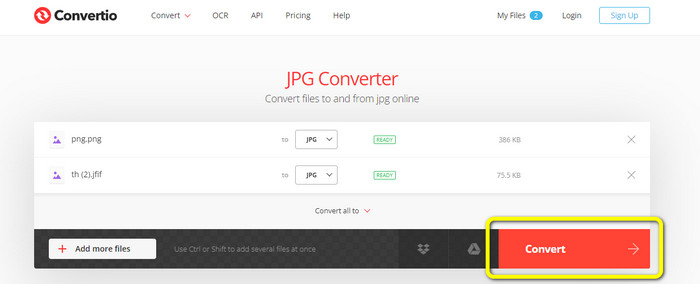
ConvertioもPNGをJPGに変換できるオンラインツールです。このオンライン画像コンバーターを使えば、PNGをすばやくJPGに変換できます。Convertioは、画像を簡単な手順で変換できるサービスを提供しています。ユーザーフレンドリーなインターフェースにより、特に初心者でも操作内容を理解しやすくなっています。さらに、PNG、GIF、BMP、SVGなど、さまざまな画像形式をサポートしています。この画像コンバーターも一括変換に対応しています。この優れた機能により、複数の画像を同時に一気に変換できます。さらに、画像だけでなく、動画、音声、ドキュメントファイルの変換にも対応しています。そのため、別のオンラインツールを探す必要がありません。ただし、無料版ではアップロードできる容量が最大100MBまでに制限されています。より大きなファイルサイズに対応するには、有料プランを購入する必要があります。無制限で利用したい場合は、上位の高額プランを選択することもできます。
ステップ1: ブラウザーでConvertioと検索します。メインページにアクセスしたら、Choose Filesボタンをクリックします。パソコン上のフォルダーからPNG画像を選択してアップロードします。
ステップ2: 一括変換を行いたい場合は、Add more filesボタンをクリックして、さらに画像ファイルを追加します。その後、フォーマットのオプションから、出力形式としてJPGファイルを選択します。
ステップ3: アップロードと出力形式の設定が完了したら、Convertボタンをクリックします。変換処理がすぐに開始されます。変換後、Downloadボタンをクリックして、指定した保存先にファイルを保存します。
パート 3. オフラインで PNG を JPG に変換する方法
Video Converter Ultimate を使用して PNG を JPG に変換する
Video Converter Ultimateは、オフラインで利用できる非常に優秀な画像コンバーターのひとつです。このダウンロード型のコンバーターを使えば、PNGをJPGに素早く変換できます。高速変換に対応しているため、短時間で多数のファイルを処理可能です。さらに、一括変換機能を備えているので、複数ファイルを同時に変換できます。Video Converter Ultimateは、PNG、BMP、WEBP、TIFなど、さまざまな画像形式をサポートしています。このオフライン画像コンバーターは、直感的なインターフェースとシンプルな手順を採用しており、プロ・初心者を問わず、誰でも簡単に画像変換が行えます。加えて、このコンバーターはMacとWindowsの両方で利用可能です。以下の簡単な手順に従って、Video Converter Ultimateを使い、MacまたはWindowsでPNGをJPGに変換してみましょう。
ステップ1: WindowsまたはMacにVideo Converter Ultimateをダウンロードします。インストール完了後、プログラムを起動します。下のDownload buttonをクリックしてコンバーターにアクセスすることもできます。
無料ダウンロードWindows 7 以降に対応安全なダウンロード
無料ダウンロードMacOS 10.7 以降に対応安全なダウンロード
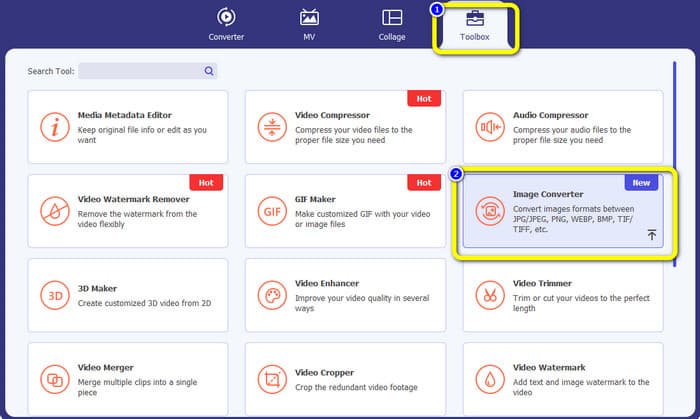
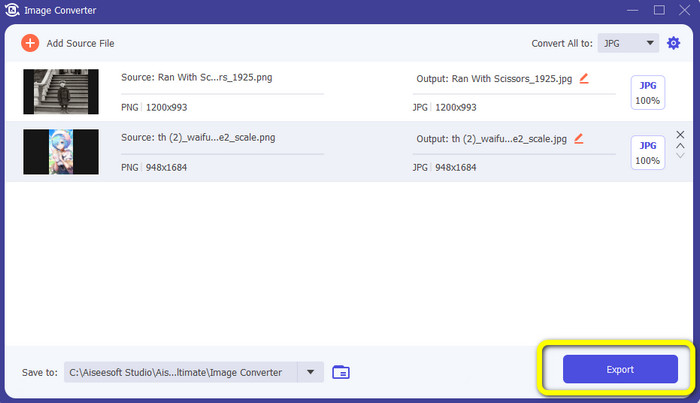
ステップ2: 画面にインターフェースが表示されたら、Toolboxパネルを選択します。その後、Image Converterツールを選びます。クリックすると、別の画面が表示されます。
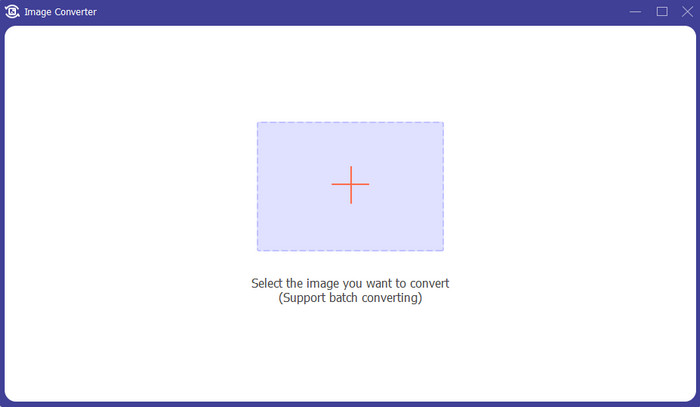
ステップ3: +アイコンをクリックします。パソコンのフォルダーが表示されたら、PNG画像を選択します。
ステップ4: 一括変換を行いたい場合は、Add Source Fileボタンをクリックします。続いて、Convert All toオプションに進み、JPGファイル形式を選択します。
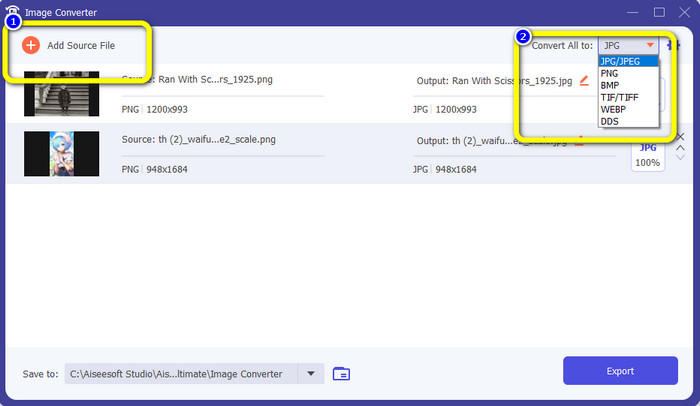
ステップ5: 変換後の写真を保存するには、Exportボタンをクリックします。その後、ファイルフォルダーからJPG画像を開くことができます。
パート 4. モバイル デバイスを使用して PNG を JPG に変換する
PNGtoJPG を使用して PNG を JPG に変換する
iPhone と Android を使用して PNG を JPG に変換する方法を知りたい場合は、PNGtoJPG アプリを使用してください。これは、iPhone および Android に適した無料のダウンロード アプリケーションです。画像ファイルを簡単かつ瞬時に変換できます。また、変換に不可欠な手順も備えています。このようにして、すべてのユーザー、主に非専門家ユーザーがこのアプリケーションを使用できます。さらに、PNGtoJPG アプリケーションは高速な変換プロセスを提供するため、便利です。残念ながら、他の画像コンバーターとは異なり、バッチ変換プロセスをサポートしていません。そのため、画像を手動で変換する必要があり、時間がかかります。
ステップ1: Apple StoreまたはPlayストアからPNGtoJPGアプリをインストールします。その後、アプリを起動します。
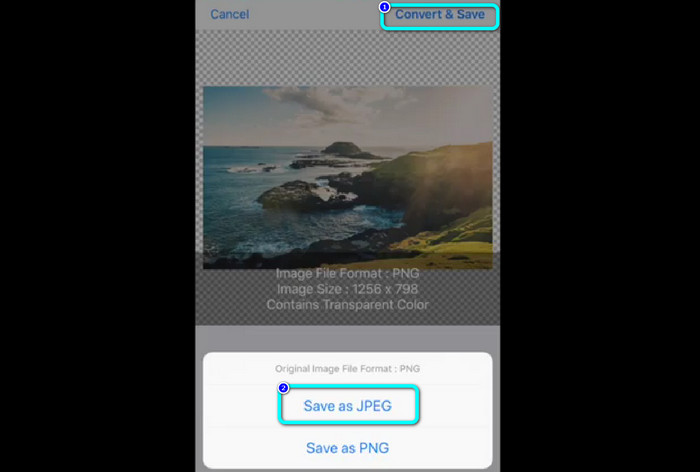
ステップ2: アプリ起動後、中央のインターフェースに表示されるLoad a photoオプションをタップします。すると、端末内の写真が画面に表示されます。変換したいPNG写真を選択します。
ステップ3: 画面右上にあるConvert & Saveボタンをタップします。次に、別のオプションが表示されたら、Save as JPEGを選択します。これでPNGをJPG形式に変換できます。JPGをPNGに変換する方法については、こちらをクリックして確認してください:convert JPG to PNG。
パート 5. PNG から JPG への変換に関する FAQ
1. PDF を JPEG に変換する方法は?
PDFをJPGに変換する最適な方法は、オンラインソフトウェアPDF Simpliを使うことです。Upload PDF to Uploadボタンをクリックし、フォルダーからPDFファイルを選択します。画面右上のConvertボタンをクリックします。最後に、フォーマットのオプションからJPG形式を選択します。
2. Windows 11/10 で PNG ファイルを開くにはどうすればよいですか?
最も簡単な方法は、パソコンのフォルダーを開くことです。PNG画像が保存されているフォルダーに移動します。その画像を右クリックし、Openオプションを選択します。
3. JPG ファイルを無料で変換するにはどうすればよいですか?
JPGファイルを無料で変換するには、FVC Free Image Converterを利用できます。変換が必要な画像が何枚あっても、料金が発生することはありません。
結論
以上が、オンラインおよびオフラインの画像コンバーターを使ってPNGをJPGに変換するためのベストな方法です。中でも、どこからでもアクセスできる画像コンバーターをお探しなら、FVC Free Image Converterの利用をおすすめします。
-
 JPEGをJPGに効率的に変換する[リストされた5つの方法]
 JPEG から JPG 画像ファイル形式への変換に関する最も簡単なチュートリアルをご覧ください。このガイドポストをクリックして、お好みの方法を学び始めてください。
-
 JPEG と JPG と PNG の違いに関する詳細
 この投稿では、JPEG と JPG と PNG の違いについて十分な情報を提供します。さらに、画像をこれらのファイルに変換する方法を学習します。
-
 8つの驚くべき画像コンバーター[完全な情報]
 このレビューでは、画像ファイルの変換に使用できる最高の画像ファイル コンバーターについて説明します。この投稿を読んで、あなたに最適な画像コンバーターを知ってください
