


 ビデオコンバーター究極
 スクリーンレコーダー
 ビデオ修復
ビデオ修復
 安全なダウンロード
最も素晴らしいツールを使用して驚くほど画質を修正
低画質の画像はかなり気になるものです。もしあなたの画像も低画質であれば、その画質を向上させる必要があります。でも、どうやって改善すればよいのでしょうか?パソコンで使える画像アップスケーラーは数多くあり、それらを使って画像の品質を上げることができます。「画像の画質を直すにはどうすればいいのか」と疑問に思っているなら、ここでそのお手伝いをします。この記事全体を読んで、すばやく画像の画質を直す方法を学びましょう。

パート1.オンラインで画質を無料で修正する方法
PCにダウンロードできる画像アップスケーラーはたくさんあります。ただし、画像の品質を向上させる前に、それらを購入する必要があります。無料の画像アップスケーラーを探しているなら、適切なツールがあります。この部分をよく読んで、2 つの最も優れたオンライン ツールを使用して画質を無料で改善する方法を学んでください。
FVC無料画像アップスケーラー
FVC Free Image Upscalerは、画像の画質を修正するのに役立つ無料のオンラインアプリケーションです。このオンラインツールは、ソフトウェアのインターフェースがシンプルで使いやすいため、初心者にも扱いやすいのが特徴です。さらに、2倍、4倍、6倍、8倍という4種類の拡大結果を得ることができ、優れた仕上がりを提供します。また、FVC Free Image Upscalerは安全に利用できることを保証しているので、データの安全性について心配する必要はありません。このツールの素晴らしい点は、AI技術を採用しており、ぼやけた部分を自動的に認識してくれるところです。加えて、失われたピクセルや色の質感、その他の細部をしっかり補正することができます。このツールを使って画像の画質を上げたい場合は、以下の手順を読んでください。
FVC Free Image Upscaler を使用してオンラインで写真の品質を修正する方法:
手順1. 使用しているブラウザで、検索ボックスにFVC Free Image Upscalerと入力して検索します。こちらのリンクをクリックすると、直接公式ページにアクセスできます。
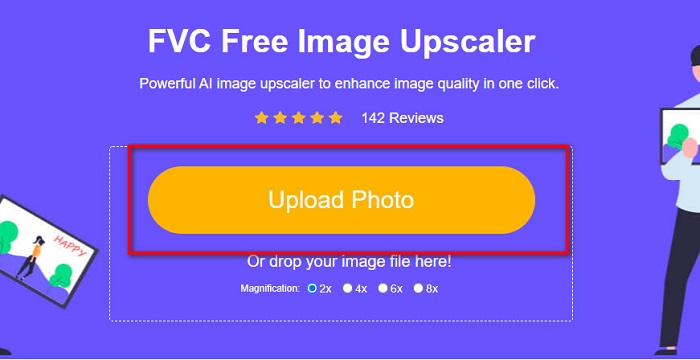
手順2. メインのユーザーインターフェースで、Upload Photoボタンをクリックし、アップスケールしたい画像をアップロードします。パソコン上のファイルが表示されるので、低画質の画像を選択してアップロードしてください。
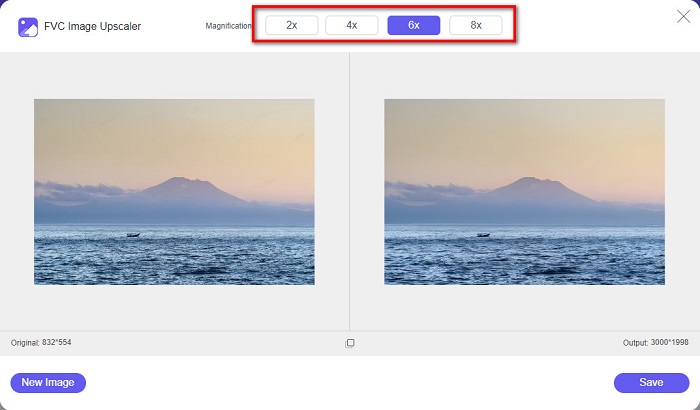
手順3. 次に、画像に適用したい倍率(magnification)を選びます。倍率が大きいほど、画質は良くなります。2x、4x、6x、8xの中から選択できます。
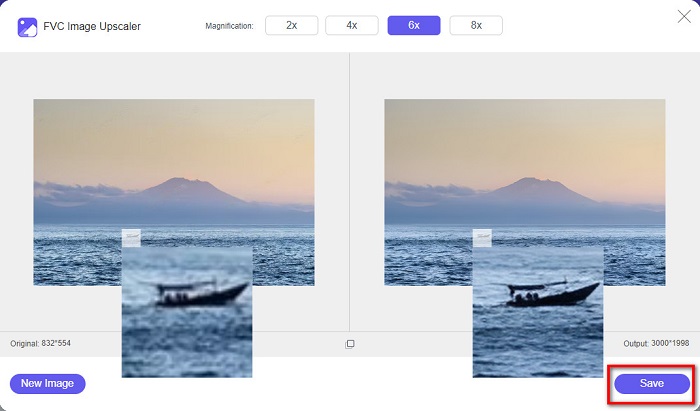
手順4. そして、Saveボタンを押して、改善された画像をパソコン内のフォルダーに保存します。
簡単ですよね?A-B-Cのように簡単な手順で、FVC Free Image Upscalerを使って画像の画質を修正できます。
Icons8.com
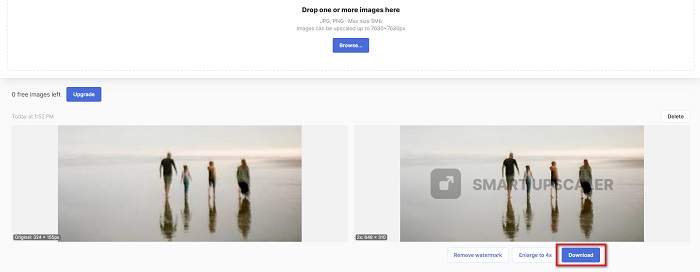
Icons8.comは、Google、Firefox、Safariなど、ほぼすべてのウェブブラウザからアクセス可能な、もう一つのオンライン画像アップスケーラーです。このオンラインアプリは、インターフェースがシンプルで使いやすいのが特徴です。また、このオンラインツールもAI技術を利用しており、画像のぼやけた部分を自動的に検出します。さらに、画像は最大7680 x 7680pxまでアップスケール可能です。ただし、出力される画像にはウォーターマークが入ります。それでも、画像をアップスケールするための有効なツールであることに変わりはありません。
Icons8.com の低品質の画像を修正する方法:
手順1. ブラウザを開き、Icons8.comと検索します。そして、メイン画面でBrowseボタンをクリックします。
手順2. Icons8.comもAI技術を採用しているため、画像のぼやけた部分を自動的に検出してくれます。
手順3. 最後に、Downloadボタンをクリックして、画像をパソコンに保存します。
パート 2. Photoshop で画質の悪い写真を修正する方法
品質のイメージを向上させることは難しくありません。しかし、Photoshop を使用して画像をアップスケールすることは、そのインターフェイスと機能のために非常に難しい場合があります。しかし、心配する必要はありません。Adobe Photoshop を使用して画像の品質を向上させる方法をお教えします。
Adobe Photoshopは、写真編集およびフォトレタッチに優れたソフトウェアです。この編集ソフトは、世界中の多くのプロの編集者に利用されています。さらに、画像編集に使える高度なツールが多数搭載されています。また、Adobe PhotoshopはWindows、Mac、Linuxなど、あらゆるプラットフォームにダウンロードして使用できます。バナー、ロゴ、パンフレットなどの制作もこの編集アプリで行うことができます。そして、多くのユーザーが意外と知らないのが、Photoshopで画像の画質も向上させられるという点です。ダウンロードするには購入が必要ですが、Adobe Photoshopはそれだけの価値があるソフトです。
Photoshop で低品質の写真を修正する方法:
このチュートリアルでは、画像を拡大して解像度を確認することで、画像の品質を向上させます。
手順1. パソコンにAdobe Photoshopをダウンロードします。インストール手順に従ってインストールし、完了したらアプリを起動します。
手順2. Adobe Photoshopで低解像度の画像を開きます。ここでは100%までズームしたサンプル画像を用意しています。ご覧のとおり、この画像は解像度が低くなっています。
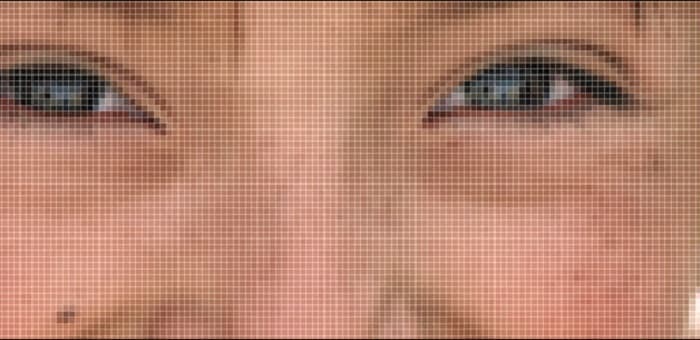
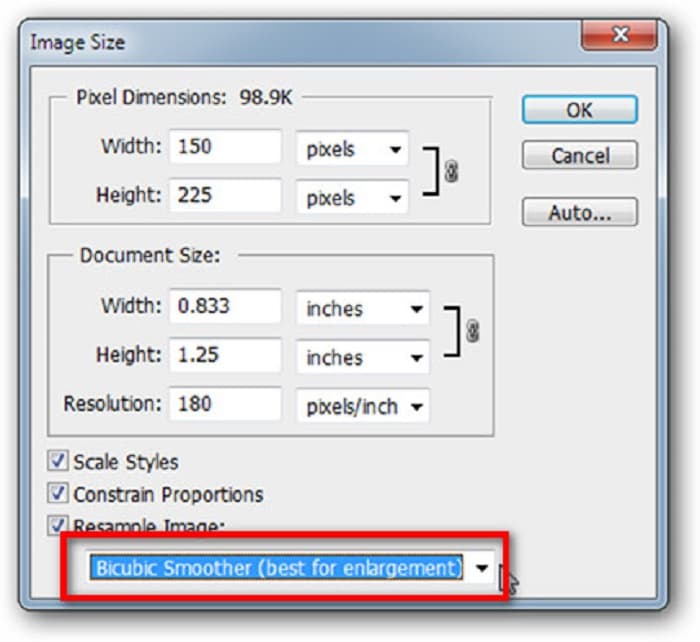
手順3. 次に、画像(Image) > 画像解像度(Image Size)を開きます。そして、Resample Imageで画像を拡大して滑らかにするために、アンチエイリアスの種類を変更します。拡大に最適なBicubic Smootherに変更してください。
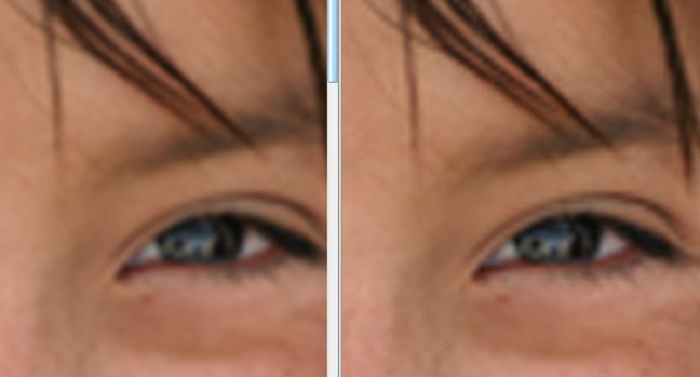
手順4. Bicubic Smootherバージョンに変更すると、下の2枚の画像の違いがわかるはずです。アンチエイリアスを変えるだけで、画像の滑らかさに大きな差が生まれます。
手順5. ここからは、拡大した画像のディテールを調整して、さらに質を高めていきます。多くのPhotoshopユーザーはRGBとCMYKしか使いませんが、今回は別のカラーモードであるLabカラー(Color)を使用します。画像(Image) > モード(Mode) > Lab Colorを選択します。
手順6. 次に、ウィンドウ(Windows) > チャンネル(Channels) > Lightnessチャンネルを開いていることを確認します。また、aチャンネルとbチャンネルの横にあるレイヤー非表示アイコンをクリックして隠すこともできます。
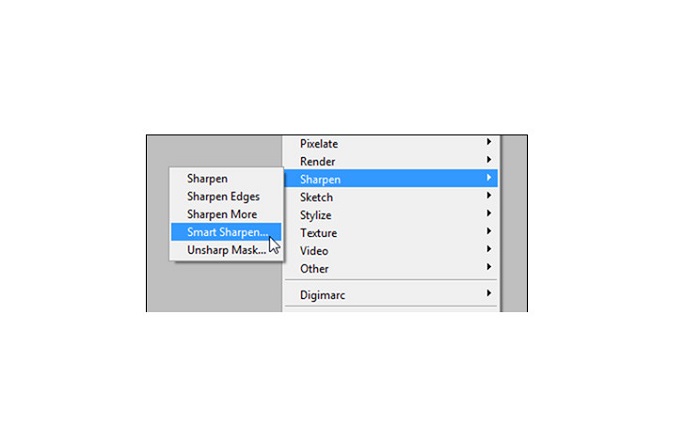
手順7. Lightnessチャンネルを選択した状態で、フィルター(Filter) > スマートシャープ(Smart Sharpen) > Sharpenに進み、Smart Sharpenフィルターを適用します。
手順8. その後、写真の設定を調整して、目的の仕上がりになるようにします。なお、Removeの設定は必ずGaussian Blurのままにしておいてください。
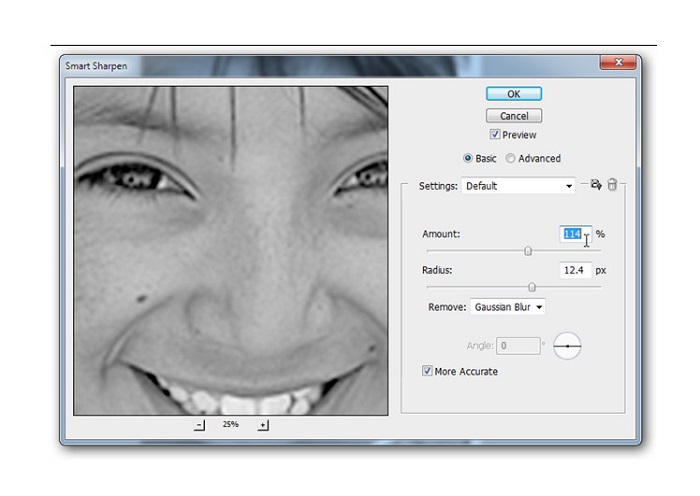
手順9. 画像をLab Colorのまま維持することも、RGBに戻すこともできます。これで完了です。仕上がった画像をご覧ください。画質が向上し、質感がより豊かになっているのがわかるはずです。

そして出来上がり! Photoshop で画質の悪い画像を修正する方法に関する上記のガイドに従うことで、画像の品質を向上させることができます。
パート 3. 画質を修正する方法に関する FAQ
iPhone の画質の悪い画像を改善できますか?
はい。画質の向上に役立つ多くのアプリを iPhone にダウンロードできます。最高の画像アップスケーラー アプリの 1 つは、ユーザー フレンドリーなアプリである Remini です。
JPEG画像の解像度を変更できますか?
アップスケールする任意の画像形式の解像度を変更できます。上記のツールを使用して、JPEG 画像の品質を向上させることができます。
Instagramの画質を修正するには?
Instagramで投稿する写真の画質を直したい場合は、プラグインのImage Resolution設定を、正しい解像度で表示できるようにより大きな画像サイズに変更します。次の場所から設定を行うことができます: Instagram Feed > Customize > Posts > Photos > Image Resolution。
結論
画像の画質を直す方法についての疑問にお答えできていれば幸いです。上で紹介したツールの中から、自分に最も合ったものを選んでください。Adobe Photoshopはよりプロフェッショナルなツールですが、決して初心者向けとは言えません。そのため、簡単に使える無料の画像アップスケーラーを使いたい場合は、FVC Free Image Upscalerをおすすめします。
-
 低解像度の画像をオンラインで高解像度に変換する方法
 低解像度の画像をオンラインで高解像度の画像に変換する方法を学びたい場合は、この記事が最適です。方法を学ぶために完全に読んでください。
-
 完全なチュートリアルを使用して、エクスポートされたビデオのDaVinciResolve透かしを削除します
 Davinci Resolve透かしを削除するには、ツールを使用するか、その公式バージョンを購入する必要があります。詳細については、これを読み続けてください。
-
 Power Director の透かしを無料で取り除く方法 [完全版]
 Power Directorの透かしを無料で削除するにはどうすればよいですか?透かしを削除するための最良のツールはここにあるので、これを読んでそれらを学びましょう。
