


 ビデオコンバーター究極
 スクリーンレコーダー
 ビデオ修復
ビデオ修復
 安全なダウンロード
写真から人物を削除してきれいな結果を出す方法
思い出に残る瞬間を記録することは、今の時代ほど簡単なことはありません。しかし、ときには望まない人物が大切な写真に写り込んでしまい、本来の主役から注意をそらしてしまうことがあります。人気の観光地、にぎやかな街並み、家族写真など、どんな場面であっても、写真から人物を削除して画面をすっきりさせ、より魅力的なビジュアルに仕上げたいというニーズが生まれます。
この記事では、写真から人物を効果的に削除するために何を使うべきかについて詳しく説明します。ユーザーフレンドリーなオンライン ツールからサードパーティ アプリまで、この記事を読めば、写真から人物や物体を削除する際の懸念事項に適した信頼できるツールが確実に見つかります。何を待っていますか? この記事にリストされているオンライン ツールとアプリを見つけて、プロ並みの結果を得る方法を学びましょう。

パート 1. 写真から人物を削除するオンラインの方法
FVCフリーウォーターマーク削除
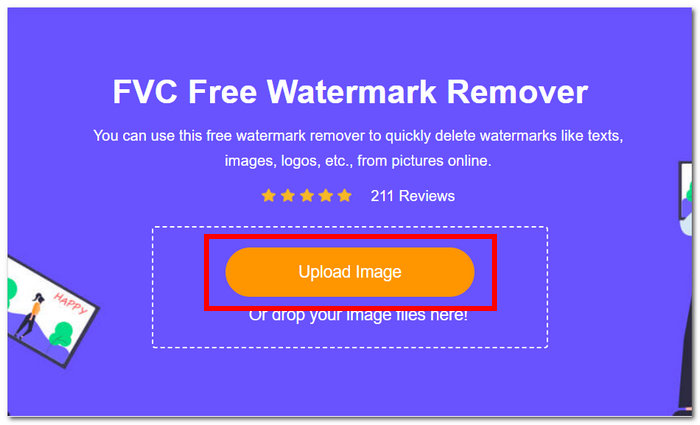
「FVC Free Watermark Remover」は、ローカル環境の任意のブラウザから無料で利用できるウェブベースのツールです。この無料透かし消去ツールは、写真からウォーターマークを削除できるだけでなく、写真から人物を消したいというニーズにも応えてくれます。FVC Free Watermark Remover は、JPG・PNG・BMP など、もっとも一般的に使われる画像形式に対応しています。ツールに搭載されたラッソツールを使うことで、画像内のテキストや不要な人物・オブジェクトを手動でなぞり、正確かつ精密に消去できます。写真から人物を削除する手順も、わずか 4 ステップだけです。必要なのはインターネット接続のみで、ソフトのダウンロードや有料プランの契約は不要なため、プロはもちろん初心者でも気軽に利用できます。
ステップ1. FVC Free Watermark Remover の公式サイトにアクセスし、指定のアップロード欄に編集したい画像をアップロードします。
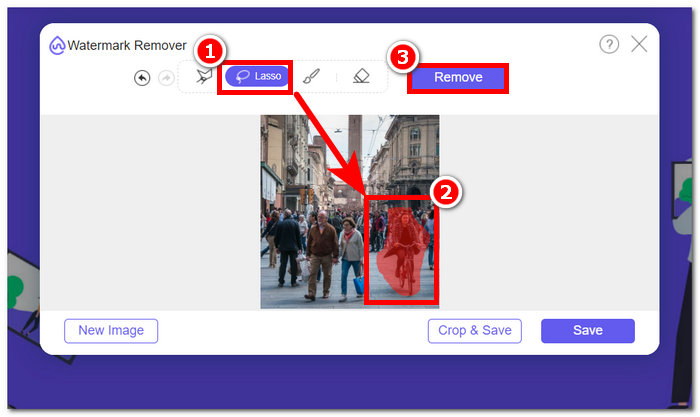
ステップ2. 画像がツール内に読み込まれたら、画面上部にある Lasso(ラッソ)ツールを選択し、削除したい人物やオブジェクトを手動でなぞります。
ステップ3. 選択した人物やオブジェクトは赤色でハイライトされ、削除対象になっていることが示されます。ナビゲーションツールバーにある Remove ボタンをクリックして、削除処理を実行します。
ステップ4. FVC Free Watermark Remover が自動的に人物やオブジェクトを削除したら、Save ボタンをクリックして、編集後の写真をデスクトップにダウンロードします。
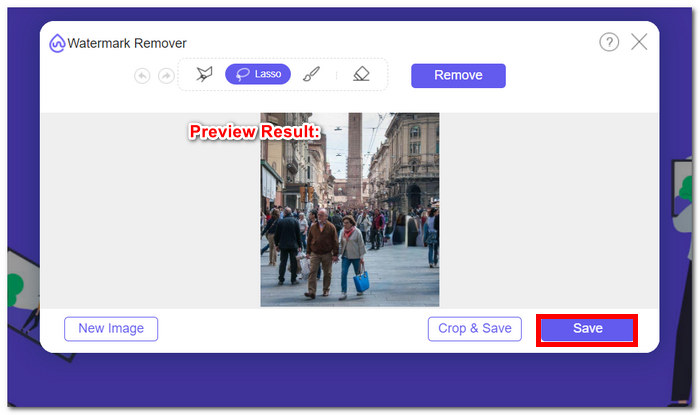
FVC Free Watermark Remover を使用すると、写真から人物を削除するなどの作業に時間を費やす必要はありません。実際、これらのツールは、品質を損なうことなく結果をエクスポートする高品質の画像を作成することに時間を優先します。
フォトルーム
PhotoRoom は、写真から不要な人物を簡単に削除するために特別に設計された強力な Web サービス ツールを提供します。このツールは、AI 機能を利用して、数回クリックするだけで不要なオブジェクトや人物をすばやく削除できます。マジック ブラシの助けを借りて、高度な写真編集スキルがなくても、大切な写真からオブジェクトを削除できます。
ステップ1. PhotoRoom の公式サイトにアクセスし、「Start from Photo」をクリックして、人物を削除したい画像をドラッグ&ドロップします。
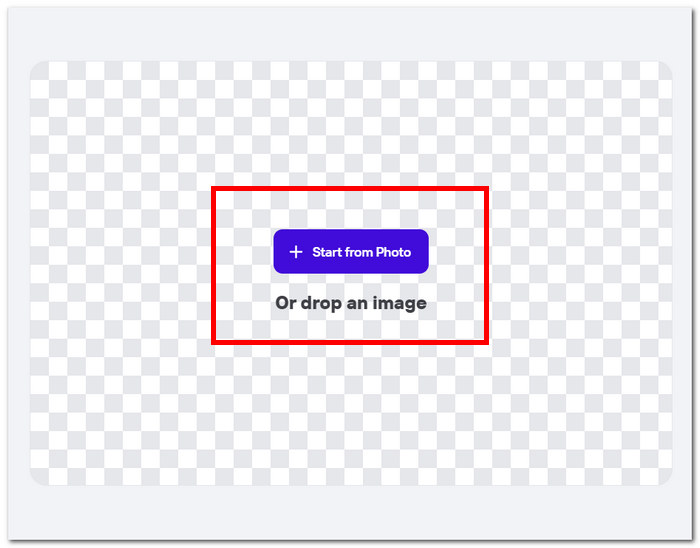
ステップ2. ツールに写真が読み込まれたら、削除したい人物をクリックします。不必要な人物やオブジェクトが含まれる部分をなぞると、自動的に処理が開始されます。
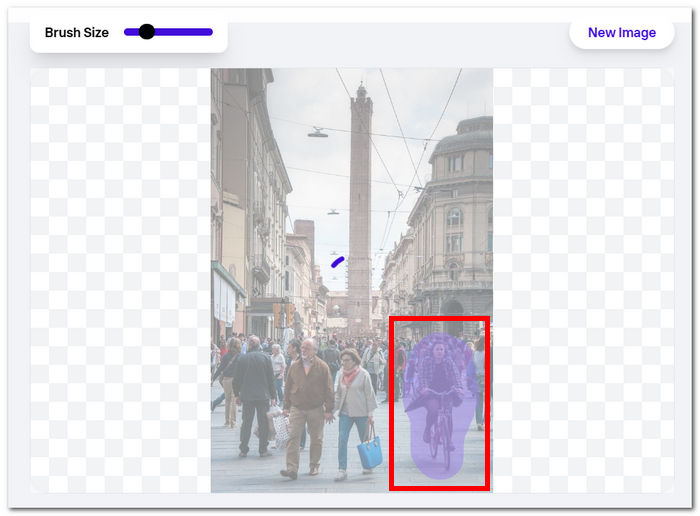
ステップ3. ツールが選択した人物やオブジェクトを自動的に消去してくれるので、あとは Download ボタンをクリックして画像を保存するだけです。
![[ダウンロード]をクリックします](/images/2024/04/click-downloadd.jpg)
PhotoRoom を使用すると、画像から不要なコンテンツを簡単に削除できるため、いつでもクリーンで邪魔にならない写真を実現できます。オンラインの写真から人物を削除するには、ツールについて知っておく必要がありますが、PhotoRoom は検討すべきツールの 1 つです。
ホットポット.ai
Hotpot.ai は、人物、不要なオブジェクト、ぼやけた被写体を簡単に削除します。高度な AI テクノロジーを利用して、写真をアップロードするとすぐに処理し、迅速かつ正確な編集を保証します。この合理化されたプロセスにより、写真のクリーンアップが簡単になり、すぐに洗練された結果が得られます。AI を使用して写真から人物を削除することは、このツールの自慢の機能の 1 つです。
ステップ1. Hotpot.ai のサイトにアクセスし、画像をアップロードするために、設定画面左上にある Media アイコンをクリックします。
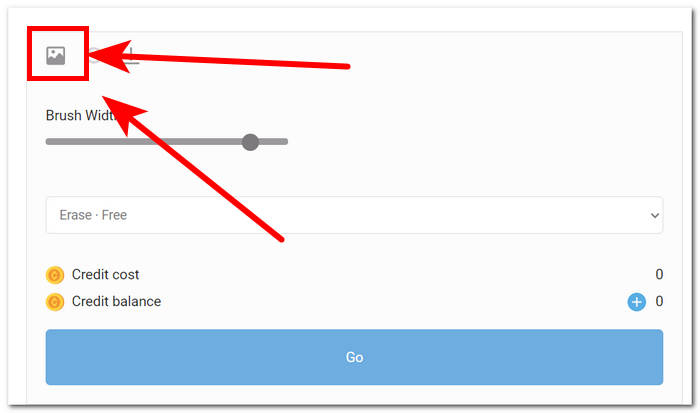
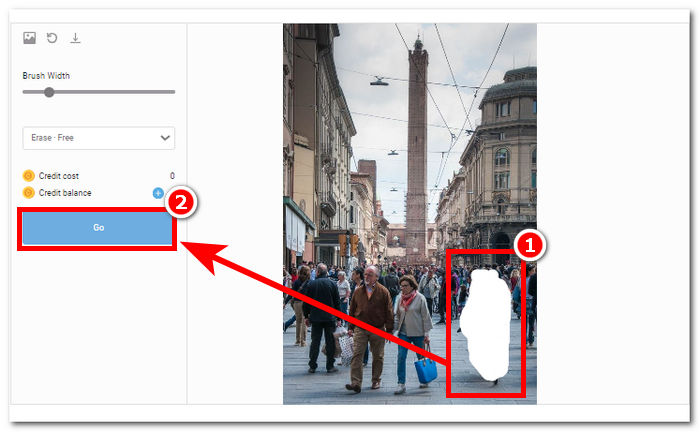
ステップ2. 削除したい不要な人物を、マウスでなぞって白いハイライトを重ねることで塗りつぶします。不要な人物を覆い終えたら、Go ボタンをクリックして画像の処理を開始します。
ステップ3. ツールによる処理が完了すると結果が表示されます。仕上がりに満足したら、画面左上の設定欄にある Download ボタンをクリックして画像をダウンロードします。
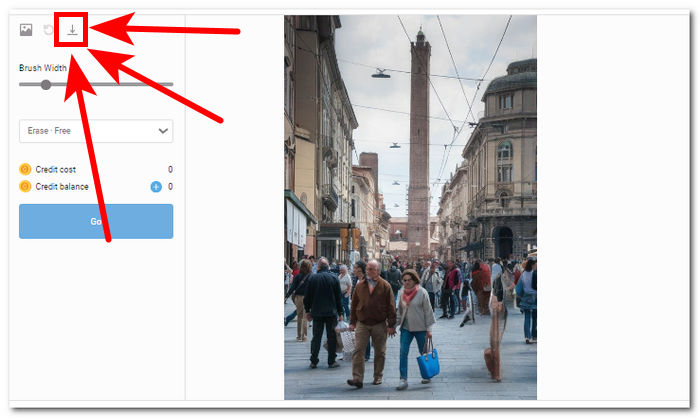
Hotpot.ai を使えば、プロ仕様のクオリティに近い画像を手軽に作成でき、写真作品全体の印象を高めることができます。気が散る要素とはお別れし、画質向上ツールを活用して、クリアで洗練された写真を手に入れましょう。
フォトエディター.ai
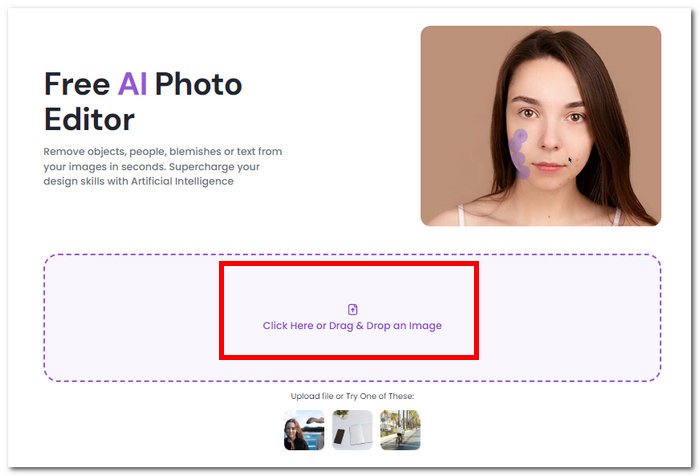
Photoeditor.ai は、基本的な写真編集機能だけでなく、写真を台無しにする不要なオブジェクトや人物の削除も提供しているため、正確な結果を提供します。その結果は、インターネットで利用できる有料オンライン ツールに匹敵します。このツールは、無料でサービスを利用できる信頼できるツールの 1 つです。必要なのは、インターネット接続と写真だけです。
ステップ1. Photoeditor.ai のサイトにアクセスし、ツール画面の「Drop an Image」と書かれた欄をクリックして編集したい写真を読み込みます。
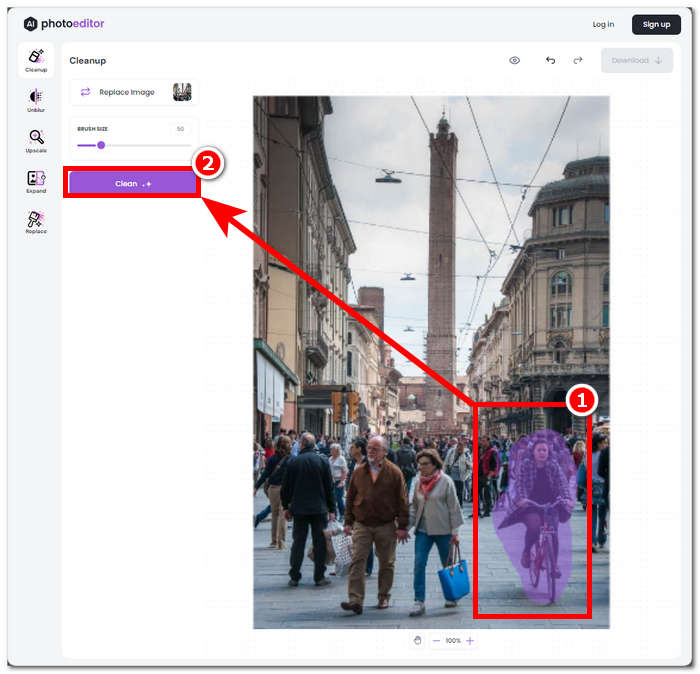
ステップ2. 写真がツールに読み込まれたら、画像内の不要な人物を手動で選択・トレースし、ツール画面左上にある Clean ボタンをクリックします。
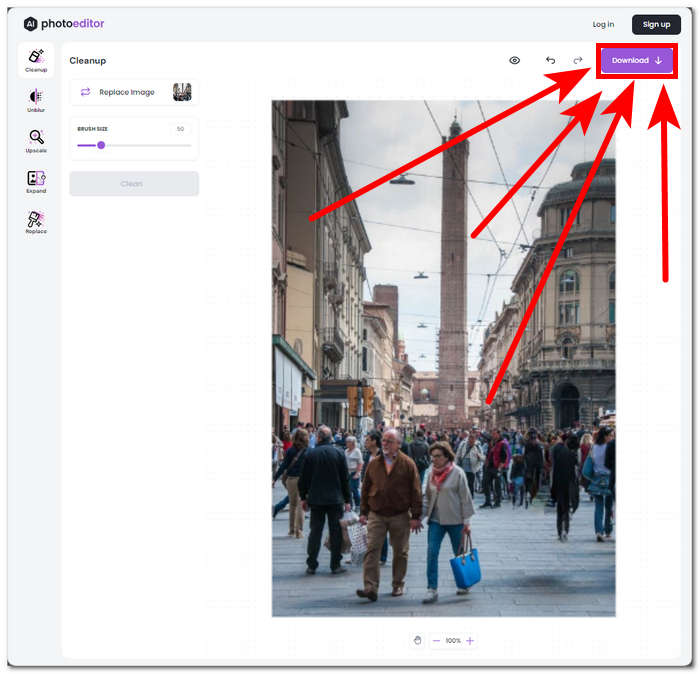
ステップ3. 処理が完了すると仕上がりをプレビューできます。結果に満足したら、Download ボタンのあるセクションをクリックして画像を保存します。
Photoeditor.ai は、画質の低下を心配することなく、不要なオブジェクトや人物を瞬時に削除できるシンプルなツールです。このツールは、テキスト削除や顔強調などの基本的な写真編集機能を備えたツールを探している方に最適です。
パート2. iOSとAndroidで写真から人物を削除する方法
写真編集とレタッチを修正
iPhone の写真から人物を削除するにはどうすればよいでしょうか。このアプリには、オブジェクトや人物の削除など、基本レベルからプロレベルまでの写真編集サービスが揃っています。モバイル デバイスにダウンロードできるこのアプリには、高度なレベルのオブジェクト削除、背景エンハンサー、顔や体のエンハンサーが含まれています。このアプリはプロの写真編集者を使用して写真を編集するため、オフライン アクセスはできず、最終的には料金を支払う必要があります。
ステップ1. App Store または Play ストアで、Fix The Photo Editor & Retouch アプリをダウンロードします。
ステップ2. Fix The Photo Editor & Retouch アプリを起動し、編集したい写真を選択します。その後、Remove Objects セクションに進み、「Remove People/ Object」を選択します。
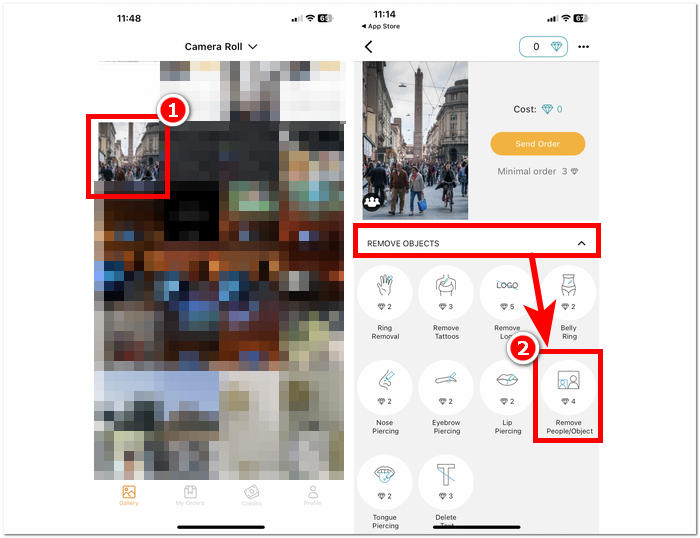
ステップ3. 写真から削除したい人物が写っているエリアをタップして指定します。不要なオブジェクトや人物の選択が終わったら、「Done」をタップして内容を確定します。
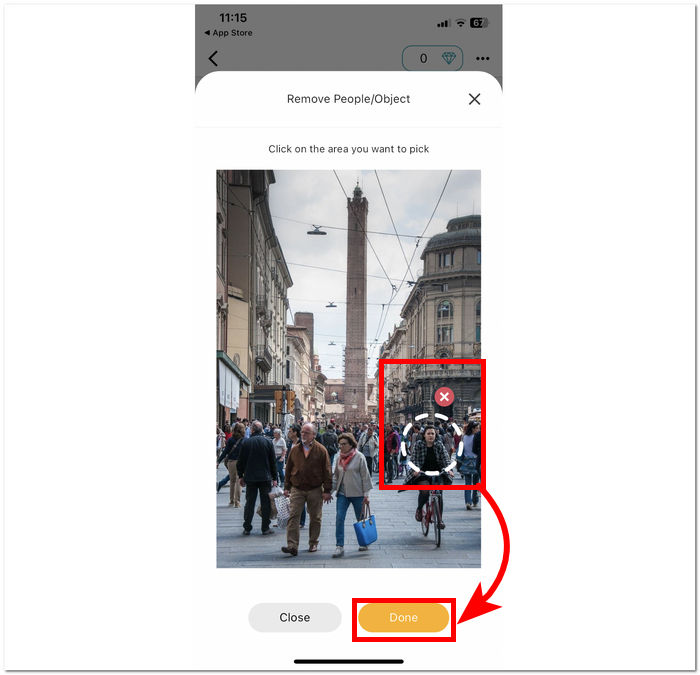
ステップ4. Send Order をタップし、作業依頼に必要な料金を支払うと、人物が削除された写真をダウンロードできるようになります。
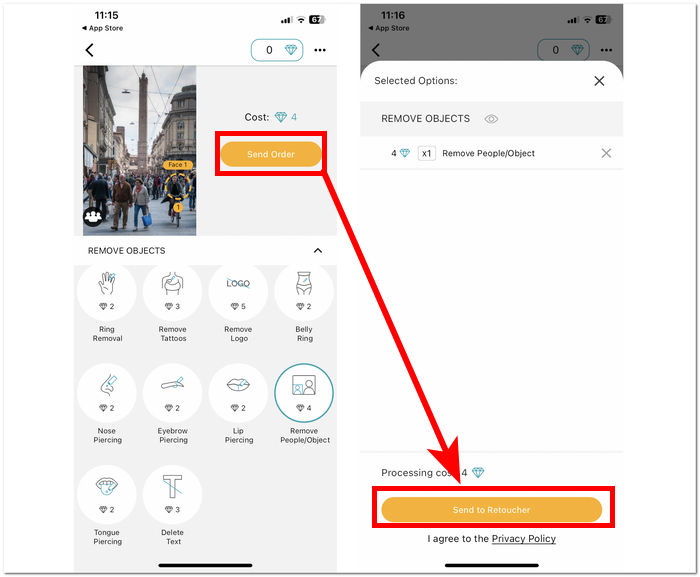
Fix The Photo Editor & Retouch は、写真から人物を削除できるだけでなく、AI ではなく実際のレタッチャーが作業を行って画像を最適化してくれる、信頼性の高いアプリとしても知られています。そのためサービスは有料ですが、無料トライアルを利用して仕上がりを試すことも可能です。
フォトディレクター
PhotoDirector アプリは、わかりやすいインターフェイスと機能で、写真から人物や不要なオブジェクトを簡単に削除できます。このアプリは、レイヤーを使用して写真を編集できるさまざまな効果を使用して、モバイル デバイスでオブジェクトをすばやく削除できます。このアプリはオブジェクトの削除に重点を置いているだけでなく、AI はプロレベルのスタイルを備えており、写真を正確に削除して編集できます。
ステップ1. iOS と Android のどちらでも、PhotoDirector アプリを無料でダウンロードして起動します。
ステップ2. アプリの画面で AI Removal をタップし、編集したい写真を選択します。
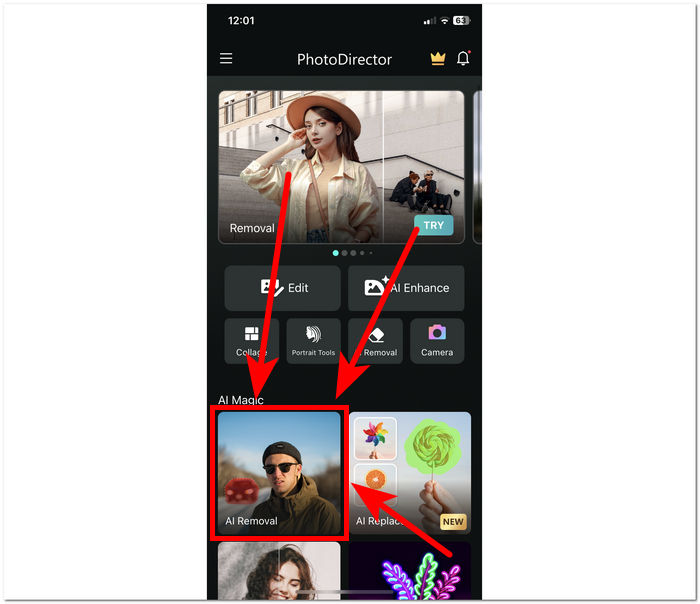
ステップ3. 写真が読み込まれたら、削除したい人物やオブジェクトを手動でなぞって選択します。
ステップ4. 人物やオブジェクトが赤くハイライトされたら、Remove ボタンをタップします。処理が完了したら、Remove ボタンの下にあるチェックマークのアイコンをタップして、編集済みの画像を端末のギャラリーに保存します。
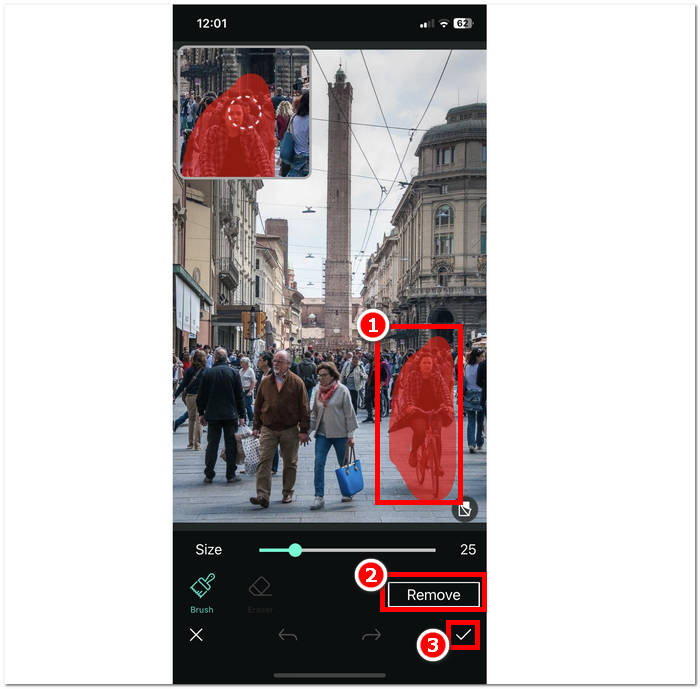
PhotoDirector アプリには、人物の削除以外にもさまざまなタスクを完了するためにこのアプリを選択する理由となる、便利な機能が複数あります。iPhone の写真から人物を消す方法などの質問がありますか? このアプリは不要なオブジェクトを問題なく削除することに優れているため、問題にはなりません。アプリの機能の多様性は、処理速度を妨げる可能性があるため、パフォーマンスを妨げることがあります。
不要なオブジェクトを削除する
このアプリは、写真から不要な被写体を簡単に削除し、不要な人物を簡単に消すことができます。 Remove Unwanted Object は、人物だけでなく、写真からオブジェクト、ステッカー、テキストも削除します。 Android デバイスに無料でダウンロードでき、初心者に最適なわかりやすいインターフェイスを備えています。
ステップ1. Android デバイスの Play ストアから、Remove Unwanted Object アプリをダウンロードして起動します。
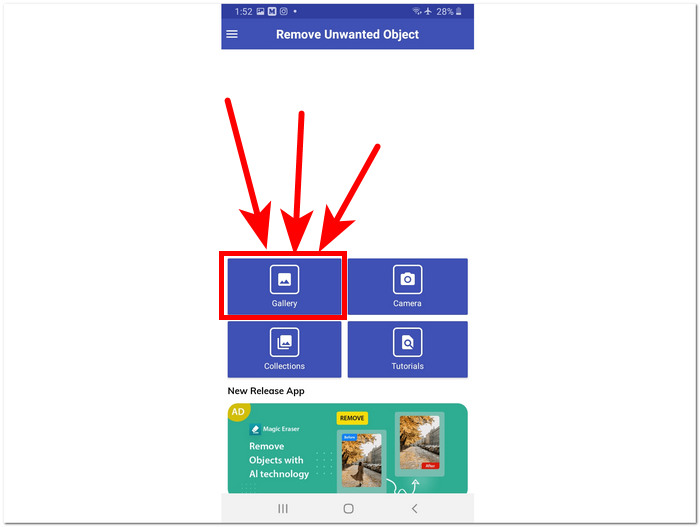
ステップ2. アプリ画面に入ったら、画面上の Gallery アイコンをタップし、編集したい写真を選択します。
ステップ3. 写真がアプリに読み込まれたら、画面下部にある Lasso ツールをタップし、削除したい人物やオブジェクトをなぞって指定します。
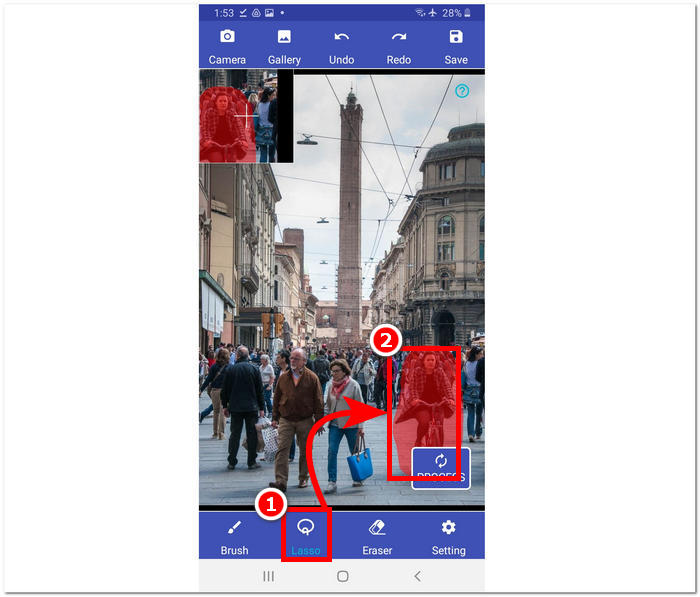
ステップ4. Process ボタンをタップして選択範囲を削除し、右上にある Save ボタンを押して、編集後の写真をギャラリーに保存します。
![[保存]ボタンをクリックします](/images/2024/04/click-save-buttonn.jpg)
Remove Unwanted Object は、不要なオブジェクトを削除するシンプルなソリューションを提供します。ただし、このアプリには広告が付属しており、ユーザー エクスペリエンスが損なわれる可能性があることに注意することが重要です。
レタッチ - オブジェクトの削除
Retouch - Remove Objects は、モバイル デバイスに無料でダウンロードでき、強力な機能を多数提供します。この革新的なアプリは、最先端の AI テクノロジーと精密なブラシ ツールを活用し、オブジェクトの削除をこれまで以上に簡単かつ効率的にします。直感的なインターフェイスと迅速な結果により、シームレスな編集がこれまでになく簡単になりました。
ステップ1. Android デバイスに Retouch - Remove Objects アプリをダウンロードし、インストール後に起動します。
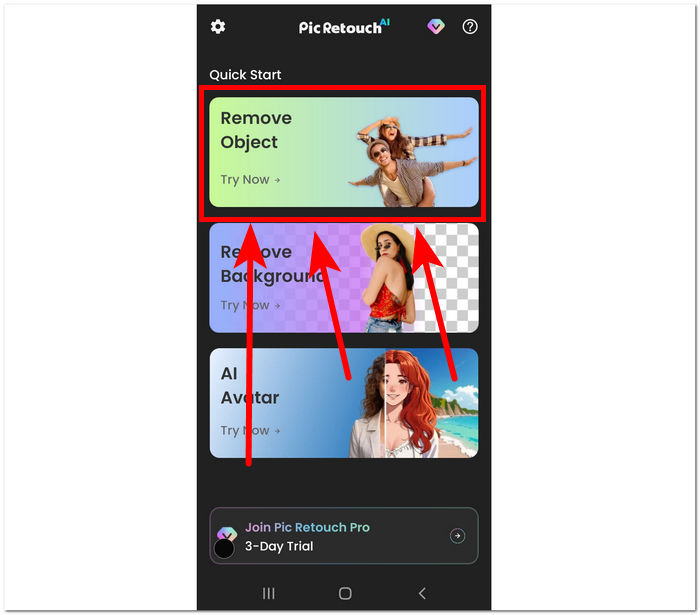
ステップ2. アプリの画面で Remove Object セクションをタップし、ギャラリーから編集したい写真を選択します。
ステップ3. 写真がアプリに読み込まれたら、画面下部の AI Remove オプションをタップします。その後、「Remove object」を選び、削除したい人物やオブジェクトの周囲をなぞります。最後に Remove ボタンをタップして削除処理を開始します。
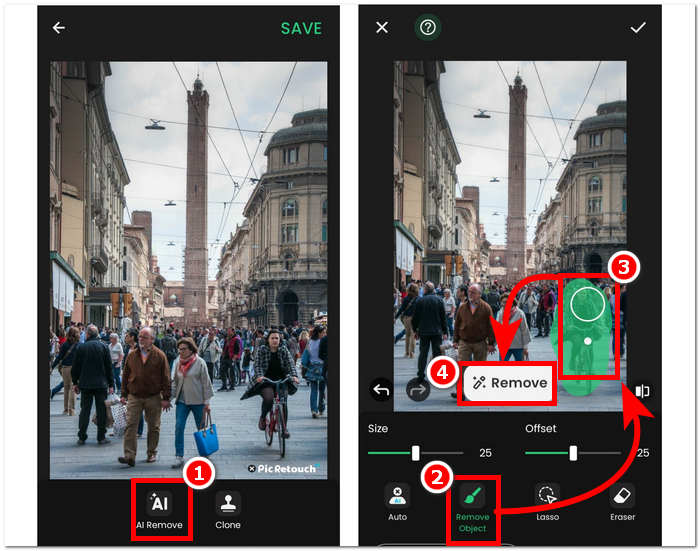
ステップ4. 処理が完了したら、右上に表示されるチェックマークをタップして、編集済みの写真を端末のギャラリーへ保存します。
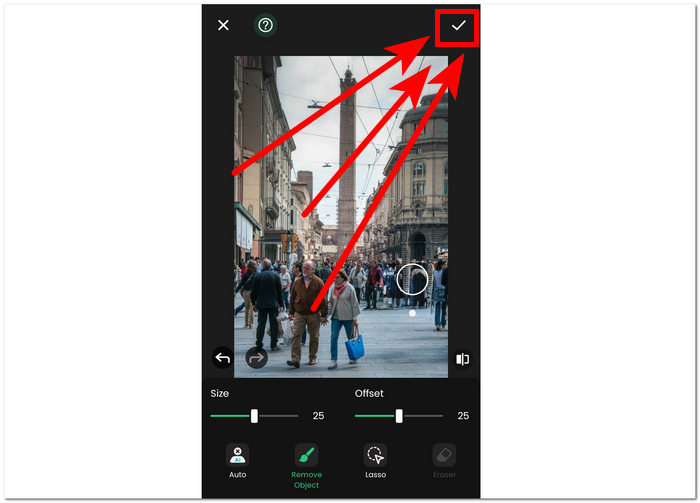
Retouch - Remove Objects は、アプリ内に広告が表示される代わりに、Android デバイスで無料で利用できるアプリです。それでも、オブジェクト削除や背景削除、絵文字の削除、AI アバター生成といった作業をシンプルな操作で行えるのが特徴です。
パート3. 写真から人物を削除することに関するよくある質問
iPhoneにはオブジェクト消しゴム機能がありますか?
いいえ、iPhone の最新モデルにはオブジェクト消しゴム機能が組み込まれていません。ただし、写真からオブジェクトを削除する同様の機能を提供するサードパーティ製アプリがあるかどうか確認して調べてみるといいでしょう。
写真から人物をPhotoshopで消すことは可能ですか?
はい、Adobe Photoshop やその他の写真編集ソフトウェアを使用して、写真から人物を Photoshop で消すことができます。人物の周囲の領域を慎重に選択して編集することで、背景の完全性を維持しながら、人物を画像からシームレスに削除できます。
iPhone の切り抜き機能では背景全体が保持されますか?
iPhone の特定の編集アプリで利用できる切り抜き機能は、通常、背景を削除しながら被写体をそのまま残すことを目的としています。ただし、背景全体を保存できるかどうかは、背景の複雑さや切り抜きツールの精度などの要素に依存します。
写真から人物を削除するのは難しいですか?
難易度は、背景の複雑さ、写真の品質、ユーザーの編集スキルなどの要素によって異なりますが、適切なツールとテクニックを使用すれば、シームレスな結果を実現できます。
グループ写真から複数の人を削除できますか?
はい、1 人の人物を削除するのと同じ手法を使用して、グループ写真から複数の人物を削除することができます。ただし、最終結果がシームレスに見えるようにするには、より多くの時間と精度が必要になる場合があります。
結論
まとめると、写真から人物を削除することは、大切な思い出の写真をさらに美しく整え、修正するための可能性を大きく広げてくれます。オンラインツールでもモバイルアプリでも、適切な手段を選べば、不要な要素を取り除いて、よりクリーンで印象的な画像を生み出すことができます。自分に合ったツールを活用することで、プロ並みの仕上がりを簡単に実現でき、写真本来の主役をしっかりと引き立たせることができるでしょう。本記事で紹介したさまざまな選択肢を試しながら、不要な写り込みのない、洗練された美しい写真づくりに挑戦してみてください。
-
 高速かつ正確な結果をもたらす画像背景除去ツールトップ 9
 最高性能の背景画像消しゴムの速さと正確さを体験してください。複雑な背景消しゴムとはお別れして、今日から 9 つの効率的な方法を取り入れましょう。
-
 Windows/Mac/オンラインで画像からテキストを削除する方法
 画像内の気を散らすテキストに別れを告げましょう。テキスト削除用にシームレスに設計されたこれらのスムーズなソリューションを使用して、画像からテキストを削除する方法を確認してください。
-
 画像から背景を削除する方法: 手間のかからないツール
 あらゆる画像から背景を簡単に削除できる 6 つのツールをご紹介します。複雑な編集作業はもう必要ありません。今すぐ画像の背景を簡単に削除しましょう。
