


 ビデオコンバーター究極
 スクリーンレコーダー
 ビデオ修復
ビデオ修復
 安全なダウンロード
Web とデスクトップで画像のサイズを変更する 6 つの最も効果的な方法
何十億もの有名な写真をダウンロードできるので、私たちのほとんどは美しい画像を撮りますが、そのサイズが私たちが最も好むものではない場合があります.ユーザーは、エディタを使用して画像の高さ、幅、縦横比を調整することで画像のサイズを変更しようとしたため、画像の PPI が変更されました。結果は誰もが期待したものではありません。高精細画像はピクセル化されます。
なぜでしょうか?それは、彼らがリサイズに使ったエディターでは、リサイズ後の画像に生じるピクセルの空白を新たに生成したり埋めたりすることができないからです。そのため、このトピックに関する質問が多くなり、そこで私たちがこの問題の解決をお手伝いします。本記事では、最終的な出力に一切歪みが残らないように画像をリサイズする方法を、実際に手を動かしながら学んでいきます。

パート1.Webでアクセスしてオンラインで画像のサイズを変更できる最高の写真リサイザー[3つの無料ツール]
ここに追加するこれらのオンライン ツールは、デバイス上のさまざまな Web ブラウザーで利用できます。また、これらは無料ですが、制限なく使用するには購入が必要なツールがあります。それにもかかわらず、これらはあなたが持っている画像のサイズ変更を開始するためにアクセスできる有能なオンラインツールです.手順を読んで、それらの使用方法を理解してください。
1. FVC Free Image Upscaler - Web で最高の画像リサイザー [有利なオプション]
FVC Free Image Upscaler Online は、人工知能を搭載したオンラインのウェブツールで、画質を落とさずに素早く画像をリサイズできます。このウェブツールに画像ファイルをアップロードすると、自動的にリサイズしてくれます。オンラインツールでありながら、リサイズの処理速度は速く、結果も優秀です。ここにアップロードした画像は、リサイズ後にサーバー上から自動的に削除されます。また、非常にクリーンで汎用性の高いリサイザーを備えており、異なるデバイスを使っていても、インターネット環境さえあればアクセスできます。このソフトがどのような性能を発揮するのか見てみたいですか?それなら、以下の手順を読み、同じように操作して、手早く効率的に画像サイズを変更してみましょう。
FVC Free Image Upscaler を使って画像をリサイズする方法:
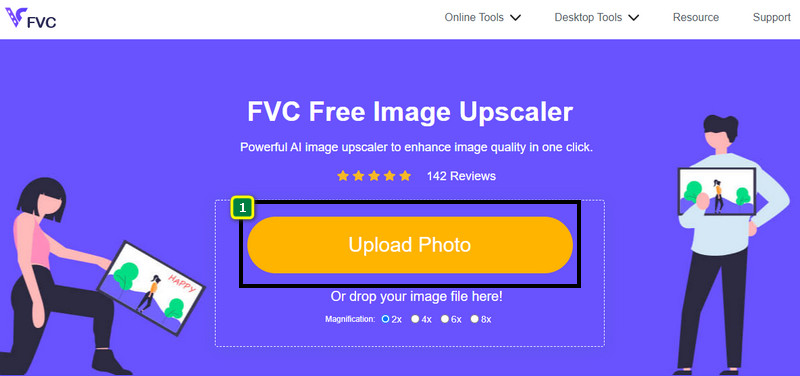
ステップ1. ウェブツールにアクセスするには、このリンクをクリックします。自動的に公式サイトのリサイザーページへ移動します。
ステップ2. Add Imageをクリックするとフォルダが表示されるので、アップロードしたい画像ファイルを選択し、Openを押します。
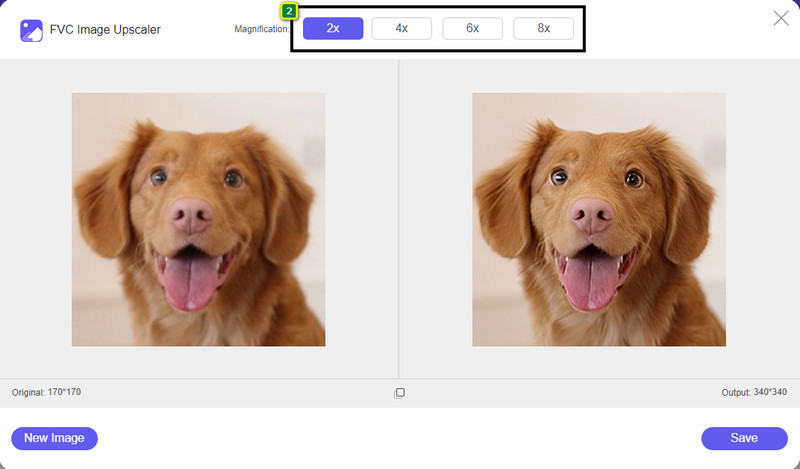
ステップ3. 画像サイズを変更するには、適用したい拡大倍率を選択します。2x、4x、6x、8x をクリックして試してみると、画像全体の寸法が変わるのが確認できます。
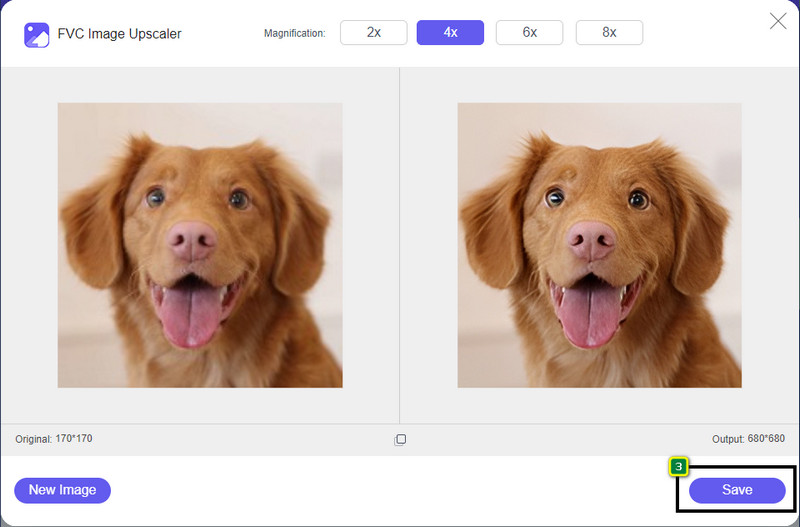
ステップ4. 適用したい倍率を選択したら、あとはSaveを押すだけで、リサイズ後の画像をデスクトップドライブにダウンロードできます。
2. Be Funky - フォトエディター [無料 & 有料]
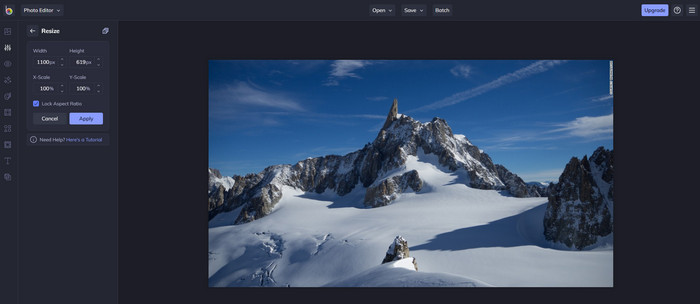
Be Funky - Photo Editor は、画像を使ってさまざまなクリエイティブなことができるプラットフォームです。画質を落とさずに BMP をリサイズすることも可能です。オンラインで利用できる画像編集ツールの中でも優れたもののひとつとされており、Photoshop に似たインターフェースを備えていますが、機能自体はシンプルで分かりやすく、ユーザーフレンドリーと言えるでしょう。このオンラインツールを使って簡単に画像をリサイズしてみたい方は、以下の手順に従ってください。
Be Funky を使って画像をリサイズする方法:
ステップ1. ブラウザでツール名を検索し、Get Started and Edit Photoをクリックします。
ステップ2. Openを押して、ここでリサイズしたい BMP もしくは任意の画像をアップロードします。
ステップ3. Edit に移動し、Resizeオプションをクリックします。
ステップ4. ここで画像の幅と高さ、または x・y スケールを自由に変更できます。その後、Applyを押して、リサイズ後の画像がどう見えるか確認します。
3. 簡単画像リサイズ【無料】
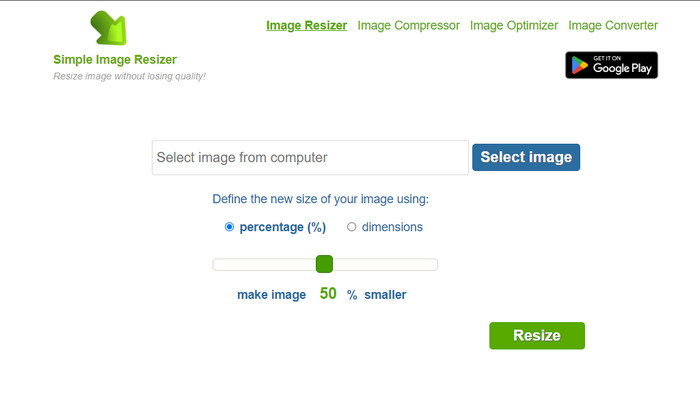
Simple Image Resizer を使うと、パーセンテージまたは数値(寸法)を変更して、新しいサイズを指定することで画像をリサイズできます。本記事で紹介する最後の画像リサイザーです。インターフェースがシンプルで、操作も容易なことが、ここで取り上げた主な理由です。リサイズ機能に加えて、画像の最適化、圧縮、変換も無料で行えますが、サイト上に煩わしい広告が表示されます。このオンラインリサイザーを試してみたい場合は、以下の手順に従ってください。
Simple Image Resizer を使って画像をリサイズする方法:
ステップ1. ブラウザでツール名を検索し、このウェブリサイザーの利用を開始します。
ステップ2. Select Imageを押して、ここでリサイズしたい写真を追加します。
ステップ3. リサイズに使いたい方法を選択し、パーセンテージまたは寸法を変更します。どちらを選んでも、結果としては同じようにリサイズされます。
ステップ4. Resizeをクリックして、最終的な出力をデスクトップに保存します。
パート 2. Windows および Mac で画像のサイズを変更する方法 [有料および無料のオフライン]
最初に紹介した 3 つのオンライン ツールとは異なり、次に紹介するツールはインターネットに依存しないため、インターネットがなくても問題なく使用できます。それらはダウンロード可能であるか、デスクトップにプリインストールされているためです。それぞれに追加された情報を読んで、今日それらを使用する方法を学びましょう。
1. アドビ フォトショップ [Windows & Mac]
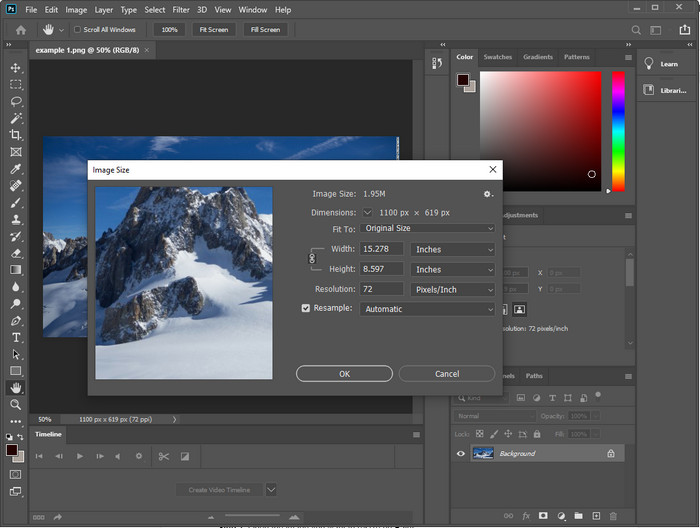
デバイスにダウンロードして使える最初のオフライン用画像リサイザーとしておすすめなのが、Adobe Photoshopです。その理由は、リサイズ時に新たなピクセルデータを生成し、処理の最後に低画質な仕上がりになるのを防いでくれるからです。さらに、このソフトウェアは、ラスタ画像・ベクター画像を問わずプロフェッショナルに扱える画像編集ツールとして広く知られています。ただし本格的なプロ向けソフトであるため、単にリサイズ目的だけで購入するには、ややオーバースペックで高価かもしれません。それでも Photoshop での画像リサイズ方法に興味がある方は、次の手順を確認してください。
Adobe Photoshop を使って画像をリサイズする方法:
ステップ1. 公式サイトにアクセスして、ソフトウェアをダウンロードし、デスクトップにインストールします。
ステップ2. Fileをクリックし、Openを選んだ後、フォルダから画像を見つけて開きます。
ステップ3. 上部メニューのImageをクリックし、Image Sizeを選択します。
ステップ4. 幅(Width)と高さ(Height)の数値を好みに合わせて変更し、OKをクリックして変更を適用します。
ステップ5. 再度Fileに戻り、画像をデスクトップに保存します。
2. ペイント [Windows の既定のアプリ]
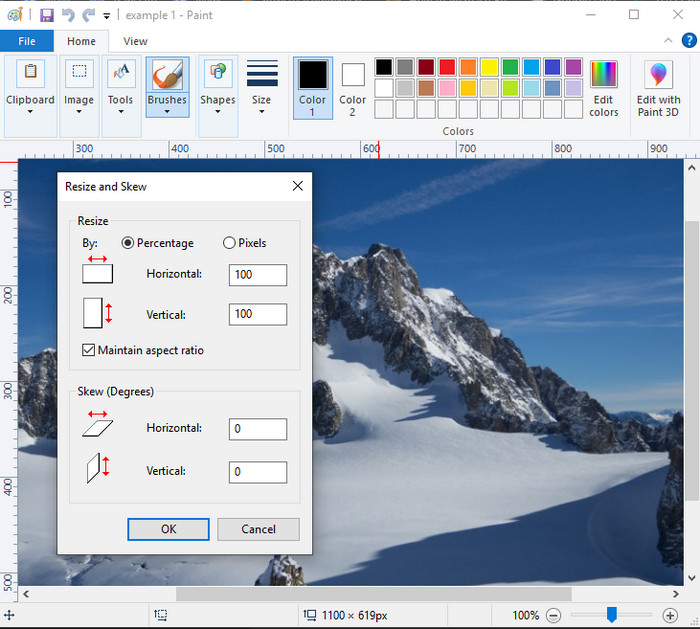
Paint は、空白のキャンバスに絵を描けるアプリケーションとして知られています。Windows ユーザーの多くが、真っ白なページに何かを描いたり、画像に要素を追加したり、画像を任意のサイズにリサイズしたりするために、日常的に利用しています。専用の高度なエディターというわけではありませんが、ローカルドライブにある任意のラスタ画像をリサイズすることは可能です。Paint の利点は、Windows にはあらかじめプリインストールされているため、新たにソフトをダウンロードする必要がない点です。このアプリで解像度の低い画像をリサイズする方法を知りたい場合は、以下のチュートリアルを読んでください。
Paint を使って画像をリサイズする方法:
ステップ1. リサイズしたい画像を Paint で開きます。
ステップ2. 画像を開いたら、二つの四角形のアイコンをクリックし、ここで開いている画像のリサイズを開始します。
ステップ3. 画像をリサイズするには、パーセンテージまたはピクセル数で変更します。数値を変更したら、OKを押して変更を適用します。
ステップ4. 保存アイコンをクリックして、ここでリサイズした画像を書き出します。
3. プレビュー [Mac の既定のアプリ]
Preview は、Mac で画像をリサイズする際に頼りになる標準アプリです。macOS に新たなアプリをインストールしたくない場合は、このアプリを使うとよいでしょう。過小評価されがちな解決策ですが、デスクトップ上の写真をきちんとリサイズできます。使い方を覚えておけば、このソフトウェアの潜在能力を最大限に引き出せるようになります。このツールの動作に興味がある方は、次の情報をご覧ください。
Preview を使って画像をリサイズする方法:
ステップ1. Mac 上の画像を右クリックし、Open withを選択してから、Previewをクリックします。
ステップ2. 上部メニューでToolsをクリックし、Adjust Sizeを選択します。
ステップ3. 必要に応じて画像の寸法を変更し、OKを押して変更内容を保存します。
パート 3. 追加: Android および iPhone でダウンロードできるトップ画像リサイザー
1.写真・画像リサイズ【Android版】
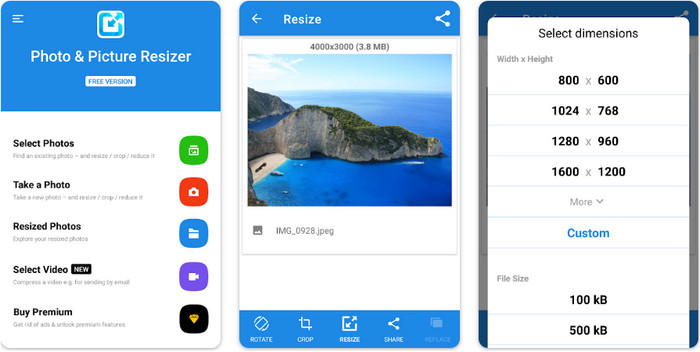
Photo & Picture Resizer は、Android デバイスに保存されている画像を素早く簡単にリサイズできるアプリのひとつです。リサイズ初心者でも、このアプリをダウンロードして、画像リサイザーとして問題なく使えます。基本的な機能は無料で利用できますが、追加機能を使いたい場合はアプリ内課金が必要です。総合的に見て、リサイズ機能は優れており、初回でもすぐに使いこなせるでしょう。
2.画像リサイズ無料【iPhone】
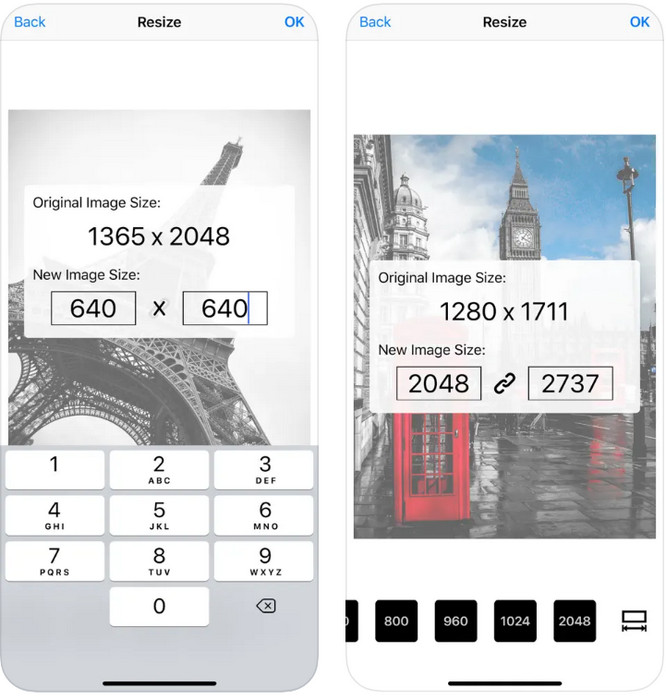
Image Resizer Free は、iOS 7.0 以降で利用できる iOS 向けアプリです。画像リサイズに特化したアプリで、多くの iOS ユーザーに利用されています。主な機能はリサイズのみで、それ以外の追加機能はほとんどありません。ツール自体は使いやすいものの、元の画像をリサイズ後の画像で上書き保存できない点について、不満の声も上がっています。
パート 4. 画像のサイズを変更する方法に関する FAQ
ラスターとベクターのどちらの形式がサイズ変更に適していますか?
ラスター形式は、画像の外観を作成するために小さなピクセルで構成されており、サイズや寸法を変更すると、これらのピクセルが引き伸ばされて見えるようになります。ベクトル画像のサイズを変更する場合とは異なり、画像を混乱させることなくサイズ変更および拡大するために特別に作成されています.
BMP のサイズをオンラインで変更できますか?
はい、ここに追加したオンライン ソリューションを使用して BMP のサイズを変更できます。ただし、画像を拡大すると、BMP はラスター画像であるため、ピクセル化される傾向があります。したがって、BMP ファイルのサイズ変更の問題を回避したい場合は、FVC Free Image Upscaler Online を選択することをお勧めします。これは、サイズ変更された BMP の最終出力にピクセル化を残さないためです。
画像をリサイズするとファイルサイズは大きくなりますか?
はい、そうです。主な理由は、サイズを変更した画像によって、実際の出力に追加のピクセル データが追加されるためです。それでも、そのファイル サイズは元のファイル サイズと大差ありません。
結論
どの画像リサイズ方法が自分に合っていると思いますか?ここで紹介したリサイザーの中から選んでみてください。インターネット環境の選択に迷っている場合には、その性能の高さから、FVC Free Image Upscaler Online の利用を強くおすすめします。このウェブリサイザーを使えば、リサイズ作業で困ることはほとんどないでしょう。
-
 1440p 画像 – 必要な包括的な情報 [2022 年更新]
 1440p 画像について知りたいですか?またはどこで入手できますか?画像を 1440p にしますか?これを読んで、それらのすべてを知ってください。
-
 3 Best Photo Unpixelator を使用して画像のピクセル化を解除するチュートリアル
 ピクセル化された画像の処理に問題がありますか?今日、私たちは問題を解決しました。ここに追加したツールを使用できます。
-
 3つの方法を使用して写真の画像をシャープにする方法[クイックチュートリアル]
 鮮明でない画像に問題がありますか?ここでは、追加した 3 つの方法を使用して、Photoshop で画像をシャープにする方法を紹介します。
