


 ビデオコンバーター究極
 スクリーンレコーダー
 ビデオ修復
ビデオ修復
 安全なダウンロード
品質を損なうことなくTwitter用に画像のサイズを変更するための最高の写真リサイザー
「つぶやき」は鳥が発する旋律的な音ですが、鳥の話ではありません。今日は、Twitter ユーザーの最も一般的な問題について説明します。このマイクロブログ Web サイトには、すでに 2 億 1,700 万人以上のユーザーがいて、考え、アイデア、問題、洞察などを共有することを楽しんでいます。ここからニュースにアクセスすることもできます。
他社は、自社の製品やサービスの広告を掲載したり販売したりして、このウェブサイトを通じて簡単にユーザー層へリーチできるため、本サイトを積極的に活用しています。しかし、多くのTwitterユーザーや企業は、画像が規定サイズに合わないために、ここに画像を投稿する際に問題を抱えています。そこで本記事では、インターネット上で無料で利用できるオンラインツールや、モバイル端末にダウンロードできる無料ツールを使って、Twitter用に画像サイズを変更するさまざまな方法をご紹介し、サポートいたします。

パート 1. Twitter 用にオンラインで画像のサイズを変更する究極の方法 [編集者の選択]
FVC Free Image Upscaler は、Twitter向けに画像を変更・リサイズするのに最適な画像リサイズツールです。画像の縦横サイズをTwitterに適した比率に変更する性能は、市場で私たちが試してきたリサイズツールの中でもトップクラスです。高いパフォーマンスとAIによるサポートにより、このリサイザーをWeb上で使用すれば、最高の出力結果が得られるでしょう。自分の端末で使えるのか気になりますか?もちろんです。このウェブツールは、お使いの端末の任意の検索エンジンからアクセスできます。このウェブツールの利用に興味がありますか?それでは、以下のチュートリアルに従って、具体的な使い方を確認しながら学んでいきましょう。
FVC Free Image UpscalerでTwitter用画像をリサイズする手順:
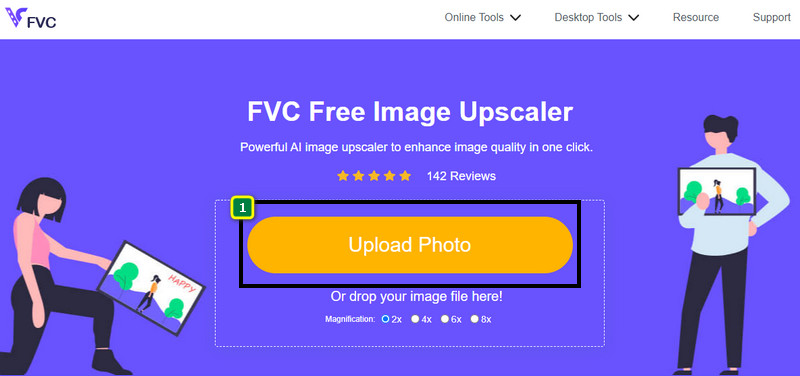
手順1. このリンクをクリックしてウェブツールを開きます。公式サイトへ直接アクセスでき、安全に利用できますので心配はいりません。
`手順2. 次に、Add Imageを押して、リサイズしたいTwitter用の画像をアップロードします。AIが画像のアルゴリズムを解析するまで、読み込みが完了するのを待ちましょう。
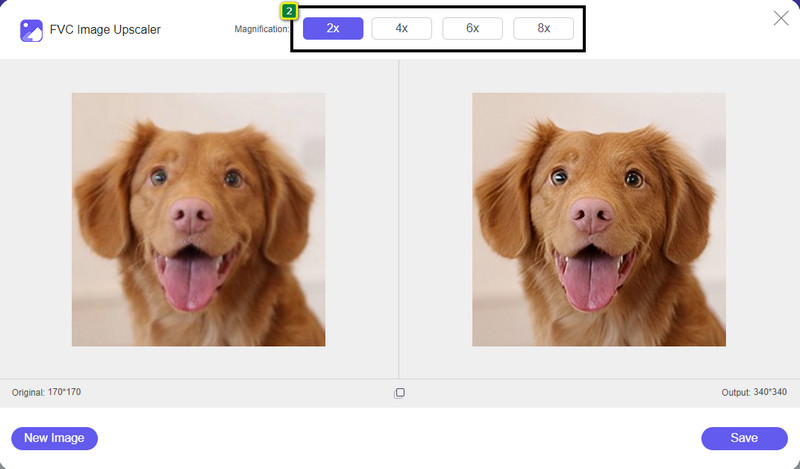
手順3. アップロードした画像をリサイズするには、使用したいオプションをクリックします。画面中央上部付近に、ここで説明しているオプションが表示されます。どれが自分の基準に最も合うか確認するために、すべて試してみることをおすすめします。
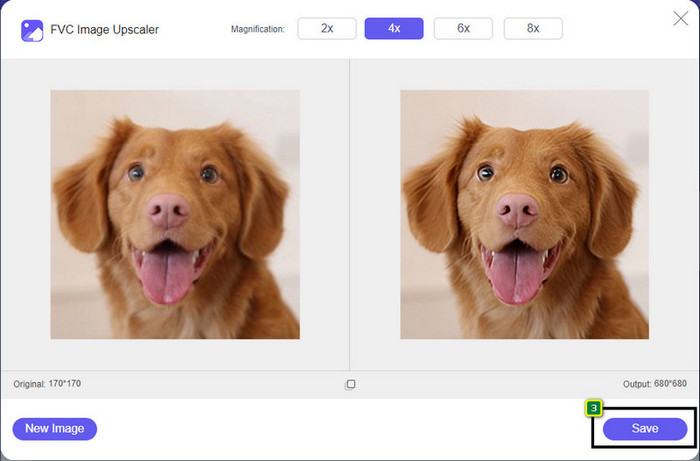
手順4. リサイズした画像を保存するには、Saveボタンを押します。ローカルドライブへ自動的にダウンロードされるので、保存先フォルダを開いて仕上がりを確認してください。
パート 2. Twitter 用に Android で画像のサイズを変更する方法 [最も簡単な方法]
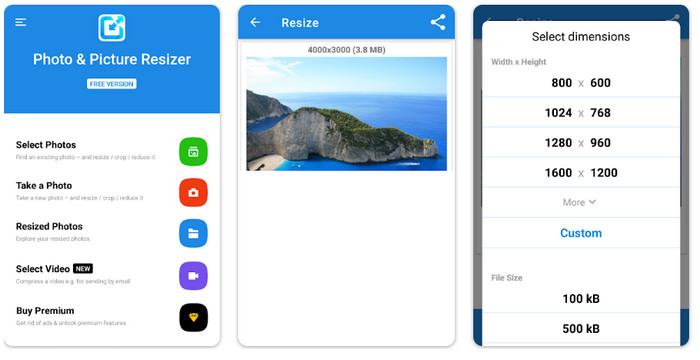
Photo & Picture Resizerは、Android端末でTwitterのプロフィール画像などを素早くリサイズするのに最適なアプリです。このエディターでは、用意されているオプションを使うか、自分でカスタマイズすることで、希望どおりのサイズに画像を変更できます。さらに、1枚だけを縮小することも、複数枚を一括処理することも可能です。ダウンロード後は、直感的な設計になっているため、操作に迷うことはほとんどありません。ただし、無料版では広告が表示され、一部機能に制限があります。それでも、Twitterの要件に合う画像サイズへ変更するという目的においては、十分に役立つアプリです。
Photo & Picture ResizerでTwitter用画像をリサイズする手順:
手順1. 端末にリサイズアプリをダウンロードして起動し、Select PhotoをタップしてからOKを押し、リサイズしたい画像を読み込みます。
手順2. 画像がアップロードされたら、四方向矢印のアイコンを選択して、画像サイズを変更します。
手順3. 画面にサイズの一覧が表示されるので、好みのサイズを選択します。選択したオプションに合わせて写真がリサイズされ、その後、自動的に処理が行われてギャラリーに保存されます。
パート 3. Twitter 用に iPhone で画像のサイズを変更する方法 [最も簡単な方法]
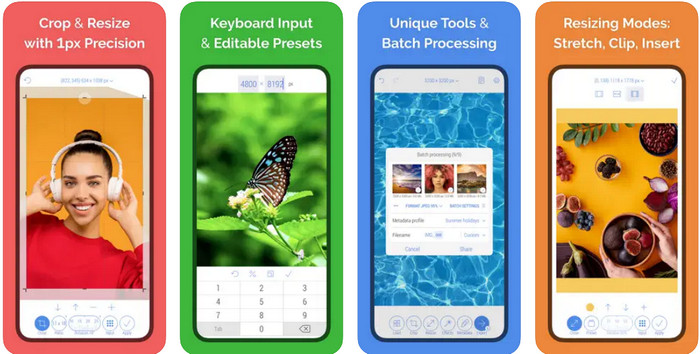
CropSize: Photo Resizer Editorは、画像をトリミングおよびリサイズして、理想的なサイズに整えたいときに役立つアプリです。この画像リサイズツールを使えば、Twitterのプロフィール画像、広告、投稿用画像などに合わせて、画像の縦横サイズを自由かつ正確に調整できます。このアプリには、1枚の写真はもちろん、複数枚を一括で編集できる機能も備わっています。iPhoneの画像を高解像度にアップスケールしたい場合や、Twitter用に画像サイズを変更する方法を知りたい場合は、以下の手順に従ってください。
CropSizeでTwitter用画像をリサイズする手順:
手順1. App Storeで本アプリを検索し、iPhoneにダウンロードしてから起動します。
手順2. 起動したら、アルバム内の画像から対象の写真を選択し、チェックマークをタップします。
手順3. Resizeオプションをタップして画像のサイズを調整します。ここでは、プリセットを選択したり、スライダーで相対的なサイズを変更したり、数値を直接入力して指定することもできます。
手順4. エクスポートボタンをタップして、リサイズ済みの画像をiPhoneに保存します。
パート 4. Twitter の写真のサイズを変更する方法に関する FAQ
Twitterのプロフィール写真のサイズは?
画像で Twitter がトリミングされないようにするには、画像がトリミングされないように、ファイル サイズが 2 MB 未満の 400 x 400 ピクセルの既定のプロファイル サイズを使用する必要があります。ディメンションは小さいかもしれませんが、このコンテンツで必要なものをすべて最適化する必要があります.
Twitterでサポートされている画像形式は何ですか?
JPEG/JPG、PNG、静的またはループ GIF 形式の画像を Twitter にアップロードできます。写真が前述の形式でない場合は、画像を JPG、PNG、GIF などの一般的な形式に簡単に変換する方法を学ぶ必要があります。
Twitter ヘッダーに推奨される画像ピクセルは何ですか?
アカウントにヘッダーをアップロードしたい Twitter ユーザーの場合は、画像を 1500 x 1500 ピクセルに設定して収まるようにすることをお勧めします。より大きな高さと長さの写真をアップロードできますが、写真がヘッダーに合うように端を切り取る必要があります。
結論
要約すると、Twitter があらゆる目的に合わせて設定した標準に合わせて、Twitter 用に画像のサイズを変更する必要がある理由がわかりました。 Twitter のサイズ変更を使用して画像を切り取って、投稿に適したものにする必要があります。したがって、画像の一部の詳細が完全に削除されます。ただし、サイズを変更する場合は、紹介したサンプルのサイズ変更ツールのように画像を永久にトリミングすることを心配する必要はありません。また、Web、Android、iPhone で画像のサイズを簡単に変更できるように、それらを使用する方法の手順を追加します。それらをテストして、どれが最適かを確認できます。このトピックに関する提案はありますか?以下でそれについて言及し、私たちと話し合ってください。
-
 最高のフォトリサイザーアプリオンライン、オフライン、Android、iPhone
 最高の写真サイズ変更アプリは何ですか?ページをクリックして、ファイルの補正やサイズ変更に使用できる最も強力な写真リサイズ アプリのトップ 5 を確認してください。
-
 画像のサイズを変更する方法 – Adobe 画像のサイズ変更 [オンラインおよびオフライン]
 アドビのサイズ変更画像を探している場合は、解決策があります。この投稿をよく読んで、PC で Adobe を使用して画像のサイズを変更する方法を学んでください。
-
 Facebookの写真のサイズを変更する方法[すばやく簡単な手順]
 Facebook に大きなサイズの画像をアップロードするのに問題がある場合は、解決策があります。 Facebook 用に写真のサイズを変更する方法については、この記事を最後までご覧ください。
