


 ビデオコンバーター究極
 スクリーンレコーダー
 ビデオ修復
ビデオ修復あなたが見逃してはならないWMVをMOVに変換するトップの無料で使いやすいコンバーター
Microsoft Windows Media Audio(WMA)とMicrosoft Windows Media Video(WMV)は、MicrosoftがASFコンテナ向けに開発した圧縮オーディオおよびビデオ形式です。WMVまたはWMAファイルがWindows Media VideoおよびWindows Media Audioコーデックでエンコードされると、拡張子.asfで表されます。Microsoftによって作成されたこれら2つのビデオ形式は、特定のビデオプレーヤーでのみ再生できるか、限られたソフトウェアやオンラインコンバーターでしか変換できません。しかし、信頼できる安全なコンバーターを探していてWMVをMOVに変換したいのであれば、この記事はまさにあなたにぴったりです。詳しく知るために読み進めてください。

パート1。WMVとMOVの簡単な紹介
WMVファイル拡張子は、1つ以上のMicrosoftのビデオ圧縮形式を使用して圧縮されたWindows MediaVideoファイルを表します。たとえば、一部のサードパーティプログラムでは、ビデオをWindowsに保存するための一般的な形式であるため、簡単なアニメーションを保存するためにこれを利用しています。外観はWindowsMediaビデオファイルと似ていますが、Windows Mediaオーディオファイルはオーディオデータのみで構成され、ビデオは含まれていません。これらのファイルにはWMA拡張子が使用されます。
一方、QuickTime File Format(QTFF)はマルチメディアコンテナファイル形式であり、MOVファイルはQuickTime File Format(QTFF)で保存されたムービーファイルです。1つ以上のトラックが格納され、それぞれに異なるメディアデータ(ビデオ、オーディオ、テキスト(字幕)など)が含まれます。MOVファイルは映画やその他の動画ファイルの保存によく使われており、簡単に見つけることができます。
パート2。MacとWindowsでWMVをMOVに変換する最良の方法
本記事では、WMVをMOVに変換したいMacユーザー向けにVideo Converter Ultimateを提案します。このソフトにはWindows版とMac版の両方があり、無料でダウンロードできます。ユーザーフレンドリーなインターフェースと使いやすいツールのおかげで、幅広いユーザーが利用できるソフトウェアです。このソフトには、幅広い動画形式に対応し、他のアプリケーションやWebサービスとは異なり1分以内でファイルを変換できるビデオコンバーター機能が搭載されています。さらに、動画をより一層向上させるための追加機能も多数備えています。ソフトウェアの説明に目を通したと仮定して、さっそく始めましょう。
ステップ1 下記の無料ダウンロードアイコンを右クリックして、ダウンロードを開始します。このソフトはWindowsとMacintoshの両方のマシンで動作します。ダウンロード後に今すぐ開始オプションをクリックすれば、すぐにインストールして使用を開始できます。
無料ダウンロードWindows 7 以降に対応安全なダウンロード
無料ダウンロードMacOS 10.7 以降に対応安全なダウンロード
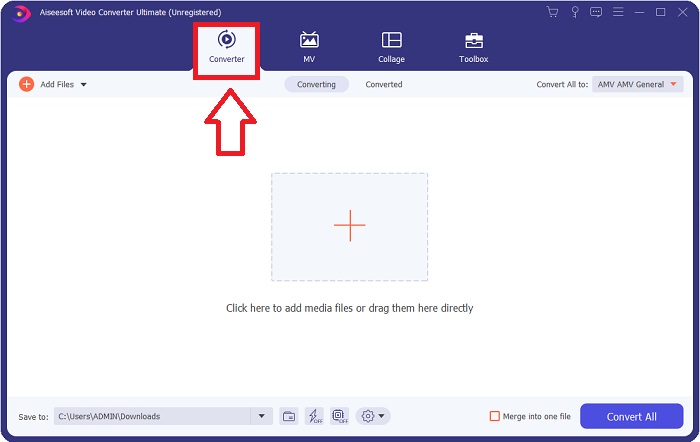
ステップ2 ソフトをダウンロードしたら、起動してください。ソフトを初めて開いたとき、この情報がウィンドウに表示されます。変換したい動画ファイルを入力して、変換プロセスを開始します。
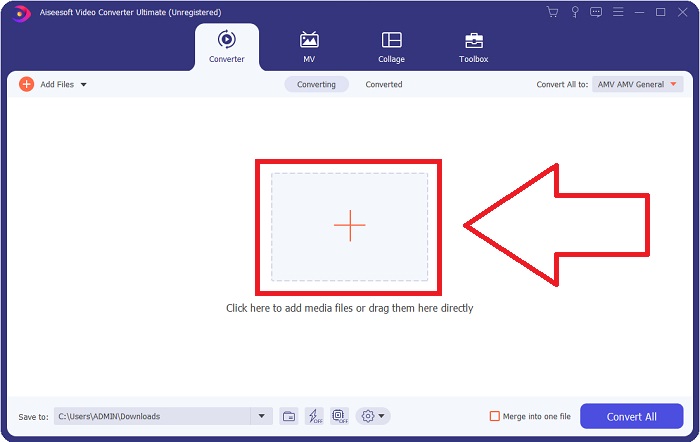
ステップ3 変換したいファイルの読み込みから始めます。変換したい動画ファイルをドラッグ&ドロップして、+マークの上に置くことで変換プロセスを開始します。
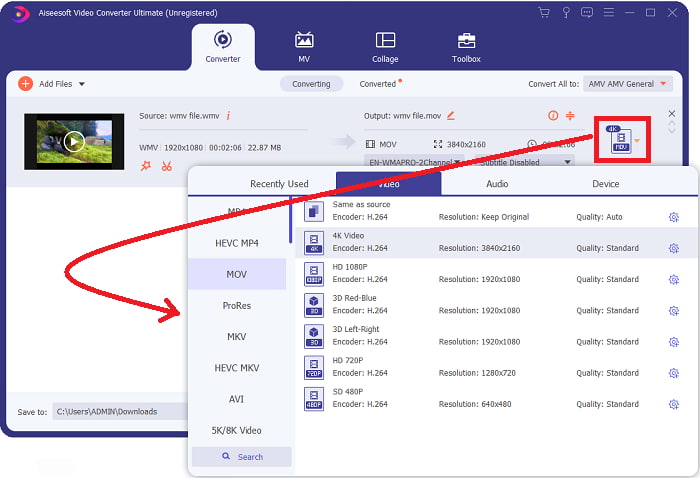
ステップ4 画面右上エリアにオプションメニューが表示され、そこで再生したいビデオ形式を選択できます。表示されるドロップダウンメニューから、ビデオ形式としてMOVを選択してください。選択したMOVファイルに応じて、さまざまな画質レベルを選ぶことが可能です。希望するビデオ出力がない場合は、Windows側で画質設定を調整できます。右上の歯車アイコンを選択して、フレームレートやオーディオ品質を調整できます。変更が完了したら、新規作成ボタンを使用して設定を保存します。
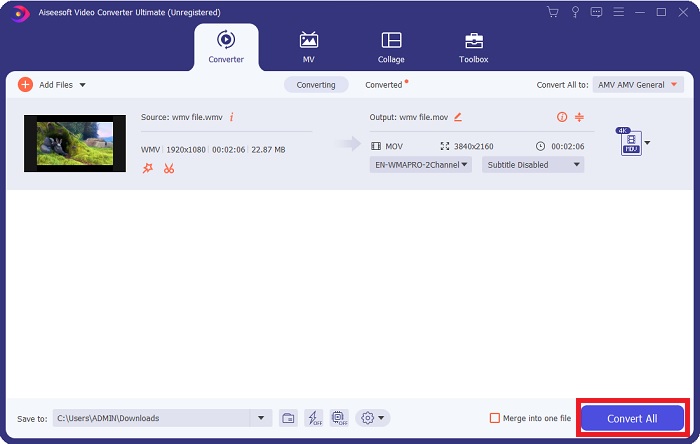
ステップ5 動画の編集が完了し、変換の準備ができたら、すべて変換をクリックしてファイルの変換処理を開始します。
パート3。MacとWindowsでWMVをMOVに変換する他の効率的な方法
方法1.無料のビデオコンバーターをオンラインで使用する
FVC Free Video Converter Onlineを使えば、幅広いマルチメディアファイルを無料で変換できます。高解像度の動画がある場合でも、画質を落とすことなくMP4、FLV、WMVなどの形式に簡単に変換できます。画質を損なうことなく、多数の動画や音声ファイルを一度に変換することも可能です。この無料動画変換ツールには充実した編集オプションが備わっており、ユーザーは動画を細かく調整できます。それでは、各ステップを見ていきましょう。
ステップ1 リンクをクリックして、FVCコンバーターの公式サイトのホームページにアクセスしてください。そこからオンラインでファイルの変換を開始できます。
ステップ2 画面右側の変換するファイルを追加ボタンをクリックして、コンピューター用のランチャーを取得します。再度ダウンロードすると、すぐに起動します。フォルダー内のファイルを開き、再度ダウンロードプロセスを開始してください。
ファイルを一括変換するには、デスクトップ版をダウンロードしてください。
ステップ3 変換が始まる前に、事前にMOV形式を下部から選択して、変換プロセスを開始します。
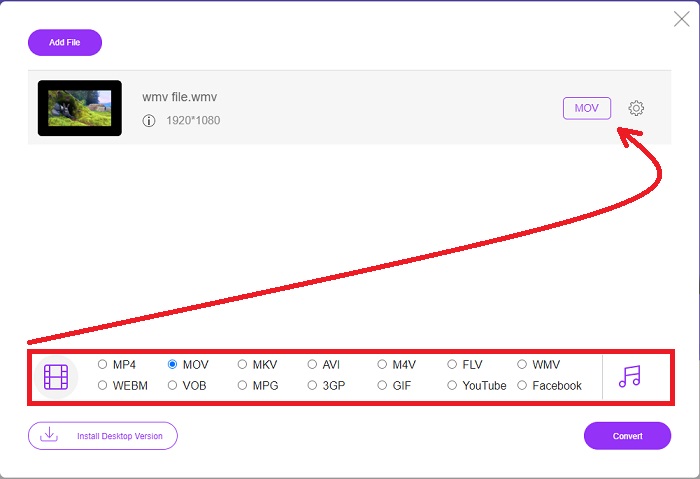
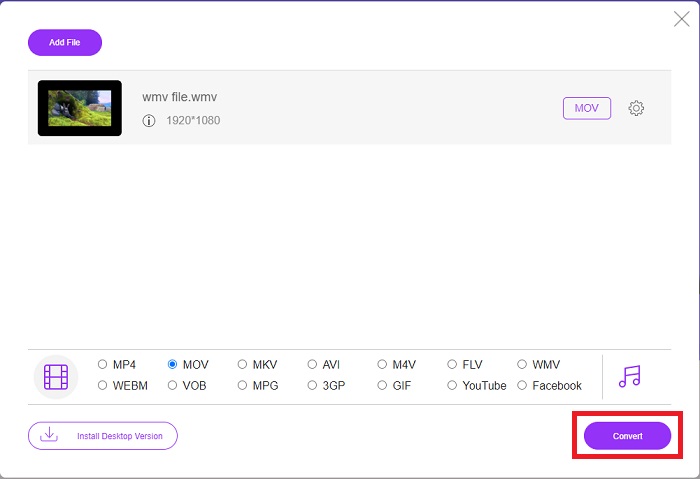
ステップ4 変換したい形式を決めたら、変換をクリックして変換処理を開始します。
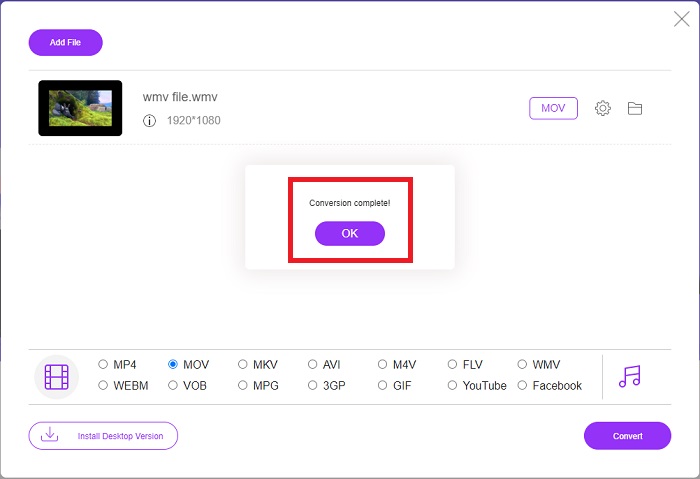
ステップ5 数分後、変換されたファイルが入ったフォルダーが表示されます。そこからファイルを開いて再生を開始できます。
方法2.ビデオコンバーターを使用する
無料のWMVからMOVへのコンバーターを見つけようとしていますか?最も簡単な方法は、Webサービスを使用してWMVファイルをMOV形式に変換することです。ビデオが完成したら、このオンラインメディアコンバータツールを使用して、ビデオを任意のデバイスに転送し、後で楽しむことができます。これがその方法です。
ステップ1 メディアを追加ボタンをクリックして、パソコン、Dropbox、またはGoogle DriveからWMVファイルをインポートし、MOVに変換します。
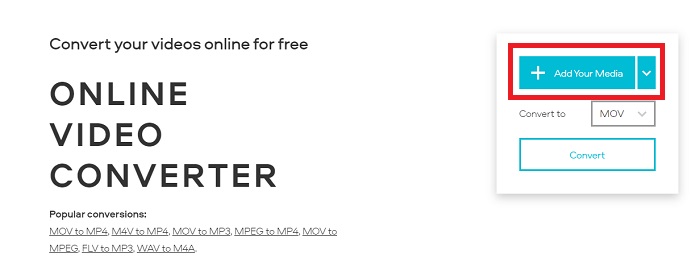
ステップ2 希望する出力形式としてMOVを選択します。拡張設定を利用して、動画全体の品質を向上させてください。
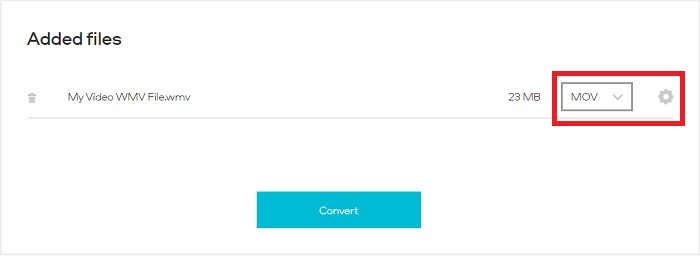
ステップ3 すべての調整が完了したら、変換ボタンをクリックできます。
![[変換]ボタンをクリックします](/images/2021/11/click-convert-button.jpg)
WMVとMOV
Microsoftによって作成されたWMVは、2000年代に最も一般的なビデオ形式の1つでした。 Webで表示したり、Windowsのさまざまなメディアプレーヤーで再生したりできます。また、WindowsMediaPlayerのデフォルトのビデオファイル形式でもあります。しかし、最近は他のフォーマットに引き継がれています。
MOV形式は、映画、テレビ番組、短いビデオクリップ、またはホームムービーの保存に使用できます。実際には、1991年にAppleによって導入されたQuickTime File Format(QTFF)で保存されます。MOVファイルは、人々が高品質のビデオを保存したいときによく使用されます。
パート4。WMVからMOVへの変換に関するFAQ
MOVとWMVは同じですか?
MOVファイルは、AppleがQuickTimePlayer用に開発したQuickTimeforWindowsで再生するためにMPEG-4エンコーディングを採用しています。 FacebookやYouTubeでサポートされているだけでなく、MOVはテレビ視聴にも適しています。 WMV(Windows Media Viewer)ファイルは、品質とサイズがMOV(Mozillaのビデオ形式)に匹敵します。 Microsoftは、Windows MediaPlayerで使用するためのWMVを作成しました。
MOVの長所と短所は何ですか?
MOVファイルは主に編集用途で使われ、実際の日常利用にはあまり用いられません。QuickTime Playerに加えて、この形式に対応しているマルチメディア再生アプリケーションはごく少数です。プロのビデオ編集者は、この点を有利に活用しています。一方で、実際のデバイスへの普及が進んでいないという欠点があります。
WMVはまだ使用されていますか?
WMVはMicrosoftによって開発され、主にWindows Media Playerで使用されています。WMV動画形式のWMVファイルは、MP4ファイルよりもサイズが小さく、高い圧縮率を誇ります。その結果、オンライン動画ストリーミングで広く利用されています。iPhoneやMacではWindows Media Playerを動作させることができますが、Apple製デバイスとの互換性はよくありません。
結論
以上のように、ダウンロードして利用できるものからインターネット上でいつでも使えるものまで、多数のコンバーターが存在します。しかし、効率性や数ある中から最適なコンバーターを選ぶという点では、Video Converter Ultimateこそが本記事の結論として推奨するツールです。高速で動画・音声形式を変換でき、幅広いフォーマットに無料で対応し、WindowsとMacの両方で利用できます。さあ、迷っている時間はありません。今すぐダウンロードしてみてください。
無料ダウンロードWindows 7 以降に対応安全なダウンロード
無料ダウンロードMacOS 10.7 以降に対応安全なダウンロード
-
 WindowsとMacでFLVをWMVに変換するトップ3の方法
 PCまたはMacで品質を損なうことなくFLVをWMVに変換する最良の方法をお探しですか?ここでは仕事を簡単に行うための3つの方法を共有しているので、あなたは幸運です。
-
 PC / MacでWMVファイルをFLVに変換する2つの最も簡単な方法
 WMVをFLVに変換するにはどうすればよいですか?まず、私たちの推奨事項を読んでお気に入りの方法を見つけてから、ガイドに従ってすばやく作業を行う必要があります。
-
 [2つの解決策] WMVビデオを無料でGIFファイルに変換する方法
 WMVビデオのすばらしい部分を切り取って、それらからGIFを作成したい場合は、この記事でWMVビデオをGIFに転送する2つの簡単な方法について学ぶことができます。

