


 ビデオコンバーター究極
 スクリーンレコーダー
 ビデオ修復
ビデオ修復
 安全なダウンロード
無料でコンピューターでM4AをMP3形式に変換する方法
M4Aは、MPEG-4コーデックを採用したApple独自のオーディオファイル形式です。MP4形式と非常によく似ていますが、MP4はオーディオファイルに加えて動画データも保存できる点が異なります。MP3はそれよりかなり前の1993年にリリースされ、現在でも音楽を保存するための最も権威のある規格です。その最大の利点は、オーディオを非常に効率的に圧縮することで、音質を大幅に損なうことなくファイルサイズを小さくできることです。
MP3 と比べて、M4A はより高い音質を提供してくれます。もし「M4A ファイルは MP3 ファイルよりもサイズが大きい」と考えているなら、それは誤解です。実際には、M4A ファイルは MP3 のほぼ半分のサイズにできるうえ、DRM 保護を追加して、他人による無断配布を防ぐことも可能です。M4A は MP3 の後継と見なされていますが、互換性は依然としてかなり低いままです。M4A 音楽は再生できるデバイスやプラットフォームが限られているため、友人と音声ファイルをより便利に共有したい場合には、M4A 音楽を MP3 に変換しておいたほうがよいでしょう。ここでは、M4A を MP3 に 変換する 5 つの方法を厳選し、それぞれの手順とあわせてご紹介します。

パート1. M4AをMP3に変換する最良の方法[高速かつ品質損失なし]
FVCビデオコンバーターアルティメット
実際にテストと比較を行った結果、FVC Video Converter Ultimate は、試してみる価値のある M4A から MP3 への変換ソフトの中で最も優れたものと言えます。デスクトップアプリとして、Windows と Mac の両方に対応しており、入出力あわせて 1000 種類以上のフォーマットをサポートします。ほぼあらゆるファイル変換作業を簡単にこなすことができます。M4A 形式のファイルは MP3 より高音質ですが、FVC Video Converter Ultimate を使って M4A を MP3 に変換しても、音質の変化はほとんど感じられません。また、このアプリにはハードウェアアクセラレーターが搭載されており、通常の 30 倍の効率で出力できるうえ、ワンクリックで複数のタスクを一括処理することも可能です。
フォーマット変換の優れたパフォーマンスだけでなく、試してみる価値があるのも魅力です。インターフェースには、音質の向上、ノイズ除去、長さのトリミングなど、様々な編集ツールが満載です。このオールインワンソフトウェアを使えば、M4AからMP3への変換が非常に簡単になります。
無料ダウンロードWindows 7 以降対応安全なダウンロード
無料ダウンロードMacOS 10.7 以降に対応安全なダウンロード
FVC Video Converter Ultimate を使用して M4A を MP3 に変換する方法は次のとおりです。
ステップ 1. お使いのデバイスに FVC Video Converter Ultimate を入手します。基本設定を完了し、デスクトップで起動します。メイン画面に入ったら、Add Files をクリックして M4A オーディオを選択します。

ステップ 2. 選択した音声はすぐに読み込まれます。Convert All to に進み、Audio > MP3 を選択します。ビットレートや音質の異なる複数の出力オプションが表示されるので、要件に合うものを選びます。
さらに編集したい場合は、Cut アイコンをクリックします。
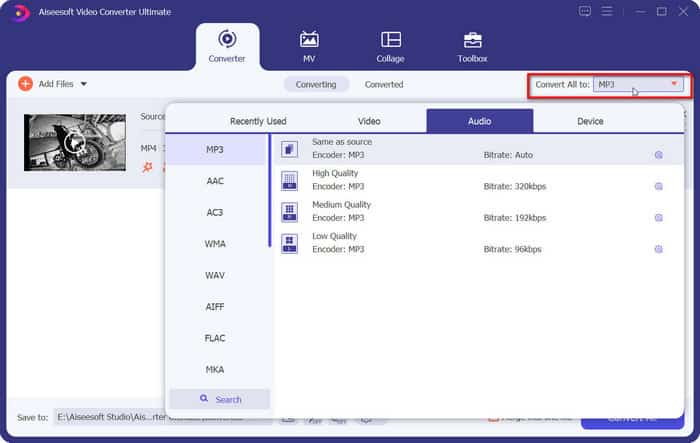
ステップ 3. Save to に進み、変換後の M4A オーディオの保存先を指定します。その後、Convert All をクリックします。

パート2. M4AをオンラインでMP3に変換する方法
FVC無料オーディオコンバーター
デスクトップツールは安定性が高く、機能も豊富ですが、変換を始めるまでに長いダウンロードとインストールのプロセスを完了する必要があります。ソフトウェアのインストールパッケージは多くのストレージ容量も消費します。今すぐ変換を開始したい、かつ保存領域を節約したい場合は、オンラインの M4A から MP3 へのコンバーターを利用するのがよいでしょう。この点でおすすめなのが FVC Video Converter Ultimate です。このプラットフォームは MP3、WMA、AAC、WAV、AC3、FLAC など、多くの一般的な音声フォーマットに対応しています。一部のオンラインコンバーターにはファイルサイズの制限がありますが、FVC Free Audio Converter にはそのような制限がなく、大量のファイルも一度に変換することができます。
FVC Free Audio Converter を使用して M4A を MP3 に変換する方法は次のとおりです。
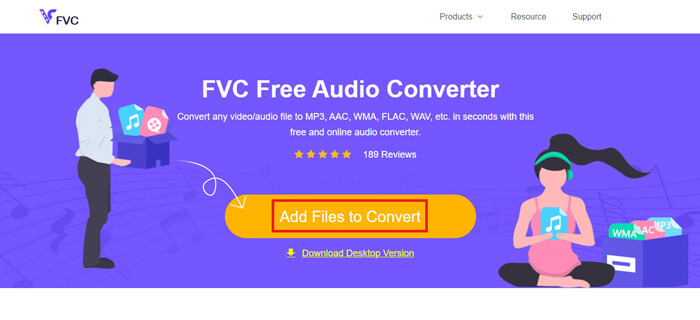
ステップ 1. ブラウザで FVC Free Audio Converter を開きます。ページが読み込まれたら、Add Files to Convert をクリックして M4A オーディオをアップロードします。
ステップ 2. 追加が終わったら、画面下部のセクションで出力フォーマットとして MP3 を選択します。さらに調整を行いたい場合は、設定アイコンをクリックします。
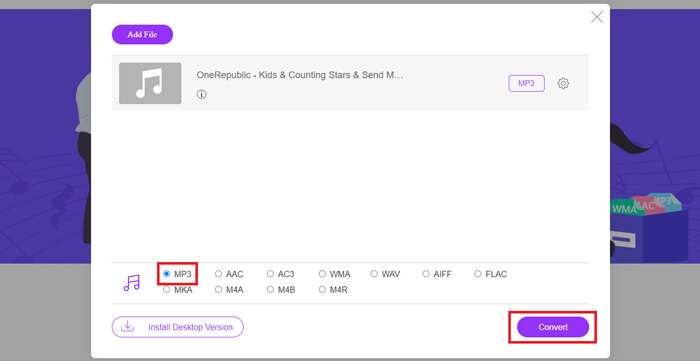
ステップ 3. 最後に、Convert をクリックして変換を開始します。
パート3. MacでM4AをMP3に変換する方法
iTunesを使ってM4AをMP3に変換する
上記の方法はどちらもWindowsとMacの両方で動作します。Macユーザーで、お使いのOSとより互換性のある無料のコンバーターをお探しの場合は、iTunesをお勧めします。このソフトウェアはAppleシステムに組み込まれており、マルチメディアプレーヤーや管理ツールとしてよく知られていますが、簡単なフォーマット変換もサポートしています。ちなみに、WindowsユーザーでもiTunesを試してみることができます。
iTunes を使用して Mac で M4A を MP3 に変換する方法は次のとおりです。
ステップ 1. パソコンに iTunes がインストールされている場合は起動します。なければダウンロードしてインストールしてください。Apple ID とパスワードでサインインする必要があります。
ステップ 2. File > Add Folder to Library をクリックし、M4A オーディオが保存されているフォルダを選択します。次に、Open をクリックして M4A ファイルを iTunes に読み込みます。
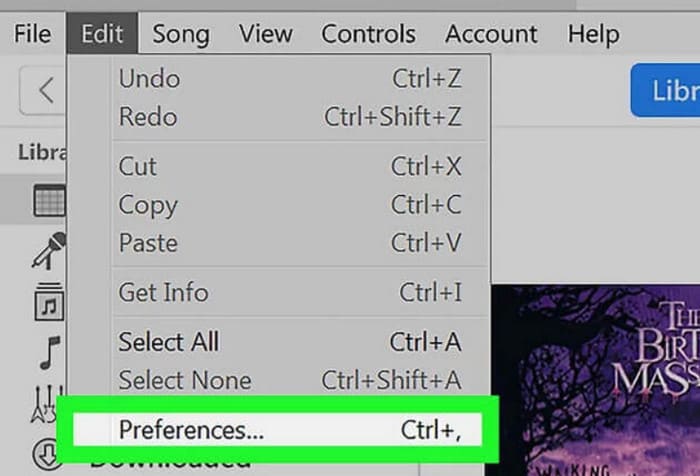
ステップ 3. Edit > Preference を選択して、別ウィンドウを開きます。
ステップ 4. 新しいウィンドウで Import Settings をクリックし、Import Using のダイアログに進みます。MP3 Encoder を選択し、OK をクリックして設定を保存します。
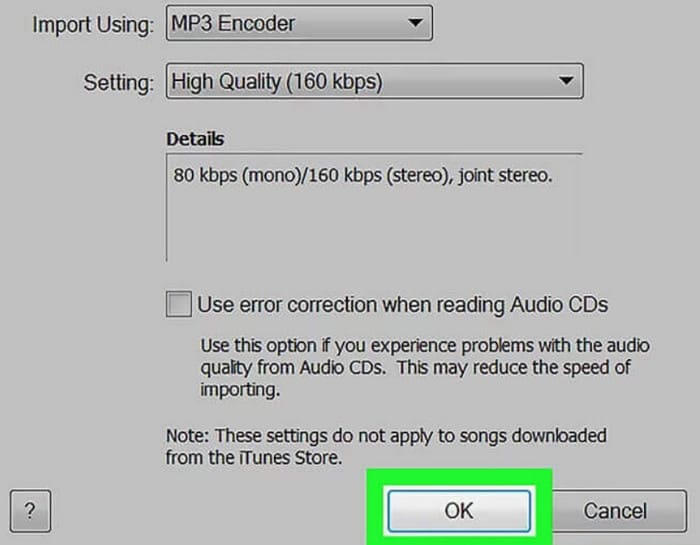
ステップ 5. iTunes ライブラリに戻り、目的の M4A ファイルを探します。File > Convert > Create MP4 Version をクリックします。

パート4. M4AをMP3に無料で変換する方法
無料の一般的なツールの中には、ファイル形式の変換に役立つ FFmpeg と VLC Media Player の 2 つがあります。この部分では、それぞれの使用方法を説明します。
FFmpegを使ってM4AをMP3に転送する
FFmpegは、実行できるタスクの多さで知られています。しかし、ボタンやプレビューウィンドウを備えた従来のマルチメディア編集ソフトウェアと比較すると、FFmpegの動作は独特です。コードテンプレートを用意し、ファイルの保存パスを入力する必要があります。FFmpegにコードコマンドを入力すると、変換されたファイルが生成されます。しかし、このアプリケーションは経験の浅い初心者にとってはあまり使いやすくなく、コードの準備が面倒です。
FFmpeg を使用して M4A を MP3 に転送するには、このガイドをお読みください。
ステップ 1. パソコンに FFmpeg をダウンロードしてインストールします。Terminal(ターミナル)アプリケーションを開きます。
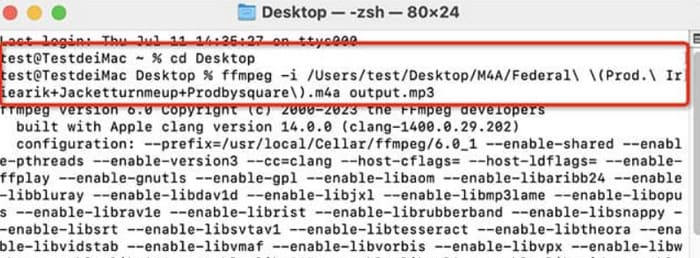
ステップ 2. 使用するコマンドを準備します。
ffmpeg -i input.m4a output.mp3
上記のテンプレート内で、input の場所を元の M4A ファイルが保存されているパスに置き換えます。そして、output の部分を希望する出力先パスに変更します。MP3 から M4A に変換したい場合は、これら 2 つのパスの位置を入れ替えてください。
ステップ 3. 準備したコマンドを FFmpeg に入力します。その後、Enter キーを押して変換を開始します。
VLCメディアプレーヤーでM4AからMP3への変換を実行する
VLC Media Player は、最もよく知られている無料の M4A プレーヤー 兼フォーマットコンバーターのひとつです。ほぼあらゆる形式のマルチメディアファイルを開くことができ、Windows、Mac、Linux デバイスに対応しています。公式ページでは、いくつかの基本的な音声編集ツールも見つけることができます。
VLC メディアプレーヤーを使用して M4A を MP3 に変換する方法は次のとおりです。
ステップ 1. パソコンで VLC Media Player を開きます。Media > Convert/Save をクリックします。
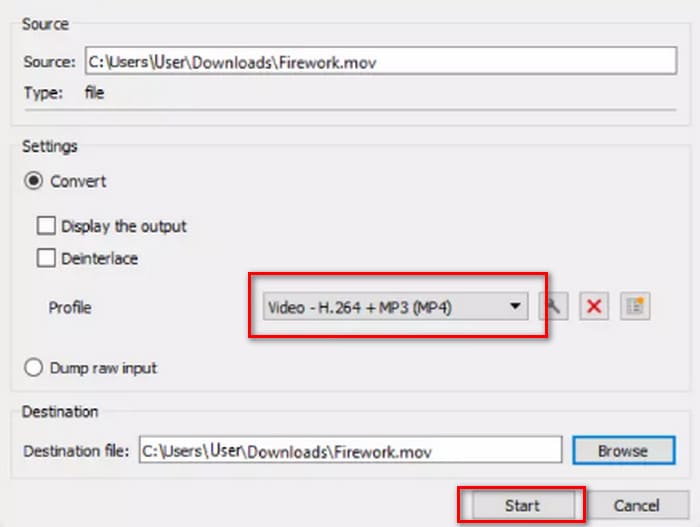
ステップ 2. Open Media ウィンドウを開きます。次に、+ Add を押して M4A ファイルをアップロードします。その後、再度 Convert/Save をクリックします。
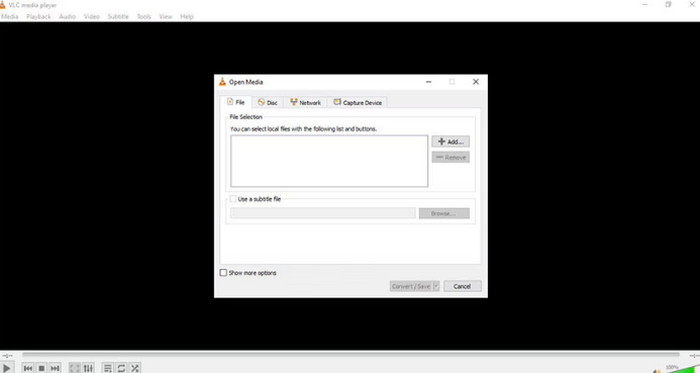
ステップ 3. Convert ウィンドウが表示されます。Profile > Audio - MP3 を選択します。最後に Start をクリックします。
パート4. 結論
本記事では、M4A を MP3 に 変換するための 5 つのツールと、その使い方をご紹介しました。デスクトップソフトの中では、FVC Video Converter Ultimate が最も多機能かつ高速なコンバーターであり、iTunes は Mac ユーザーに適しています。VLC Media Player は完全無料ですが、編集ツールは少なめです。FFmpeg は多くの作業をこなせますが、やや扱いが難しい面があります。ソフトのダウンロードやインストールを避けたい場合は、FVC Free Audio Converter を利用するとよいでしょう。
-
 WMAをMP3に変換するトップ4の方法
 Windows Media PlayerでWMAをMP3に変換することは可能ですか? WMAをMP3フリーに変換する方法は?この投稿では、Mac、Windows PC、およびオンラインでWMAからMP3へのオーディオ変換を行うのに役立つ4つの簡単な方法を共有しています。
-
 MP4をMP3オーディオに変換する8つの方法(バッチ変換とラージサイズ)
 MP4ビデオからMP3オーディオを抽出する場合は、この記事を確認して8つのソリューションを入手できます。携帯電話やコンピューターでMP4をMP3に簡単に変換するオンラインとオフラインの方法があります。
-
 M4Aプレーヤー–Androidおよびコンピューター用のトップ5M4Aプレーヤー
 Android携帯でM4Aファイルを再生する方法は?どのプレーヤーがM4Aを再生できますか?この投稿では、Android、Mac、PC向けの5つの最高の無料M4Aプレーヤーを共有しています。

