


 ビデオコンバーター究極
 スクリーンレコーダー
 ビデオ修復
ビデオ修復
 安全なダウンロード
デスクトップ、オンライン、モバイルで高品質の MP3 から MOV への変換
MP3オーディオファイルをMOV動画形式に変換したいとお考えですか?音楽付きの動画を作成したり、動画形式のみアップロード可能なソーシャルメディアに音声を投稿したりと、その理由はさまざまです。幸いなことに、この手順を簡単かつスムーズにしてくれるオンライン/オフライン対応、さらにはモバイル対応のさまざまなMP3 から MOV へのコンバーターソフトウェアがあります。本ガイドでは、最も効果的な MP3 から MOV への変換ツールをいくつか取り上げ、それぞれの機能と利点を検証しながら、ご自身のニーズに最適なものを選べるように解説していきます。

パート 1. MP3 形式と MOV 形式の比較
MP3 と MOV はどちらも、オーディオ ファイルやビデオ ファイルを保存するための一般的なファイル形式です。ただし、それぞれに異なる長所と短所があります。 MP3 は、優れた音質と小さいファイル サイズを提供するため、音楽再生、ポッドキャスト、オーディオブックに適しています。 MOV は優れたビデオ品質を提供するため、ビデオ再生とビデオ編集に適しています。最終的に、最適なファイル形式は、MP3 を MOV に効率的に変換するための特定のニーズによって異なります。
| 特徴 | MP3 | MOV |
| ファイル拡張子 | .mp3 | .mov |
| オーディオコーデック | MPEG-1 オーディオ レイヤ 3 | MPEG-4 パート 2 |
| ビデオコーデック | 無し | H.264 |
| オーディオ品質 | 良い | 優れた |
| ビデオ品質 | 公平 | 優れた |
| ファイルサイズ | 小さい | 大 |
| 互換性 | 幅広い互換性 | 幅広い互換性 |
| ユースケース | 音楽再生、ポッドキャスト、オーディオブック | 動画再生、動画編集 |
パート 2. Windows および Mac で MP3 を MOV に変換する方法
1.ビデオコンバーターアルティメット
Video Converter Ultimate は、MP4、MOV、MKV、AVI、FLV など、さまざまな形式へ動画を変換できる定評ある動画変換ソフトです。複数の動画を同時に変換できるバッチ変換にも対応しています。そのほかにも、動画の編集、字幕の追加、ウォーターマーク(透かし)の削除といった機能を備えています。
主な機能:
◆ 高速変換速度: FVC Video Converter Ultimate は、最新のビデオ変換テクノロジーを使用して、ビデオを迅速かつ効率的に変換します。つまり、数秒でビデオを変換できるということです。
◆ 使いやすい:FVC Video Converter Ultimate は初心者でも使いやすいです。ユーザー インターフェイスはシンプルで、ソフトウェアには役立つチュートリアルが用意されています。
◆ 強力な編集機能: FVC Video Converter Ultimate は、ビデオをトリミング、クロップ、回転する機能を提供します。これにより、ビデオを変換する前にカスタマイズできます。
ステップ1. プログラムをインストールして起動
まずは無料ダウンロードボタンをクリックして、プログラムのインストーラーを入手します。続いて、画面上の指示に従ってインストールを進め、コンピューター上で起動してください。
無料ダウンロードWindows 7 以降対応安全なダウンロード
無料ダウンロードMacOS 10.7 以降に対応安全なダウンロード
ステップ2. ファイルを追加
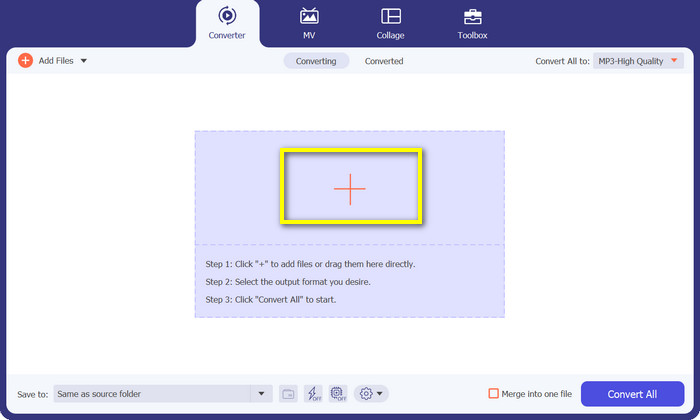
ファイルを追加するには、プログラムのメイン画面にあるプラスボタンをクリックするか、左上のファイルを追加をクリックします。あるいは、中央のインターフェース部分にファイルをドラッグ&ドロップしてもかまいません。読み込まれたファイルは、その後パネル上に一覧表示されます。
ステップ3. 出力形式を選択
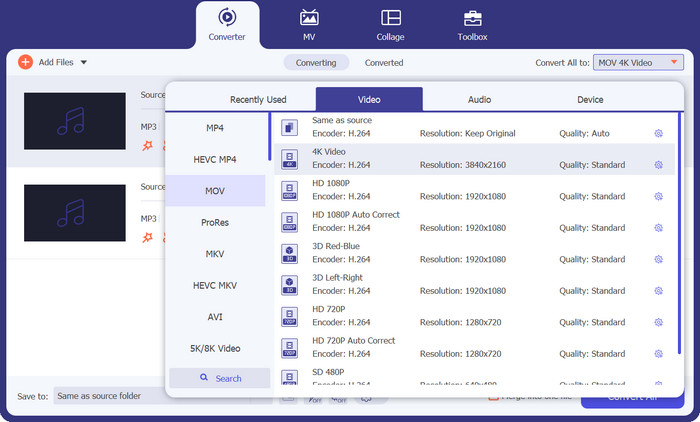
MP3 を MOV に変換するには、プロフィールバーをクリックしてプロファイル一覧を表示します。3つのカテゴリから選択できます。動画タブを選び、出力形式としてMOVを指定します。
ステップ4. 変換を開始
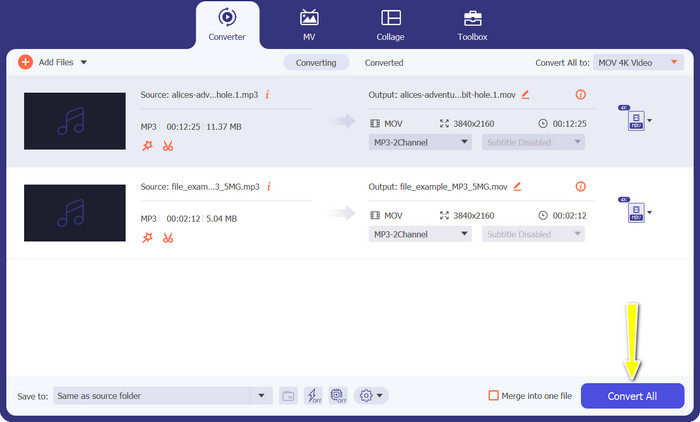
すべての設定が完了したら、すべて変換ボタンをクリックして、MP3 から MOV への変換処理を開始します。
2.オンラインの無料MOVコンバーター
Free MOV Converter Online は、MP3 を MOV に無料でオンライン変換するのに便利な方法です。このツールは、画質を損なうことなく、ほぼあらゆるファイルを希望の出力形式に変換できます。さらに、ユーザーフレンドリーなインターフェースを備えており、直感的な操作が可能です。最後に、従来型のソフトウェアとは異なり、変換を行うためにサーバー側の処理能力やリソースに依存する必要がありません。
主な機能:
◆ バッチ変換:FVC Free MOV Converter Online は複数のビデオを同時にバッチ変換できます。大量のビデオを変換する必要がある場合、これは時間を大幅に節約できます。
◆ ウォーターマークなし: FVC Free MOV Converter Online は MP3 ファイルにウォーターマークを追加しません。これは、MP3 ファイルにはブランド化が完全に含まれないことを意味します。
◆ カスタム出力設定: FVC Free MOV Converter Online を使用すると、MP3 ファイルの出力設定をカスタマイズできます。これには、ビット レート、サンプル レート、オーディオ チャネルが含まれます。
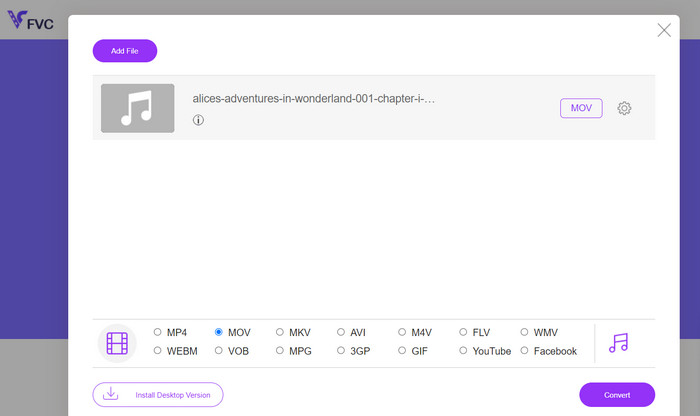
ステップ1. FVC Free MOV Converter Online の公式サイトにアクセスします。次に、変換するファイルを追加ボタンをクリックし、変換したい動画ファイルを選択します。
ステップ2. 続いて、出力形式を選択します。用意されているオプションの中から、出力形式として MOV を選びます。
ステップ3. 変換ボタンをクリックします。変換処理が開始されます。変換が完了したら、MP3 ファイルをダウンロードできます。
パート 3. iOS および Android で MP3 を MOV に変換する方法
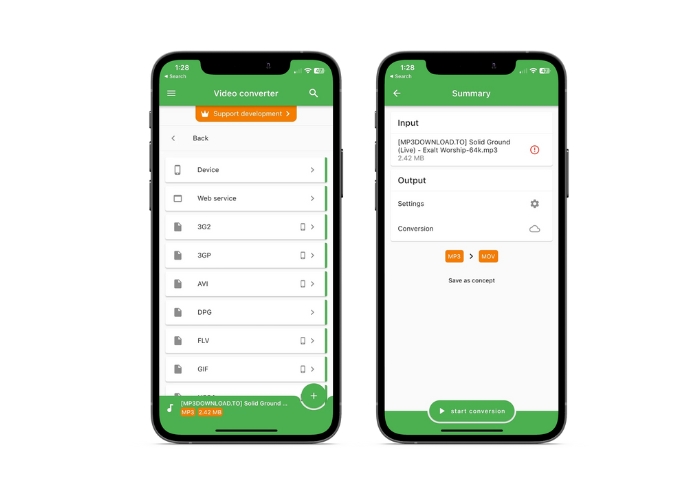
File Converter を使用すると、AAC や MP3 などの多くのオーディオ ファイル形式を変換でき、iOS と Android デバイスの両方で利用できます。 MP3 から MOV への Android または iOS コンバーターを探している場合は、これ以上調べる必要はありません。迅速かつ効率的なファイル変換を可能にするために、このソフトウェアはユーザーフレンドリーなエクスペリエンスを提供し、合理化されたインターフェイスを提供します。
主な機能:
◆ プリセットとプロファイル: 互換性とクラス最高の出力を保証する、特定のハードウェアまたはソフトウェア プラットフォーム用の事前定義された設定またはプロファイル。
◆ ストレージの選択: ユーザーは、出力ファイルをクラウドに保存するか、スマートフォン デバイスに保存するかを選択できます。
ステップ1. スマートフォン端末に File Converter アプリをインストールします。
ステップ2. アプリを開き、候補一覧から出力形式として MOV を選択します。
ステップ3. 設定オプションをタップすると、ビットレートやその他の変換設定を変更できます。
ステップ4. 出力形式と設定を選択したら、変換開始ボタンをタップして、変換プロセスを開始します。
さらに詳しく読む:
MOV を GIF に変換して、アニメーションコンテンツの可能性を引き出そう
どんな音声でも簡単に切り出せる MP3 カッター 5 選【2023 年最新版】
パート 4. MP3 から MOV への変換に関する FAQ
MP3 を MOV に変換するための最適な出力設定は何ですか?
MP3 から MOV への出力設定は、要求によって異なります。高いビットレートとサンプルレートにより最高の品質が得られます。ビットレートとサンプリングレートを低くすると、スペースが節約されます。
MP3をMOVに変換するにはどのくらい時間がかかりますか?
MP3 から MOV への変換時間は、ファイル サイズと出力設定によって異なります。出力パラメータが低い小さなファイルの変換には数秒かかります。ただし、高い出力パラメータを使用して大きなファイルを変換するには、数分から数時間かかる場合があります。
品質を損なうことなくMP3をMOVに変換できますか?
MP3 から MOV への変換では品質が低下します。 MP3 は非可逆形式であり、圧縮中にデータが失われます。出力設定により、品質の低下を軽減できます。
結論
全体として、MP3 から MOVへの変換は比較的簡単なプロセスです。利用できる方法は数多くあるため、自分のニーズに最も合ったやり方を選ぶことができます。
-
 MOV VS MP4 –どちらを選択しますか?
 MOV VS MP4、どちらが良いですか?この投稿では、MP4とMOVの違いを説明しているので、ビデオファイルに使用するためのより良い選択を得ることができます。
-
 FLAC vs. MP3: どのオーディオファイルフォーマットが最高に君臨するか
 この投稿では、FLAC と MP3 の主な違いを比較します。これには、音質、ファイル サイズ、互換性などが含まれます。
-
 MP3をM4Aに変換して音質を向上させる方法
 専門的なヒントとコツを使って MP3 を M4A に変換することで、音楽ファイルの品質を向上させます。私たちのガイドでは、段階的な手順と推奨ソフトウェアを提供しています。
