


 ビデオコンバーター究極
 スクリーンレコーダー
 ビデオ修復
ビデオ修復
 安全なダウンロード
MP4 を AAC に素早く変換する 3 つの方法 [簡単なガイド]
もし音楽ビデオのようなMP4ファイルを持っていて、途切れずに再生できるようオーディオライブラリで聴くほうが便利だと感じているなら、この記事はまさにあなたにぴったりです。本記事では、MP4をAACに変換する方法を、簡単に習得できるようわかりやすく解説します。プレイリストを作成したいときも、お気に入りの曲を外出先で楽しみたいときも、あるいは動画の映像に気を取られずに音だけを聴きたいときも、MP4ファイルを音声ファイルに変換すれば、もっと快適なリスニング体験が得られます。

パート 1: MP4 を AAC に変換する最速の方法
MP4をAACに変換する最速の方法は、FVC Free Video Converter Online を利用することです。これは動画・音声の両方に対応したコンバーターで、さまざまな変換ニーズに応えてくれるツールです。動画を音声ファイルに変換したい場合、次のような理由から、このツールは最適な選択肢と言えるでしょう。
このツールは無料で、オンラインで簡単にアクセスできます。ファイルをインポートするだけで、出力形式を設定するための非常に簡単なインターフェイスが表示され、変換が行われます。
また、AAC 形式以外にも、このツールは AC3、AIFF、AMR、AU、FLAC、M4A、MKA、MP2、MP3、OGG、WAV、WMA などのさまざまな一般的なオーディオ形式をサポートしています。最後に、このツールを使用すると、ビットレート、サンプル、音量などのオーディオ設定を調整して、出力が正確にニーズを満たすようにすることができます。
ステップ1.まず、Add Files to Convert ボタンをクリックして、MP4ファイルをインポートします。
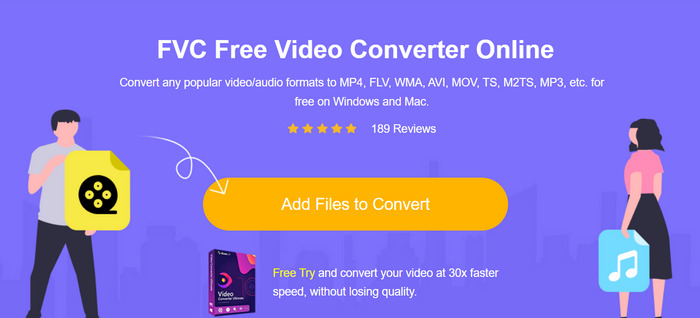
ステップ2.次に、Music アイコンをクリックし、出力形式として AAC を選択します。
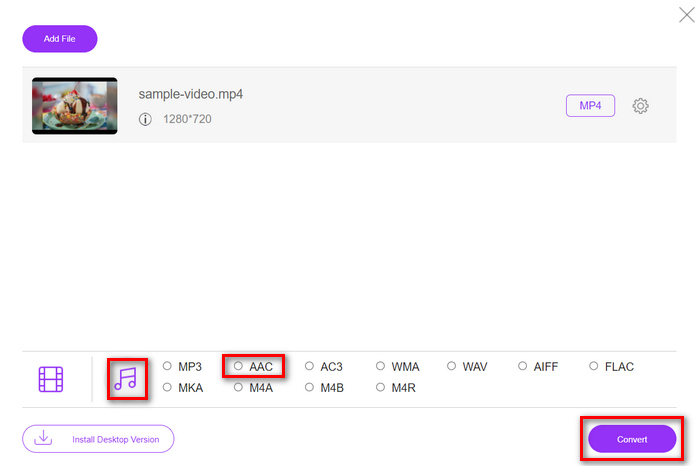
ステップ3.設定が完了したら、[Convert]ボタンをクリックするだけです。
FVC 無料オンラインビデオコンバーターを使用すると、MP4 を AAC に変換する最速の方法が得られます。ユーザーフレンドリーなインターフェイスにより、変換が簡単になります。さらに、さまざまなデバイスやプラットフォームとの互換性を確保するために不可欠なさまざまなオーディオ形式をサポートしています。
パート 2: MP4 を AAC に変換する専門的な方法
FVC Video Converter Ultimate は、MP4をAACに変換する作業を、より本格的かつ総合的に行える多機能な動画・音声変換ツールです。このツールを使えば、パフォーマンスや出力品質を損なうことなく、大容量のMP4ファイルなど、高い要件が求められるファイルの変換にも対応できます。
さらに、このツールは、ファイル変換のプロセスを効率化するユーザーフレンドリーなインターフェイスを提供します。その高度な機能には、バッチ変換、カスタマイズ可能な出力設定、および幅広いオーディオ形式のサポートが含まれます。最後に、このコンバーターツールを使用すると、他のコンバーターツールよりも30倍高速に動作するため、迅速な変換プロセスが保証されます。
ステップ1.パソコンにこのツールをダウンロードしてインストールします。
無料ダウンロードWindows 7 以降に対応安全なダウンロード
無料ダウンロードMacOS 10.7 以降に対応安全なダウンロード
ステップ2.Converter タブで、変換したいMP4ファイルをアップロードします。
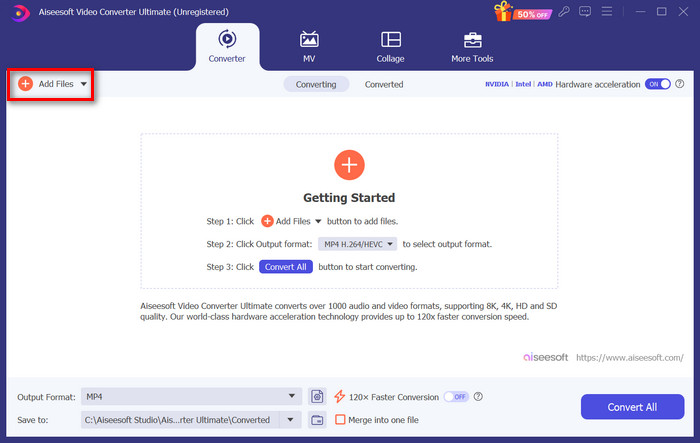
ステップ3.画面下部の Output format ボタンをクリックして出力形式を設定します。Audio を選び、AACを選択します。
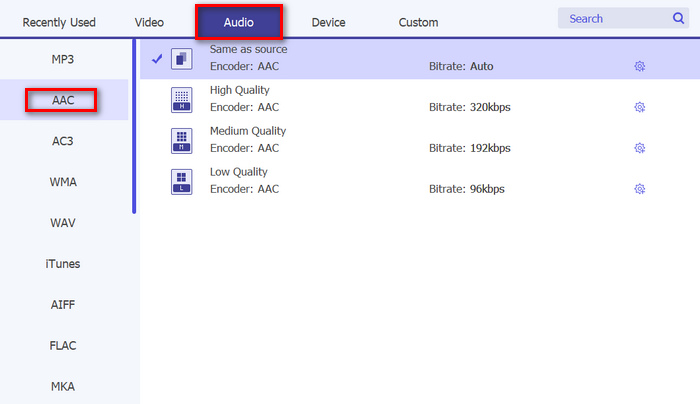
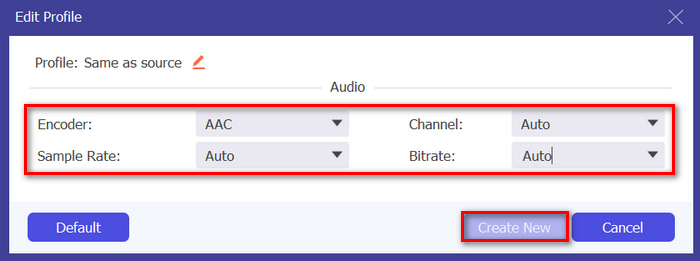
ステップ4.ビットレート、チャンネル、サンプルレートをカスタマイズしたい場合は、Gear アイコンをクリックして新しいウィンドウを開き、各設定を編集します。完了したら Create New ボタンをクリックします。
ステップ5.準備ができたら、Convert All ボタンをクリックして変換を開始します。
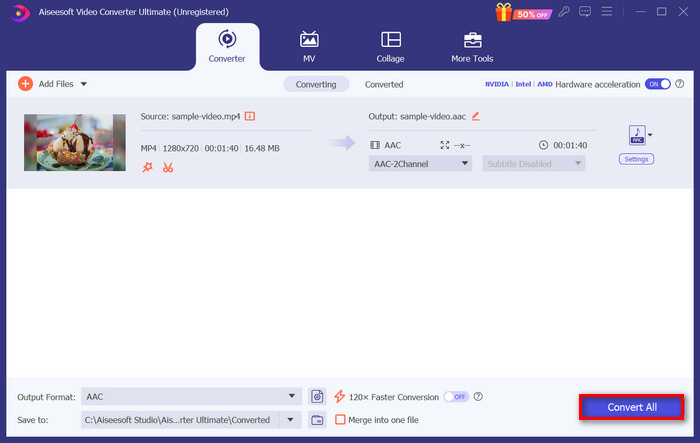
変換したいMP4ファイルが多数ある場合は、このツールの一括変換機能を使うことで、すべてを一度に効率よく変換できます。また、AACファイルに詳細なメタ情報を追加したいときは、本ソフトの[Toolbox]タブにある AAC metadata editor に切り替えて編集することも可能です。
パート3:iTunesでMP4をAACに変換する
変換したい MP4 ビデオ ファイルが iTunes ライブラリにある場合、iTunes ソフトウェアを使用して変換するのが最善の方法です。この多機能ツールは、メディア プレーヤーおよびライブラリ オーガナイザーとして機能します。ただし、それ以外にも、このツールは MP4 ファイルを AAC 形式にシームレスに変換し、さまざまなデバイスやプラットフォームとの互換性を確保するために完璧に使用できます。
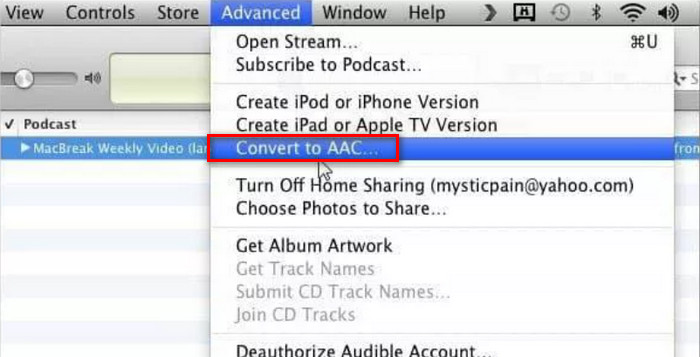
ステップ1.iTunesを開き、Edit メニューから Preferences アイコンをクリックします。次に、General タブを開いた状態で Import Settings アイコンを選択します。
ステップ2.Encoding フォーマットの項目でAACオーディオ形式を選択します。その後、OK をクリックして進みます。
ステップ3.最後に、AACに変換したいMP4動画を選択します。準備ができたら、Convert ボタンをクリックするだけです。
iTunes は、MP4 ファイルが iTunes ライブラリに保存されているユーザーにとって、まさに完璧なコンバーターです。ただし、このツールはリソースを大量に消費する可能性があり、そのインターフェイスは誰にとっても直感的ではない可能性があります。
さらに、iTunesでは、変換済みAACファイルの ID3タグを編集 することもできます。
パート 4: MP4 を AAC に変換する際のよくある質問
MP4 を AAC に変換すると品質に影響しますか?
MP4 を AAC に変換すると、通常は非可逆圧縮プロセスが実行されるため、オーディオ品質が多少低下する可能性があります。ただし、高品質の変換ツールと設定を使用すれば、この損失をほとんど感じられないレベルまで最小限に抑えることができます。
複数の MP4 ファイルを一度に AAC に変換できますか?
はい、FVC Video Converter Ultimate を含む多くの変換ツールはバッチ変換をサポートしており、複数の MP4 ファイルを一度に AAC に変換できます。そのため、この機能を利用することで、時間を節約し、変換プロセスを効率化できます。
MP4 を AAC に変換するとビデオの品質に影響しますか?
MP4 を AAC に変換すると、ビデオ ファイルのオーディオ部分のみが抽出され、ビデオの品質は変わりません。ただし、結果として得られる AAC ファイルで最適なオーディオ品質を確保するには、信頼できる変換ツールと適切な設定を使用することが重要です。
AAC は MP3 より優れていますか?
はい。AAC は、同じビット レートで MP3 よりも優れたオーディオ品質を提供すると考えられています。圧縮効率と忠実度が向上しているため、特に高品質のオーディオ アプリケーションでは、オーディオ エンコーディングに適した選択肢となっています。
M4P は AAC と同じですか?
いいえ。M4P は AAC とは異なります。M4P は、iTunes Store で販売される保護された AAC オーディオ ファイルに使用されるファイル拡張子です。M4P ファイルは AAC 圧縮を使用してエンコードされますが、不正な配布を防ぐためにデジタル著作権管理によって保護されています。一方、AAC はオーディオ コーデック自体を指し、必ずしも DRM 保護に関連付けられているわけではありません。
結論
まとめると、MP4をAACに変換することは、動画の映像に邪魔されることなく、お気に入りの音楽を楽しむための便利な方法です。これでMP4ファイルから音声だけを簡単に抽出できるようになりました。動画コンテンツに縛られず、音楽を自由に楽しみましょう。今こそAACに切り替えて、快適なリスニング環境を手に入れてください。
-
 MP3 から AAC への変換: オーディオ品質を向上させる方法
 AAC を MP3 に、MP3 を AAC に簡単に変換します。この記事ガイドでは、ファイル サイズ、品質、互換性など、これらの一般的なオーディオ形式に関するすべてを説明します。
-
 AAC から WAV へ: 一流のコンバーターの包括的なレビュー
 AAC から WAV へのコンバーターを使用してオーディオ変換の力を解き放ちます。 AAC ファイルを高品質の WAV 形式に変換し、音楽のあらゆるニュアンスを維持します。
-
 AACからM4Rへのコンバーターを入手する前に知っておくべきこと
 この記事を読み続けて、M4R を AAC に変換するツールの選択に関する詳細なガイドを紹介します。
