


 ビデオコンバーター究極
 スクリーンレコーダー
 ビデオ修復
ビデオ修復RAR を MP4 に変換する方法:RAR ファイルを正しく解凍して MP4 に変換する
テクノロジーに詳しい人なら、RAR ファイルと MP4 ファイルが日常的によく使われている形式だということはご存じでしょう。基本的に、RAR ファイルはさまざまなデータ(動画、画像など)をまとめて収納できる圧縮パックのようなものです。とはいえ、互換性を高めるために RAR ファイルを MP4 に変換できないかと考えたことはありませんか?ウェブ上で RAR タグ付きの映画をダウンロードしたり、メールで RAR 形式にまとめられた動画を受け取ったりしたときに、よく浮かぶ疑問ですよね。これらを MP4 に変換するには、まず RAR を解凍し、その中の動画を MP4 形式に変換する必要があります。この記事では、このRAR から MP4への変換を、オフラインとオンラインの 2 つの簡単な方法で行う手順を紹介しますので、ぜひ読み進めてください。

パート 1. ezyZip で RAR を MP4 にオンラインで変換する
まず、RAR ファイルを効率的に処理できる推奨オンライン コンバーターから始めましょう。Ezyzip は、ファイル変換で困ったときに頼りになるツールです。手間をかけずに RAR アーカイブから MP4 ファイルを抽出するには、オンライン コンバーターとして最適です。コンピューター デバイスに余分な MP4 コンバーター ソフトウェアを配置する必要はありません。ezyZip はブラウザー内で直接動作し、インストールの手間が省けるからです。さらに、このツールは RAR ファイルをオンラインで無料で MP4 に変換するだけでなく、さまざまなファイル抽出および変換オプションもサポートしています。
ezyZip が他のオンライン コンバーターと異なるのは、そのユニークなアプローチです。ブラウザー内でローカルに処理することで、ファイルを安全に保ちます。つまり、面倒な外部サーバーへのアップロードやダウンロードは不要で、変換が超高速になります。驚くべきことに、このツールは制限を課さないため、ezyZip を使用するとサイズ制限を忘れてしまうかもしれません。また、ファイルがブラウザーから出ることはないため、プライバシーが損なわれることはありません。さて、ezyZip を使用してファイルを RAR から MP4 に変換するプロセスについて説明せずにこのスライドを終わらせることはできません。そのため、以下のガイドが提供されます。
ステップ 1. コンバーターの公式サイトにアクセスし、Select rar file to convert ボタンをクリックして RAR ファイルを読み込みます。
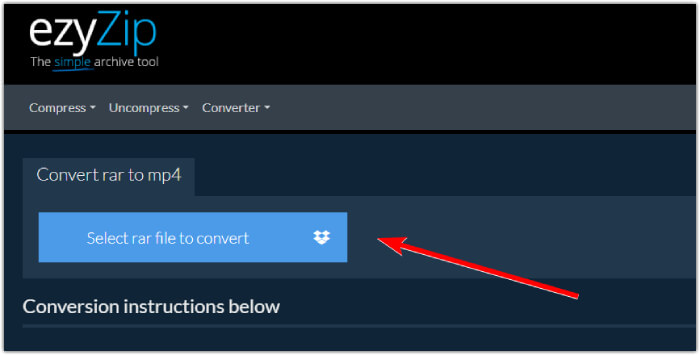
ステップ 2. ファイルが読み込まれると、ツールが RAR アーカイブ内のファイルを自動的に変換します。その後、Save ボタンをクリックして、各 MP4 ファイルを任意の保存先に保存します。
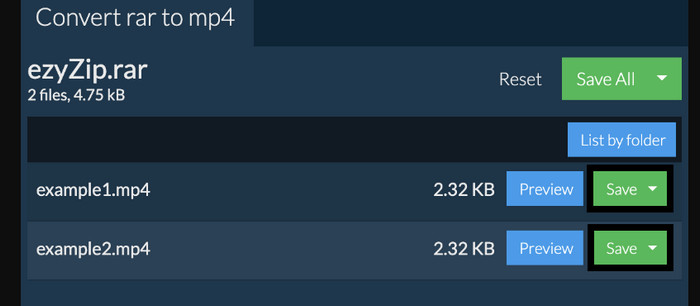
ステップ 3. もしSaveボタンが無効になっている場合は、使用しているブラウザがコンバーターに対応していないということです。それ以外の場合で、ファイルが正常に保存されると、変換されたファイルを表示するオプションが提示されます。
パート2. WinRARでオフラインでRARをMP4に変換する
WinRAR を使って RAR を MP4 に変換するオフラインの優れた方法があります。WinRAR は、Windows ユーザー向けに特別に設計された人気のソフトウェアです。圧縮されたファイルを管理するためのさまざまな便利な機能を提供するソフトウェアです。さらに、このプログラムは RAR ファイルを解凍または展開するプロセスを簡素化し、それらを抽出してアクセスできるようにします。さらに、WinRAR は、RAR ファイルを MP4 や M4V などのさまざまなビデオ形式に変換する機能も提供します。この機能は、RAR アーカイブ内に格納されているマルチメディア コンテンツを操作する必要のあるユーザーにとって非常に貴重です。したがって、WinRar で RAR ファイルを解凍して MP4 に変換する方法を知りたい場合は、以下の手順をお読みください。
ステップ 1. まず、定評のある RAR 専用プログラムをデスクトップにダウンロードします。ダウンロードする際は信頼できるサイトを利用してください。その後、インストールが完了したら、すぐに起動して変換作業を開始します。
ステップ 2. プログラムを起動したら、MP4 に変換したい RAR ファイルをすぐに開く、またはアップロードできます。ファイルが読み込まれると、インターフェース中央に表示されるので分かります。
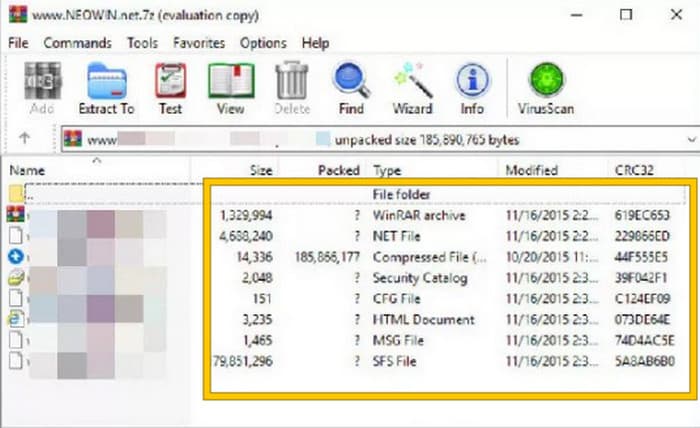
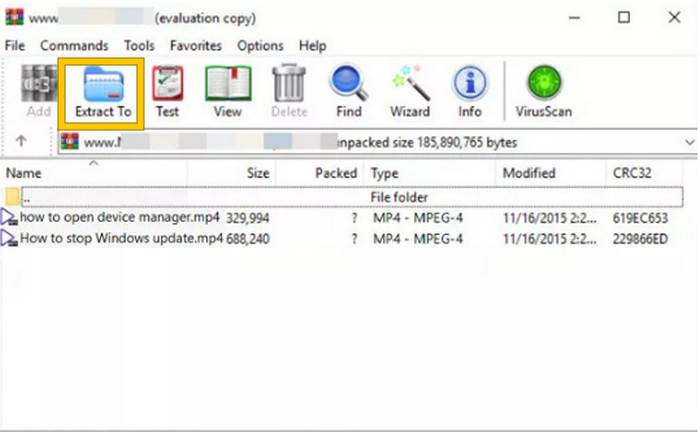
ステップ 3. 最後に、変換(解凍)を開始するには、メニュータブのリストからExtract Toボタンをクリックします。完了したら、インターフェース上から直接、変換後のファイルを開くことができます。
パート3. ボーナスヒント: あらゆるオーディオ/ビデオをオンラインでMP4に変換する最良の方法
おまけ情報として、あらゆる動画・音声ファイルを、最高かつ最速の方法で MP4 に変換するコツをご紹介します。ここで登場するのがFVC Free Video Converter Onlineです。このコンバーターを使えば、動画や音声ファイルを MP4 などのさまざまな形式に、とても簡単かつ完全無料で変換できます。さらに、高解像度の動画も、元の画質や鮮明さを保ったまま、人気の形式へすばやく変換可能です。加えて、複数ファイルを一気に変換できる驚くほど高速な処理にもきっと満足できるでしょう。
さらに、この FVC 無料オンライン ビデオ コンバーターでは、ビデオやオーディオを自由に調整できます。このコンバーターを使用すると、解像度、フレーム レート、ビットレート、さらには音量やビットレートなどのオーディオ設定を好みに合わせて調整できるためです。つまり、メディアを好きなようにカスタマイズし、簡単にエクスポートできます。したがって、ビデオ ファイルまたはオーディオ ファイルをオンラインで MP4 に変換する方法がわからない場合は、以下に示す簡単な手順に従ってください。
ステップ 1. まず、FVC Free Video Converter Online の公式サイトにアクセスします。ページに到達したら、Add Files to Convert ボタンをクリックしてランチャーを取得し、元となるファイルをアップロードします。

ステップ 2. ファイルがアップロードされたら、メイン画面の Add File ボタンをクリックして、さらにメディアファイルを追加できます。その後、各ファイルをクリックし、画面下部で MP4 形式を選択して MP4 に設定します。
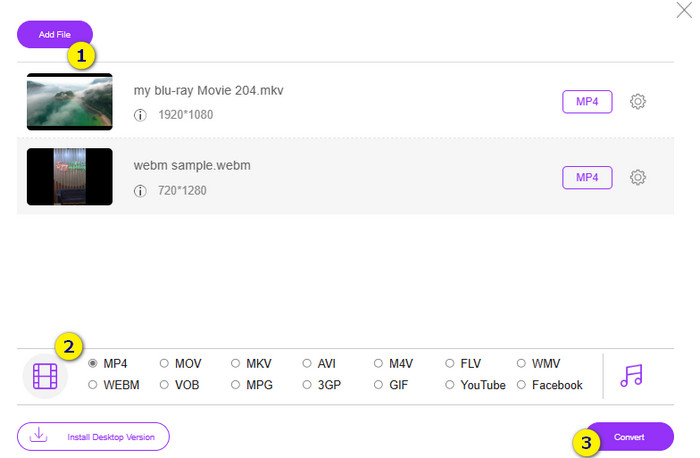
ステップ 3. 準備ができたら、画面下部の Convert ボタンをクリックして、高速かつ一括での変換を開始します。
さらに詳しく読む:
2025 年版 Windows・Mac 向けベスト MP4 編集ソフト
パート4. RARとMP4の変換に関するよくある質問
RAR ファイルとは何ですか?
RAR ファイルはアーカイブ ファイル形式で圧縮されます。これにより、全体のサイズを縮小しながら、複数のファイルを 1 つのコンテナーに保存できます。
Mac で RAR を MP4 に変換するにはどうすればよいですか?
Mac で RAR を MP4 に変換するには、まず Unarchiver のような解凍ソフトを使って RAR アーカイブの中身を展開します。そのうえで、取り出した内容の中にある対応動画ファイルを、強力なコンバーターを用いて MP4 形式に変換します。この変換には、FVC Video Converter Ultimate を利用できます。
RAR ファイルにビデオを含めることができますか?
RAR ファイルは、あらゆる種類のファイルを保存できる zip フォルダーのようなものです。つまり、RAR ファイルにはビデオを含めることができます。
結論
この記事は、お使いのデバイスでRAR から MP4への変換作業を行うのに最適な方法を紹介しており、まさにぴったりの内容です。さらに、プロのように作業をこなせる、最高のオンライン動画・音声コンバーターも紹介しました。
-
 オンラインでビデオを圧縮してビデオのファイルサイズを削減する方法
 オンラインでビデオ コンプレッサーをお探しなら、当社がすべてサポートしますので、もう見つける必要はありません。ここでは、使用できる最も便利なツールをいくつか紹介します。
-
 MP4ビデオをより小さなサイズに圧縮する方法
 MP4ビデオはアップロードするには大きすぎますか?ビデオサイズを縮小したいですか? MP4ファイルを無制限に小さいサイズに圧縮する3つの効率的な方法を次に示します。
-
 無料でビデオを圧縮する方法/これらの7つのオンラインビデオコンプレッサーを試す
 コンピューターまたは電話で無料でビデオを圧縮する7つの方法を読んで入手してください。メール、Twitter、Instagram、YouTube、WhatsAppなどの大きなビデオを小さなファイルサイズに簡単に縮小できます。
