


 ビデオコンバーター究極
 スクリーンレコーダー
 ビデオ修復
ビデオ修復
 安全なダウンロード
PDFファイルをメール用に圧縮する方法 3つの効果的な方法
実際のところ、大容量ファイルをメールで送るのは面倒です。問題を引き起こしたり、そもそも相手に届かなかったりすることもあります。また、多くのメールサービスでは添付ファイルのサイズに上限があり、複雑なPDFだとすぐにその制限を超えてしまいます。特に画像が多いPDFやページ数の多い文書では、その傾向が顕著です。そのため、このような状況では、多くの人がDropboxやGoogleドライブといったファイル共有サービスを利用します。しかし、多くの人が便利な「ファイル圧縮」という手段をほとんど忘れてしまっています。無料で使えるオンラインツールも多く、その中にはかなり人気のものもあります。では、メール用にPDFを効果的に圧縮するにはどうすればよいのでしょうか。それを、以下の内容を読み進めることで学ぶことができます。

パート 1. 電子メールに最適な PDF サイズはどれですか
事実、メールに最適な PDF サイズに魔法の数字はありません。注意すべきは、メール プラットフォームの添付ファイルの制限です。一般的なサービスでは、添付ファイルの上限が約 20 MB に設定されていますが、特に多くの画像を含む PDF や非常に長い文書の場合は、この上限に達するのが意外に簡単です。したがって、PDF が前述の 20 MB の制限より大きい場合、メールは送信されず、エラー メッセージが表示されます。とはいえ、特定のサイズやメールに最適な PDF サイズを目指すのではなく、安全策をとって 20 MB 未満に抑えるのが最善です。そうすれば、添付ファイルが正常に添付され、送信されることを確信できます。
パート2. ワンクリックでPDFファイルをメール用に圧縮する
ここでは、メールで送るファイルを素早く圧縮する優れた方法を紹介します。無料ツール「FVC Free PDF Compressor」を使ってみましょう。このツールなら、PDFを崩さずに大幅にサイズダウンできます。多くのメールサービスでは添付ファイルが約20MBまでに制限されているため、画像が多いPDFやテキスト量の多いPDFはすぐに上限に達してしまいます。このコンプレッサーなら、PDFを100KB未満にまで小さくできる場合もあります。メール用にPDFを大幅に圧縮しても品質がどうなるか心配する必要はありません。元のPDFと縮小後のPDFの違いに、ほとんど気づかないはずです。
さらに、この素晴らしいツールは使い方が超簡単で、どんなレベルの専門知識を持つ人でも使用できます。PDF ファイルをプログラムにドラッグ アンド ドロップするだけで、自動的に縮小されます。その後、クリックするだけで、小さくなった PDF をコンピューターに保存できます。この方法では、PDF をオンラインでメール サイズにすばやく圧縮して、最終文書に透かしが入ることなく、メールで送信またはアップロードするのに最適なサイズにすることができます。そのプロセスをよりよく理解するには、以下の詳細なガイドラインを参照してください。
ステップ1.メイン画面で「Add PDF File」タブをクリックし、圧縮したいPDFファイルを選択します。
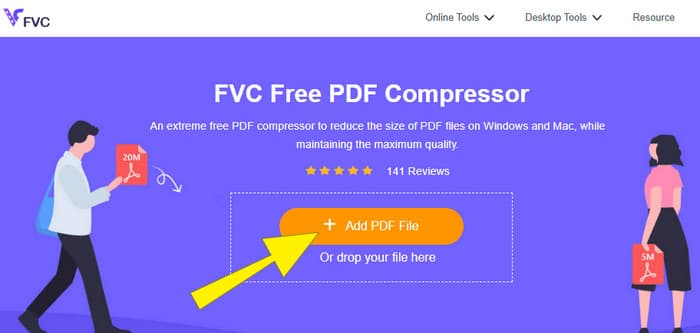
ステップ2.PDFファイルのアップロード中に、ツールが同時に圧縮処理も行います。
ステップ3.完了したら、「Download the PDF」ボタンをクリックします。
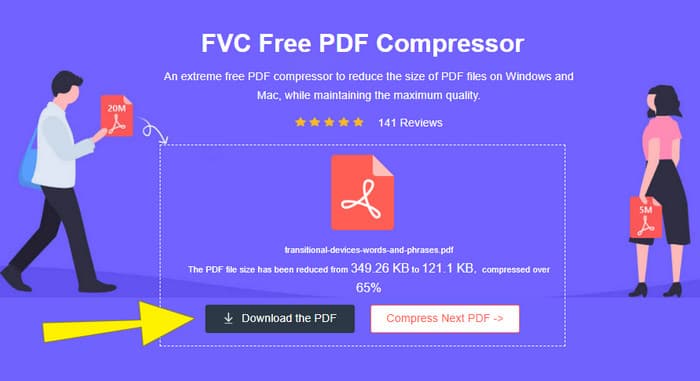
パート3. 編集機能を使ってPDFファイルをメール用に圧縮する
編集機能も備えたツールを使いたいなら、Adobe Acrobatが最適です。Adobe Acrobatは、PDFファイルの作成・編集・管理で知られるプログラムで、PDF専用の高機能ツールセットのような存在です。その便利な機能のひとつがPDF圧縮で、メールのサイズ制限のために送れない大きなPDFがあるときに役立ちます。オンライン版とデスクトップ版の両方を備えたAdobe Acrobatなら、PDFの画質を大きく損なうことなく、メール用にサイズを縮小できます。具体的には、PDF内の画像サイズを減らしたり、不要なフォントを削除したりして圧縮します。ただし、Adobeおよびそのスイート製品に慣れていない場合、操作を難しく感じても不思議ではありません。そこで、作業をスムーズに進めるための手順を以下に示します。
ステップ1.Acrobatを起動し、作業したいPDFファイルを開きます。そのためには、「ツール」→「PDFを最適化」→「開く」と進みます。
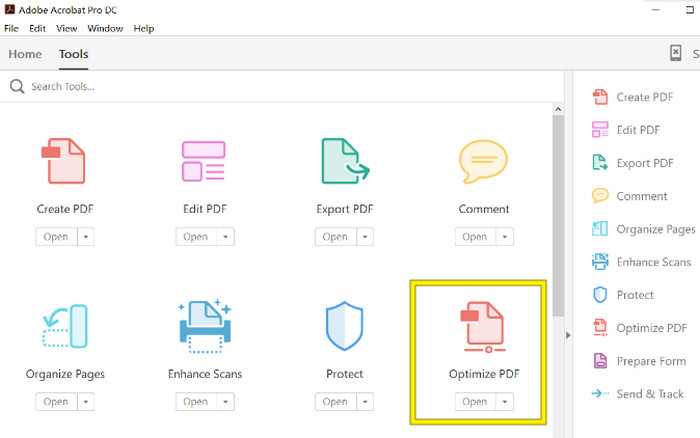
ステップ2.PDFファイルを開いたら、新しく表示されるナビゲーションから「ファイルサイズを縮小」オプションをクリックします。そのうえで、用意されている編集・最適化オプションを設定し、希望する圧縮度と最適化状態に調整します。
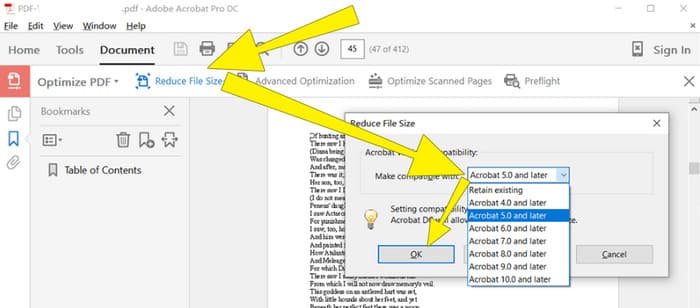
ステップ3.その後、圧縮されたPDFファイルを保存します。
パート4. PDFファイルをメール用に圧縮する
メールで送信するためにPDFを圧縮する新しい裏ワザを知りたいですか?PDFをJPGに変換してみましょう。この変換テクニックは、PowerPointを使うことでうまく行えます。PowerPointは、おそらくプレゼンテーションを作成する際によく使うプログラムです。テキストや画像、場合によっては動画などを含むスライドショーを思い浮かべてください。PowerPointでは、スライドを1枚ずつ作成し、クリックして切り替えながら情報を見せていきます。教師や学生、ビジネスパーソンなど、視覚的に情報を共有したい人たちの間で広く使われています。
PDF を PowerPoint プレゼンテーションに挿入するのは便利ですが、最も直感的なプロセスではないかもしれません。しかし、一度やってしまえば、JPG ファイルの作成は簡単です。でも心配しないでください。PDF をすぐに埋め込むために必要な手順を、ステップごとに説明します。
ステップ1.PCでPowerPointを起動し、PDFファイルを開くための適切なスライドを選択します。
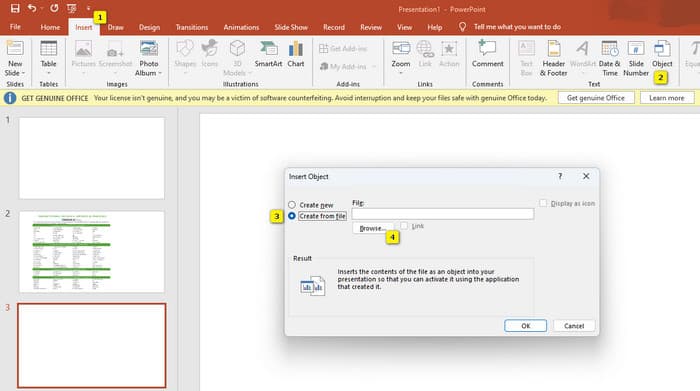
ステップ2.「挿入」タブメニューに移動し、「テキスト」グループから「オブジェクト」オプションを探します。そのオプションをクリックすると、新しいウィンドウが表示されます。そのウィンドウの左側にある「ファイルから作成」を選択します。次に「参照」ボタンをクリックし、スライド上に取り込みたいPDFファイルを指定します。
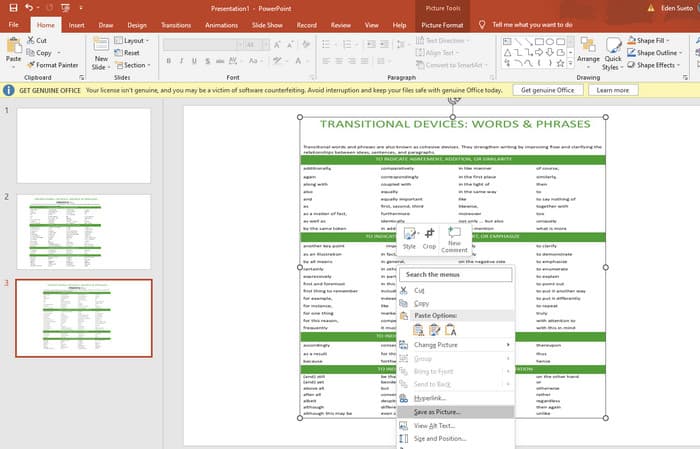
ステップ3.PDFファイルがスライドに挿入されたら、それをJPGに変換できます。スライド上のPDFを右クリックし、「図として保存」を選択して、JPEG形式で保存します。
パート5. PDFと圧縮に関するよくある質問
PDF 添付ファイルを電子メールで送信できるサイズはどれですか?
メールプロバイダーによって異なりますが、ほとんどのプロバイダーでは添付ファイルのサイズを約 20 MB に制限しています。
最高の無料 PDF 圧縮ツールは何ですか?
無料の PDF 圧縮ツールはいくつかありますが、どれが最適かは常にユーザーの好みによって決まります。今のところ、FVC Free PDF Compressor が最も推奨される無料オンライン ツールです。
PDF ファイルを電子メール用に圧縮するにはどうすればよいですか?
実際には、PDF はすでに圧縮されたファイルなので、zip 圧縮は機能します。
結論
この記事では、メール用にPDFファイルを最適に圧縮する方法について解説しました。ファイルサイズ制限に収まるようにPDFを適切に縮小すれば、PDFをメールでよりスムーズかつ快適に送信できるようになります。
-
 ビデオから透かしを簡単に削除する方法に関する3つのベストソリューション
 ビデオの迷惑な透かしを削除したいですか?このブログでは、ビデオの透かしを削除するためのさまざまなアイデアを学ぶことができます。
-
 任意のビデオに透かしをすばやく追加する方法に関する4つの最良の方法
 この記事を読んだら、詳細な手順を使用して、Windows、Mac、オンライン、iOS、およびAndroid上のビデオに透かしを追加する方法を学びましょう。
-
 オンラインおよびオフラインでGIFに透かしを追加する最も簡単な3つの方法
 適切なツールを正しく使用すれば、GIFに透かしを追加するのは1-2-3と同じくらい簡単です。市場に出回っているツールは広すぎますが、信頼できる3つのツールを紹介します。
