


 ビデオコンバーター究極
 スクリーンレコーダー
 ビデオ修復
ビデオ修復
 安全なダウンロード
Android デバイスでビデオが再生されない問題を解決する方法 [2024]
Androidデバイスで動画が再生できないという問題が起きていて、その対処法を探しているなら、ここで解決策を見つけられます。この種の動画トラブルはよくあるもので、さまざまな理由から多くの人が経験します。この記事では、動画が再生されない主な原因と、その問題を解決するための実用的で簡単な対処法を紹介します。
Android デバイスでビデオを楽しむ上での妨げとなる課題を迅速に解決できるように、実用的な洞察をお届けします。

パート 1. Android デバイスでビデオが再生されない理由
Android デバイスでのビデオ再生の問題はイライラさせ、ユーザー エクスペリエンスに影響を与え、マルチメディア コンテンツを楽しめなくする可能性があります。以下は、Android でビデオが再生されないさまざまな理由です。
インターネット接続の問題
インターネット接続が弱く不安定な場合、バッファリングが発生したり、動画の読み込みに失敗したりする可能性があります。強力で信頼性の高い Wi-Fi またはモバイル データ接続があることを確認してください。
アプリまたはシステムのバージョンが古い
ビデオ再生アプリまたは Android システムが古い場合、最新のビデオ形式がサポートされていなかったり、重要なバグが修正されていない可能性があります。
アプリのキャッシュとデータ
ビデオ再生アプリに蓄積されたキャッシュとデータは、再生の問題を引き起こす可能性があります。アプリのキャッシュとデータを消去すると、不具合が解決される場合があります。このオプションには、デバイスの設定からアクセスしてください。
ストレージ容量の不足
デバイスのストレージ容量が少ない場合、ビデオのバッファリングがうまくいかず、スムーズに再生されない可能性があります。
コーデックの互換性
デフォルトのビデオ プレーヤーは、特定のビデオ コーデックをサポートしていない可能性があります。Google Play ストアからサードパーティのビデオ プレーヤーをインストールすると、追加のコーデック サポートが提供され、さまざまなビデオ形式との互換性が向上します。
パート2. Androidデバイスで動画が再生されない問題を解決する一般的な解決策
Android デバイスでビデオが再生されないのはよくある問題ですが、その解決策は簡単です。この問題を解決するために実行できる最善の解決策は次のとおりです。
方法1: ビデオ修復ツールを使用する
ビデオ修復ツールは、破損または損傷したビデオ ファイルを修復するように設計されています。これは、Android デバイスでビデオが再生されない一般的な原因となる可能性があります。ビデオ ファイルが破損している場合、正常に開いたり再生したりできないことがあります。これは、ダウンロード中の中断、ファイル転送の問題、または元の録画の問題が原因で発生する可能性があります。ビデオ修復ツールは、多くの場合、破損したファイルを分析し、エラーを特定して修正し、再生可能なバージョンを生成することによって機能します。
このような状況で、Androidデバイスで再生できない動画を修復するのに最適なツールのひとつが、FVC Video Repairです。このツールには、破損または損傷した動画ファイルに伴う一般的な問題へ効率的に対処する機能から、使いやすいインターフェース、幅広い動画形式への対応、最新のAIアルゴリズムの搭載まで、動画修復ツールに必要な機能がすべて揃っています。このツールを使えば、動画の修復プロセスを素早く効率的に行えます。使い方は次のとおりです。
ステップ1. まず、Androidスマートフォンで再生できない動画をパソコンに転送するために、デバイスをPC/デスクトップに接続します。
ステップ2. 次に、FVC Video Repairソフトをダウンロードしてインストールします。
無料ダウンロードWindows 7以降に対応安全なダウンロード
無料ダウンロードMacOS 10.7以降に対応安全なダウンロード
ステップ3. 続いて、赤いプラスボタンをクリックして、デバイスから取り込んだ動画を追加します。同様に、青いプラスボタンをクリックしてサンプル動画も追加します。
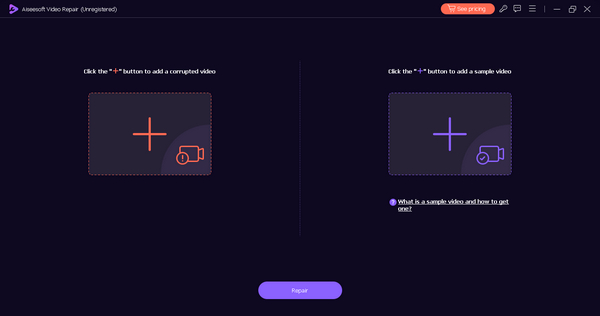
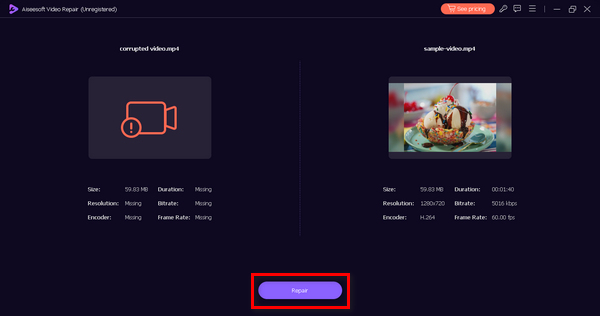
ステップ4. その後、[Repair]ボタンをクリックして、動画の修復処理を開始します。
ステップ5. 最後に、Previewボタンをクリックして動画が再生できるか確認します。問題がなければ、Saveボタンをクリックして修復済みの動画を保存します。
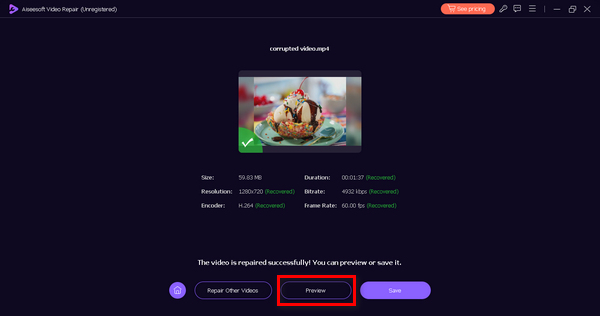
FVC Video Repairは、動画が再生できない問題を修復するうえで、非常に優れた選択肢です。このツールを使うことで、動画ファイルの完全性を回復し、Androidデバイスで正常に再生できるようになる可能性があります。
方法2: ビデオ変換ツールを使用する
Androidデバイスで動画が再生できないのは、ファイル形式やコーデックの互換性の問題が原因である場合もあります。そのようなときは、FVC Video Converter Ultimateのような動画変換ツールを利用しましょう。このツールを使えば、動画をAndroidデバイスとの互換性がある形式へ変換できます。Androidデバイスには再生に関する特定の要件がある場合があり、ファイルを変換することでそれらの条件を満たせます。さらに、この動画変換ツールは、解像度などその他の動画パラメータがデバイスに適していない場合にも役立ちます。使い方は次のとおりです。
ステップ1. まず、再生できない動画をAndroidデバイスからPC/デスクトップに書き出します。
ステップ2. 次に、公式サイトにアクセスしてプログラムをダウンロードし、パソコンにインストールします。
無料ダウンロードWindows 7 以降対応安全なダウンロード
無料ダウンロードMacOS 10.7 以降対応安全なダウンロード
ステップ3. 画面上部のタブを確認すると、Converter・MV・Collageの3つが表示されます。その中から最初のConverterタブを選択します。

ステップ4. 次に、Add Fileボタンを押して、Androidデバイスから取り込んだ動画を追加します。
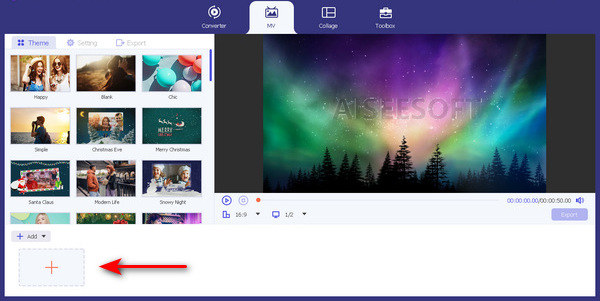
ステップ5. 続いて、Output Formatボタンをクリックして、動画ファイルの形式を変更します。
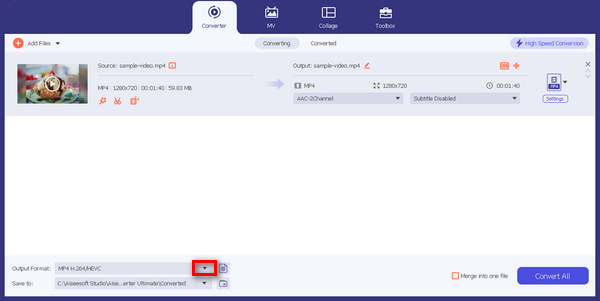
ステップ6. 最後に、Convert Allボタンをクリックしてファイルを変換します。
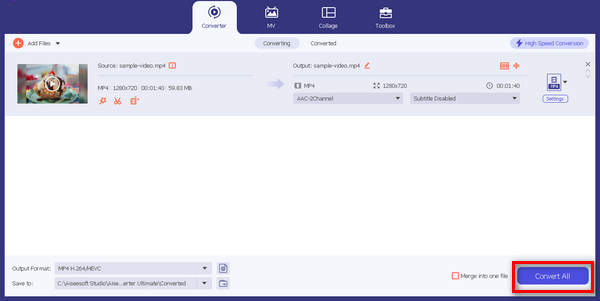
FVC Video Converter Ultimate を使用してビデオ形式を変換すると、形式がデバイスと互換性を持つようになり、スムーズに再生できるようになります。
パート3. Androidデバイスでビデオが再生されない場合のよくある質問
Android でビデオを開くことができないのはなぜですか?
Android デバイスでビデオを開くことができない場合は、デバイスのストレージ容量をチェックして、ビデオを再生するのに十分な空き容量があることを確認してください。ストレージが限られている場合は、不要なファイルを消去することを検討してください。また、古いビデオ再生アプリや Android システム自体が、新しいビデオ形式と互換性がない可能性があります。アプリとシステムの両方を最新バージョンに更新してください。特定のビデオが再生されない場合は、破損している可能性があります。このような場合は、ビデオ修復ツールを使用すると、破損したファイルを修復して適切に再生できるようになります。
なぜ私の携帯電話ではビデオを視聴できないのでしょうか?
スマートフォンで動画が再生できない場合は、まずインターネット接続を確認しましょう。Wi‑Fiでもモバイルデータ通信でも、接続が不安定だとバッファリングや再生エラーの原因になります。また、端末の設定からアプリの権限を見直し、動画再生アプリにストレージやインターネットへのアクセス権限が付与されているか確認してください。さらに、動画再生アプリとAndroidシステムの両方を最新バージョンに保ちましょう。アップデートには、動画再生のパフォーマンスを向上させる不具合修正が含まれていることがあります。なお、iPhoneで動画が再生できない場合は、こちらの対処法も確認してみてください。
カメラロールのビデオが再生されないのはなぜですか?
カメラロールのビデオが再生されない場合は、ファイルが破損している可能性を検討してください。ビデオ修復ツールを使用すると、特定のビデオの問題を解決できる場合があります。デバイスのデフォルトのプレーヤーがカメラで使用されるビデオ形式をサポートしていることを確認します。サポートされていない場合は、サードパーティのビデオプレーヤーまたはビデオコンバーターを使用して形式を調整してみてください。デバイスのストレージ容量を確認してください。ストレージがいっぱいになるとビデオの再生が妨げられる可能性があります。不要なファイルを削除するか、外部ストレージデバイスに転送してスペースを解放します。これらの側面に対処すると、Android デバイスでのカメラロールのビデオの再生の問題が解決されることがよくあります。
結論
Androidで動画が再生できないという問題は、あまり深刻に心配する必要はありません。素早く解決するための方法が用意されているからです。ここで紹介した2つのソフトウェアは、あらゆる動画トラブルの改善に役立ちます。特定の問題だけでなく幅広いケースに対応できる汎用性の高さから、動画修復ソフトとして非常に優れた選択肢と言えるでしょう。
-
 ビデオがフリーズする原因とフリーズを解除する方法?
 動画を見ている途中でフリーズしてしまった経験はありませんか?凍結を解除するために知っておくべきことはすべてここにあります。
-
 ビデオを再生できないエラー 5 問題を簡単に修正する方法
 ダウンロードしたビデオの 1 つを再生しようとしましたが、ビデオを再生できないエラー 5 のメッセージが表示されて中断された経験はありませんか?知っておくべきことはすべてここにあります。
-
 ビデオを再生できないエラー 150 を修正するための簡単な解決策
 ビデオ視聴中に、ビデオを再生できないイライラするエラー 150 に遭遇したことがありますか?修正方法については説明しているので、ご安心ください。
