


 ビデオコンバーター究極
 スクリーンレコーダー
 ビデオ修復
ビデオ修復
 安全なダウンロード
HTML5 ビデオが見つからないエラーの簡単な解決策
動画を再生しようとしたときに「HTML5 ビデオが見つかりません」エラーが出ると、気分が一気に冷めてしまいますよね。しかし安心してください。この問題を修正して、またスムーズにコンテンツを楽しめる方法があります。一時的なトラブルに視聴体験を台無しにさせるのではなく、深呼吸してこの記事で紹介する手順に従ってください。トラブルシューティングの流れを一つずつ解説し、プロのようにエラーを解決できるようサポートします。ちょっとした不具合にエンタメ時間を邪魔させないようにしましょう。すぐに、煩わしい中断なしでスムーズな動画再生をまた楽しめるようになります。
この問題を解決し、オンライン ビデオの視聴体験を向上させましょう。

パート1. ブラウザでHTML5ビデオが再生されない理由
HTML5 ビデオは、Web ブラウザーでビデオを再生する最新の方法です。これは、複雑だった Adobe Flash を使用する従来の方法に代わるものです。すべてのブラウザーで動作し、自動再生や音量調整などのコントロールが組み込まれているため、開発者は Web サイトでより優れたビデオ エクスペリエンスを簡単に作成できます。これは現在、オンラインでビデオを再生するための標準的な選択肢となっています。では、見つからない HTML5 ビデオは何でしょうか?
これは、ブラウザが動画ファイルを見つけられず、HTML5 上で動画が再生されないときに発生するエラーです。本来表示されるはずの動画コンテンツの代わりに、ユーザーには HTML5 ビデオが見つからない、またはアクセスできないというメッセージが表示されます。
パート2. HTML5ビデオが見つからない問題を解決する方法
ビデオを再生しようとしたときに HTML5 ビデオが見つからないというエラーが発生する理由はたくさんあります。このエラーを簡単に修正する方法は次のとおりです。
方法1: ブラウザを更新する
ブラウザを最新の状態に保つことは、バグや技術的な不具合などの問題に対処するための有効な方法です。さらに、ブラウザを最新バージョンに維持することは、HTML5 ビデオが見つからないエラーなどの一般的な問題を防ぐのに効果的です。
ステップ 1. まず、Chrome を開きます。
ステップ 2. 次に、右上の 3 つの点、または「設定と管理」ボタンをクリックします。
ステップ3. そこで「ヘルプ」をクリックします。
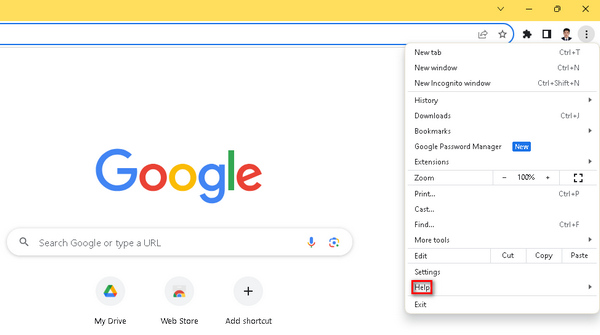
ステップ 4. その後、[Google Chrome について]を選択します。新しいバージョンがある場合は、「Google Chrome を更新」というオプションが表示されます。ない場合は、「再起動」ボタンが表示されます。
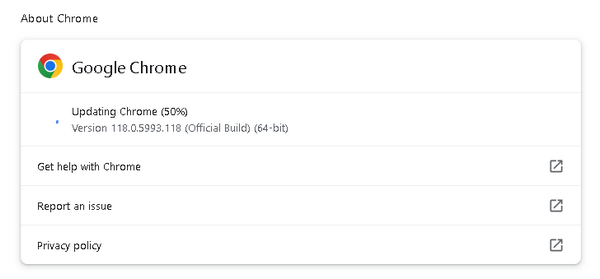
Google Chrome を更新しても、HTML5 ビデオが見つからないというエラー コードが修正されることは保証されません。他の要因を確認し、ソフトウェア ツールを使用して修正することを検討することが重要です。
方法2: ビデオ修復ツールを使用する
動画修復ツールを使うことで、「HTML5 ビデオが見つかりません」エラーを効果的に解消できます。高度な AI アルゴリズムを搭載したFVC Video Repairは、MP4、MOV、3GP などの形式で再生できなくなっている動画の問題を効率的に修復し、高品質な結果を実現します。保存前に修復された動画をプレビューできるため、ブラウザ上でのシームレスな動画再生を実現する信頼性の高いツールです。さらにこのツールはトラブルシューティングの手間を軽減し、よくある動画再生エラーに素早く効率的に対処できるため、全体的な視聴体験を向上させます。利用するには、以下の手順に従ってください。
ステップ 1. まず、公式サイトからソフトウェアをダウンロードし、端末にインストールします。
無料ダウンロードWindows 7以降に対応安全なダウンロード
無料ダウンロードMacOS 10.7以降に対応安全なダウンロード
ステップ 2. 次に、ツールを起動します。画面左側に赤いプラスボタン、右側に青いプラスボタンの 2 つが表示されます。HTML5 ビデオが再生されないエラーを修復するには、赤いプラスボタンをクリックして問題の動画を追加し、青いプラスボタンをクリックしてサンプル動画を追加します。
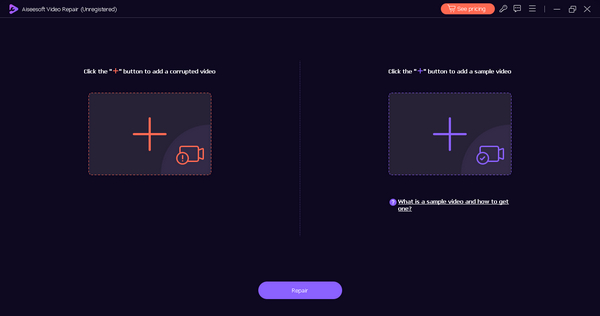
手順3. その後、修復ボタンをクリックします。
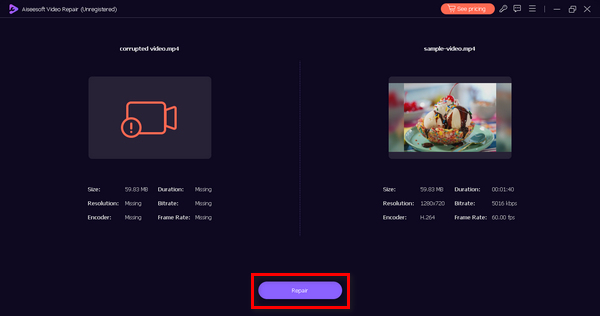
ステップ 4. 最後に、プレビューボタンをクリックして、「HTML5 ビデオが見つかりません」という表示がまだ出るかどうか確認します。問題なければ、そのままファイルを保存できます。
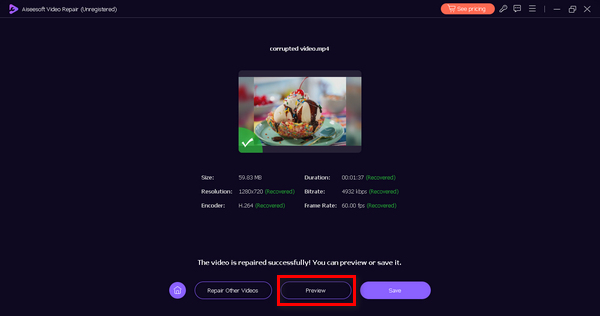
FVC Video Repair は、まさに多用途のツールです。ビデオの問題を修正する幅広い機能を備えたこのツールは、ビデオで問題やエラーが発生したときにいつでも頼りになるツールです。
方法3: ブラウザのキャッシュとCookieをクリアする
データの破損によって発生する HTML5 ビデオ再生の問題を解決するには、ブラウザのキャッシュと Cookie をクリアすることが重要です。破損したキャッシュや Cookie は Web サイトの機能を妨げ、ビデオ再生に問題を引き起こす可能性があります。キャッシュには Web サイトのリソースが長期間保存され、Cookie にはユーザーの設定が保持されます。これらのファイルをクリアすると、問題が解消され、ブラウザは Web サイトから最新のエラーのないデータを取得できるようになり、HTML5 ビデオが見つからないという問題に対処できます。ブラウザのキャッシュと Cookie をクリアする方法は次のとおりです。
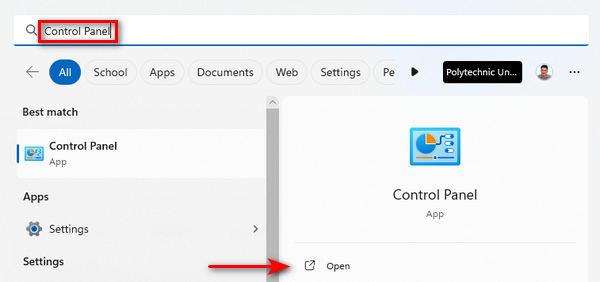
ステップ 1. まず、検索バーに「コントロール パネル」と入力して開きます。
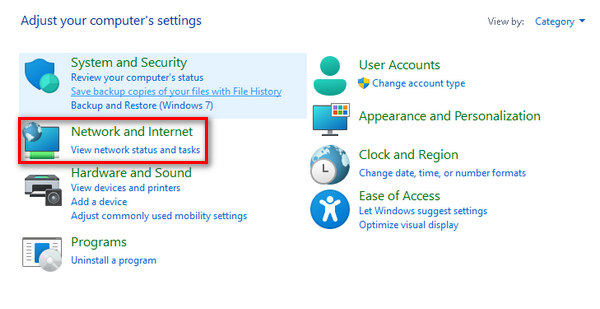
ステップ 2. コントロール パネル内で、「ネットワークとインターネット」オプションを探して選択します。
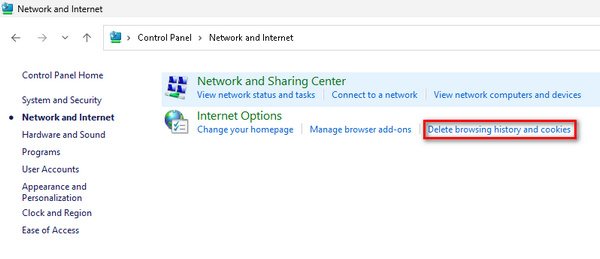
ステップ 3. 「閲覧の履歴と Cookie の削除」を見つけてクリックします。
ステップ 4. 削除する項目にチェックを入れられるタブが表示されます。必要な項目を選択したら、[削除]ボタンをクリックして処理を完了します。
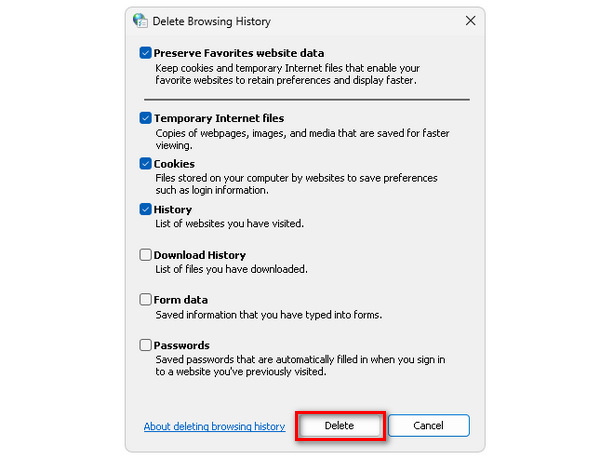
この方法を実行することで、「HTML5 ビデオが見つかりません」エラーを防げるだけでなく、ブラウザで発生する他の動画エラーも同時に回避できます。この解決策は、動画がフリーズする、映像が乱れるなどのトラブルにも有効です。
パート 3. HTML5 ビデオが見つからない場合の FAQ
Chrome で HTML5 ビデオが再生されないのはなぜですか?
Chrome では、ブラウザのバージョンが古い、ブラウザの拡張機能が競合している、動画ファイルやウェブサイトに問題があるなど、さまざまな理由により HTML5 動画が再生されない場合があります。問題を解決するには、Chrome を更新し、拡張機能を無効にして、ウェブサイト固有の問題がないか確認してみてください。
Firefox で見つからない HTML5 ビデオとは何ですか?
Firefox で HTML5 ビデオが見つからない場合、ブラウザーが指定されたビデオを見つけられないか再生できないことを示します。原因としては、互換性の問題、ネットワークの問題、ビデオ ファイルのエラーなどが考えられます。この問題を解決するには、Firefox を更新するか、ネットワーク接続を確認するか、別のビデオ ソースを試すことを検討してください。
Chrome Android で HTML5 を有効にするにはどうすればいいですか?
Android 版 Chrome での HTML5 の有効化は、通常は自動的に行われます。ただし、Google Play ストアで Chrome アプリを最新の状態に維持することで、HTML5 のサポートを確保できます。さらに、ブラウザのキャッシュと Cookie をクリアすると、Android 版 Chrome での HTML5 ビデオ再生に関連する問題が解決される可能性があります。
HTML5 ビデオの再生に問題が発生することがあるのはなぜですか?
HTML5 ビデオは、ブラウザの互換性、古いソフトウェア、ネットワークの問題、ビデオ ファイルのエラーなどの要因により、再生時に問題が発生する場合があります。ブラウザが最新であることを確認し、ネットワーク接続をチェックし、ビデオ ファイルの整合性を検証すると、再生の問題を解決できます。
ウェブサイトでエラーを見つけずに HTML5 ビデオをトラブルシューティングするにはどうすればよいですか?
ウェブサイトで HTML5 ビデオが見つからないというエラーが発生した場合は、まずビデオ ファイルの場所と整合性を確認してください。ファイル フォルダーが正しいことと、ファイルが破損していないことを確認してください。さらに、ウェブサイトの HTML コードを確認して、ビデオ要素が適切に埋め込まれていることを確認してください。さまざまなブラウザーやデバイスでテストすると、互換性の問題を特定して対処するのにも役立ちます。
結論
「HTML5 ビデオが見つかりません」エラーの解消は、実は思っているよりずっと簡単です。ブラウザを更新するにしても、FVC Video Repair を使うにしても、これらのシンプルな手順を踏めば、動画視聴の中断を乗り越えることができます。主導権を取り戻し、ここで紹介した対処法を実践して、途切れることのない高品質な動画コンテンツを楽しみましょう。これらの効果的な修復方法で、エンターテインメント体験を手軽にレベルアップしてください。
-
 0xc00d5212 エラー コードとその解決方法は何ですか?
 エラー コード 0xc00d5212 が発生した場合は、このガイドが役立ちます。エラーを解決するには、次のトラブルシューティング方法に従ってください。
-
 ビデオ エラー コード 23301 をすばやく解決する方法 [ガイド]
 動画を再生していると突然「このビデオファイルはエラーコード2330のため再生できません」と表示されていませんか?簡単に修正する方法については、包括的なガイドをお読みください。
-
 エラー コード 232011: その内容と解決方法
 これらの簡単で効果的なヒントを使用して、コンピューターのエラー コード 232011 をトラブルシューティングして解決する方法を学びます。このエラーによってコンピューターの使用がこれ以上妨げられないようにしましょう。
