


 ビデオコンバーター究極
 スクリーンレコーダー
 ビデオ修復
ビデオ修復iPhoneのビデオからAndroidのぼやけた問題を簡単に解決
AndroidでiPhoneの動画がなぜ汚く見えるのか疑問に疲れていませんか? あるいは、iPhoneの動画をAndroid端末で再生したときに、ぼやけて見えてしまうことはありませんか?
心配する必要はありません。視覚的な鮮明さを高め、ビデオに命を吹き込むためのシンプルで効果的なソリューションがあります。ぼやけたビデオは非常に迷惑であり、お気に入りのビデオを視聴するときに視覚体験に完全に没頭するのを妨げる可能性があります。 iPhone から Android にビデオを送信するときにビデオがぼやける一般的な理由を見つけると、iPhone と Android のピクセルの違いを理解できるようになります。この問題に対処するには、この記事を読み続けて、ビデオ転送の詳細と、ビデオがぼやけてしまう場合の修正方法を学習してください。私たちと一緒にコードを解読し、より鮮明な再生、鮮やかな色、全体的に向上した視覚体験をお楽しみください。
パート 1. iPhone から Android に送信したビデオがぼやける一般的な理由
シームレスなマルチメディア共有の時代では、iPhone から Android デバイスにコンテンツを転送するときに、ビデオがぼやけてしまうというフラストレーションを感じることがよくあります。絶望して手をあげる前に、この問題の背後にある一般的な問題や理由を深く掘り下げ、クロスプラットフォームのビデオ共有エクスペリエンスを向上させるための解決策を探ってみましょう。
iPhoneとAndroidのピクセル(画素)の違い:
ぼやけた動画になってしまう最初の原因は、iPhoneとAndroid端末の画素密度の根本的な違いにあります。iPhoneはより高い解像度を搭載していることが多く、その結果、Androidの画面で動画を再生すると表示に差が出てしまう場合があります。これを防ぐには、お使いのAndroid端末の画面仕様に合った動画解像度で書き出すようにし、統一感のある映像体験を得ることが大切です。
動画が正しくダウンロードされていない:
ときには、問題は動画そのものではなくダウンロードの過程にあります。クラウドサービスやメッセージアプリ経由で動画を転送する際、途中で不具合が起きて画質の低下を招くことがあります。さらに悪い場合には、動画が真っ黒の画面になって再生できなくなることもあります。動画が正しくダウンロードされているかを再確認し、それでも問題が続く場合は、別の転送方法や別のプラットフォームの利用を検討してください。
ネットワークが遅い:
ネットワークの速度が遅いと、ビデオ品質が大きく妨げられ、バッファリングやピクセル化が発生する可能性があります。ビデオを送受信する前に、安定したネットワークに接続していることを確認してください。可能であれば、Wi-Fi 接続を選択して、データのスロットリングを防ぎ、よりスムーズなビデオ再生体験を確保してください。
プラットフォーム側で動画が圧縮される:
多くのメッセージング プラットフォームやソーシャル メディア プラットフォームは、帯域幅とストレージ容量を節約するためにビデオを自動的に圧縮します。これは実用的なアプローチですが、多くの場合、ビデオ品質が犠牲になります。ビデオの整合性を維持するには、直接ファイル転送や専用のクラウド ストレージ ソリューションの使用など、別の方法でビデオを共有することを検討してください。
パート 2. Android で iPhone のビデオの見た目が悪くなるのを修正する方法
方法 1: 別の転送ツールを使用する
iPhone から Android デバイスに思い出に残るビデオを共有するのは楽しい経験であるはずですが、ビデオ品質が標準以下であることに失望すると、気分はすぐに落ち込んでしまいます。いくつかの簡単な手順を実行するだけで、Android デバイス上で iPhone ビデオの視覚的な魅力を高めることができます。
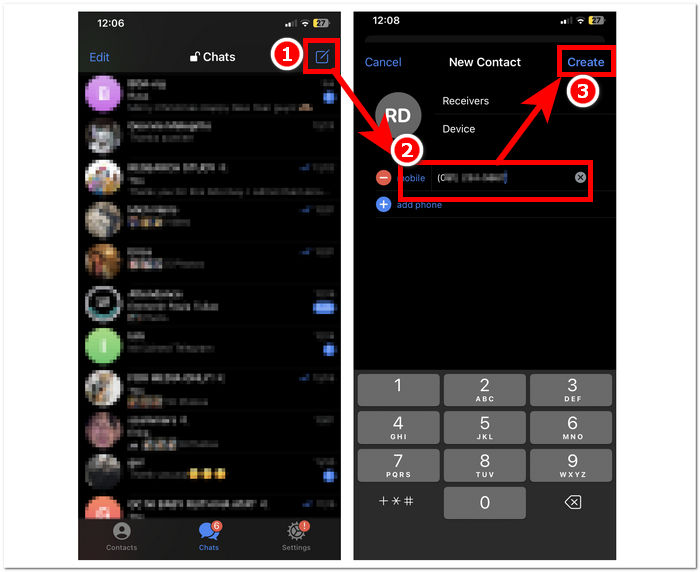
ステップ1. iPhoneとAndroidの両方の端末にTelegramをインストールして起動します。自分の電話番号でログインします。
ステップ2. 送信側の端末で、右上にある新規メッセージアイコンをタップし、受信側の端末の連絡先を探すか、電話番号を手動で入力して作成ボタンをタップします。
ステップ3. クリップ(紙クリップ)アイコンを探してタップし、相手の端末へ送りたい動画を選択します。
ステップ4. 送信をタップして、動画を受信側の端末へ送ります。
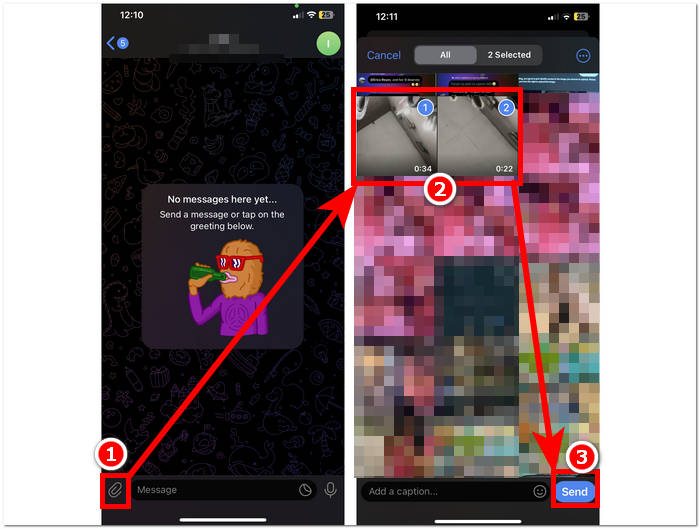
Telegram のユーザーフレンドリーな機能を活用してビデオ共有のレベルを高め、大切な瞬間を、それにふさわしい鮮明さと鮮やかさで伝えましょう。
方法 2: ビデオプレーヤーを変更する
iPhone のビデオの品質を修正するにはどうすればよいですか?テクノロジーがデバイスをシームレスに接続する世界では、マルチメディア コンテンツを共有することが一般的になっています。ただし、iPhone のビデオを Android デバイスで再生しようとすると互換性の問題が発生し、最適な視聴エクスペリエンスが得られない場合があります。特定のビデオは、モバイル デバイスにプレーヤーをダウンロードする方法を介して別のプレーヤーでのみ動作する場合があるため、ビデオ プレーヤーを変更すると問題が解決される可能性があります。
ステップ1. アプリストアからサードパーティ製のMP4動画プレーヤー(VLC、KMPlayer、PlayerXtreme など)をダウンロードしてインストールすることを検討してください。
ステップ2. 設定を開き、画質、アスペクト比、ハードウェアアクセラレーションなど、さまざまな設定を試して、自分の動画に最適な構成を見つけましょう。
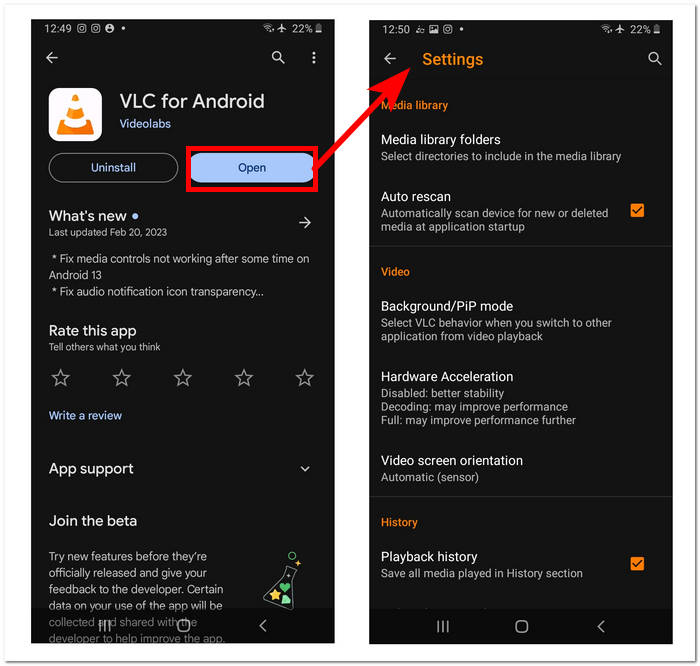
ステップ3. その後、あらゆる種類の動画形式をそのプレーヤーで再生できるようになり、ぼやけ問題に悩まされることなく、Android端末でiPhoneの動画を楽しめます。
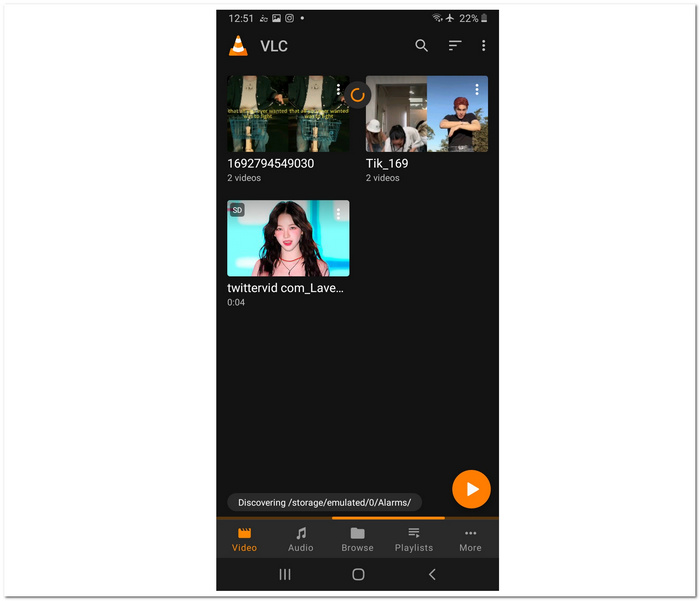
Android で iPhone のビデオを再生する場合、解決策は多くの場合、適切なビデオ プレーヤーを選択することにあります。このガイドで概説されている手順に従うことで、Android デバイスでシームレスで強化されたビデオ再生エクスペリエンスを楽しむことができます。互換性の問題によってマルチメディア エクスペリエンスが損なわれないようにしてください。代わりに、さまざまなプラットフォームでビデオを最適に楽しむための適切なツールを活用してください。
方法 3: ぼやけたビデオを修復する
iPhoneの動画をAndroid端末で再生したら、まるで1ピクセルもないかのように汚く見えてしまい、イライラした経験はありませんか。同じような悩みを抱えている人は少なくありません。今では、動画を修復するツールやソフトウェアが登場し、ぼやけた動画を手軽に直して、ビジュアル重視の体験を続けられるようになっています。そこで役立つのがFVC Video Repairです。直感的なインターフェースで、ぼやけた動画を一瞬で修復し、鮮明にしてくれるツールです。この革新的なソフトウェアは、途切れることなく映像体験を補修・向上させ、大切な思い出をくっきりとした画質で楽しめるよう設計されています。
ステップ1. まずはパソコンにソフトウェアをダウンロードします。インストールが完了したら、ソフトを起動します。
無料ダウンロードWindows 7以降に対応安全なダウンロード
無料ダウンロードMacOS 10.7以降に対応安全なダウンロード
ステップ2. メイン画面で、左側の+ボタンをクリックしてぼやけた動画ファイルを追加します。さらに、右側の+ボタンをクリックしてサンプル動画も追加します。
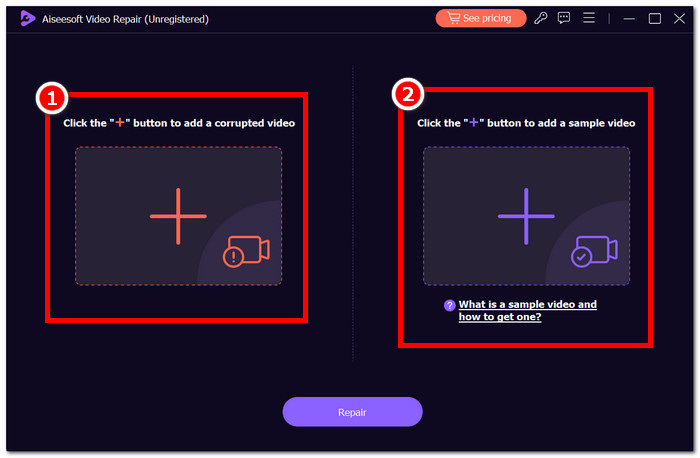
ステップ3. 修復をクリックして修復処理を開始します。ソフトがぼやけた動画ファイルの修復を終えたら、プレビューをクリックして画質を確認します。
ステップ4. 結果に満足できたら、保存をクリックして修復済み動画をパソコンに保存します。
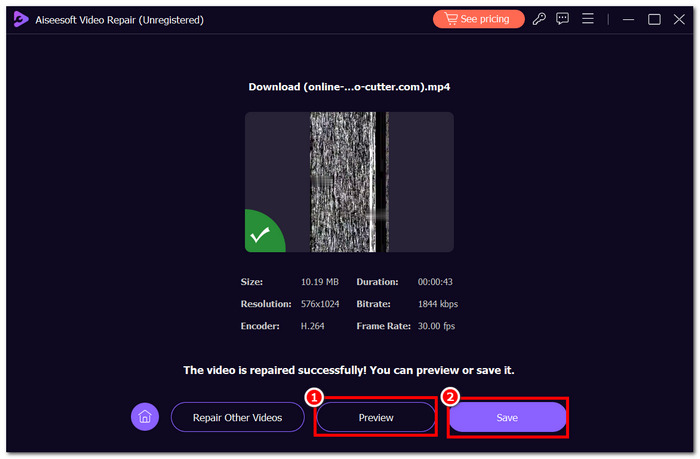
FVC ビデオ修復は、iPhone ビデオが Apple デバイスと同じように Android デバイスでも印象的に見えるようにするための非常に貴重なツールであることがわかります。上記の手順を実行すると、ビデオの品質を簡単に修正して、貴重な瞬間の鮮明さと活気を維持できます。
方法 4: ビデオ形式を変換する
Video Converter Ultimate
めまぐるしく変化するデジタル環境では、たった1ピクセルの乱れでもコンテンツの視聴体験を大きく損なうことがあります。だからこそ、「すぐに修正する方法を知りたい」と思うはずです。そこで登場するのが、FVC Video Converter Ultimateです。この高機能なソフトウェアなら、ぼやけた動画を手軽に変換・強化・圧縮・編集でき、処理も非常に高速です。あらゆるデバイスの動画形式に対応しており、iPhone用からAndroid用の形式まで、幅広い端末との互換性を確保できます。わかりやすいインターフェースのおかげで、専門知識があまりないユーザーでも、ぼやけた動画を互換性のある形式へ簡単に変換できます。
FVC Video Converter Ultimateの使い方:
ステップ1. パソコンにFVC Video Converter Ultimateをインストールして起動します。
無料ダウンロードWindows 7 以降対応安全なダウンロード
無料ダウンロードMacOS 10.7 以降対応安全なダウンロード
ステップ2. ソフトのメイン画面で、赤い+ボタンを見つけてクリックし、ぼやけた動画ファイルを追加します。
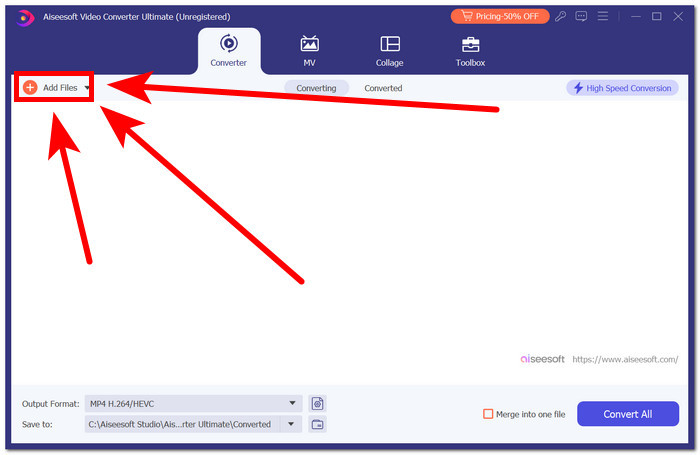
ステップ3. ぼやけた動画を再生するのに適した互換性のある形式を選択します。
ステップ4. 変換をクリックして、選択した互換性のある動画形式への変換処理を開始します。処理が終わったら、動画を再生してみてください。問題なく再生できれば成功です。
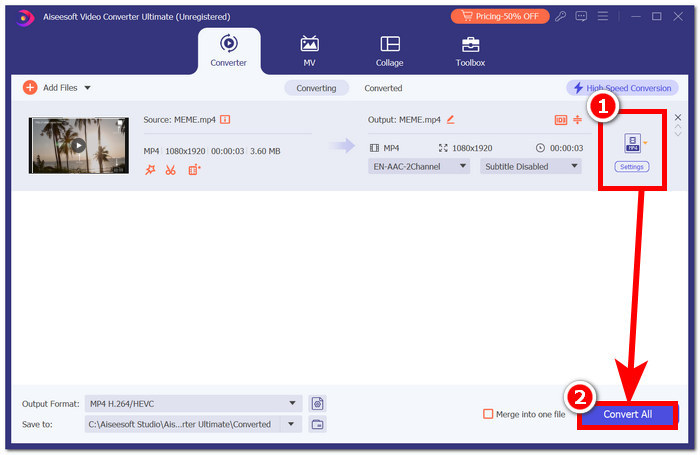
FVC Video Converter Ultimate を使用すると、ぼやけたビデオを修正して変換する体験が簡単に行え、息をするほど簡単になりました。サブスクリプション プランに登録して、ソフトウェアの機能を最大限に活用してください。これにより、あらゆる種類のビデオをより詳細に制御し、強化できるようになります。今すぐ FVC Video Converter Ultimate を使用して時間を節約しましょう!
パート 3. iPhone のビデオが Android で見にくくなるに関する FAQ
iPhone から Android に品質を落とさないようにするにはどうすればよいですか?
iPhone から Android にビデオを転送する際の品質の低下を防ぐには、FVC Video Converter Ultimate のような信頼性の高いビデオコンバータを使用することが重要です。このツールを使用すると、ビデオ品質を最適化して向上させることができ、視覚的な忠実度を損なうことなくデバイス間のシームレスな移行を保証します。
Android でビデオの品質を向上させることはできますか?
はい、ビデオ強化ツールやアプリを使用することで、Android でのビデオ品質を向上させることができます。たとえば、FVC Video Converter Ultimate は、解像度調整やビットレート変更などのカスタマイズ オプションを提供し、ユーザーが Android デバイスでの視聴エクスペリエンスを向上できるようにします。
どのビデオ形式が携帯電話に適していますか?
MP4 は、iPhone と Android デバイスの両方で広くサポートされている、携帯電話に適したビデオ形式です。この形式を選択すると、互換性が確保され、クロスプラットフォームのビデオ転送中の品質低下のリスクが軽減されます。
iPhone のビデオ品質が Android ではなぜ悪いのでしょうか?
iPhone と Android デバイス間のビデオ品質の差は、ビデオ コーデックと圧縮アルゴリズムの違いから生じることがあります。FVC Video Converter Ultimate のような多機能ビデオ コンバーターを使用すると、これらの互換性の問題を解決し、プラットフォーム間で一貫した高品質の視聴体験を確保できます。
Android でビデオがぼやけて見えるのはなぜですか?
Android では、コーデックの不一致、解像度の違い、圧縮の不一致により、ビデオがぼやけて見える場合があります。ビデオを携帯電話に適した形式に変換し、FVC Video Converter Ultimate などのツールで設定を最適化することで、これらの問題を軽減し、Android デバイスでより鮮明なビジュアルを楽しむことができます。
結論
まとめると、Androidでぼやけて再生されるiPhone動画の問題は、設定の見直し、適切なアプリの使用、ネットワーク環境の最適化で解消できます。ここで紹介した手順を試せば、Android端末でもクリアな映像を楽しめるようになり、ストレスのない快適な視聴体験が得られるでしょう。
-
 ピクセル化されたビデオを修正する方法: 原因と修正方法
 ピクセル化によってビデオが台無しにならないようにしてください。当社の専門的な戦略を使用してビデオのピクセル化を軽減する方法をご覧ください。ビデオをピクセル完璧な品質に高めます。
-
 ぼやけたビデオを修正する方法: 非常にクリアなビデオが待っています
 ぼやけたビデオを鮮明にするにはどうすればよいですか?ぼやけたビデオがコンテンツを鈍くさせないでください。プロのような映像を実現するための鮮明な表示のためのソリューションを見つけてください。
-
 5 100%iPadで再生されないビデオを修正するための実用的なソリューション
 あなたのビデオはiPadで再生されていませんか?この問題を解決するのに役立つ5つの解決策を次に示します。そうすれば、お気に入りのビデオを携帯電話で簡単に楽しむことができます。
