


 ビデオコンバーター究極
 スクリーンレコーダー
 ビデオ修復
ビデオ修復
 安全なダウンロード
ビデオを再生できません エラー 150? 3 つの簡単な解決策
動画を見ている途中で、突然「動画を再生できません エラー150」というメッセージが出て中断されたことはありませんか? まるでお気に入りのドラマが一番いいところで終わってしまったり、誰かに急にチャンネルを変えられたりするようなものです。イライラしますよね。
心配する必要はありません。問題なくビデオ視聴体験に戻るための簡単な解決策があるからです。それでは、ポップコーンを手に取り、ビデオを再生できないエラー 150 を修正するためのこのステップバイステップのガイドを見てみましょう。

パート 1. オフライン再生時のビデオエラー 150 を修正する最も簡単な解決策
動画エラー150が発生する理由はいくつかあります。動画ファイル自体が破損している場合や、動画の形式が非対応・未サポートである場合などです。特にオフライン動画を楽しもうとしているときにこれが起こると、気分が台無しになります。ただし朗報として、オフライン再生中の動画エラー150を素早く効果的に解消する方法があります。Aiseesoft Video Repairというソフトウェアツールを使えば、再生できない動画を簡単に修復できます。このツールは操作画面が分かりやすく、直感的に操作できるユーザーフレンドリーな設計になっています。
手順1. Aiseesoft Video Repair をパソコンにダウンロードしてインストールします。
無料ダウンロードWindows 7 以降対応安全なダウンロード
無料ダウンロードMacOS 10.7 以降対応安全なダウンロード
手順2. 次に、プログラムを起動します。赤いプラスボタンをクリックしてエラー150が出る動画を追加し、青いプラスボタンをクリックしてサンプル動画を読み込みます。
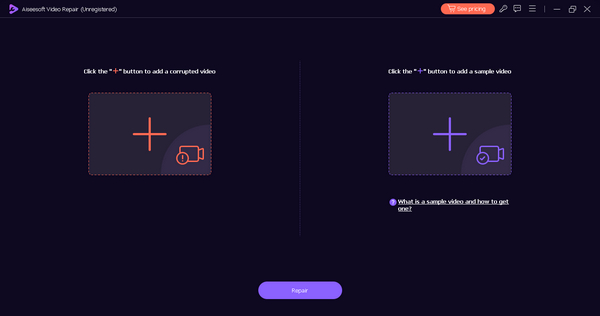
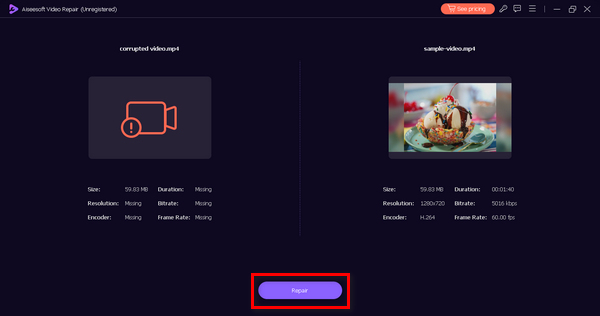
手順3. 修復ボタンをクリックして、修復プロセスを開始します。
手順4. 最後に、修復が完了したらプレビューボタンをクリックして、修復された動画を再生し、スムーズに再生できるか確認します。問題なければ、そのままファイルを保存できます。
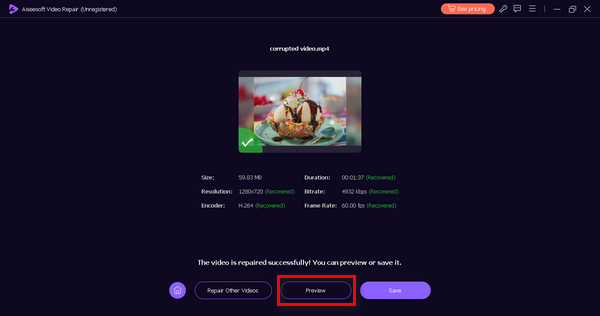
Aiseesoft ビデオ修復を使用すると、オフラインで再生するときにビデオ エラー 150 を迅速かつ効果的に修正できます。煩わしい中断に別れを告げて、オフライン ビデオ コンテンツを問題なくお楽しみください。
パート 2. Google スライドでビデオを再生できないエラー コード 150 を修正する 2 つの方法
Google スライドでビデオを再生できないエラー コード 150 は、インターネット接続が遅いことが原因である可能性がありますが、ほとんどの場合、ビデオに問題があります。この問題は、ビデオ ファイルの破損、ダウンロード プロセス中のデータの不完全、またはビデオ形式がサポートされていないことが原因である可能性があります。そこで、Google スライドでビデオを再生できないエラー コード 150 を修正する方法を紹介します。
方法 1: インターネット速度を確認する
Google スライドでビデオを再生できない場合は、まずインターネット接続を確認することが重要です。ビデオ エラー 5 は、インターネット接続が不安定なためによく発生します。これを行うには、以下の手順に従います。
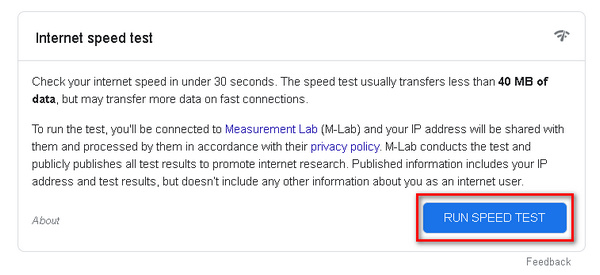
手順1. Speedtest.netを使ってインターネット接続をチェックします。ブラウザでオンラインツールを開きます。
手順2. サイト上のRun Speed testをクリックします。しばらくすると結果が表示されます。
手順3. 数分後、インターネットの速度が表示されます。これが原因で、Google スライド上の動画が再生されない可能性があります。
インターネットが安定していて速度が速いにもかかわらず、スライドに添付したビデオ ファイルがまだ再生できず、ビデオを再生できないエラーが表示される場合、問題はインターネットではなくビデオ自体にあります。この記事のパート 1 の手順に従って、Aiseesoft Video Repair などのビデオ修復ソフトウェアを使用してビデオを修復できます。その後、再生可能なビデオを確認し、Google スライドに貼り付けて、再生されるかどうかを確認します。
方法 2: ビデオ形式を変換する
Google スライドで、動画の形式がサポートされていないために再生できない場合は、Aiseesoft Video Converter Ultimateを使って、その再生できない動画を AVI、MP4、WMV、3GP、WebM など、Google スライドに対応した形式に変換できます。このツールは便利で操作も簡単です。次の手順で、「動画を再生できません エラー5」もあわせて解消するのに役立ちます。
手順1. まず、Free Downloadをクリックしてソフトウェアを入手します。
無料ダウンロードWindows 7 以降対応安全なダウンロード
無料ダウンロードmacOS 10.7 以降対応安全なダウンロード
手順2. ダウンロードが完了したら、Add Fileボタンをクリックし、変換したい動画ファイルを選択します。
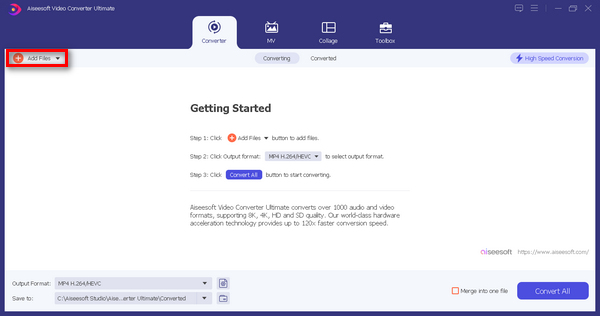
手順3. 動画ファイルの形式を変更するには、下部にあるOutput Formatのドロップダウンリストをクリックします。
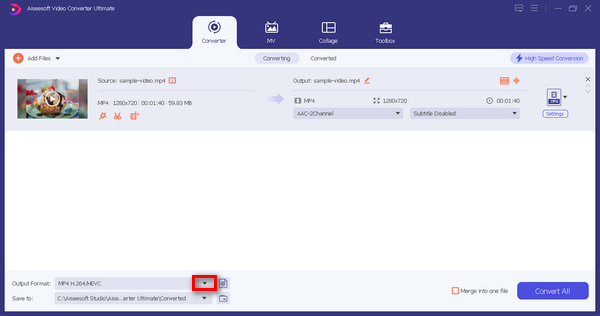
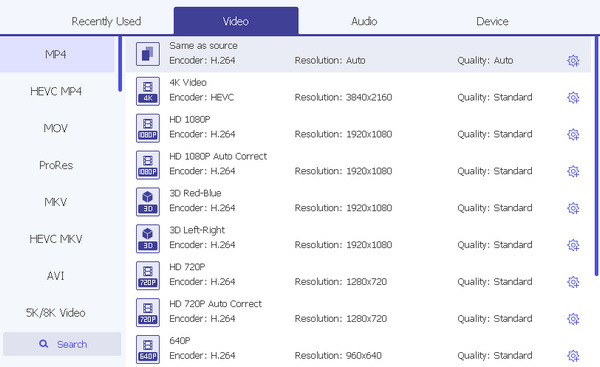
手順4. その後、動画ファイルの出力形式を選択します。選べる形式は豊富に用意されています。
手順5. 最後に、Convert Allボタンをクリックしてファイルを変換します。変換が完了すると、動画ファイルは自動的にフォルダに保存されます。
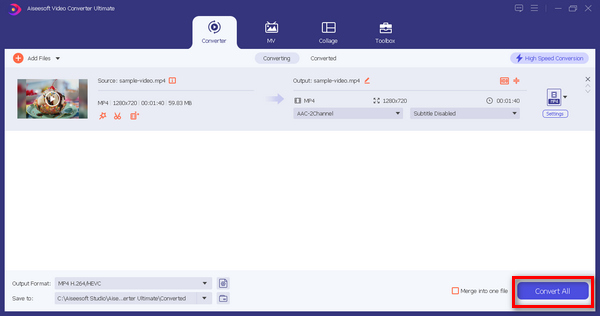
以前は再生できなかった、サポートされていないファイル形式のビデオを再生して、Google スライドに配置できるようになりました。このツールは強力であるだけでなく、ユーザーフレンドリーでもあるため、あらゆるレベルのユーザーが利用できます。さあ、これを使い始めて、フォーマット関連の煩わしさを感じることなくビデオを楽しんでください。
パート 3. ビデオを再生できないエラー 150 に関するよくある質問
インターネット接続は Google スライドに埋め込まれたビデオに影響しますか?
はい、インターネット接続は Google スライドに埋め込まれた動画の再生に影響します。接続が遅かったり不安定だったりすると、読み込みが遅くなったり、動画がフリーズしたり、まったく再生されなかったりといったバッファリングの問題が起こります。これを防ぐには、埋め込み動画を含む Google スライドを表示・プレゼンする際に、安定して高速なインターネット接続を確保してください。
Google プレゼンテーションでエラー 150 が表示されるのはなぜですか?
Google スライドでビデオを再生できないエラー 150 は通常、プレゼンテーションでのビデオの再生に問題があることを示します。この問題は、インターネット接続が不安定である、ビデオ ファイルが破損している、ビデオ ファイル形式に互換性がないなど、さまざまな理由で発生する可能性があります。
YouTube のビデオ エラー 150 の主な原因は著作権ですか?
いいえ、著作権の問題は YouTube のビデオ エラー 150 の主な原因ではありません。前述したように、エラー 150 は通常、ビデオの互換性、接続の問題、またはデータ損失に関連しています。著作権の問題により、著作権侵害の申し立てや削除通知など、別のエラー メッセージが表示される場合があります。これらの問題は、ビデオの再生可能性よりも、ビデオ内の著作権で保護されたコンテンツの違反に関連しています。
Google スライドでのビデオ再生の問題を防ぐにはどうすればよいですか?
Google スライドでのビデオ再生の問題を防ぐには、埋め込むビデオがアクセス可能であり、ホスティング プラットフォームで非公開に設定されていないことを確認してください。ビデオ添付ファイルを含むスライドをプレゼンテーションまたは表示する場合は、安定したインターネット接続が必要です。最後に、互換性を最大限に高めるために、サポートされているビデオ形式とコーデックを使用してください。
ビデオ再生の問題に関連する他のエラー コードはありますか?
はい、エラー 404、503、504 など、ビデオ再生の問題に関連するさまざまなエラー コードがあります。各エラー コードは異なる問題を示しているため、個別にトラブルシューティングすることが重要です。
結論
こうした中断に苦しむ必要はありません。適切なソフトウェアとノウハウがあれば、シームレスなビデオ視聴エクスペリエンスを取り戻し、Google スライドの埋め込みビデオを使用してプレゼンテーションを自信を持って行うことができます。これにより、ビデオを再生できないエラー 150 が再び発生した場合でも、問題なくコンテンツを楽しむためにすぐに使える解決策があることを覚えておいてください。
-
 無料ビデオ修復トップ 7: 破損したビデオを復元します
 壊れたビデオファイルを修復するための最高の7つの無料ビデオ修復をオンラインで見つけてください。これらの最高評価のビデオ修復ツールを使用して、貴重な思い出を甦らせましょう。
-
 ビデオが再生されません。修正するにはどうすればよいですか?
 動画が再生されずに困っていて、それを修正する方法がわかりませんか?あなたは問題を解決する正しい方向に進んでいます。知っておくべきことはすべてここにあります。
-
 [詳細ガイド]コンピュータで再生されないGoogleドライブビデオを修正する方法
 Googleドライブの動画は、「この動画の再生に問題がありました」というエラーで再生されません。これは、Googleドライブ自体またはクロムの問題が原因である可能性があります。この記事では、6つのソリューションを詳しく紹介します。
