


 ビデオコンバーター究極
 スクリーンレコーダー
 ビデオ修復
ビデオ修復
 安全なダウンロード
VLCプレーヤーでDVDから音声を抽出する方法ガイド
VLC Playerは、無料でありながら想像以上の多機能を備えたツールです。まず第一に、その名にふさわしい優れた動画プレーヤーであり、豊富な個別設定項目を提供します。さらに、動画形式の変換や簡単な動画編集も行えます。加えて、VLC PlayerはDVDのリッピングにも対応しており、動画と音声を分離して保存できることに驚くかもしれません。光学ドライブさえあれば、VLC Playerでこれを行うことができます。この記事では、2つのパートに分けて、両方のデバイスでVLC Playerを使ってDVDから音声を抽出する方法を紹介します。もしVLC Playerの機能が物足りないと感じた場合は、あわせて紹介する代替ソフトの利用も検討してみてください。

パート1. VLCプレーヤーでDVDオーディオをリッピングする
DVDからオーディオをリッピングする前に、いくつか準備が必要です。まず、お使いのコンピューターに最新バージョンのVLCプレーヤーがインストールされていることを確認してください。そうでない場合、一部の機能が正しく動作しない可能性があります。次に、DVDを読み取れるDVDドライブを用意し、コンピューターに接続する必要があります。これにより、ディスク上の情報を読み取ることができます。準備が整ったら、以下の手順に進みます。
WindowsでVLCプレーヤーを使用する
Windowsパソコンをご利用の場合は、このセクションのステップバイステップの手順をお読みください。PCのVLCプレーヤーを使ってDVDからオーディオを抽出する方法は次のとおりです。
ステップ1: DVDを挿入します。お使いのパソコンにDVDドライブがある場合は、そのドライブにディスクを挿入してください。CDドライブではないことを必ず確認してください。CDドライブの場合、DVDを読み取ることができません。
コンピュータにドライブがない場合は、USB DVD ドライブを接続する必要があります。
ステップ2: パソコンでVLC Playerを起動します。メディアをクリックして、ドロップダウンメニューを開きます。
ステップ3: 表示されたオプションの中からディスクを開くを選択します。
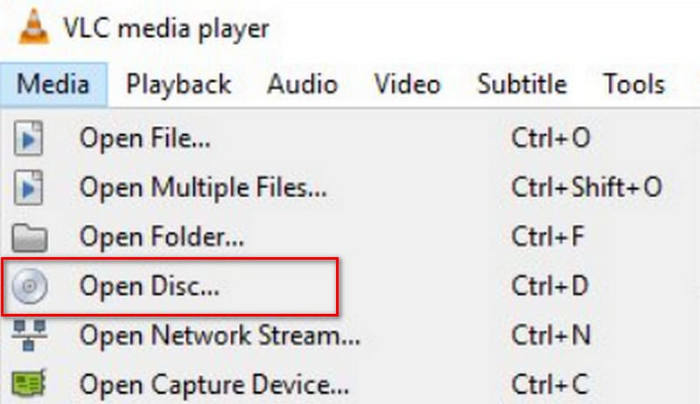
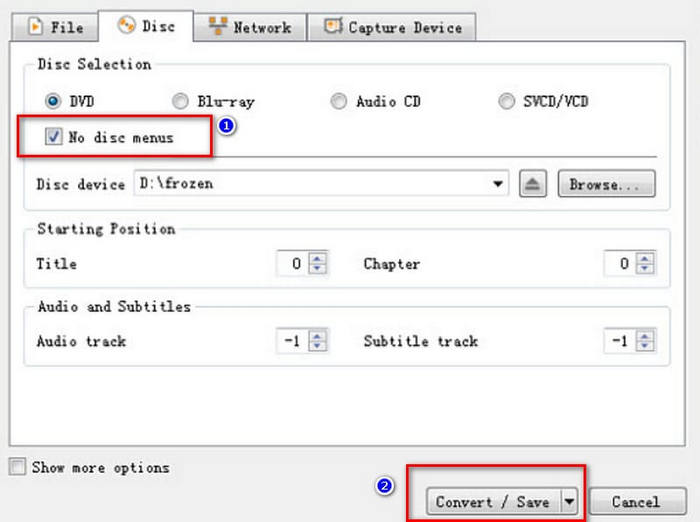
ステップ4: メディアを開くウィンドウが表示されます。ディスクメニューなしの項目を見つけてチェックを入れます。
ステップ5: 右下にある再生ボタンを探します。その横の変換/保存をクリックします。
ステップ6: 新しい変換画面が開きます。プロファイル横のボックスを展開し、Audio - MP3を選択します。
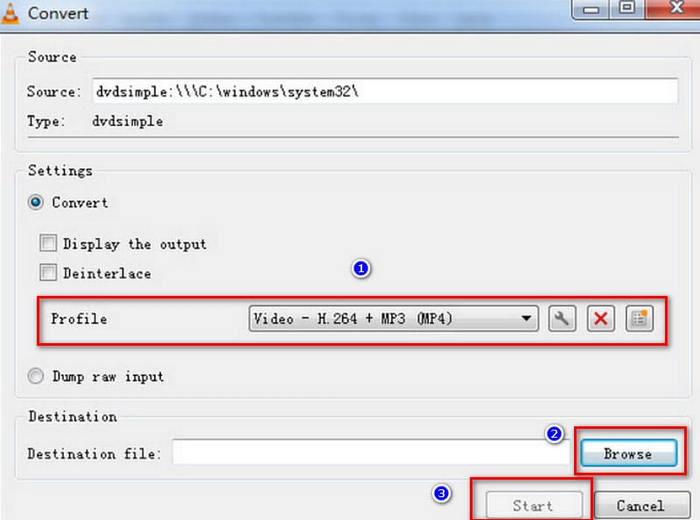
ステップ7: 抽出した音声の保存先を指定するために、参照をクリックし、ファイル名を入力して保存するフォルダを選びます。
ステップ8: 最後に、変換ウィンドウに戻って開始をクリックします。これでVLCによる音声リッピングが開始されます。
MacでVLCプレーヤーを使用する
Mac の VLC プレーヤーを使用して DVD からオーディオを削除する手順は次のとおりです。
ステップ1: まず、DVDをドライブに挿入する必要があります。Macに光学ドライブが搭載されている場合は、そのままディスクを挿入してください。内蔵ドライブがない場合は、外付けUSBドライブを使ってDVDを読み込みます。
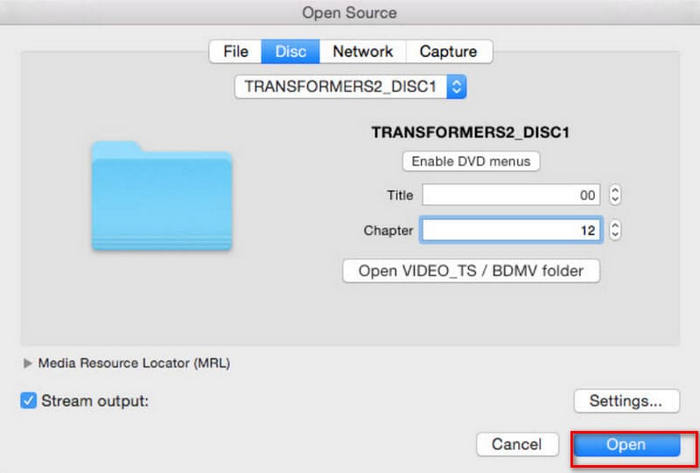
ステップ2: MacでVLC Playerを起動します。メイン画面でファイル > ファイルを開くを選択します。ソースを開くウィンドウが表示されたら、ディスクタブに移動し、挿入したDVDを選びます。
ステップ3: 次に、DVDメニューを無効にするを選択します。これを行わないと、VLC PlayerがDVDメニュー部分を読み込む際にループ状態になってしまう場合があります。また、正しいタイトルとチャプターを入力する必要があります。
ステップ4: ストリーム出力にチェックを入れ、続いて設定ボタンをクリックします。これにより出力設定画面が開きます。
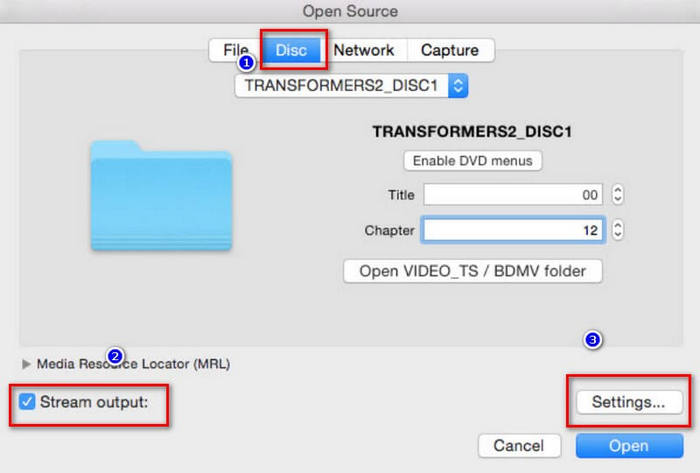
ステップ5: 出力設定ウィンドウで、ファイル > 参照をクリックし、抽出した音声を保存したいMac上のフォルダを指定します。
ステップ6: 続いて、カプセル化方式およびトランスコーディングタブに移動し、希望する形式を選択します。
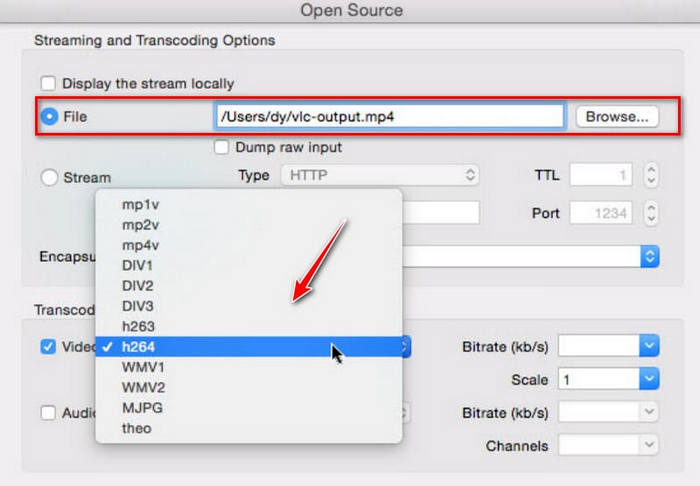
ステップ7: すべての設定が完了したら、開くをクリックして、VLC PlayerでDVDから音声のリッピングを開始します。処理の進行状況はプレーヤーの画面上で確認できます。
パート2. VLCプレーヤーの代替
これで、WindowsとMacコンピューターでVLCプレーヤーを使用してDVDから音楽をエクスポートする方法がわかりました。ただし、VLCプレーヤーはこれを行う唯一のツールではありません。無料ですが、機能は比較的基本的なものです。より包括的なサービスが必要で、エクスポートしたオーディオに専門的な処理を施したい場合は、AnyMP4 DVD Ripperなどの専門的なDVDリッピングツールの使用をお勧めします。自家製DVDをリッピングできるだけでなく、99タイトルの市販DVDを500以上のデジタル形式に変換できます。リッピング速度に関しては、ハードウェアアクセラレーション技術を搭載しており、高品質かつ効率的にファイルを作成できます。これを使用すると、ビデオ品質を損なうことなく、DVDを1:1の比率でバックアップできます。
無料ダウンロードWindows 7 以降対応安全なダウンロード
無料ダウンロードMacOS 10.7 以降対応安全なダウンロード
AnyMP4 DVD Ripper を使用して DVD オーディオを MP3 にリッピングするには、次の手順を実行します。
ステップ1: AnyMP4 DVD Ripperをパソコンにダウンロードしてインストールします。デスクトップから起動してください。DVDを読み取るための光学ドライブがあることを確認し、ディスクをそのドライブに挿入します。「DVDをロード」をクリックすると、プログラムがDVD内のコンテンツを読み込みます。
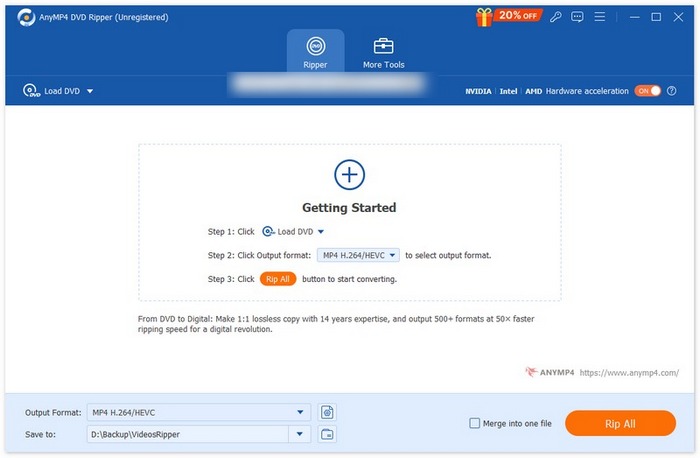
ステップ2: インターフェースに字幕、音声チャネル、再生時間、解像度などDVDの詳細情報が表示されます。必要に応じて編集することができます。その後、「出力形式」のドロップダウンから「音声」を選択し、希望する音声形式を指定します。

ステップ3: 「すべてリッピング」をクリックして、音声をデジタル形式で出力します。
パート3. VLC DVDオーディオ抽出に関するFAQ
CD を MP3 または WAV にリッピングする必要がありますか?
リッピングしたオーディオをどのように活用したいかによって異なります。一般的に、WAVは高音質で、MP3はファイルサイズが小さく、保存や配信が容易です。また、MP3はより柔軟性が高いため、上記の要素を考慮して選択してください。
FLACをWAVに変換しても問題ありませんか?
はい、WAVをFLAC、またはFLACをWAVに変換できます。どちらの形式もロスレスで高音質です。音質にはほとんど差はありませんが、FLACファイルはWAVファイルよりもファイルサイズが小さくなります。デバイスのストレージ容量を気にされる場合は、出力形式としてFLACを選択することをお勧めします。
WAV と MP3 の違いは聞き分けられますか?
WAV、FLAC、MP3形式の違いは、ほとんどのユーザーにとってはごくわずかです。これらの違いについて語るとき、WAVはより高音質を提供できる一方で、MP3はより効率的にファイルを圧縮できるとよく言われますが、実際の音楽再生においては、その差をほとんど感じない場合が多いでしょう。
結論
本記事では、VLC Playerを使ってDVDから音声を抽出する方法を解説しました。Windows PCとMacそれぞれでの手順を紹介しており、本文とあわせて掲載している画像を参照しながら進めることができます。書き出し前に音声をさらに細かく編集したい場合は、VLC Playerの最良の代替ソフトであるAnyMP4 DVD Ripperの使用をおすすめします。その強力な機能はきっと期待に応えてくれるはずです。
-
 WindowsとMacでVideo_TSをDVDに書き込む3つの方法
 TSファイルをお持ちで、DVDに保存したい場合は、このガイドをお読みください。WindowsまたはMacコンピューターでVideo_TSをDVDに書き込む方法を詳しく説明します。
-
 2025 Windows 10 向け無料 DVD プレーヤー 5 選のレビュー
 Windows 10に最適な無料のDVDプレーヤーは何ですか? Windows Media PlayerでDVDを再生するにはどうすればよいですか?この投稿には、Windows10用の5つの最高の無料DVDプレーヤーがリストされています。
-
 Mac用DVDプレーヤーソフトウェアの無料ダウンロード2025
 DVDドライブなしでMacでDVDを再生するにはどうすればよいですか? Macで外付けDVDプレーヤーを使用するにはどうすればよいですか?この投稿では、Mac用の5つの無料DVDプレーヤーを共有しています。
